

Available on: the Growth plan and above, for Global Admins, Workspace Admins and Contacts Managers. You also need a connected WhatsApp number. See Connect your WhatsApp number.
- A connected WhatsApp number for the workspace. If there is none, the page says No chats yet and shows Connect WhatsApp to admins. Everyone else reads Ask an admin to connect WhatsApp.
- A role that works with leads. The Conversations row is only in the sidebar for Global Admins, Workspace Admins and Contacts Managers.
Open Conversations
In the sidebar, click Conversations. A number at the end of the row counts the chats that need a reply (it stops at 99+). On a phone, tap the chat button in the top bar. A dot on it means a chat needs a reply. On a plan without WhatsApp, the page offers an upgrade instead. See Upgrade your plan.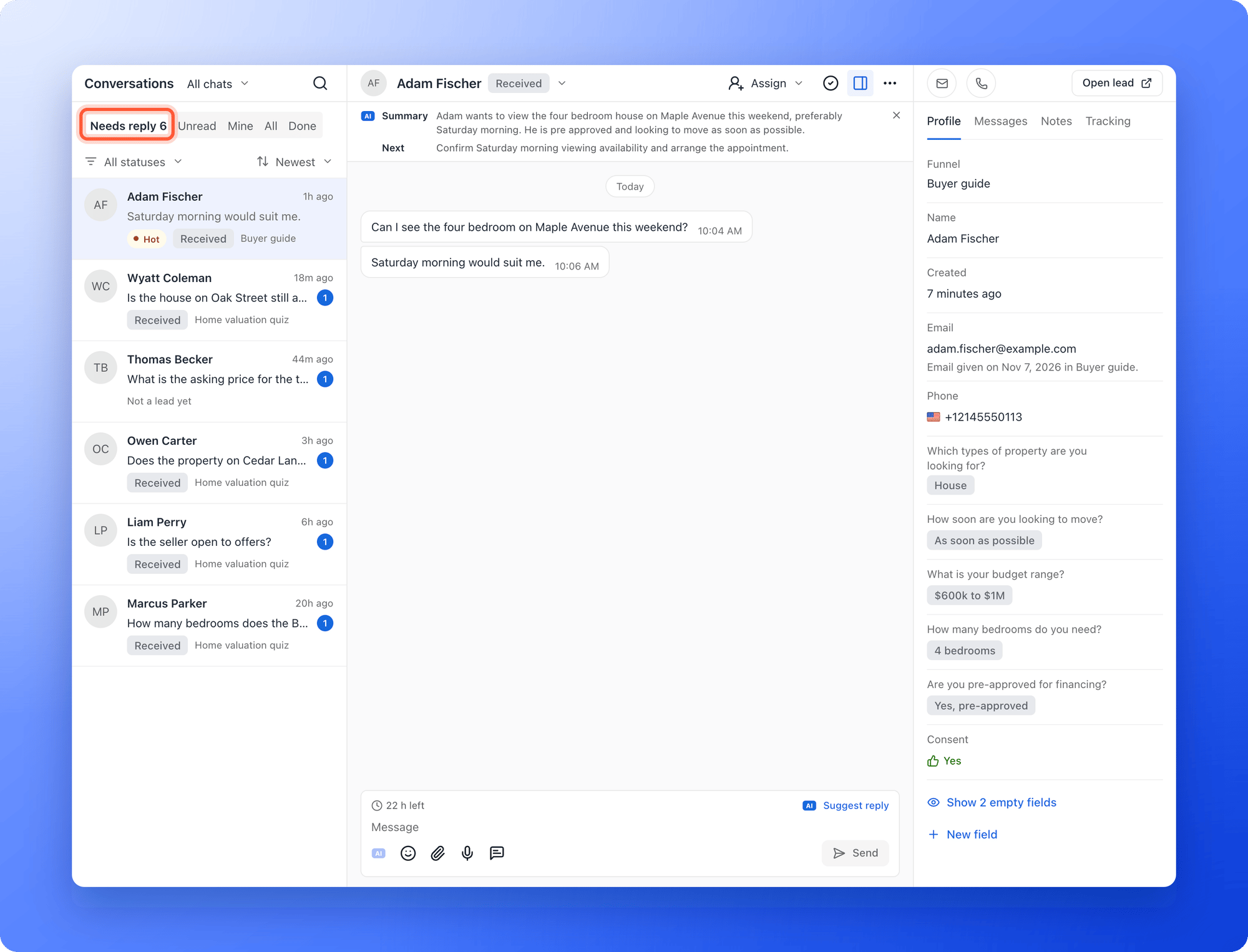
Find a chat
The list has a row for each chat, with the person’s name, the last message, how long ago it came and a blue count of unread messages.- Views: Needs reply (chats where the lead wrote last and nobody has answered yet, unless you marked them done), Unread, Mine (chats assigned to you) and All. The number next to Needs reply is the one on the sidebar row.
- Funnels: the picker next to the title says All funnels. Pick one funnel, or up to 10, to see only their chats.
- Lead status: All statuses narrows the list to chats whose lead has the status you pick, such as Contacted.
- Sort: in Needs reply, sort by Newest or Longest waiting.
- Search: click the magnifier and type. Search people and messages looks at names and at the words in messages. Chats of locked leads aren’t searched.
- Hot (amber): the person looks ready to buy, book or meet soon.
- Not a lead yet: the person wrote to your number but has not filled in a funnel.
- A crossed clock: the window is closed. Hover for Window closed. Send a template to restart. An amber clock says how long free replies stay open, for example Free replies close in 40 min.
- A check mark: the chat is marked done.
- Failed: your last message did not go out.
Read a chat
Click a chat to open it. The header has the person’s name and four controls: Assign, a check mark for Mark done, Lead details and More (the three dots).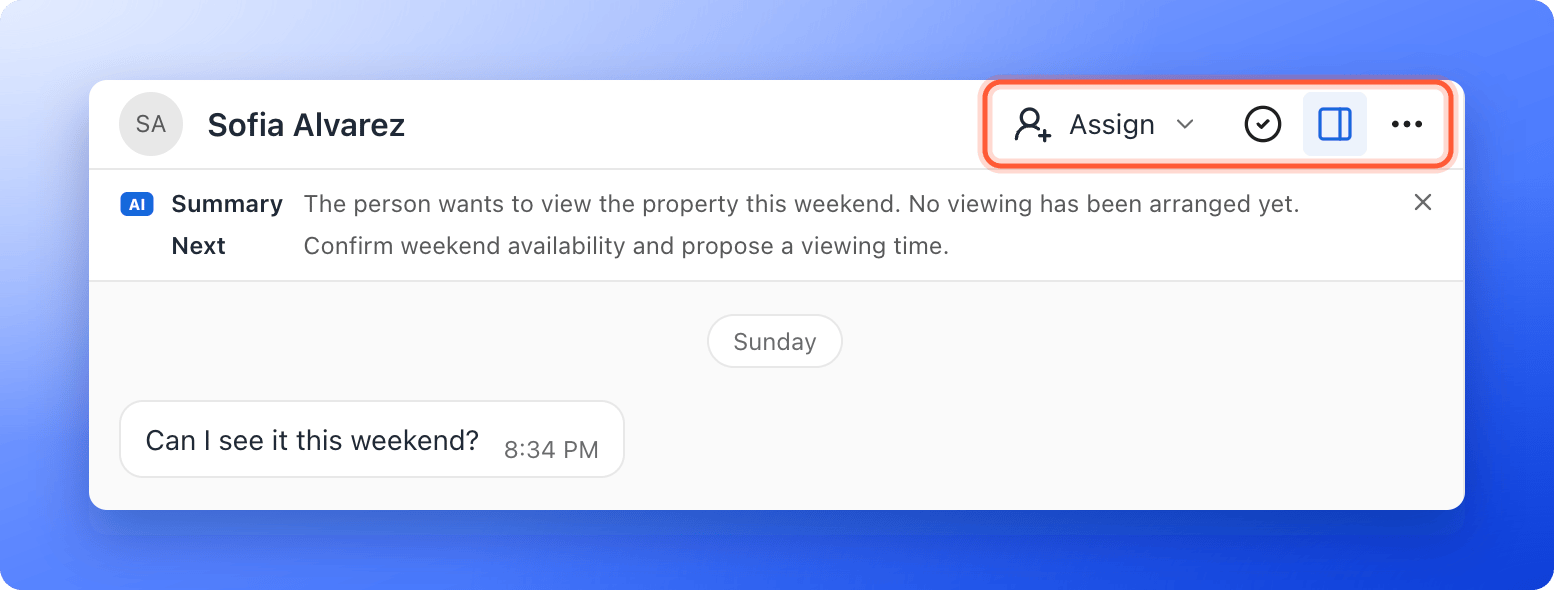
- Summary: a short note under the header, marked with the blue AI tile. Summary says what the person wants and Next says what to do next. Close it with the X, or hide and show it from More.
- Messages: photos, documents, locations and contacts show in the chat. Voice messages play in place. A file larger than 25 MB is not saved, and the chat says so.
- Who sent it: a small mark on your messages says Sent by the Welcome flow (or the flow’s name), Template message, or Sent from the WhatsApp app on the phone when you wrote it in the WhatsApp Business app. Messages you wrote in that app before you connected the number are under From your WhatsApp Business app.
- A flow about to message the lead: a line above the reply box names the flow and says when it messages them, for example Welcome flow messages them in 3 days, with View to open the lead’s messages.
Reply
WhatsApp lets you answer for free during 24 hours after the lead’s last message. The top of the reply box shows how long is left, for example 23 h left. It turns amber when less than 2 hours remain. In the reply box you can:- Type your message (up to 4,096 characters). On a computer, Enter sends. On a phone, Enter starts a new line and the Send button sends.
- Attach a file with the paperclip. Photos can be JPG or PNG up to 5 MB. Documents can be PDF, Word, Excel, PowerPoint or text up to 8 MB. Add a Caption if you like.
- Add an emoji (on a computer).
- Suggest reply, marked with the blue AI tile, writes a draft from the chat for you to edit. The button with the AI tile, Write with AI, rewrites what you typed once the box has words (until then it says Write something first): Change tone (Friendlier, More formal, More confident), Make shorter, Fix spelling and grammar or Translate into the lead’s language or English, Spanish, French, Portuguese, German, Arabic, Hindi or Urdu. Both are free and never send by themselves. Undo brings your words back.
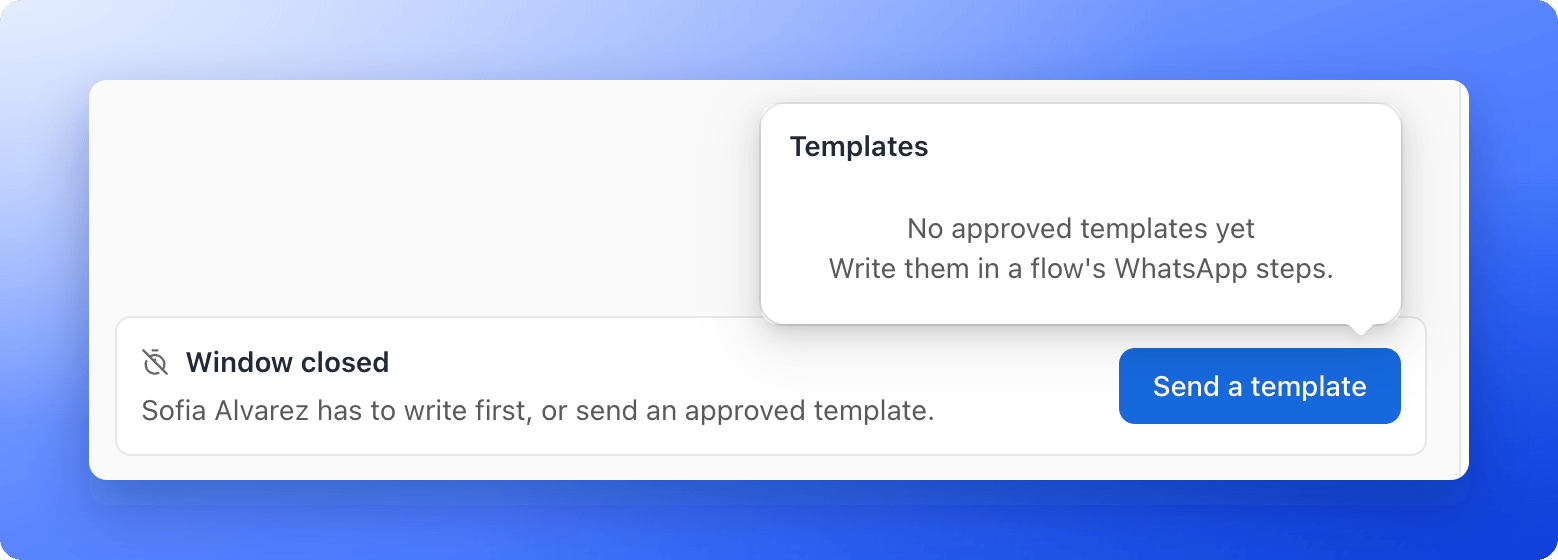
- Templates opens your approved templates, which you can send at any time.
When the window is closed
After 24 hours with no message from the lead, the reply box says Window closed and Sofia Alvarez has to write first, or send an approved template. Click Send a template to restart the chat.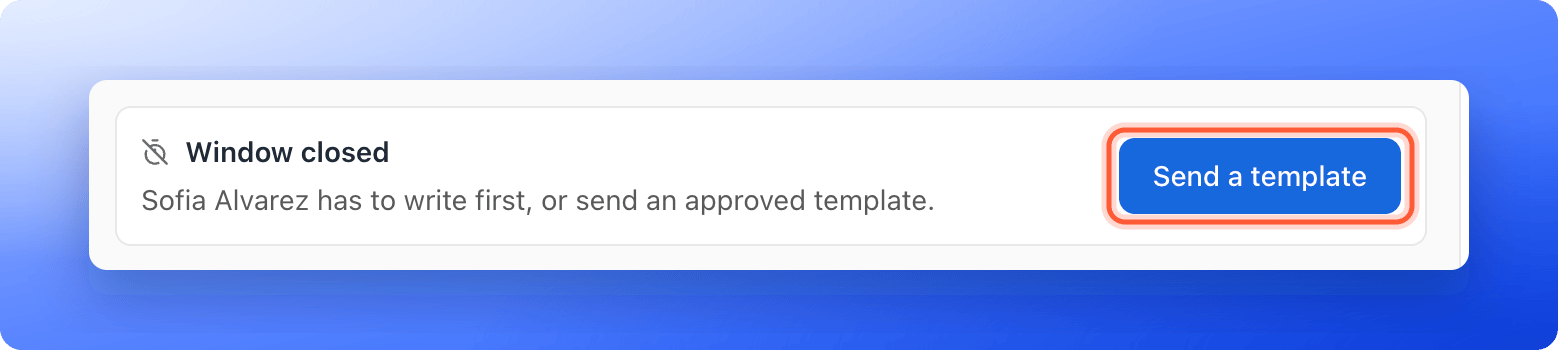
Start a chat with a lead
On a lead’s panel, click the WhatsApp chat icon next to the email and call icons. It opens that lead’s chat in Conversations. A lead who never wrote has no messages yet, and the reply box offers a template to send first. You can only do this for a lead who ticked WhatsApp updates in your form. Otherwise the box says This lead did not tick WhatsApp updates for this number. You can message them after they write to you. A person who asked to stop shows This contact asked to stop and You cannot message them on WhatsApp.Work together
- Assign a chat: click Assign and pick a teammate. Search with Search people. The teammate gets the chat’s notifications, and it shows under Mine for them. Choose Unassign to clear it.
- Mark a chat done: click the check mark. It leaves Needs reply. In Needs reply on a computer the button reads Mark done and open the next chat. Reopen brings it back, and a new message from the lead does too.
- Open the lead: Lead details shows the person next to the chat, with Open lead to see the whole record. Change the lead’s status from the chat header.
- Phone: press and hold a chat in the list to see its actions.
When the number needs attention
If Meta restricts the number or it must be connected again, a banner WhatsApp needs attention shows over the chats, with Open settings for admins. You can still read your chats. If you disconnect the number, the chats stay readable and say This chat is with a number that is no longer connected. It stays here as history.Troubleshooting
The page says No chats yet
The page says No chats yet
Chats start when a lead replies or writes to your number. If the workspace has no number yet, an admin has to connect one. See Connect your WhatsApp number.
I cannot type a reply and the box says Window closed
I cannot type a reply and the box says Window closed
The lead has not written for 24 hours. Send an approved template to restart the chat, or wait for the lead to write.
A message shows Failed
A message shows Failed
The chat says why, in plain words. Fix the cause, for example a number that is not on WhatsApp, and click Send again.
I see Couldn't load the chat
I see Couldn't load the chat
Click Try again, or reload the page. The chat list keeps working while a chat reloads.
What to do next
Send WhatsApp messages from a flow
Write the messages your leads get automatically.
Connect your WhatsApp number
Link your number through Meta.