

- Put your edits live. Click “Publish Funnel” and visitors see the new version within about a minute.
- Take a funnel offline. Stop visitors from opening it without losing your work.
- Throw away edits you do not want. Go back to what is live.
- Restore an earlier version. Every publish saves a backup, and you can publish any of the last 20 again.
- A role that can edit funnels: Global Admin, Workspace Admin or Content Editor.
- A verified email address. If yours is not verified, AskFunnel shows Verify your email before publishing this funnel.
- An active plan. During your free trial, publishing works as usual.
Important to note
What the status next to Publish Funnel tells you
In the builder, the status sits to the left of the “Publish Funnel” button. A green dot means the funnel is live.- Draft: you have never published this funnel.
- Edited 2h ago: you have changes that are not published yet. The time changes, for example Edited 5m ago.
- Live: the live version is the same as your draft.
- Offline: the funnel was published before, but it is taken offline now.
- Previewing: you are looking at an earlier version and cannot edit it.
Publish your changes
1
Check that you have something to publish
Open your funnel in the builder. If the status says Edited, you have unpublished changes. If the “Publish Funnel” button is grayed out, point at it to see why. See the troubleshooting section.
2
Click Publish Funnel
Click “Publish Funnel” at the top right. You see Your funnel is live. and the status changes to Live.You can also publish from your funnel list: click the three dots (…) on the funnel’s row, then click “Publish Funnel”.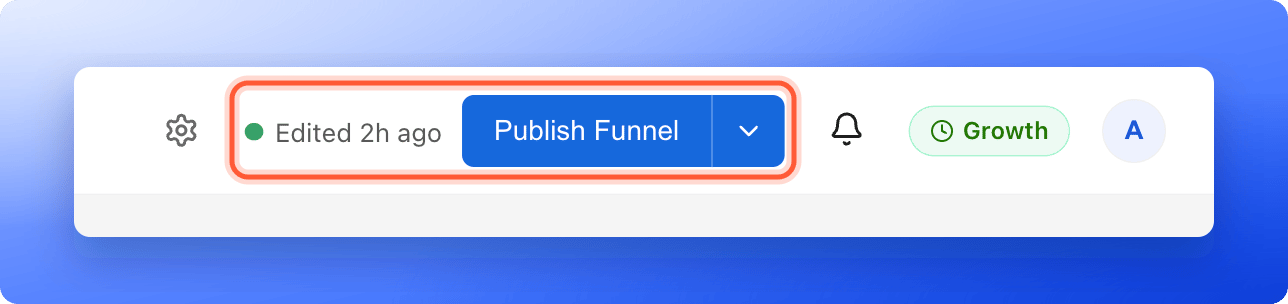
3
Check that it is live
Click the small arrow next to “Publish Funnel”, then click “View live”. Your live funnel opens in a new tab. This is exactly what your visitors see, so use it to test your change. For a full checklist, see Test your funnel before you send traffic. To get your link, see Find and share your funnel link.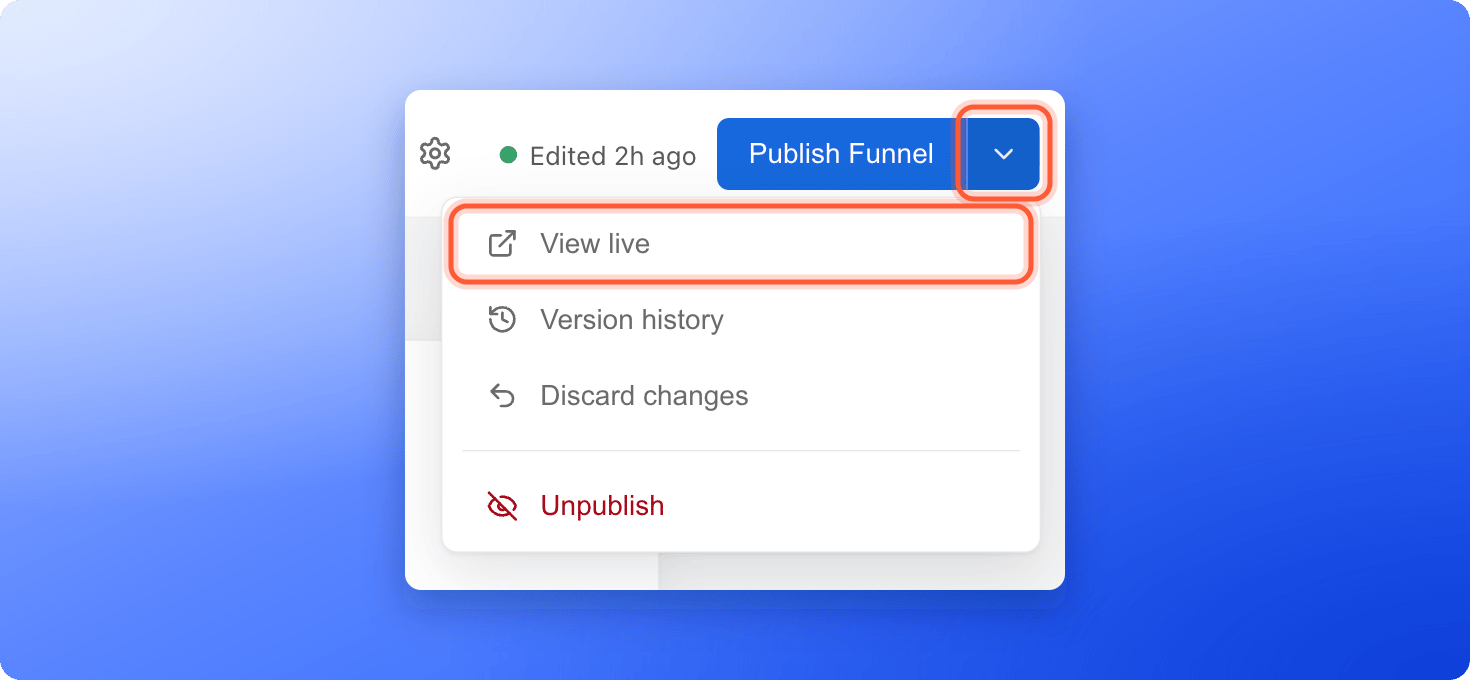
Take your funnel offline
Take a funnel offline when you want to stop collecting leads for a while, for example after a campaign ends.1
Open the Unpublish option
In the builder, click the small arrow next to “Publish Funnel”, then click “Unpublish”. Or click the three dots (…) on the funnel’s row in your funnel list, then click “Unpublish Funnel”.
2
Confirm
A window asks Take this funnel offline? and explains that visitors will not see it until you publish again. Click “Take offline”. You see Your funnel is now offline.
Discard changes you have not published
If you edited a live funnel and want to go back to what is live:- Click the small arrow next to “Publish Funnel”.
- Click “Discard changes”. This item only shows when you have unpublished edits.
- In the window Discard your edits?, click “Discard edits”.
Restore an earlier version
Every time you publish, AskFunnel saves a backup of that version. You can look at any backup and publish it again.1
Open Version history
Click the small arrow next to “Publish Funnel”, then click “Version history”. The window lists your backups, newest first. Each row shows when it was published, for example 3 hours ago, yesterday or Sep 26, 2026. It does not show a time of day. The one that is live now has a green Live tag.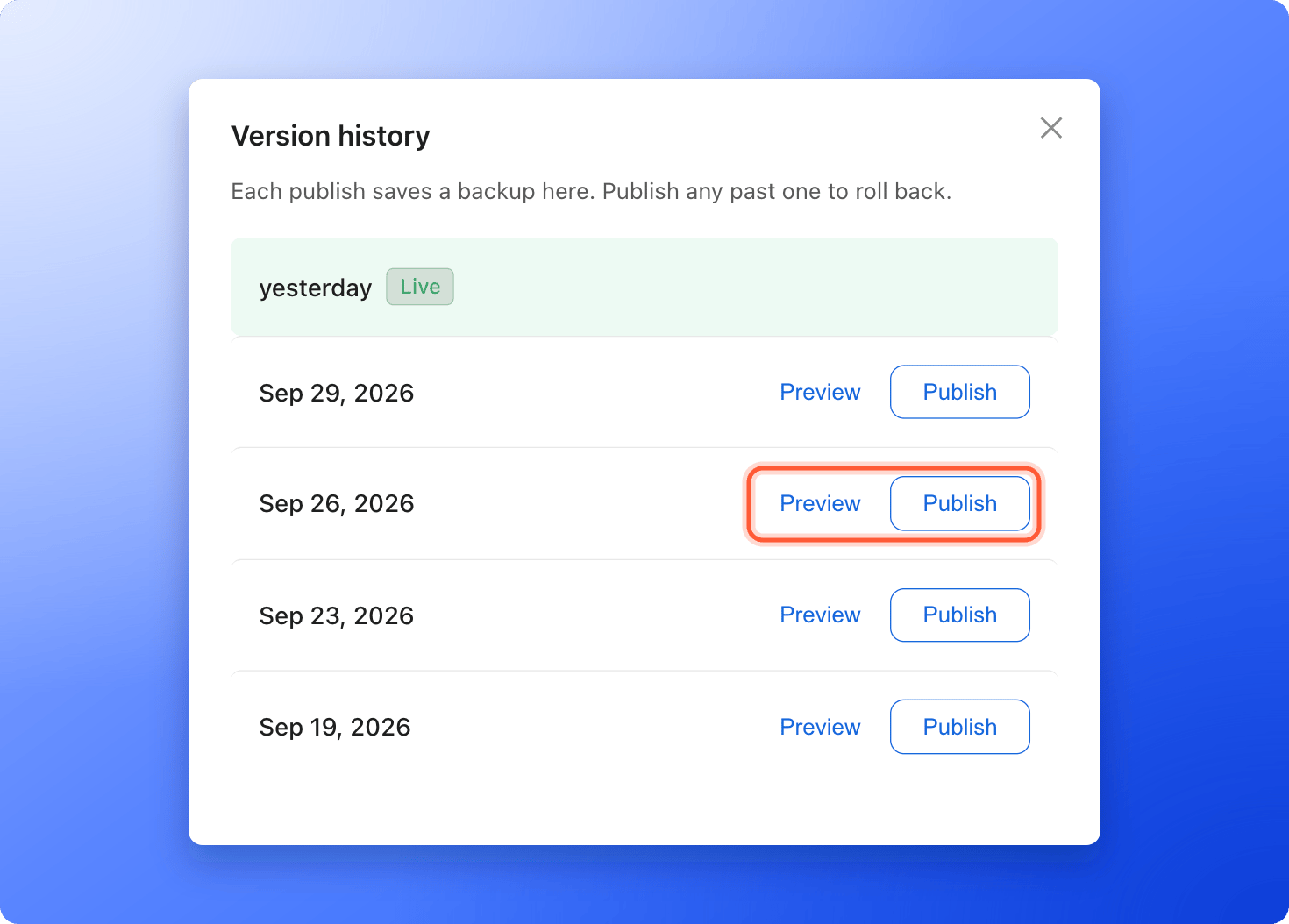
2
Preview the version (optional)
Click “Preview” next to a backup. The builder opens that version read-only. A bar at the top, starting with a small eye icon, says Viewing a backup from Sep 26, 2026 · read-only. The date is when that backup was published, and it can also read yesterday or 3 hours ago. You cannot change anything. Click “Exit preview” to go back to your draft.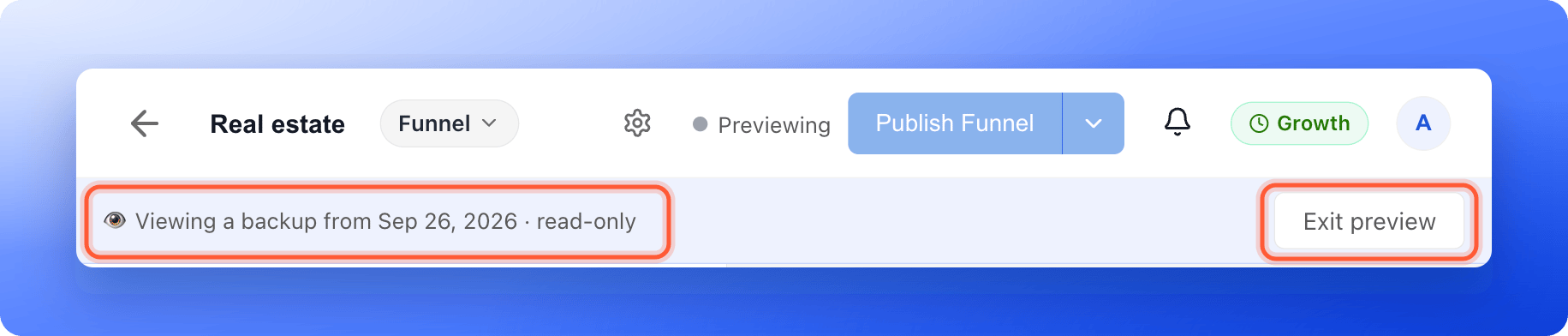
3
Publish the version
Click “Publish” next to the backup you want. If you have unpublished edits, a window asks Publish this backup? and warns that your edits will be discarded. Click “Publish” again. You see This backup is now live.The restored version becomes your newest backup and your new live version.
How do I know it is working?
- The status shows Live, and your funnel list shows Live with no orange dot.
- Open “View live” and you see the version you expect. If you still see the old one, wait a minute and refresh the page.
- After a restore, the builder shows the restored version.
Troubleshooting
My changes are not showing on my live funnel
My changes are not showing on my live funnel
Changes only go live when you publish. If the status says Edited, click “Publish Funnel”. Then wait about a minute and refresh the live page. A browser can also keep showing the old page for a moment, so try a private window.
I see Verify your email before publishing this funnel
I see Verify your email before publishing this funnel
Publishing needs a verified email address. Open the verification email we sent you and click its link, then publish again.
I see You've reached your plan limit
I see You've reached your plan limit
Your plan sets how many funnels can be live at once. Take another funnel offline, or click “Upgrade plan”. If you moved to a smaller plan and are over its limit, your live funnels keep running, but you cannot publish changes until you are under the limit. See Upgrade your plan.
I see Your trial has ended or Your subscription is inactive
I see Your trial has ended or Your subscription is inactive
Publishing needs an active plan. A Global Admin can subscribe or resubscribe. See Upgrade your plan.
My funnel went offline and I did not do it
My funnel went offline and I did not do it
When a free trial or a subscription ends, AskFunnel takes your live funnels offline after a grace period, and emails you before it does. When you subscribe again, the funnels we took offline are turned back on, oldest first, up to your plan’s live funnel limit. See Cancel or resume your plan.
The version I want is not in Version history
The version I want is not in Version history
AskFunnel keeps the 20 most recent backups of a funnel. Older ones are removed. If the window says there are no backups yet, publish your funnel to create the first one.
Can I change my funnel after it is live?
Can I change my funnel after it is live?
Yes. Edit it in the builder, then click “Publish Funnel”. Leads you already collected are kept, and your link does not change.
What to do next
Find and share your funnel link
Copy your link and use it in ads, messages and social posts.
Connect your custom domain
Put your funnel on your own web address.
Manage your funnel pages
Add, reorder and delete the pages and results of your funnel.
Check your plan and usage
See how many live funnels your plan includes.