

- A role that can change fields: Global Admin, Workspace Admin or Contacts Manager. Content Editors do not have access to lead data.
- A funnel with its Leads tab open. See View and manage your leads.
Important to note
Create a field
1
Start a new field
- Open your funnel’s Leads tab.
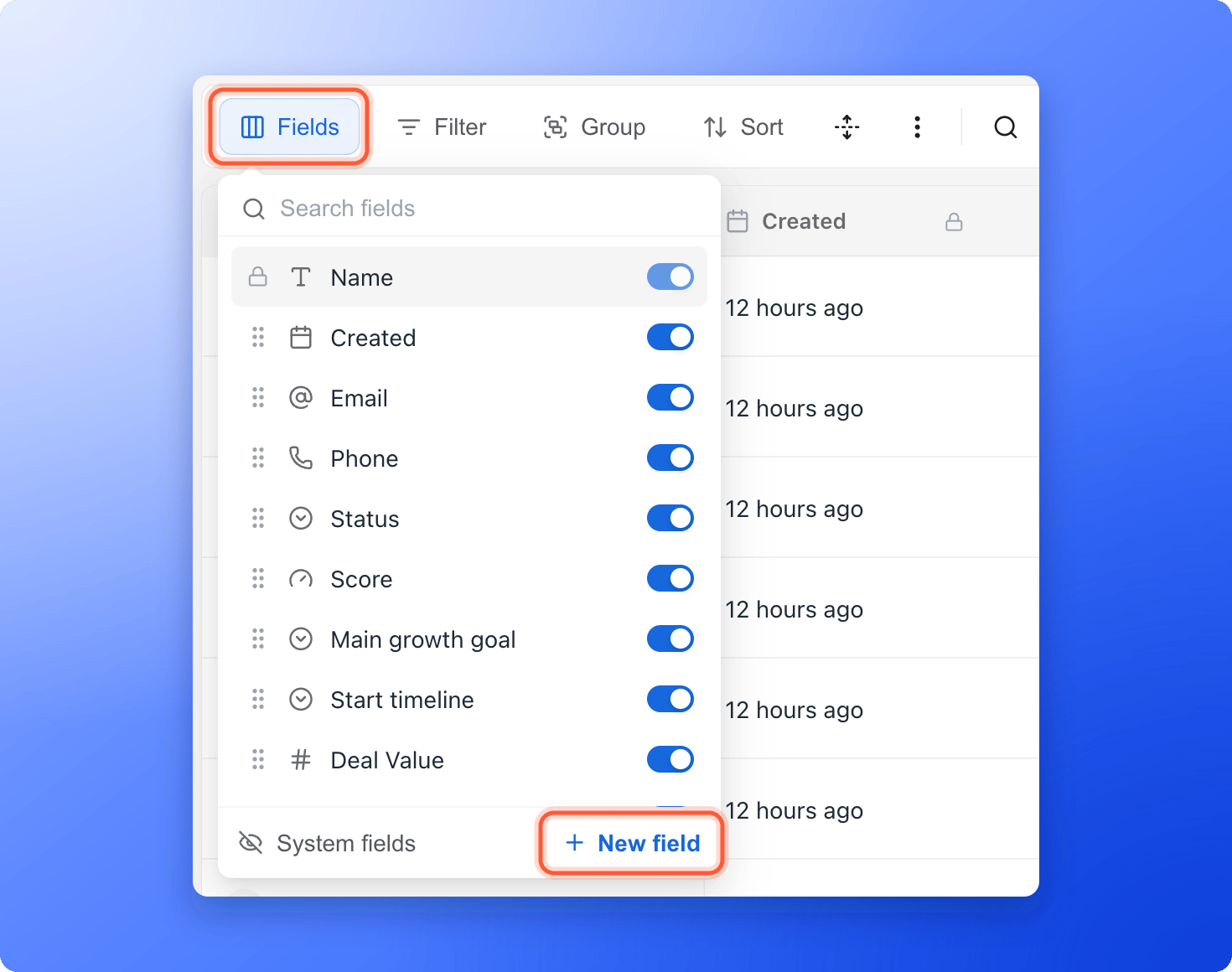
- Click Fields in the toolbar.
- Click “New field” at the bottom right of the panel.
2
Name the field and choose its type
- Type a Field name, for example “2nd phone number”. A name is required.
- Open the type list and choose what the field will hold. See Field types below.
- Optionally click Add description to explain what the field is for.
3
Create the field
Click “Create field”. The new column is added to your table. Scroll to the right to find it, or look for it in the Fields panel.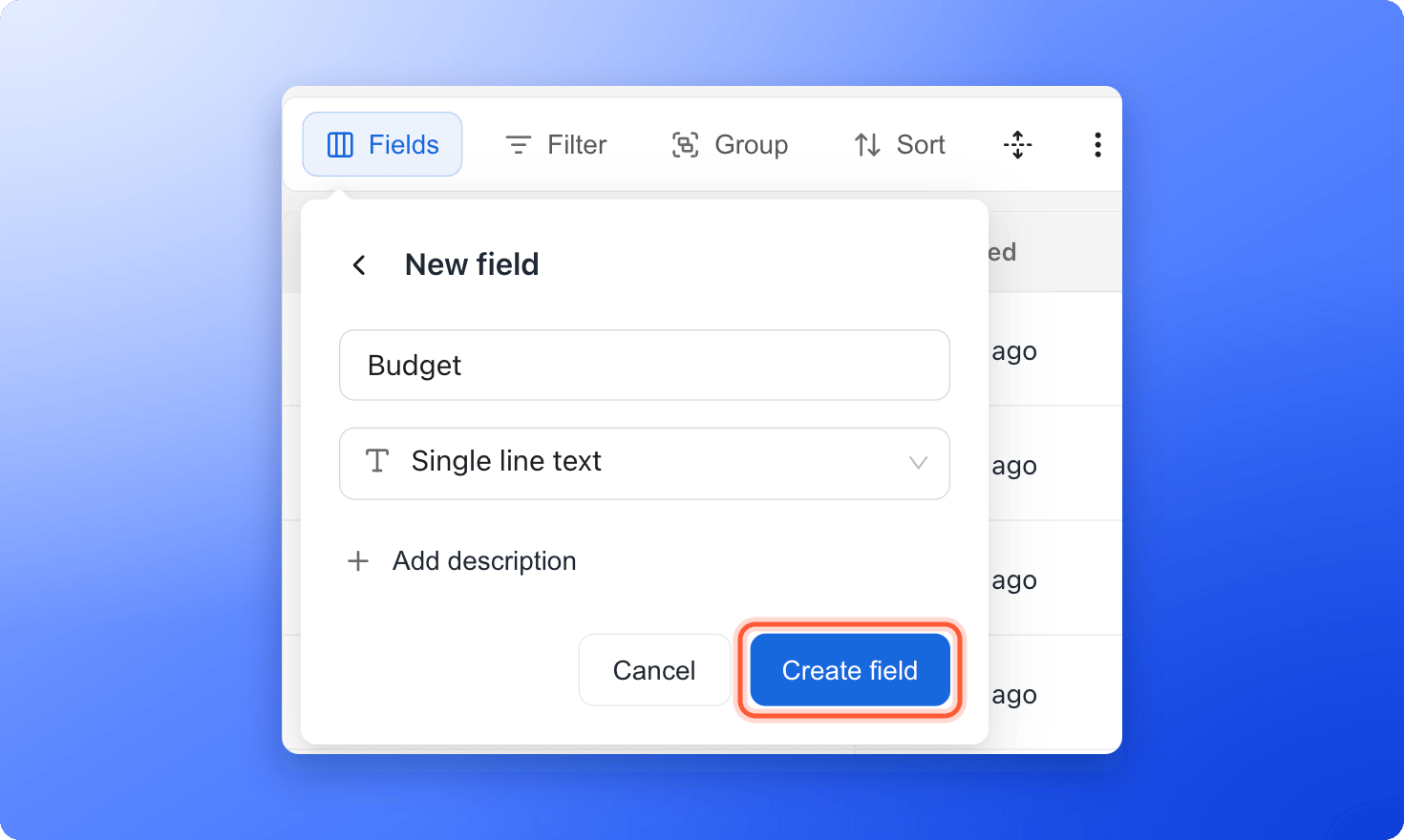
4
Fill in the values
Click a cell in the new column, type the value and press Enter or click away to save. For select fields, pick from the list. You can add a new option from the list with New option.
Field types
- Single line text: short answers and quick notes.
- Long text: longer notes. Turn on Enable rich text if you want bold, lists and links.
- Number: numeric values such as quantities or budgets.
- Decimal: exact amounts such as prices.
- Single select: a list where you pick one option. Click Edit options, add your options, optionally pick a color for each and click Save.
- Multi select: a list where you can pick several options.
- Date
- Checkbox
- Phone
- URL
- Assignee: pick one or more teammates.
Edit or delete a field
Hover over the column header, click the small arrow and choose Edit field or Delete field. When you edit a field, click Save changes to keep your edits. Only fields you created can be edited or deleted. Fields that come from your funnel’s questions and form fields change when you edit the funnel, and Deal Value can only be hidden.Troubleshooting
I do not see New field or Edit field
I do not see New field or Edit field
Only Global Admins, Workspace Admins and Contacts Managers can change fields, because Content Editors do not have access to lead data.
What to do next
Show, hide and reorder lead fields
Choose which columns you see.
Export your leads
Download your leads, including your custom fields.