

- A role that can see leads: Global Admin, Workspace Admin or Contacts Manager. Content Editors design funnels but do not have access to lead data, analytics or the activity log.
Important to note
Open your leads
1
Click the funnel
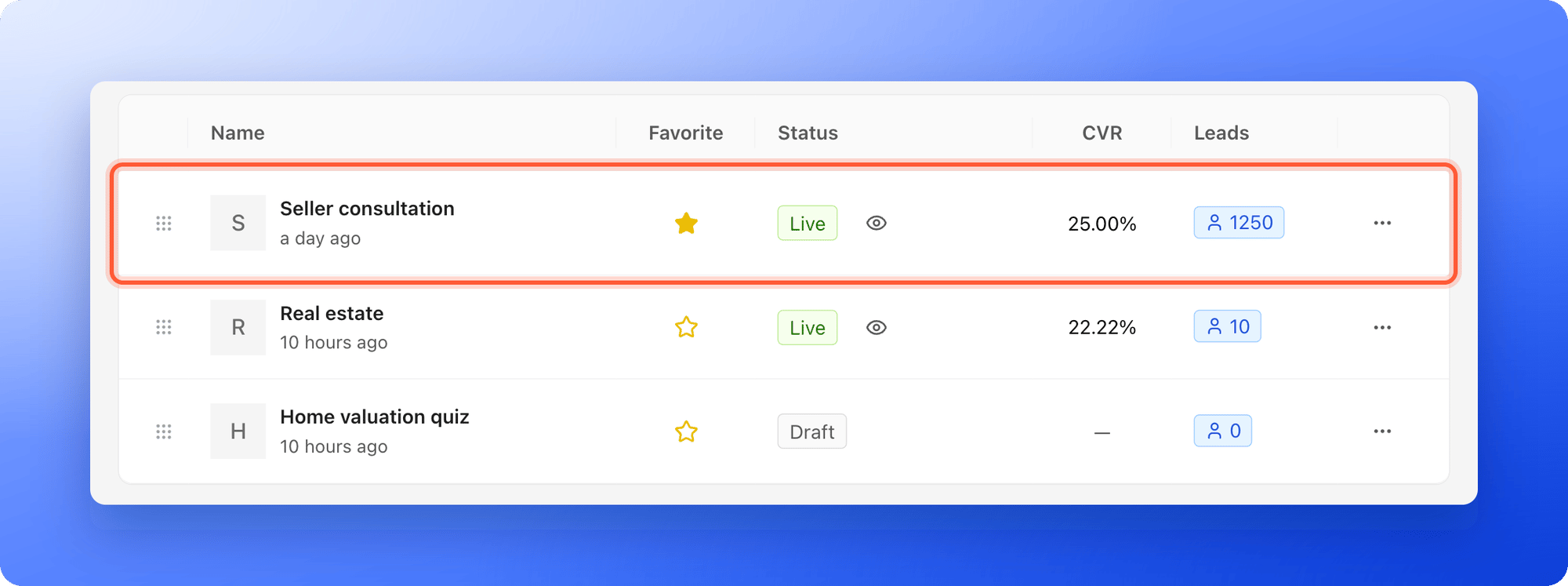
- Go to your Funnels page. Each row shows the funnel’s CVR (conversion rate, the share of people who become leads) and its number of Leads.
- Click anywhere on the funnel’s row. Its Leads tab opens.
2
Find your way around
The tabs at the top of the page are Leads, Analytics and Activity. Above the table, the toolbar has Fields, Filter, Group and Sort, then a row height control, the View options menu (three vertical dots) and a search icon. Total Leads on the right shows how many leads you have and lets you filter by status.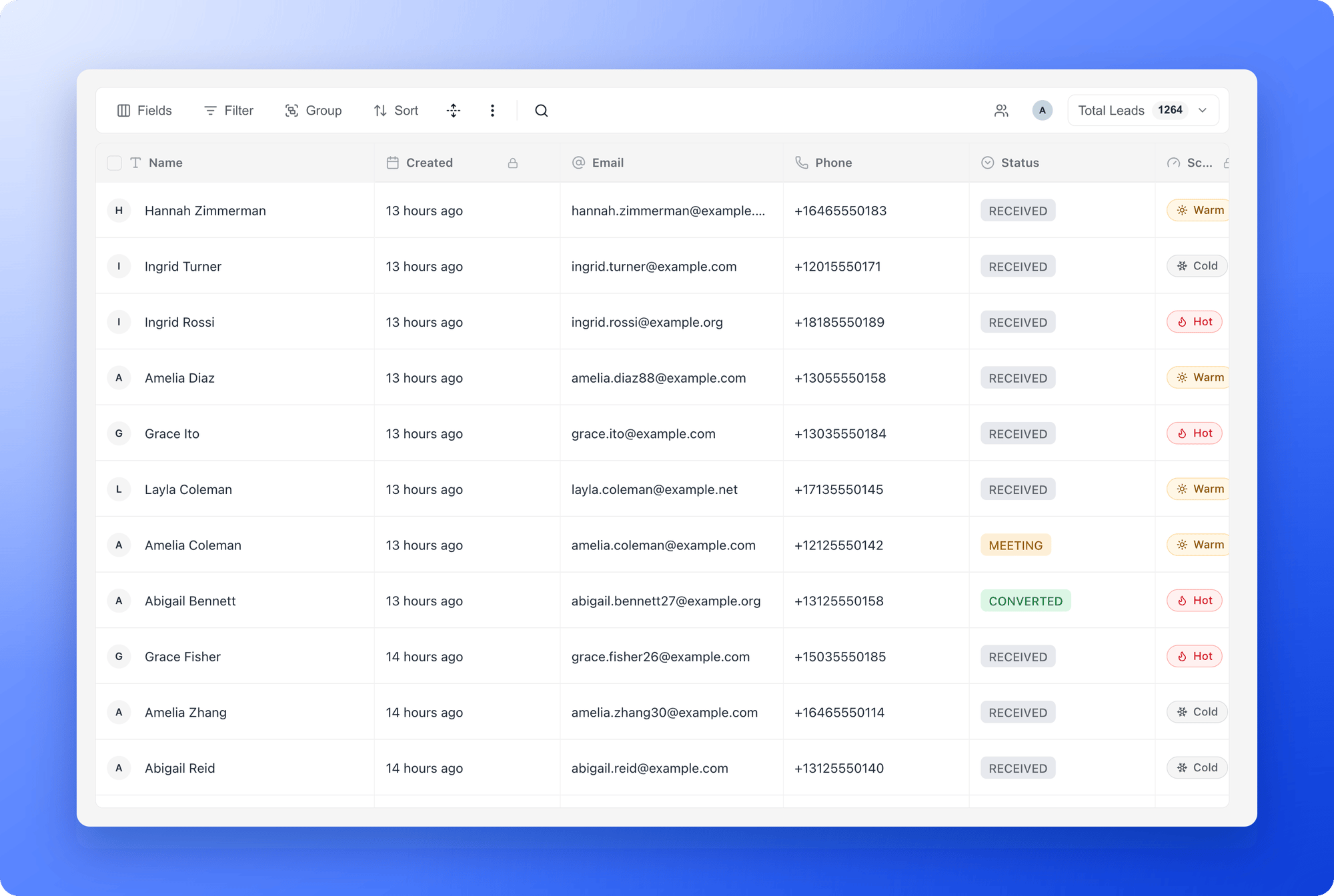
What you can do
- Open a lead: hover over the lead’s name and click the “Open lead” icon at the right edge of the name cell. A side panel opens with the tabs Profile, Notes and Tracking. Use the up and down arrows at the top to move to the previous or next lead. See What is a CRM contact?.
- Edit in the table: click a cell, type, then press Enter or click away to save. Fields with a small lock icon (Created, Score, Updated and Appointment) are filled in by AskFunnel and cannot be edited.
- Change a status: click the Status cell and pick a new one. See Track leads with statuses.
- Assign and tag: click the Assigned To cell to give a lead to a teammate, or the Tags cell to add tags. To assign several leads at once, tick them and use “Assign” in the bar at the bottom.
- Write notes: open a lead and use its Notes tab to keep a record of calls and next steps.
- Import leads you already have: click View options, then “Import leads”. Upload a CSV or Excel file with column names in the first row (up to 5,000 rows), match its columns to your fields, then review and import.
- Export or delete leads: see Export your leads and Delete leads.
Find the leads you need
- Search: click the magnifier and type. By default AskFunnel searches all fields. To search one field, click All fields and pick the field. Press Esc to clear the search.
- Filter: click Filter, then “Add filter”. Choose a field, how to compare it and a value. Add more conditions and join them with and or or. A number on the button shows how many conditions are active. To filter by date, see Filter leads by date.
- Filter by status: click Total Leads and tick the statuses you want. The menu also shows how many leads are in each status.
- Filter by teammate: click the people icon (Filter leads by assignee) and pick Unassigned or one or more teammates. Click your avatar (Me mode) to show only the leads assigned to you. These controls appear once your funnel has its first lead.
- Sort and group: click Sort and “Add sort” to order the table by any field. Click Group and “Add group” to group leads by a field, up to three levels deep.
- Change the row height: click the row height icon and choose Short, Medium, Tall or Extra tall.
Troubleshooting
I can't see the Leads, Analytics or Activity tabs
I can't see the Leads, Analytics or Activity tabs
Your role does not include lead data. Ask a Workspace Admin to give you the Contacts Manager role, or a Workspace Admin role if you also need to edit funnels.
The table says No leads match your filters
The table says No leads match your filters
A filter or search is hiding every lead. Click “Clear filters” in the table, or open Filter and click Clear all.
A lead I expect is missing
A lead I expect is missing
Check for a number on the Filter button, a search in the search box or a teammate filter. If none apply, look for a banner about locked leads above the table.
I can't edit a cell
I can't edit a cell
Fields with a lock icon are managed by AskFunnel. Every other cell can be edited.
What to do next
What is a CRM contact?
See what a lead profile holds and how to open it.
Track leads with statuses
Move leads through your follow-up.
Export your leads
Download your leads as a file.
Email new leads automatically
Send a welcome email the moment someone submits.