

- For a quick look, nothing. Anyone on your team can open the plan badge.
- For the full Plan page and to change the plan, a Global Admin role (the organization owner, or anyone they gave that role to).
Quick view
The plan badge sits in the top right corner of the dashboard, next to your profile picture. It shows your plan name, or the days left in your trial, for example 14d left. Click it to see your plan and usage.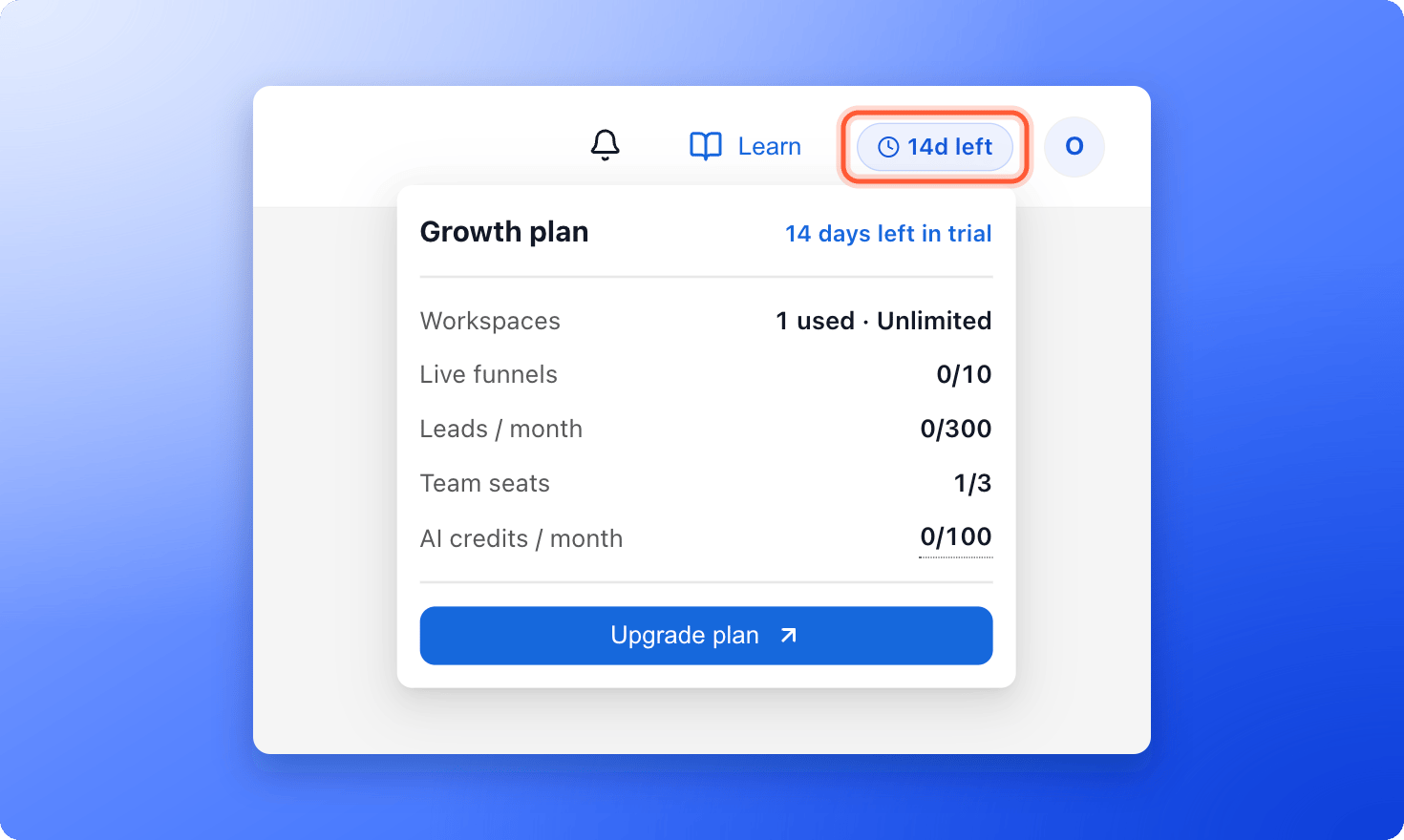
Full view on the Plan page
1
Open the Plan page
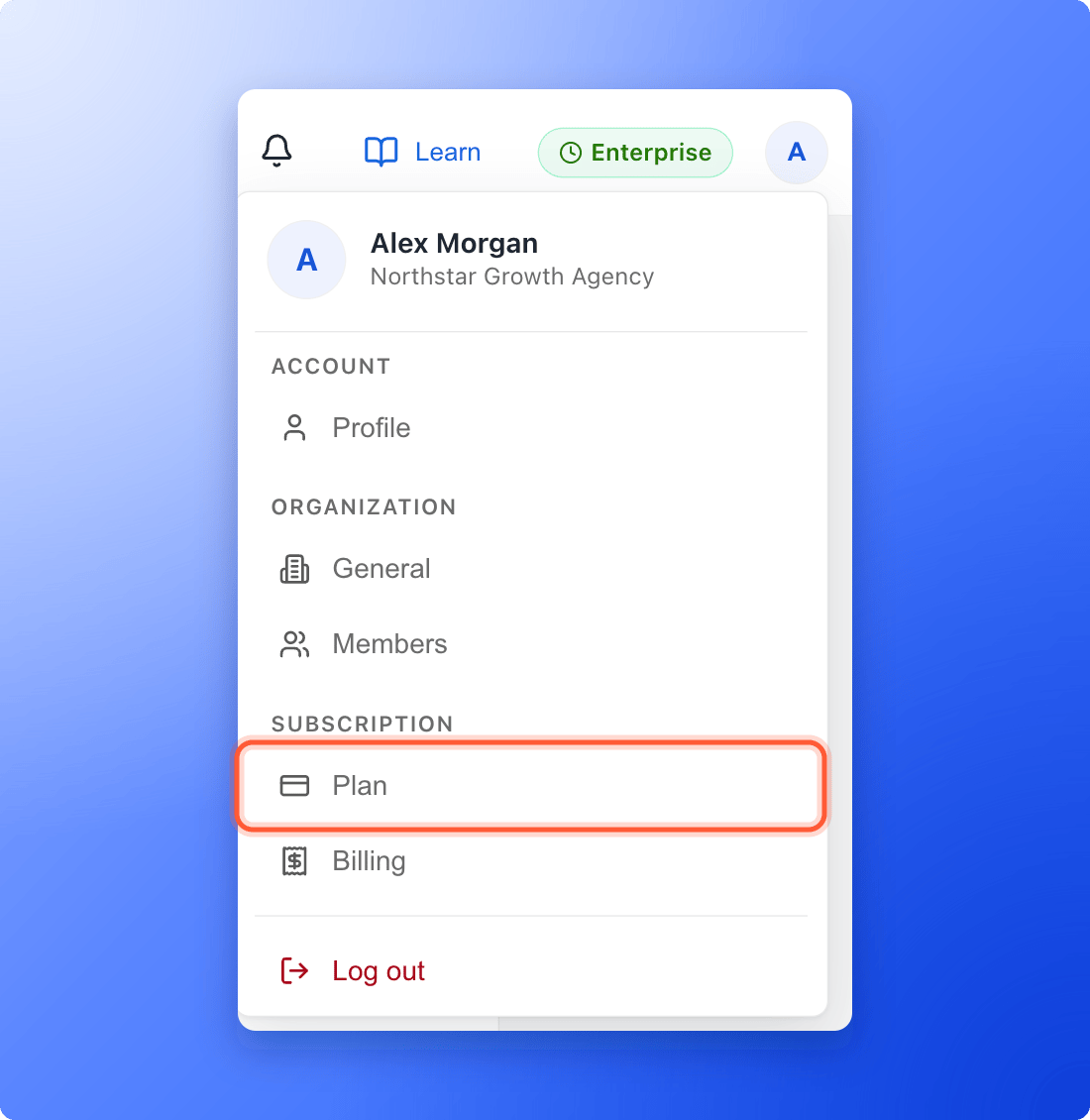
- Click your profile picture in the top right corner.
- Under Subscription, click “Plan”.
2
Read your plan and usage
At the top you see your plan name, Billed monthly or Billed yearly, a status label and a date. Under Usage this period, each limit has a bar that fills as you use it. The bar turns orange when you have used 90% or more.If you bought extra capacity, it is listed under Add-ons, for example +200 leads/mo.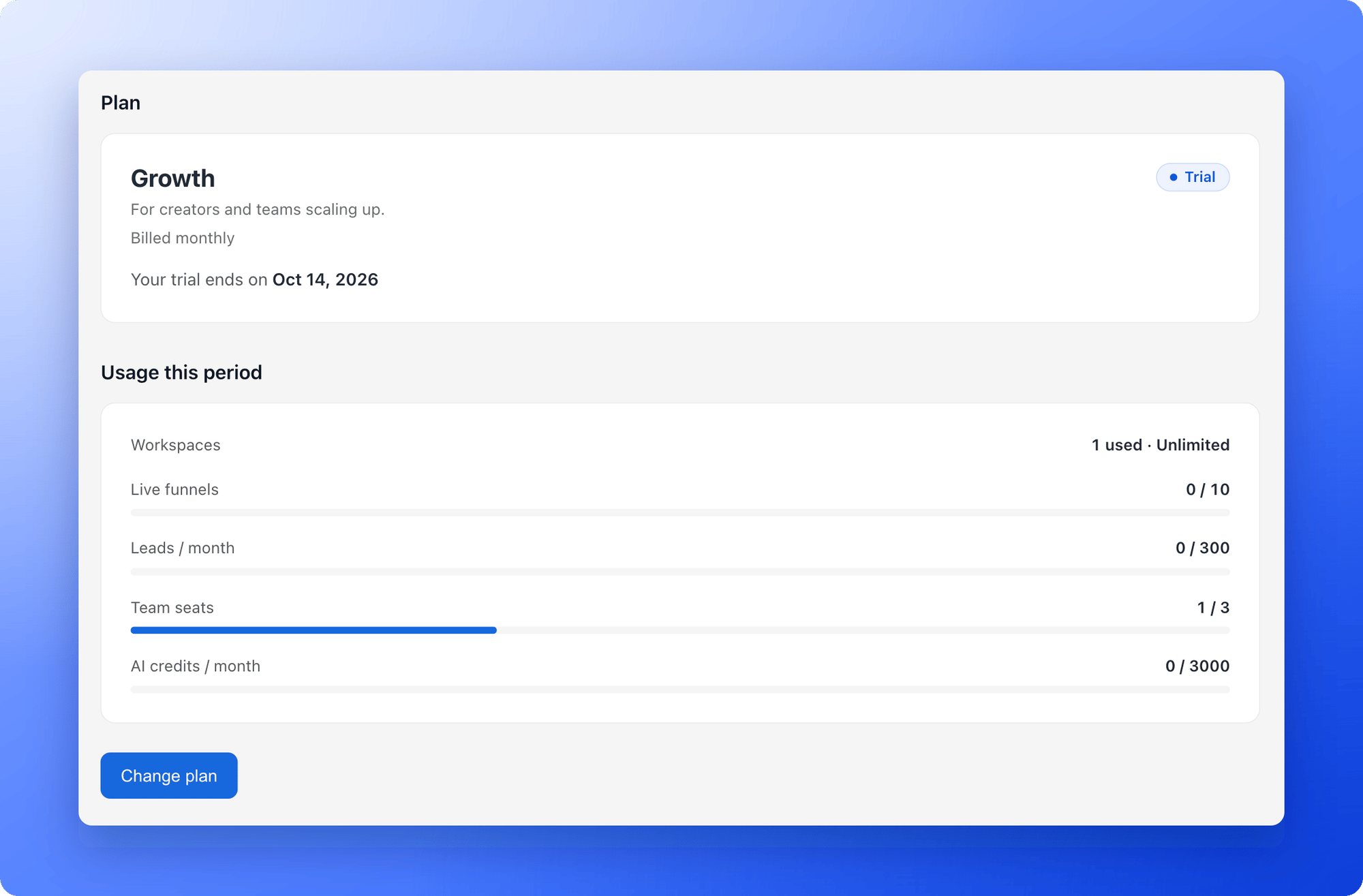
What happens when you reach a limit
- Leads. At 80% of your monthly leads, a banner on the Leads page warns you that new leads lock when you reach the limit. Past the limit, a banner says how many leads are locked. Locked leads are saved but hidden, and they are not sent to your integrations or notifications until you add capacity.
- Live funnels and team seats. A window titled You’ve reached your [plan] plan limit appears with “Upgrade plan” and “Not now”. Funnels you already published keep running, but you cannot publish a new funnel or publish changes until you are under the limit. The same goes for adding team members.
- AI credits. AI features pause once your credits run out, until the next month or until you add capacity.
What the numbers mean
- Workspaces: how many you have. Every plan includes unlimited workspaces, so this reads like 2 used · Unlimited.
- Live funnels: funnels that are published, counted across all your workspaces.
- Leads / month: funnel submissions received this month. The count resets on the first day of each calendar month (UTC, standard world time), not on your billing date.
- Team seats: people in your organization who use a seat. See Team seats.
- AI credits / month: credits used by AI features such as building or editing a funnel with AI and creating images. They reset each calendar month (UTC). During a free trial you can use 100 a month, even if the Plan page lists more. Point at the number in the plan badge menu to see why.
- Active: your subscription is paid and renewing. The date line reads Renews on.
- Trial: you are on the free trial. The date line reads Your trial ends on.
- Trial ended: your trial is over and you are in the grace period. Subscribe to keep going.
- Canceled: your subscription will end. The date line reads Ends on, and you keep your plan until then.
Troubleshooting
My leads counter reset even though I have not renewed
My leads counter reset even though I have not renewed
Usage resets on the first day of each calendar month (UTC), so it can differ from your billing date.
My AI credits show 100 but my plan includes more
My AI credits show 100 but my plan includes more
During a free trial, AI credits are limited to 100 per month, whichever plan you picked. The plan badge menu shows this limit, while the Plan page may list your plan’s full amount. The full allowance applies once you subscribe.
The numbers look higher than I expected
The numbers look higher than I expected
Limits include any add-ons you bought, and usage counts every workspace in your organization.
What to do next
Upgrade your plan
Add capacity or move to a bigger plan.
Downgrade your plan
Move to a smaller plan.
How team seats work
See which roles use a seat.