

- A Global Admin role (the organization owner, or anyone they gave that role to). Only a Global Admin can change the plan.
- A card or PayPal account ready for checkout. See Add or update your payment method.
Important to note
Upgrade a paid plan
1
Open the plan page
- Click your profile picture in the top right corner.
- Under Subscription, click “Plan”.
- Click “Change plan”.
2
Pick your plan and add-ons
- On the Change your plan page, click “Select” under the plan you want.
- To add capacity, use the drop-down lists on the right for leads, AI credits, live funnels and team seats. Each option shows its extra monthly price.
- Use the Monthly and Yearly switch at the top of the panel if you want to change your billing cycle. Yearly has a 2 months free label.
3
Review the change
Click “Review changes”. The Review your change window shows Charged today, and Then with your new price and date. When you are charged today, it also names the card, for example Visa ending 4242.If “Review changes” is grayed out, you have not changed anything yet. Adjust your plan or add-ons first.
4
Confirm and pay
Click “Confirm & pay”. You see Your plan has been updated. and the new capacity is available immediately.
Subscribe at the end of your free trial
1
Open the plan page
- Click the plan badge in the top right corner, then click “Upgrade plan”. Or click your profile picture and, under Subscription, click “Plan”.
- On the Plan page, click “Change plan”.
2
Pick your plan and add-ons
The page is titled Choose your plan. Click “Select” under the plan you want, add capacity if you need it and choose Monthly or Yearly.
3
Continue to payment
Click “Continue to payment”. Under the button you see You’ll be charged today, and your free trial ends.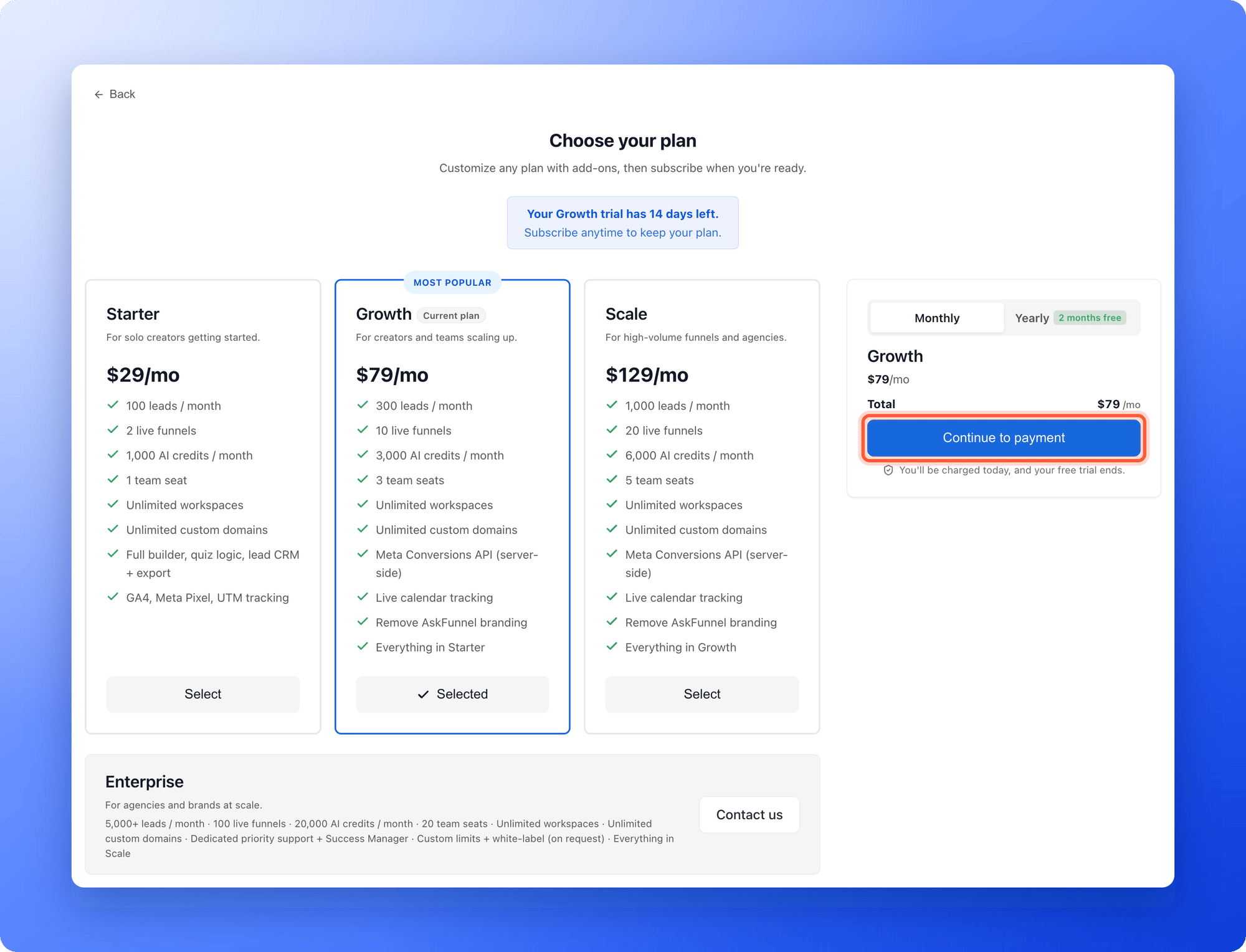
4
Enter your payment details
On the Checkout page, choose Card or PayPal, add a discount code or VAT number if you have one, and click “Subscribe now”.
If your trial or subscription already ended
A Global Admin sees a button on the lock screen: “Upgrade plan” after a free trial, or “Resubscribe” after a paid plan. It opens the same Choose your plan page. Your data comes back as soon as you subscribe.How do I know it is working?
- The Plan page shows the new plan name, the Active label and your next Renews on date.
- The plan badge in the top bar shows your plan name.
- The limits on the Plan page show the new numbers. See Check your plan and usage.
- Leads that were locked because you were over your limit unlock as your new capacity allows, oldest first.
Troubleshooting
I do not see Change plan or Upgrade plan
I do not see Change plan or Upgrade plan
Only Global Admins can change plans. If you are not one, ask your organization owner. You will see a message that only Global Admins can view or change your organization’s plan.
I cannot switch my billing cycle
I cannot switch my billing cycle
You cannot switch between monthly and yearly while a promotional discount with an end date is active. The message reads “Switching your billing cycle isn’t available while a promotional discount is active.” Email support and we will help you change your cycle.
The payment form does not load
The payment form does not load
Click “Try again” on the We couldn’t start checkout message. If it keeps failing, click “Back to plans” and start again, or email support.
I was charged a different amount than the plan price
I was charged a different amount than the plan price
Your total can include tax, add-ons, and a prorated amount for the rest of the current period. The Review your change window and the Order summary show the exact figures before you pay.
What to do next
Check your plan and usage
See your new limits and renewal date.
Add or update your payment method
Keep your card or PayPal up to date.
View your billing and invoices
Find receipts and payment history.
Use a discount code or VAT number
Add them at checkout.