

- An AskFunnel account and a workspace. If you do not have them yet, see Create your account.
- A verified email address. AskFunnel asks you to verify it before you can publish.
1
Start from a template
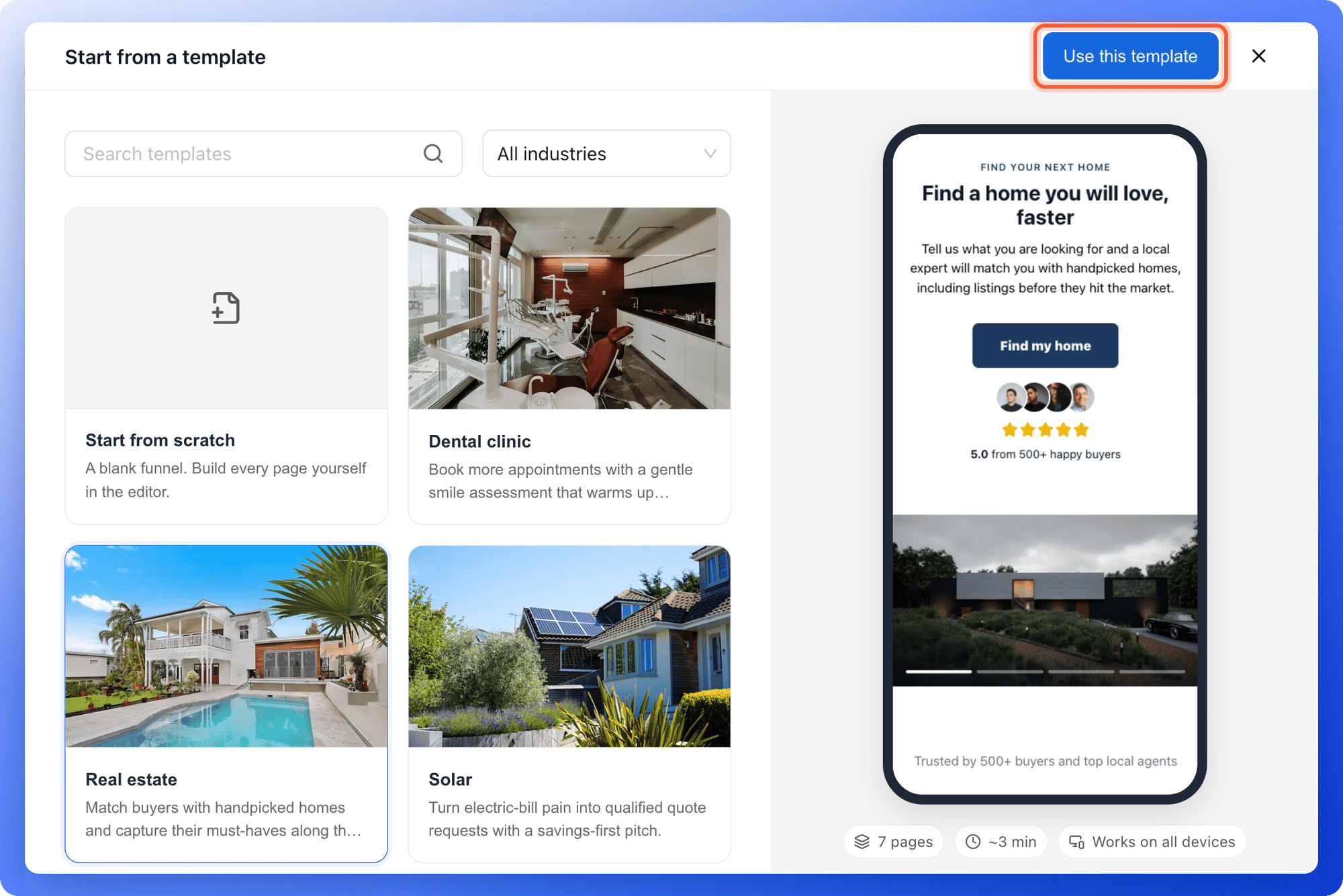
- Open your workspace and click “Create Funnel” at the top right.
- Click “Start from a template”.
- Click a template to preview it. Check that the offer and the questions fit the conversation you want to have with your visitors.
- Click “Use this template”. The funnel builder opens with your new funnel.
2
Make it yours
The page list on the left shows the whole journey, from the first page through the questions and contact details to the thank you page. Open each page and: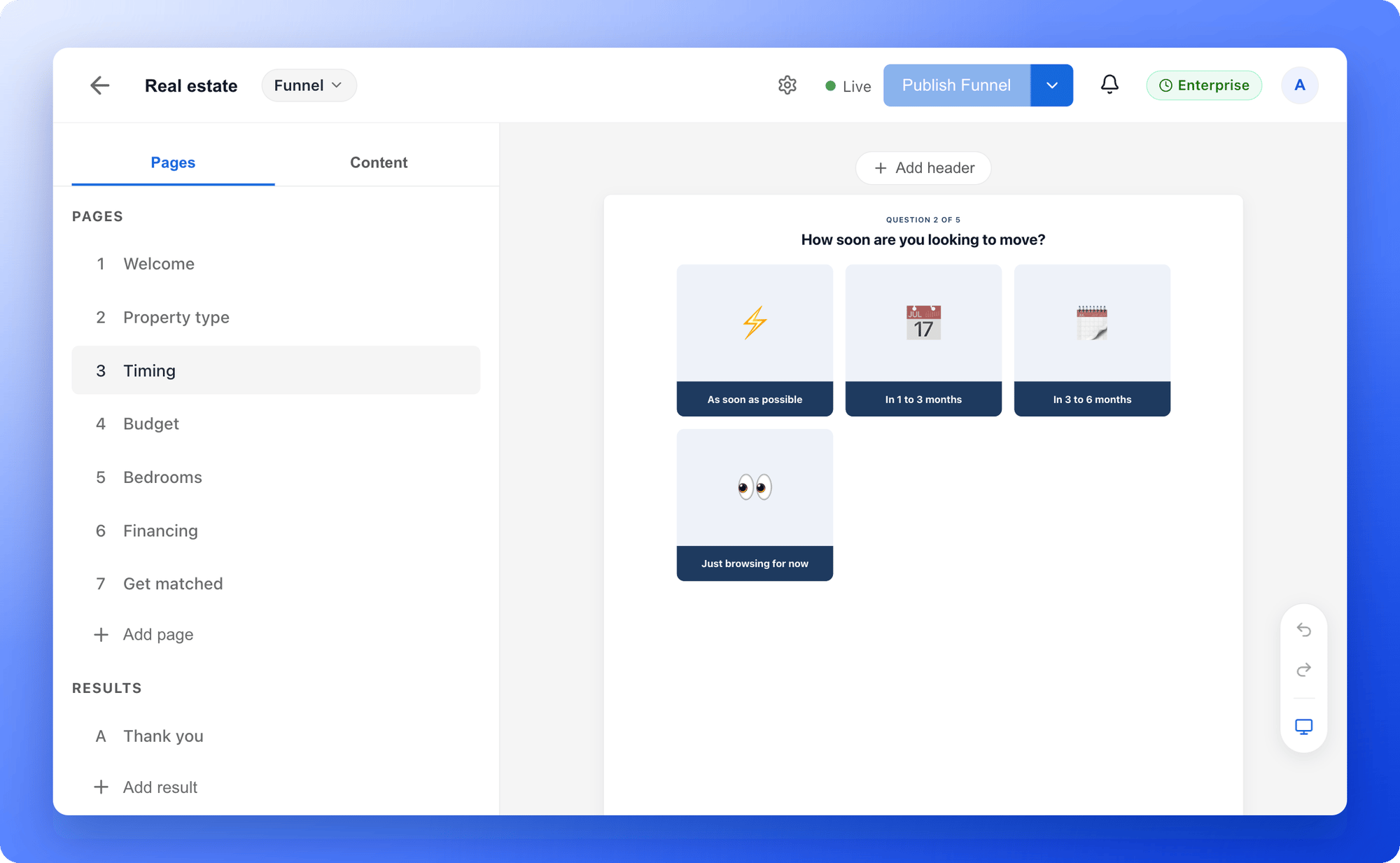
- Replace the example text. Click any text on the page and type your own. Keep headlines short enough to read on a phone.
- Add your logo and colors. Select text to change its size, weight and color. Add your logo in the header.
- Swap the images. Click an image to upload your own or search free photos.
- Check desktop and mobile. Use the device button at the top to see both layouts.
3
Check your questions and contact form
- Edit each question and its answer choices directly on the page. Keep choices short and clearly different from each other.
- Drag pages in the page list to put related questions together.
- Open the page with the contact form, select a field and check Required. Only require what you need to follow up, such as an email or phone number.
4
Publish your funnel
Click “Publish Funnel” at the top right and wait for the Live indicator. Your funnel is now online.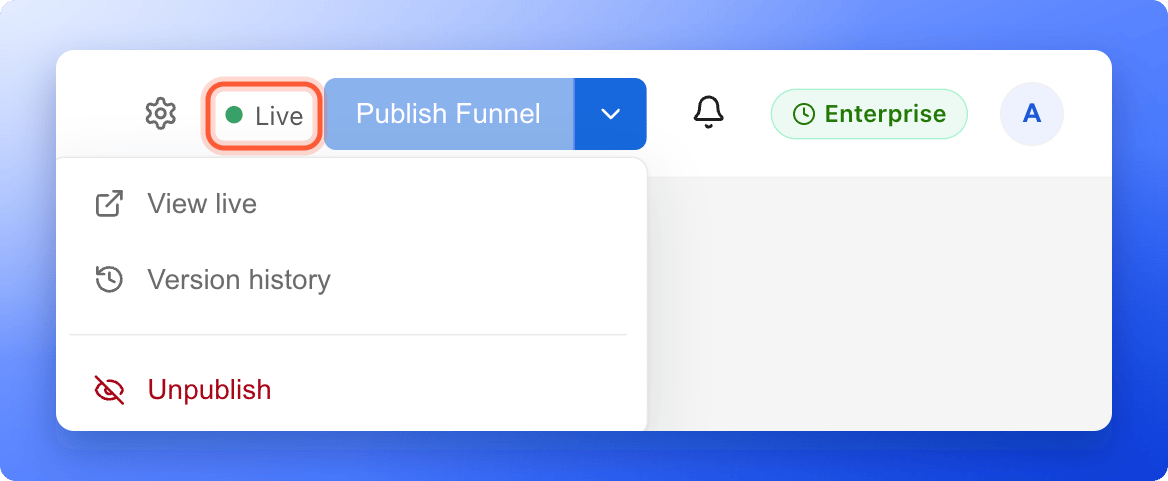
5
Test it like a visitor
- Open the arrow next to “Publish Funnel” and choose “View live”. This is exactly what your visitors see.
- Go through the funnel, answer the questions and submit the form with details you will recognize, for example your own name and an email address you control.
- Wait for the thank you page.
- Back in the dashboard, open the funnel’s Leads tab. Your test lead is there with every answer.
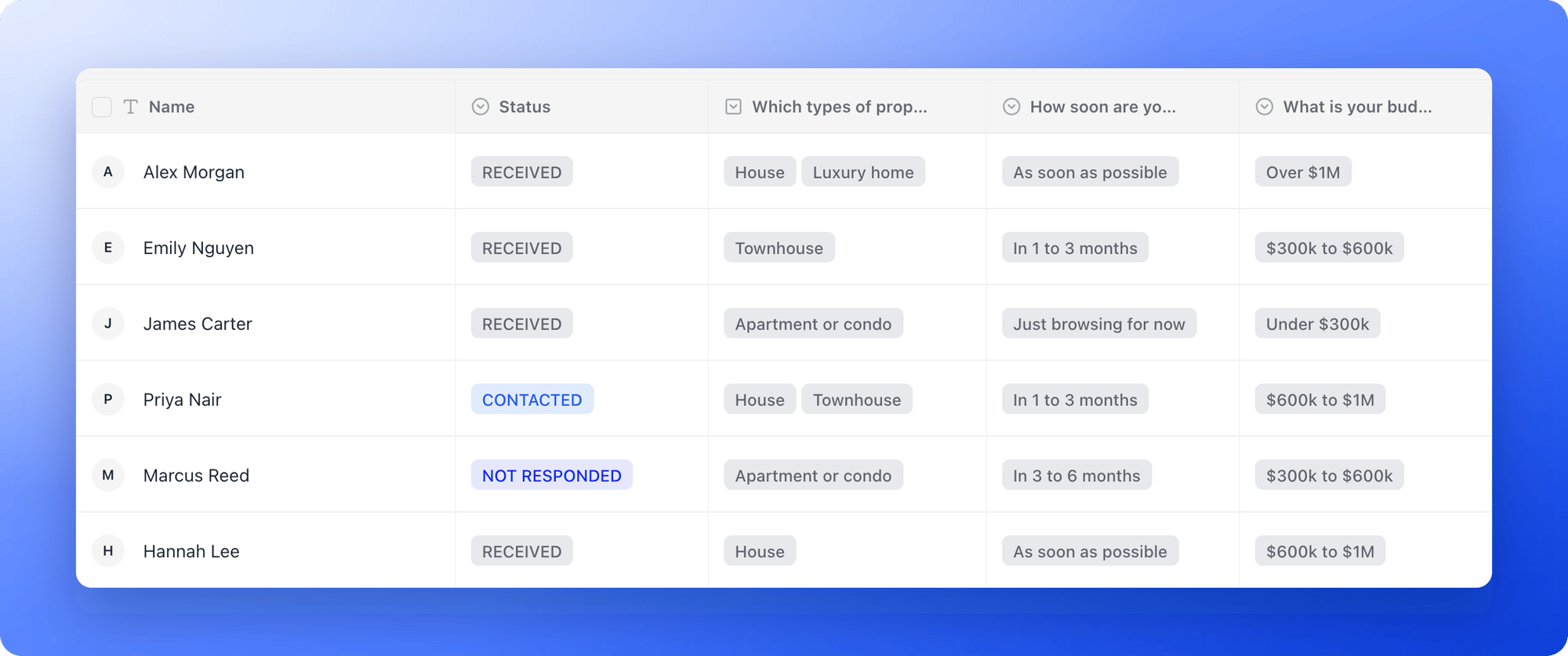
If your test lead shows up with the right answers, your funnel works. Reaching the thank you page alone is not enough, so always check the lead.
6
Share your link
Copy your funnel’s link and put it in your ads, emails, social posts or website. See Share your funnel. To use your own web address instead, see Connect your custom domain.
What to do next
Send leads to your CRM
Every new lead goes straight to HighLevel, Google Sheets or any tool through webhooks.
Email new leads automatically
Send a welcome email, a guide or a follow-up the moment someone submits.
Track your ads
Connect Meta Pixel, Google Analytics or TikTok Pixel to see which ads bring leads.
See how your funnel performs
Visitors, conversions and where people drop off.