

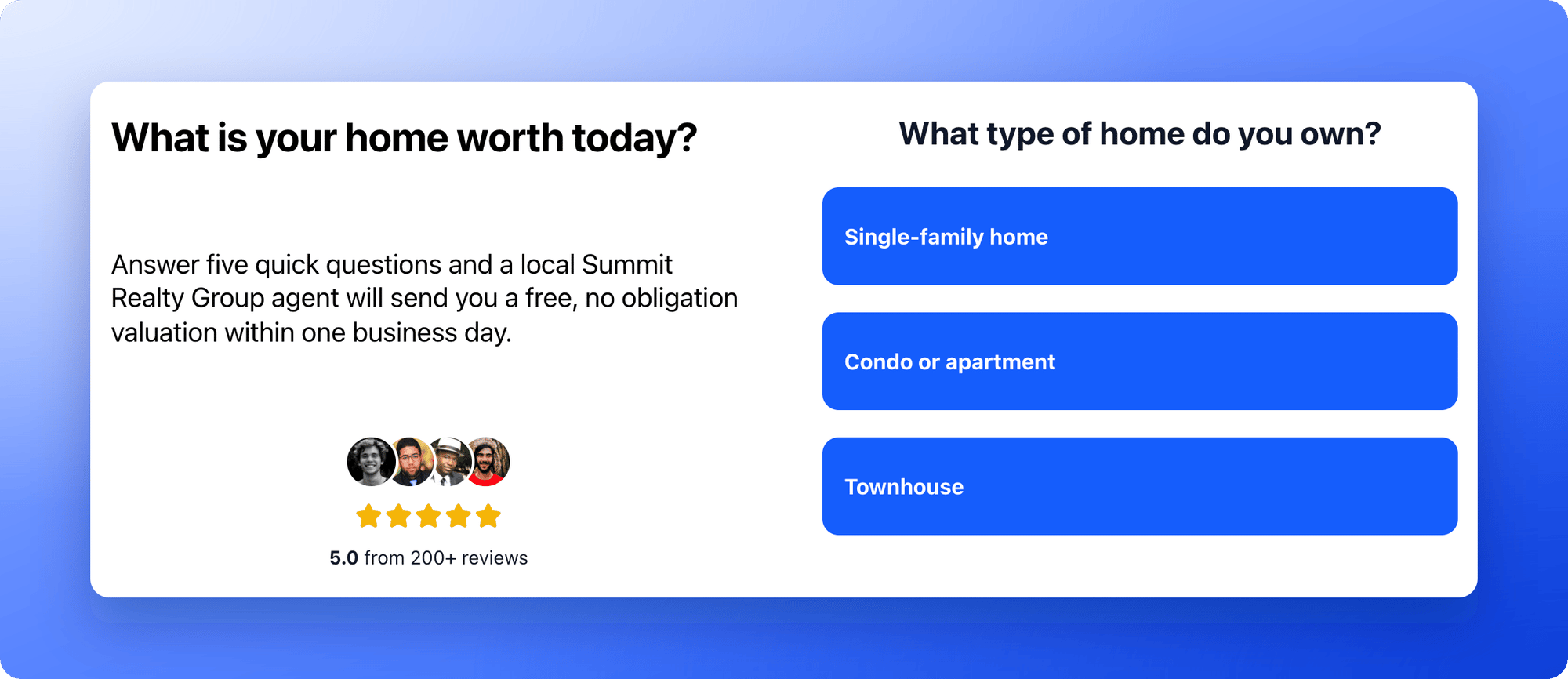
- A funnel page that already has the blocks you want to place side by side. Add them first, because blocks you add from the “Content” tab go on the page, not inside a column. See Add and arrange blocks.
Important to note
Put blocks side by side
1
Select the block you want to move
Click the block on your canvas. A small toolbar appears at its right with the = icon (Drag to reorder).
2
Drag it to the edge of another block
- Click and hold the = icon.
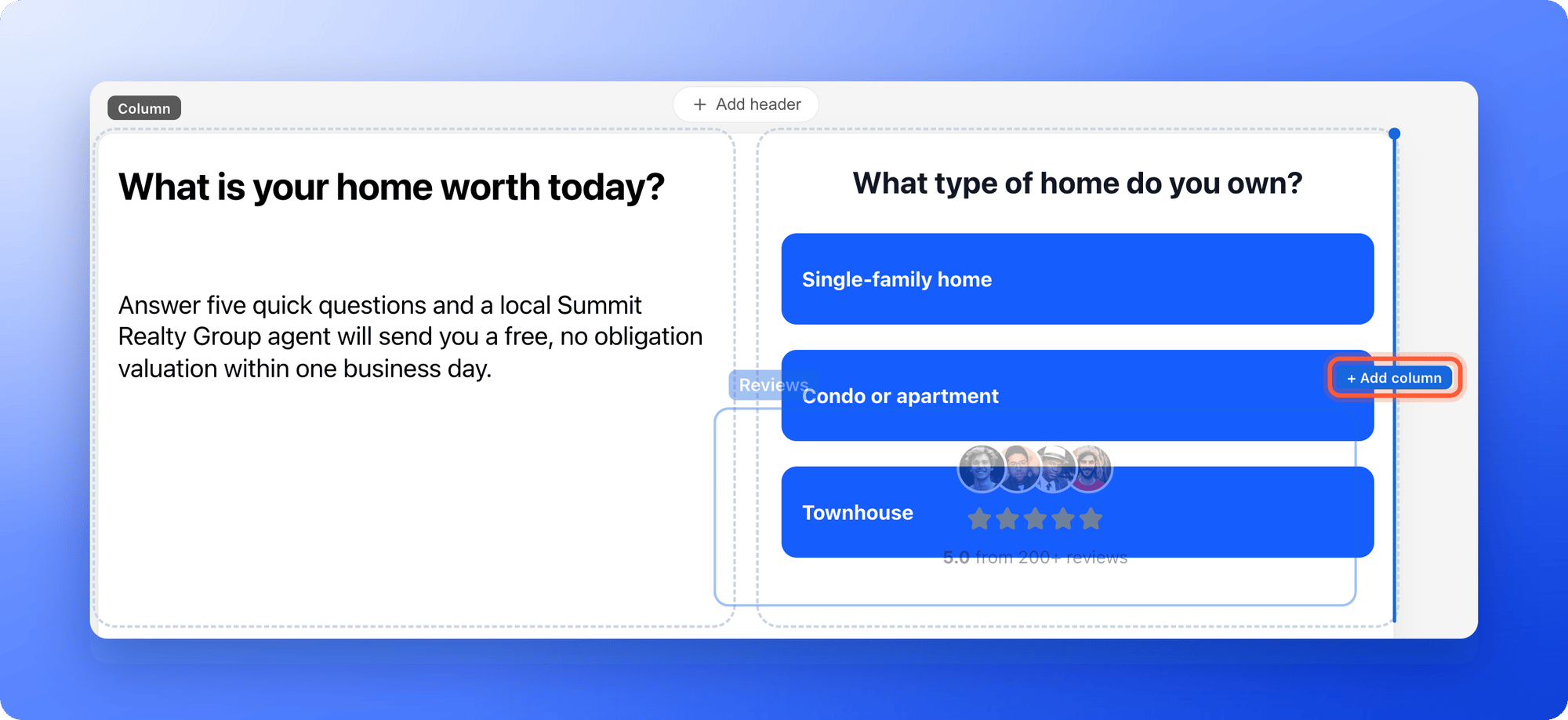
- Drag toward the left or right edge of the block you want it next to. A blue line and a + Add column label appear at the edge where the new column will go.
- Let go. The two blocks now sit side by side, each in its own column.
3
Add more columns
To add a third column, drag another block to the left or right edge of the row. To move a block into a column that already exists, drag its = icon onto that column. The column highlights when it is ready to receive the block. You can also drag a block out of a column to the main page.
4
Fine tune a column
Click a block inside the column, then click “Column” in the path at the top of the left panel to select the column itself. You can then change: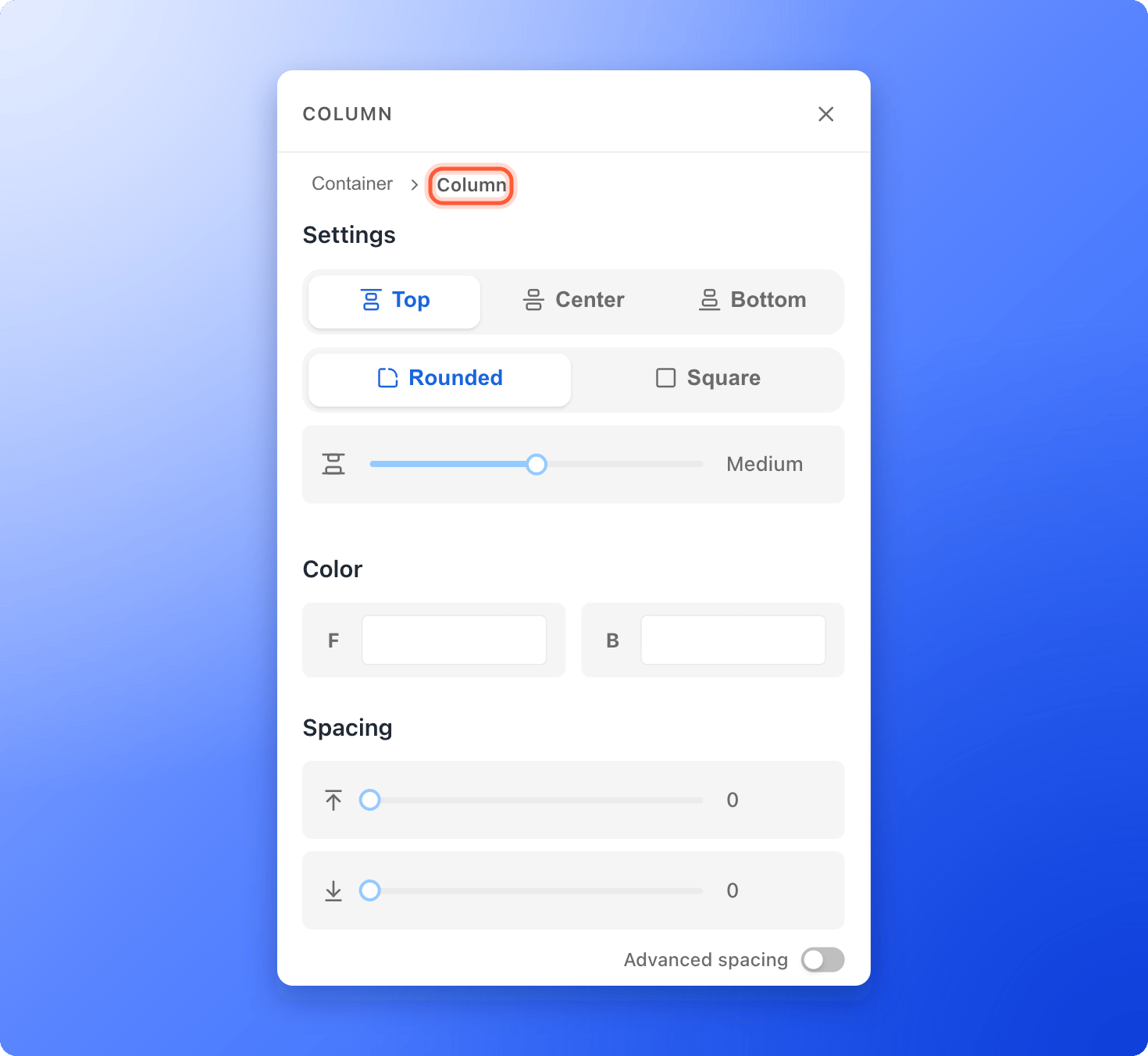
- Top, Center or Bottom to line up the blocks inside the column when a neighbor column is taller.
- Rounded or Square corners.
- Gap between blocks, the space between blocks stacked in the column.
- Color, to give the column its own background color.
5
Check it on every screen and publish
Use the device button at the right side of the canvas to switch between Desktop, Tablet and Mobile. Then click “Publish Funnel” at the top right.
Understand the path at the top of the left panel
When you select a block inside a column, the left panel shows a path such as Container, Column, Quiz. Click any name to select that level.- Container is the whole row of columns.
- Column is one column of the row.
- The last name is the block itself, for example Quiz or Text.
Troubleshooting
I do not see the + Add column label
I do not see the + Add column label
Start the drag from the = icon on the selected block, then move slowly toward the left or right edge of another block. The blue line and label appear when you are close to the edge.
My columns are not the same height or the blocks do not line up
My columns are not the same height or the blocks do not line up
Columns in a row stretch to the tallest one. Select a shorter column and choose Top, Center or Bottom to line up its blocks.
I have an empty column I do not want
I have an empty column I do not want
Empty columns stay on the page as a dashed placeholder until you delete them. Click the empty column to select it and click the trash icon on its toolbar. Or drag a block into it.
I need more than 6 blocks side by side
I need more than 6 blocks side by side
A row holds up to 6 columns. Start a new row by adding your next block below the row.
What to do next
Find your target audience
Decide who your funnel is for and what to ask them.
Share your funnel
Get your funnel link and send people to it.