

Open a workspace
1
Go to Your workspaces
Click the home icon in the top left corner. It is in the top bar on every page, and you land on Your workspaces when you sign in.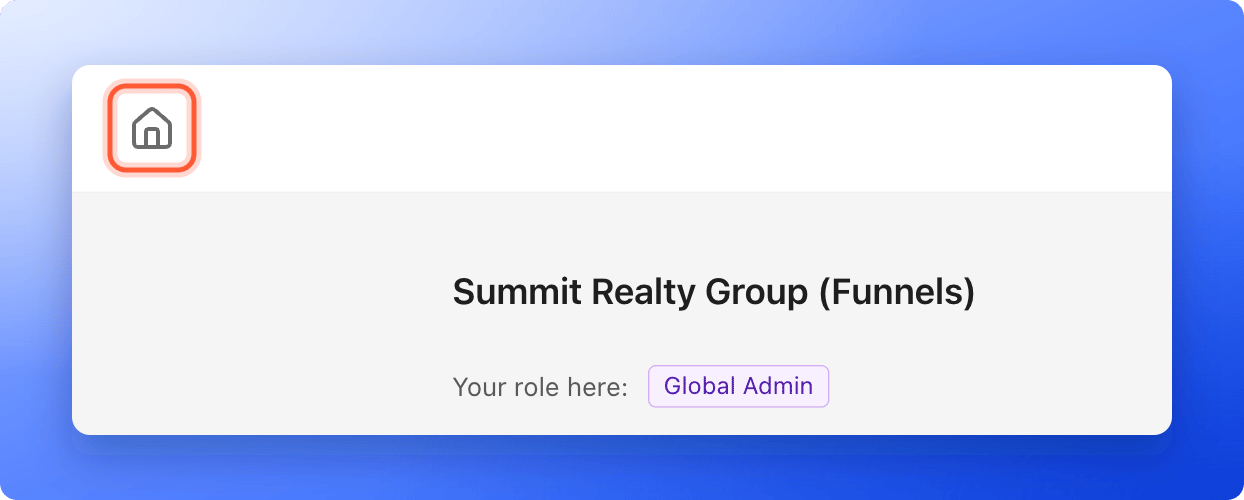
2
Click a workspace card
Click anywhere on the card of the workspace you want. You see that workspace’s funnels, with a title like Summit Realty Group (Funnels).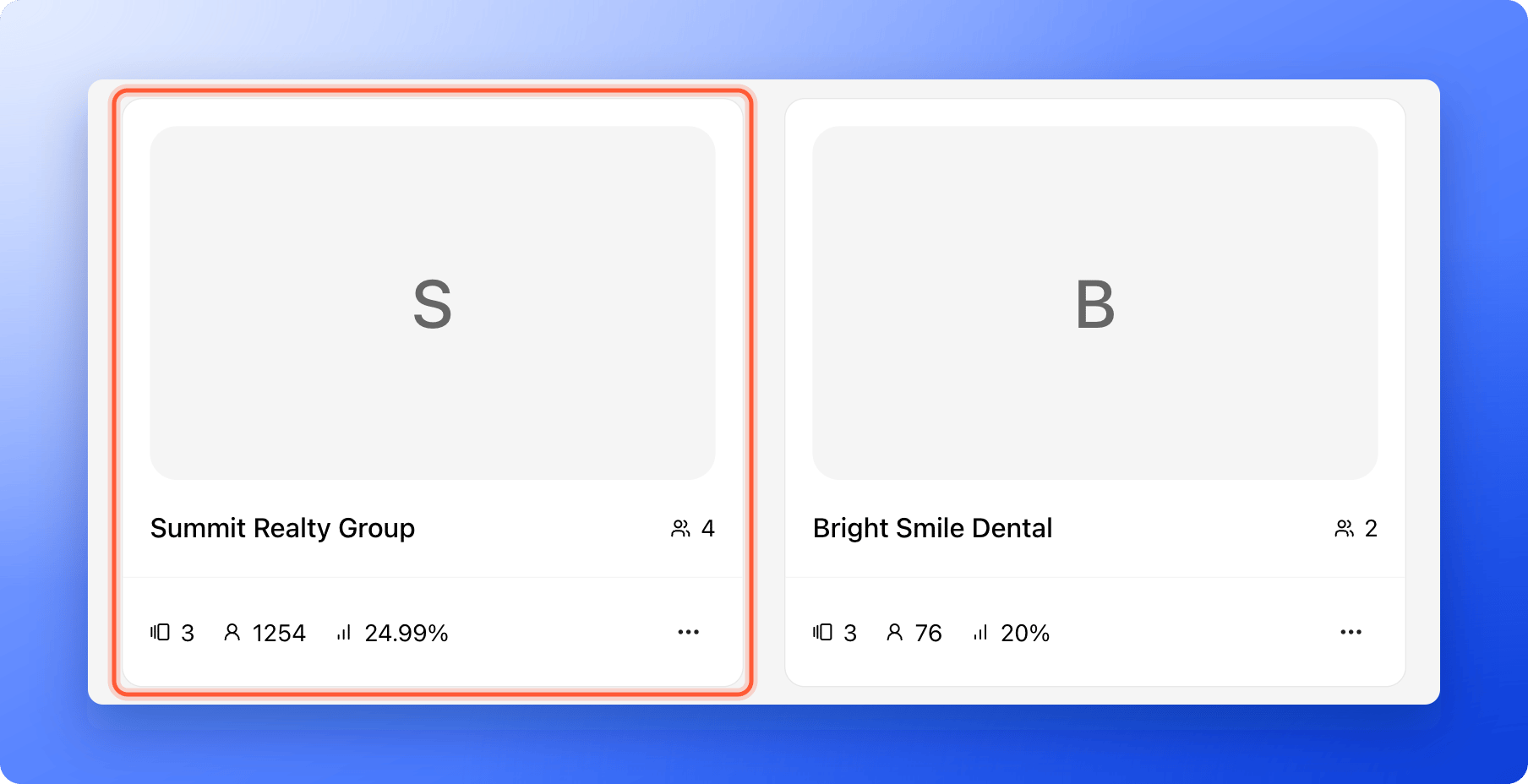
Read a workspace card
- Name and cover: The workspace name and its icon.
- Members: The people icon at the top right shows how many people have access.
- Funnels, leads and conversion rate: The three icons at the bottom left show these numbers. Hover over an icon to see its name. The conversion rate shows a dash until the workspace has visitors.
- The … menu: “Edit workspace” and “Workspace settings” for Global Admins and for the Workspace Admin of that workspace. Global Admins also see “Delete workspace”.
Which workspaces you see
Global Admins see every workspace. Everyone else sees only the workspaces they have been added to.Troubleshooting
I cannot find a workspace
I cannot find a workspace
You only see workspaces you have been added to. Ask a Global Admin to add you to it.
I see a message that I have not been added to any workspaces
I see a message that I have not been added to any workspaces
Your account is not in a workspace yet. Ask a Global Admin to invite you.
What to do next
Create a workspace
Add a workspace for a new brand or client.
Invite a teammate or client
Give someone access to a workspace.