

- Set the score ranges for Cold, Warm and Hot in your funnel settings.
- Give points to answers in your quiz questions.
- A funnel with at least one quiz question. See Build quiz questions.
- A role that can open “Funnel Settings”: Global Admin, Workspace Admin or Content Editor.
Important to note
Setup
1
Turn on lead scoring and set your ranges
- From your funnel list, click the three dots (…) on your funnel’s row, then click “Funnel Settings”.
- On the left side menu, click “Lead Scoring”.
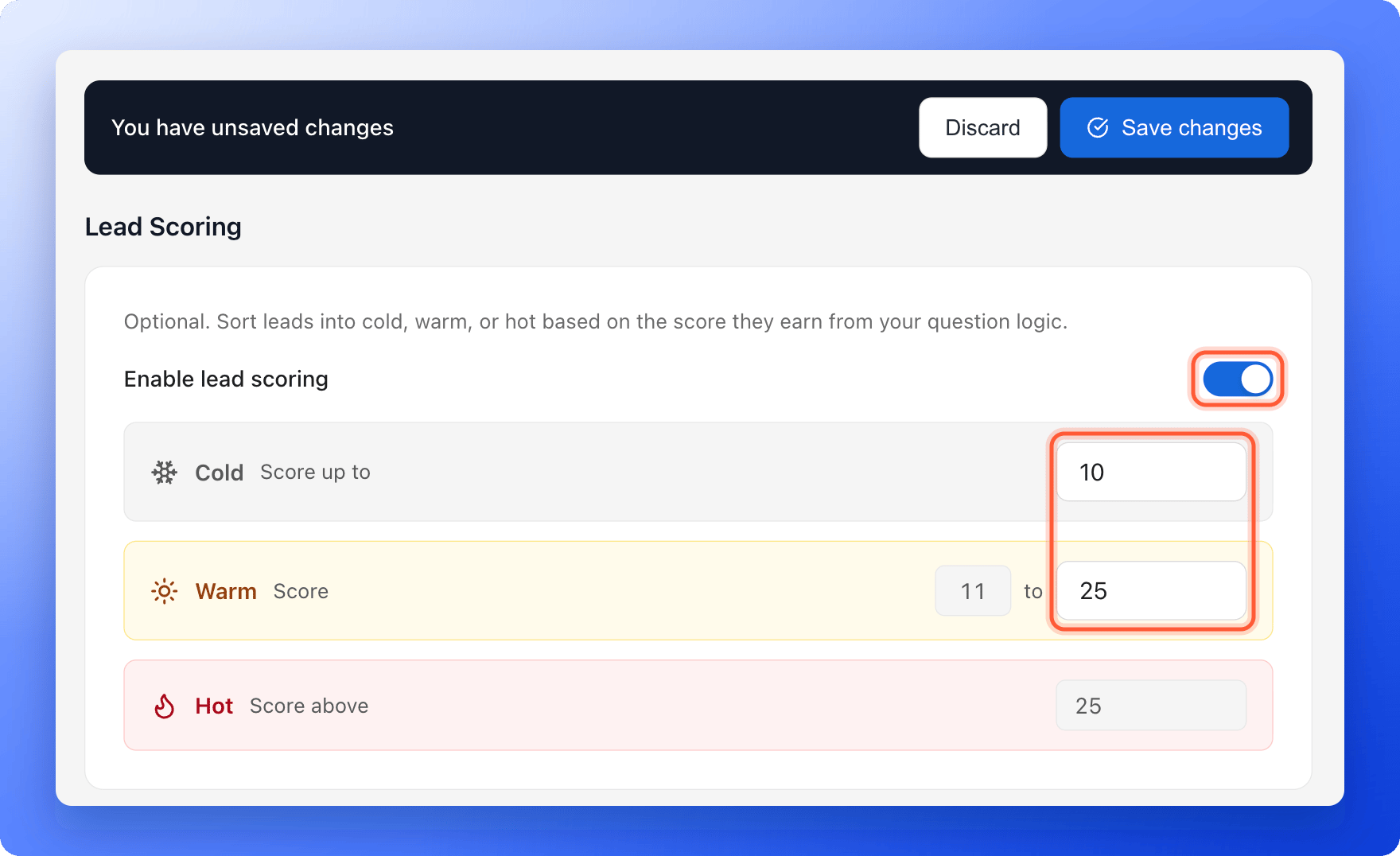
- Turn on Enable lead scoring.
- Enter the highest score that is still Cold next to Score up to, for example 10.
- Enter the highest score that is still Warm in the second box of the Warm row, for example 25. The first box fills in for you (11).
- Hot fills in for you. It means Score above your Warm number, here 25.
- Click “Save changes” in the bar at the top.
2
Give points to your quiz answers
You set points in the Action Flow of a quiz, as a rule under Advanced Branching. Rules only work in a quiz set to Single.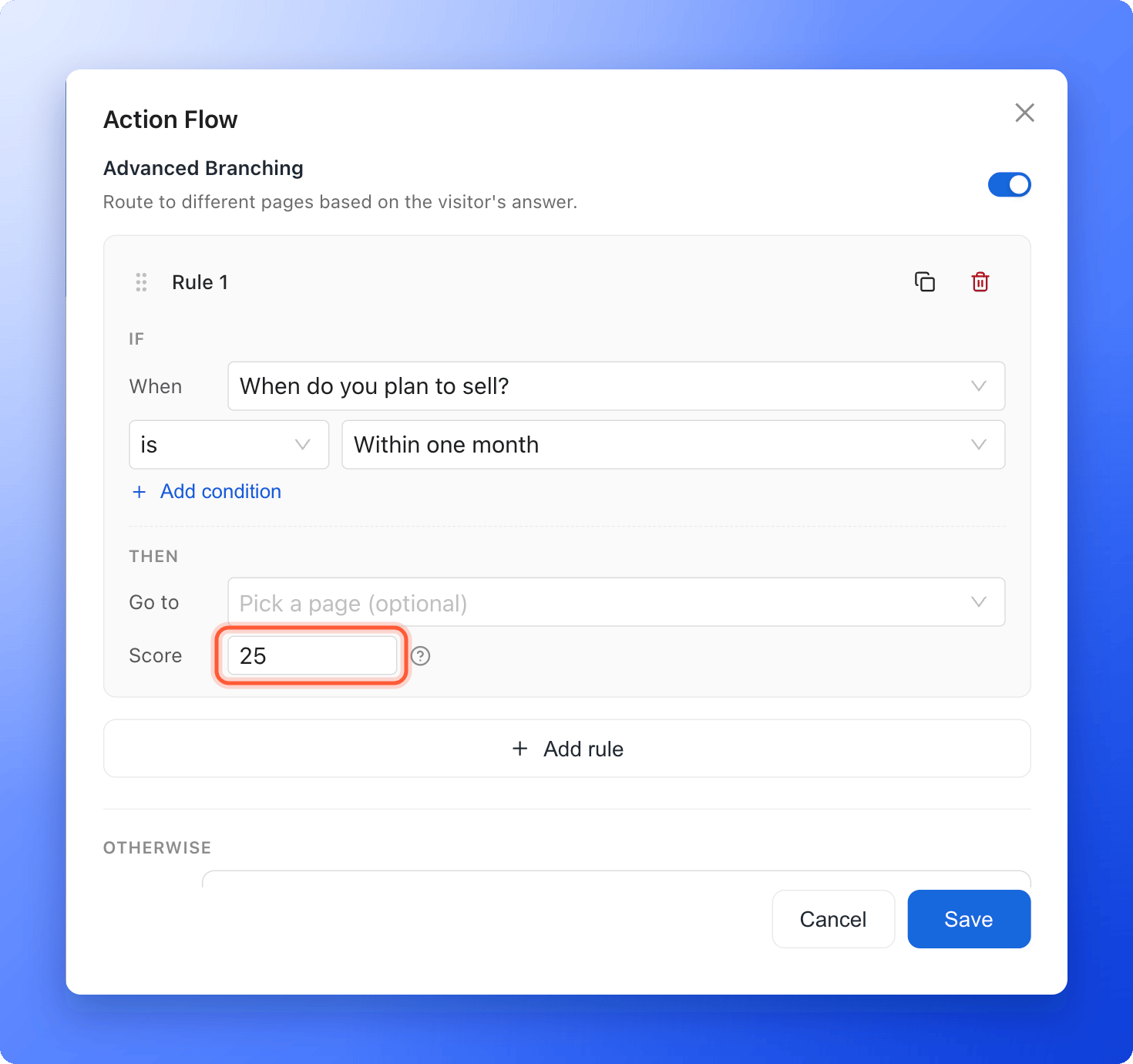
- Open your funnel in the builder and go to the page with your quiz.
- Click the quiz to select it and make sure it is set to Single.
- In the left panel, find Action Flow and click the line under it. The Action Flow window opens.
- Turn on Advanced Branching, then click “Add a rule”.
- Under If, pick the question (by default this one), choose is and pick an answer, for example “Within one month”.
- Under Then, type the points next to Score, for example 25.
- To score more answers, click “Add rule” and repeat. Click “Save” when you are done.
3
Publish and check your leads
Click “Publish Funnel” at the top right. When people submit your form, the leads table gets a Score column with a Cold, Warm or Hot label for each lead.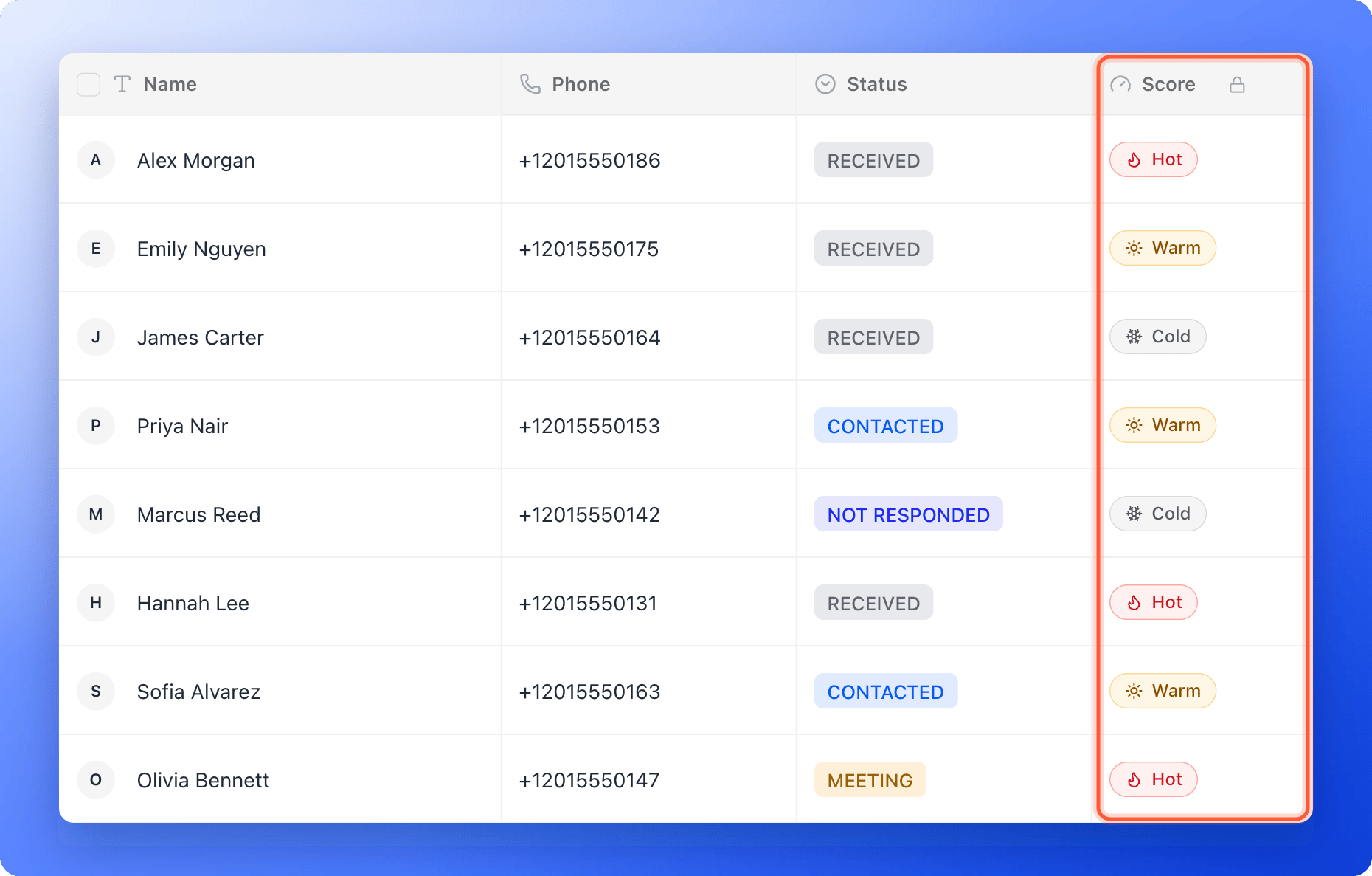
How do I know it is working?
- In Funnel Settings, Lead Scoring shows your ranges after you save.
- In the builder, the Action Flow of your quiz shows how many rules you added, for example 2 rules.
- Submit a test lead with your best answers, then open your leads table. The Score column should show Hot. See View and manage your leads.
How the points add up
AskFunnel adds the points of every rule that matches a lead’s answers. Points are whole numbers from -10,000 to 10,000, and you can use a negative number to take points away. A question can have up to 20 rules. For example, with the ranges above:- “When do you plan to buy?” Within one month gives 25 points. Within three months gives 15.
- “What is your budget?” Above $500,000 gives 10 points.
- A lead who picks “Within one month” and “Above $500,000” has 35 points and is Hot.
- A lead who picks “Within three months” and a lower budget has 15 points and is Warm.
Troubleshooting
Every lead is Cold
Every lead is Cold
No answer is giving points yet, or your Cold number is too high. Open the Action Flow of your quiz, check that each rule has a Score above 0, and check your ranges in Funnel Settings.
There is no Score column in my leads table
There is no Score column in my leads table
The column appears once you set your ranges or give points to answers. Without ranges you only see a number, not Cold, Warm or Hot. Turn on Enable lead scoring and click “Save changes”.
Advanced Branching is turned off
Advanced Branching is turned off
It is only available when the quiz is set to Single. Select the quiz, click “Single”, then open Action Flow again.
My ranges will not save
My ranges will not save
If it says Enter both Cold and Warm values, fill in both numbers, or turn off Enable lead scoring. If it says Cold max must be lower than warm max, the number in the Warm row must be higher than the number in the Cold row. For example, use 10 for Cold and 25 for Warm.
What to do next
View and manage your leads
See each lead’s label in the Score column.
Filter leads by date
Find the leads from a day, week or month.
Send leads to HighLevel
Every new lead arrives with its answers and lead score.