

- A funnel with leads, and a role that can see them: Global Admin, Workspace Admin or Contacts Manager. See View and manage your leads.
Important to note
Filter by a date
1
Open the filter
Open your funnel’s Leads tab and click Filter in the toolbar.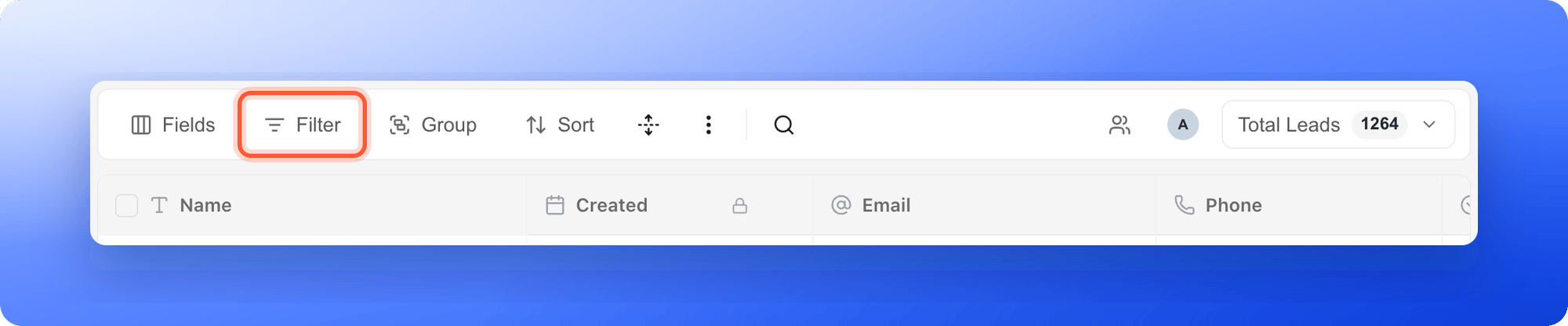
2
Add a condition for Created
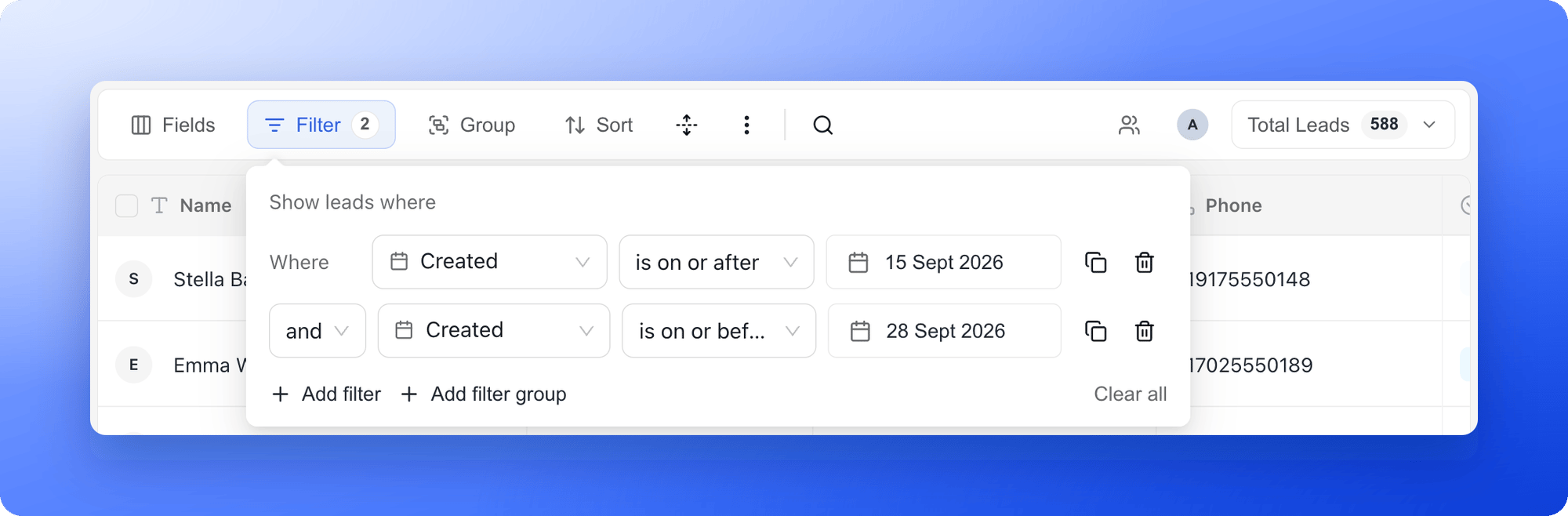
- Click “Add filter”. A row appears that starts with Where.
- In the first box, choose Created.
- In the second box, choose how to compare:
- is: leads created on that day.
- is before and is after: leads created before or after that day, not including the day itself.
- is on or before and is on or after: the same, but including the day itself.
- Click the third box (Pick a date) and choose the day on the calendar.
3
Check the results
The table updates right away. The number on the Filter button shows how many conditions are active.
Common examples
- Today’s leads: Created, is, today’s date.
- Leads since a campaign started: Created, is on or after, the start date.
- Leads between two dates: add two conditions and leave and between them. First Created, is on or after, the start date. Then Created, is on or before, the end date.
- Recent leads in one status: add another condition with Status and is any of, then pick the status. See Track leads with statuses.
Clear the filter
Open Filter and click the trash icon (Remove condition) on a row, or click Clear all. If no leads match, the table says No leads match your filters and offers a “Clear filters” button.What to do next
Export your leads
Download the leads in your filtered view as a file.
Track leads with statuses
Combine a date with a status to find recent leads.