

- A role that can delete leads: Global Admin, Workspace Admin or Contacts Manager.
- A backup, if you might need the contact details later. Export your leads first.
Important to note
Deleting a lead cannot be undone.
- The lead, its notes and its activity history are removed for good. The activity log keeps a line that a lead was deleted, without the lead’s name.
- Email flows stop for that lead. Emails the lead was still waiting to receive are cancelled. If the lead was in a flow, AskFunnel also stops sending that email address flow emails from this workspace.
- Other tools keep their copy. A lead you already sent to HighLevel, Google Sheets or a webhook is not removed there.
Delete leads
1
Find the leads
Open your funnel’s Leads tab. To delete a group, narrow the table first, for example with Filter, Status, is any of, REJECTED. See View and manage your leads.
2
Select them
Hover over a lead’s avatar in the Name column to show its checkbox, then tick each lead to delete. To tick every lead in the table, use the checkbox in the header row.
3
Check the selection and click Delete
A bar appears at the bottom of the screen with the number of leads selected. Check the number. Click the close icon on the bar to clear the selection. Then click “Delete”.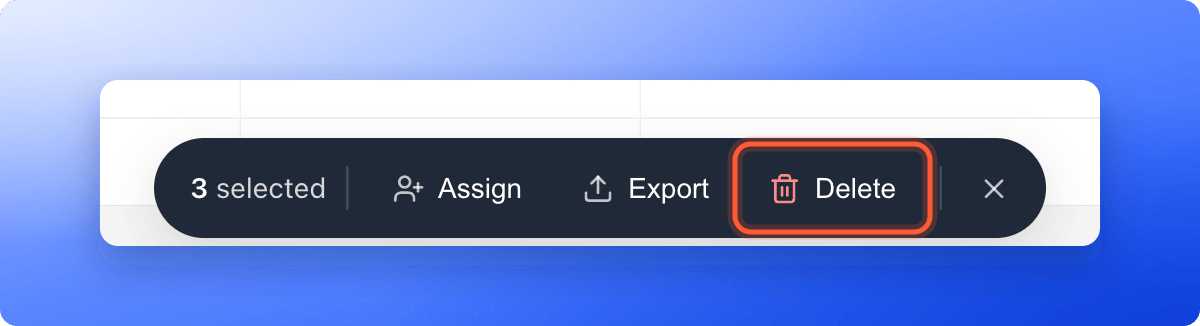
4
Confirm
A window titled Delete this lead? (or Delete N leads?) says: “This permanently removes the selected leads and their notes. This can’t be undone.” Click “Delete” to confirm, or “Cancel” to keep them.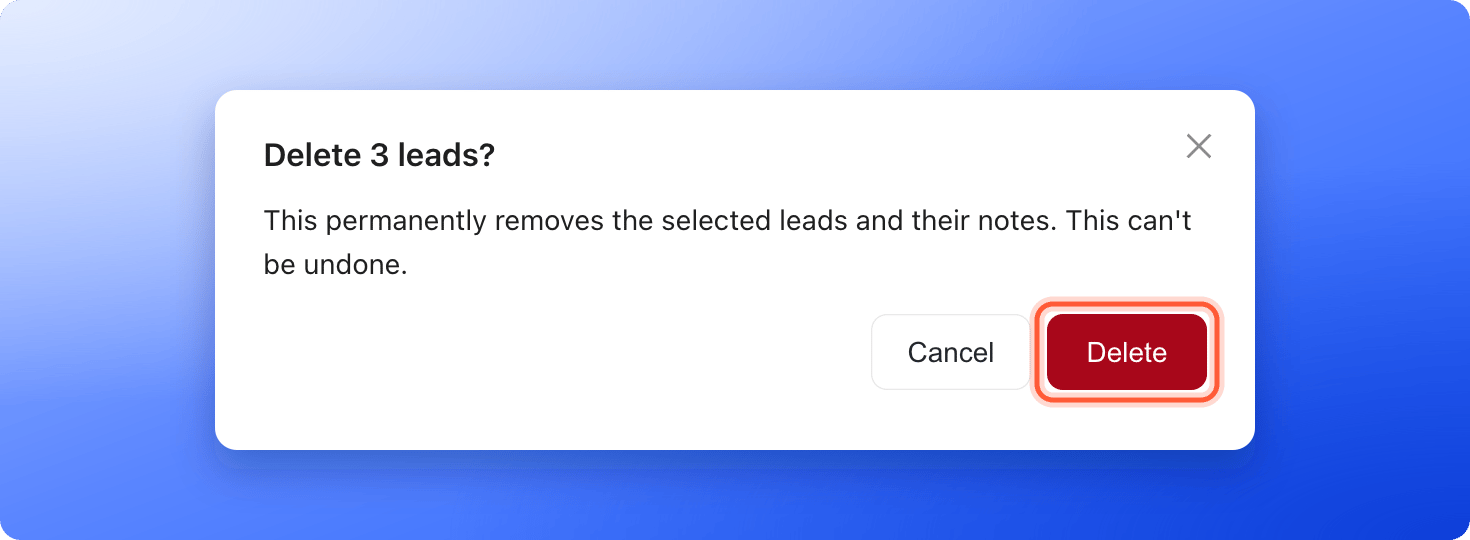
Troubleshooting
Some leads were not deleted
Some leads were not deleted
If a few deletions fail, AskFunnel shows a message such as Deleted 8 of 10. Couldn’t delete the rest, try again. The leads that remain come back in the table. Select them again and click “Delete”.
I deleted a lead by mistake
I deleted a lead by mistake
Deleted leads cannot be recovered. If you have an earlier export, you can bring back contact details with “Import leads” in the View options menu. Notes and history do not come back.
What to do next
Export your leads
Keep a copy of your leads as a file.
Email new leads automatically
Follow up with the leads you keep.