

Available on: all plans (Starter, Growth, Scale and Enterprise).
- Get every lead in a spreadsheet. No Zapier and no exports.
- Share only what you choose. You pick the spreadsheet in Google’s own file picker, and AskFunnel can use only that file. It cannot see your other Google Drive files.
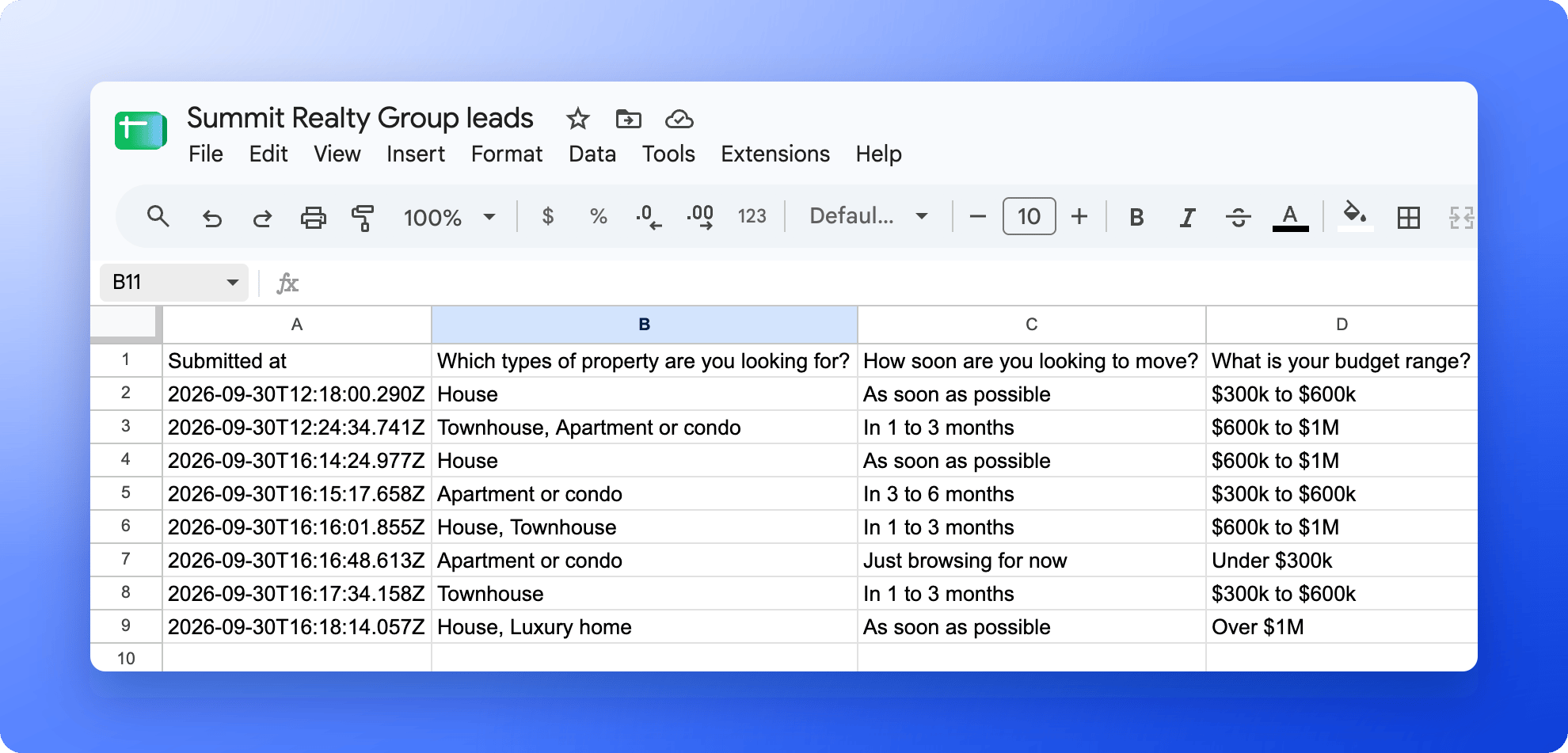
- See every answer in its own column. Each question gets a column, plus the time, lead ID, funnel, score and where the lead came from. New questions get a column automatically.
- Never lose a lead quietly. AskFunnel retries automatically, shows every lead in a delivery log, and emails you if something needs your attention.
- A Workspace Admin or Global Admin role. Only they can set up integrations.
- A Google account that can edit the spreadsheet you want to use. You can also start from a blank spreadsheet. AskFunnel writes the column headers for you.
- A funnel to connect. See Launch your first funnel.
Important to note
Setup
1
Connect your Google account
- From your main dashboard, find the funnel you want to connect.
- Click the three small dots (…) on that funnel’s row, then click “Funnel Settings”.
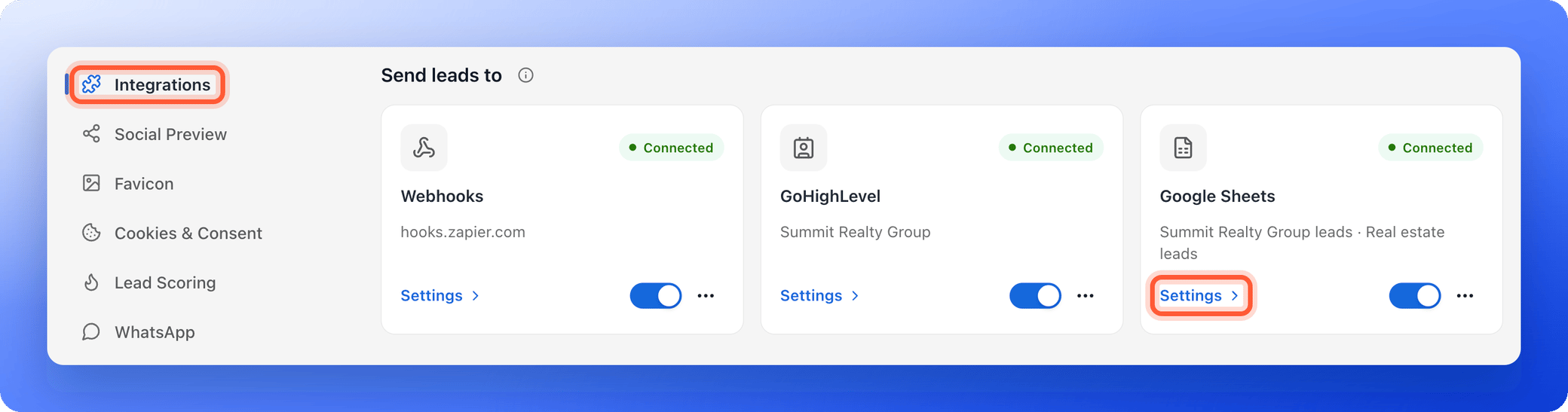
- On the left side menu, click “Integrations”.
- Under Send leads to, on the Google Sheets card, click “Settings”.
- Click “Connect Google”. Your browser goes to Google.
- Sign in to Google if asked, choose the account that can edit your spreadsheet, and approve access. AskFunnel asks for your email address, to show which account is connected, and for access to only the spreadsheets you pick.
- Back in AskFunnel, the Google Sheets settings open with your account selected.
Approve every permission Google lists. If you skip one, AskFunnel asks you to allow every permission and connect again. Finish connecting in the same browser you started from.
2
Choose your spreadsheet and tab
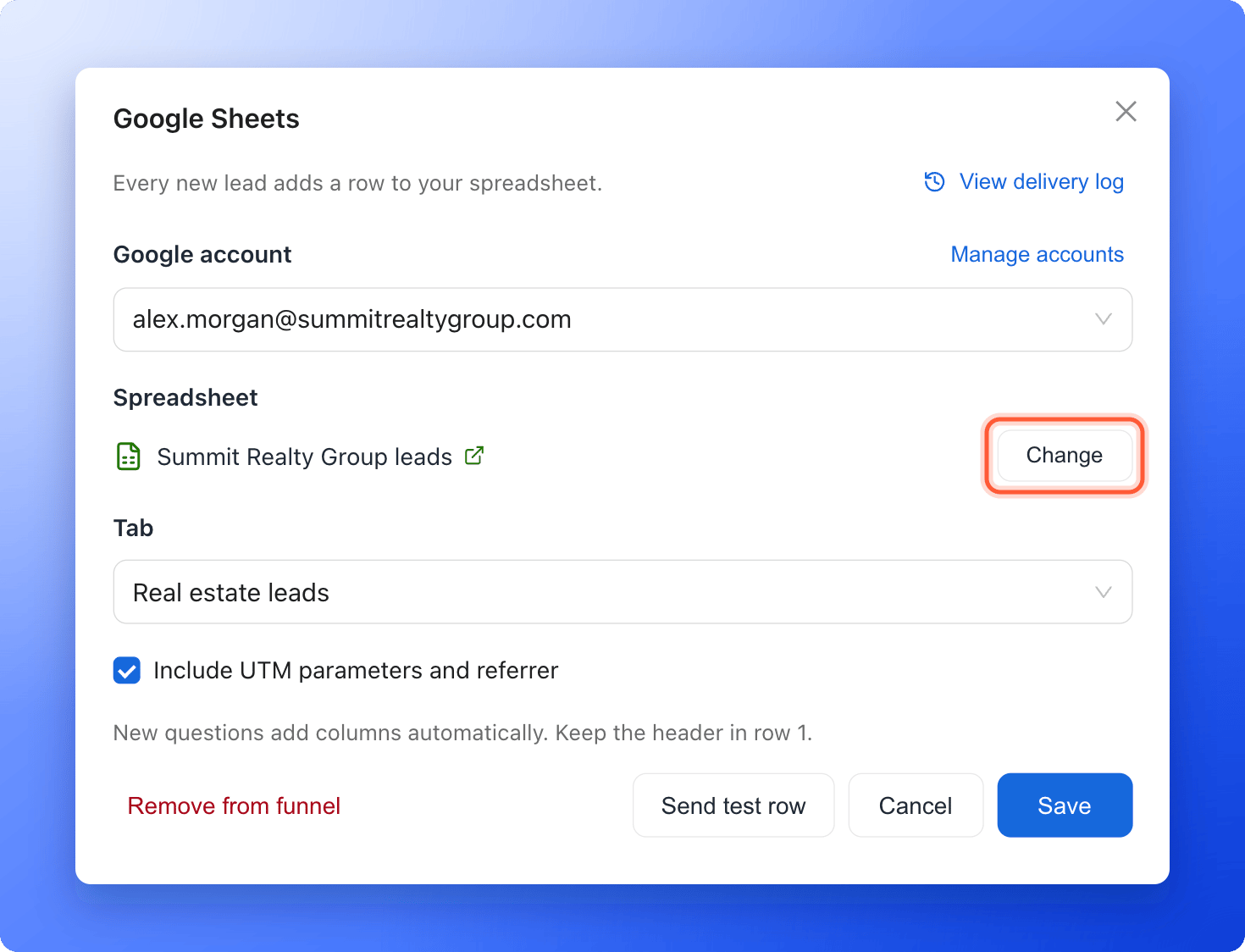
- Next to Spreadsheet, click “Choose spreadsheet”. Google Drive’s file picker opens.
- Pick your spreadsheet. Spreadsheets in My Drive and in shared drives are both listed.
- Under Tab, choose the tab that should receive your leads.
- Include UTM parameters and referrer is on by default. Turn it off if you do not want those columns.
3
Test and save
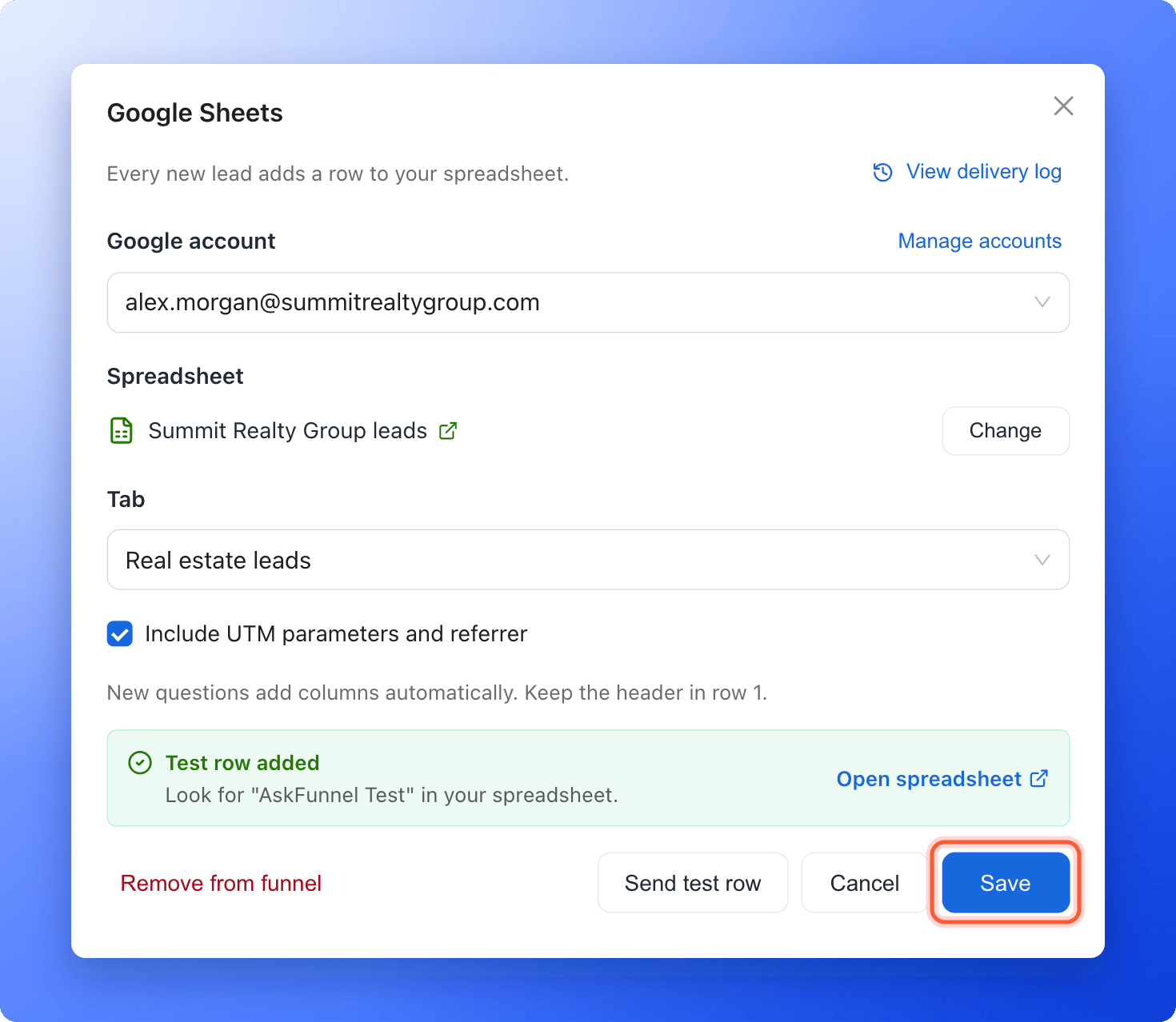
- Click “Send test row”. AskFunnel adds a row for a sample lead named AskFunnel Test (test@askfunnel.test). Click “Open spreadsheet” next to the result to see it, then delete the row if you like.
- Click “Save”. AskFunnel writes its column headers into row 1 and starts sending leads.
How do I know it is working?
- The Google Sheets card shows Connected and the name of your spreadsheet and tab.
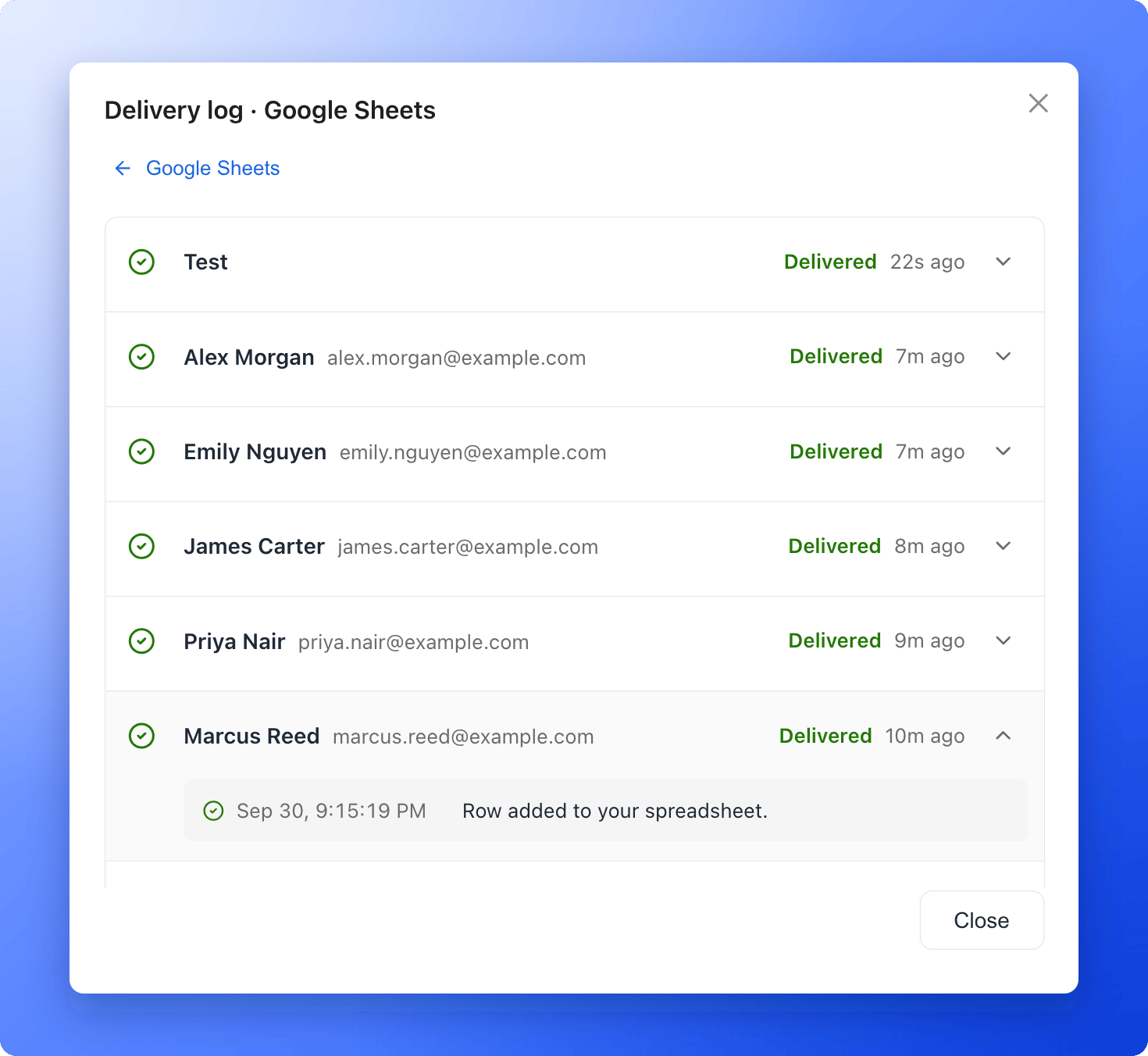
- In the Google Sheets settings, click “View delivery log”. Each lead shows Delivered, Retrying or Failed, and you can open a lead to see every attempt. Tests are listed as Test.
- If Google cannot be reached, AskFunnel tries again after 1 minute, 5 minutes, 30 minutes, 2 hours, 6 hours and 12 hours. That is up to 7 attempts in about 21 hours.
- If something needs your attention, the card shows Needs attention, and the organization owner gets an email.
Troubleshooting
Google Drive does not open when I click Choose spreadsheet
Google Drive does not open when I click Choose spreadsheet
AskFunnel shows Google Drive didn’t open when the file picker is blocked. Allow pop-ups and scripts for dash.askfunnel.com, turn off any ad blocker for that site, then click “Try again”. If it still does not open, try another browser.
I cannot choose a spreadsheet with an account someone else connected
I cannot choose a spreadsheet with an account someone else connected
Only the person who connected a Google account can use it to pick spreadsheets. Open the Google account list, click “Connect another account” and sign in with your own Google account, then choose the spreadsheet.
AskFunnel says the Google account can't edit the spreadsheet
AskFunnel says the Google account can't edit the spreadsheet
Open the spreadsheet in Google Sheets, click Share, and give that Google account Editor access. Or ask the owner to do it. Then pick the spreadsheet again, or choose another one.
A lead shows Failed in the delivery log
A lead shows Failed in the delivery log
Open the lead in the delivery log to see the reason, fix it, then click “Retry”, or “Retry failed” to send all failed leads again. Common reasons:
- The spreadsheet tab was deleted. Open the settings, choose another Tab and click “Save”.
- The spreadsheet was deleted or is no longer shared with this Google account. Restore it or share it again, or click “Change” to choose another spreadsheet, then click “Save”.
- This Google account can’t edit the spreadsheet. Give the account edit access in Google Sheets.
- Too many columns. AskFunnel can write up to 250 columns to one sheet. Email us and we will help.
The card says Needs attention
The card says Needs attention
Open the Google Sheets settings and click “Reconnect Google”. New leads are sent again right away, and leads that failed while access was broken are sent again too. Check the delivery log to see them arrive.
A new column appeared at the far right
A new column appeared at the far right
AskFunnel adds a column when you add a question to the funnel, and also when a header it uses was renamed or deleted in the sheet. If you renamed a header, change it back, then delete the extra column. To hide a column you do not want to see, use Google Sheets’ Hide column instead of deleting it.
The same lead appears twice
The same lead appears twice
This is rare. If Google does not confirm that a row was added, AskFunnel looks for the lead’s Lead ID in the newest 100 rows before trying again. If the Lead ID column was renamed or removed, or the row is further down than that, the lead can be added twice. Use the Lead ID column to find and delete the extra row.
What AskFunnel writes to your sheet
Each lead becomes one row. The columns are, in this order:- Submitted at. The date and time of the submission, in UTC (standard world time), for example 2026-10-01T14:32:08.000Z.
- One column for each question in your funnel and each contact detail (name, email and phone), named after the question. Multiple choice answers are joined with commas.
- Lead ID. AskFunnel’s ID for the lead.
- Funnel. The name of the funnel.
- Score. The lead score.
- Marketing cookies. TRUE if the visitor accepted marketing cookies, FALSE if not.
- If Include UTM parameters and referrer is on: UTM source, UTM medium, UTM campaign, UTM term, UTM content and Referrer.
Tracking where your leads come from
There is nothing to set up. UTM parameters are tags on your link (source, medium, campaign, term and content) that show where a visit came from. When someone lands on your funnel, AskFunnel captures them and the referrer (the page they came from) automatically. With Include UTM parameters and referrer on, they are written to the UTM columns and the Referrer column of each row.Manage the integration
- Pause it for one funnel: turn off the switch on the Google Sheets card. Leads that arrive while it is paused are not sent later.
- Send to another spreadsheet or tab: open the Google Sheets settings, click “Change” next to Spreadsheet, or pick another Tab, then click “Save”. Rows already in the old spreadsheet stay there.
- Remove it from one funnel: open the Google Sheets settings and click “Remove from funnel”. Your Google account stays connected.
- Disconnect a Google account: in the Google Sheets settings, click “Manage accounts”, then “Remove” next to the account. You can also remove AskFunnel’s access yourself in your Google Account, at myaccount.google.com/permissions.
What to do next
Send leads to a webhook
Connect Zapier, Make, n8n or your own server.
Send leads to HighLevel
Every new lead becomes a contact in HighLevel.
Track your ads
Connect Meta Pixel to see which ads bring leads.