

Available on: the Growth plan and above. On Starter, a flow can send one email. Clicking “Add email” on Starter opens an upgrade prompt.
- A flow with a trigger and a first email. See Send automated emails to new leads.
- A verified sender. See Add and verify a sender email.
Important to note
Build a sequence
1
Add the next email
Click “Add email” below your last email. AskFunnel adds a Delay step and a new email after it.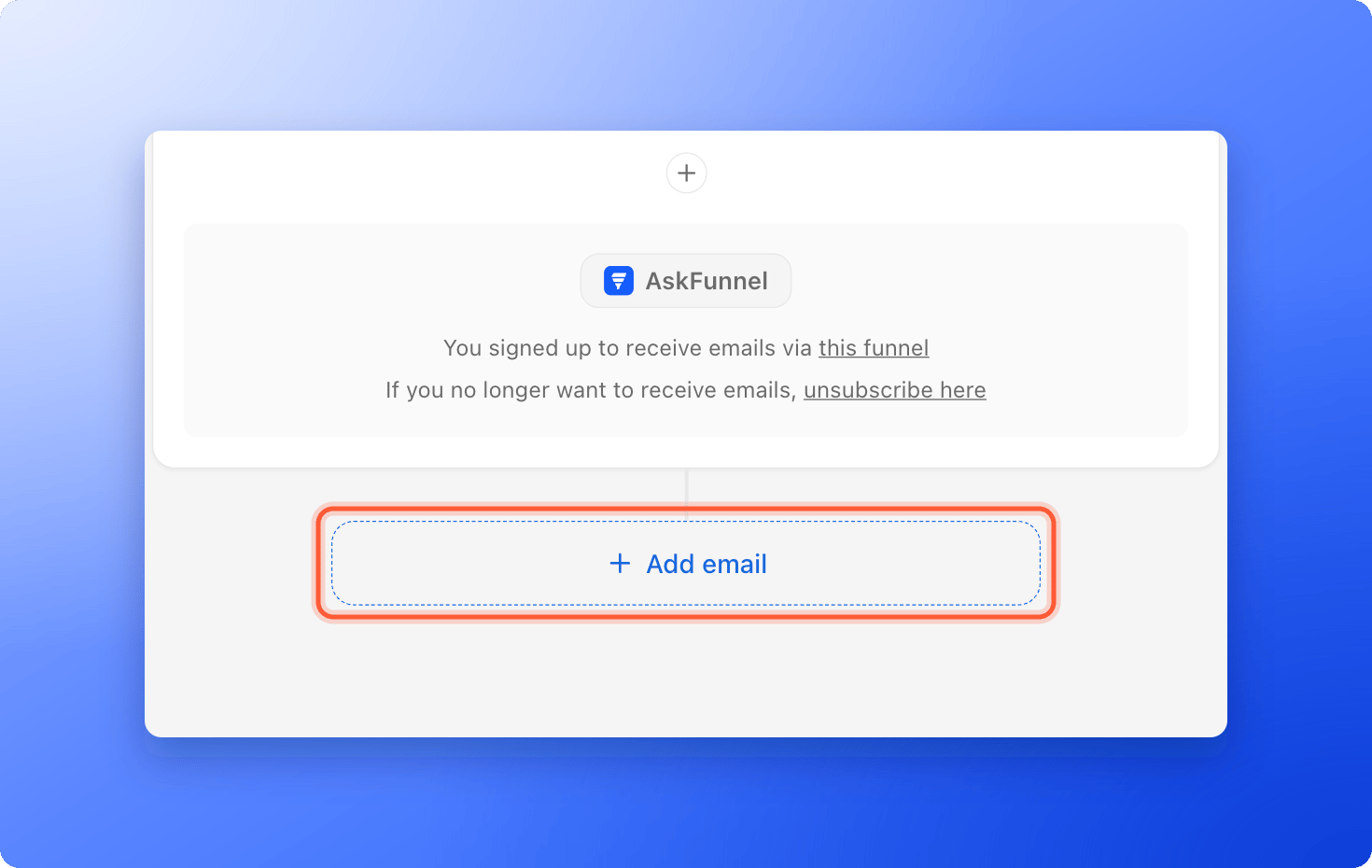
2
Set the delay
Click the Delay card above the new email. It says Click to add delay until you set it.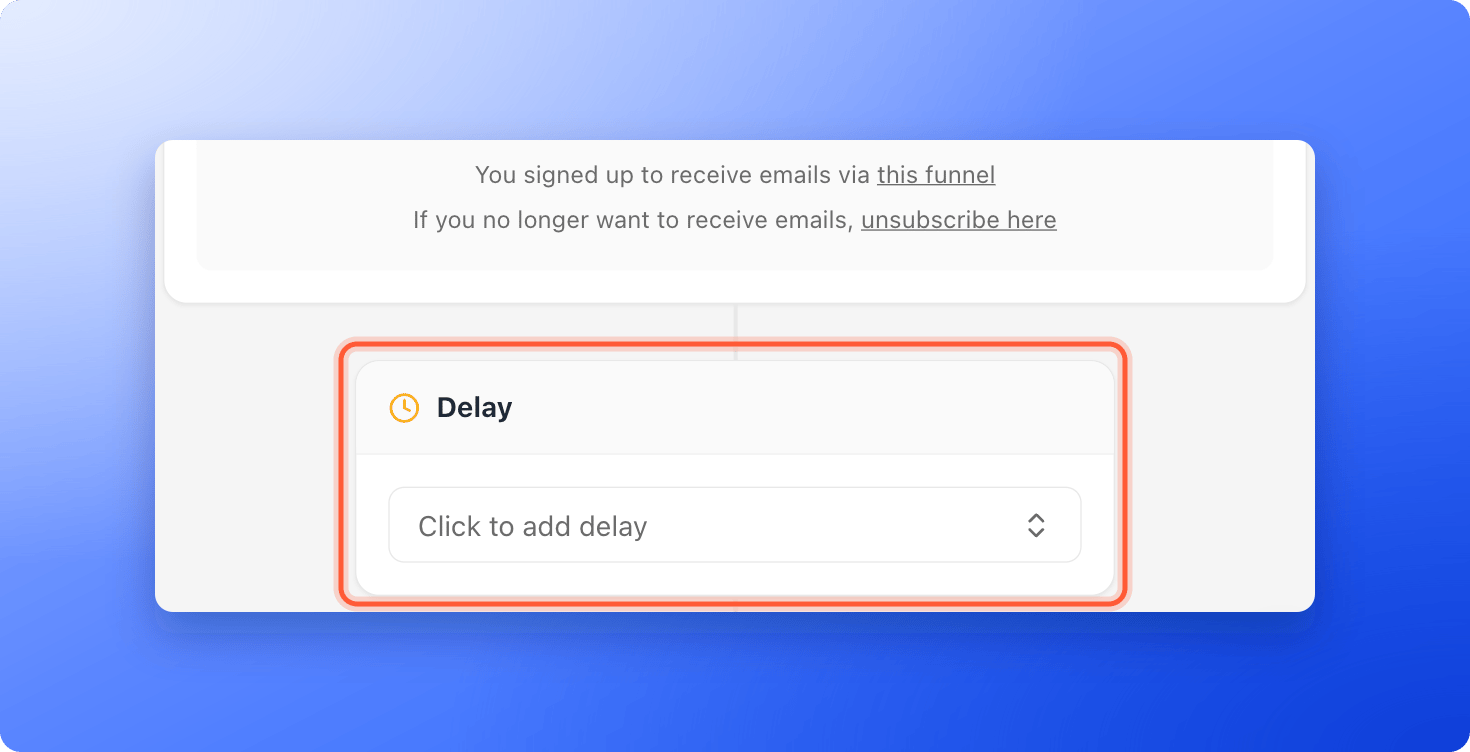
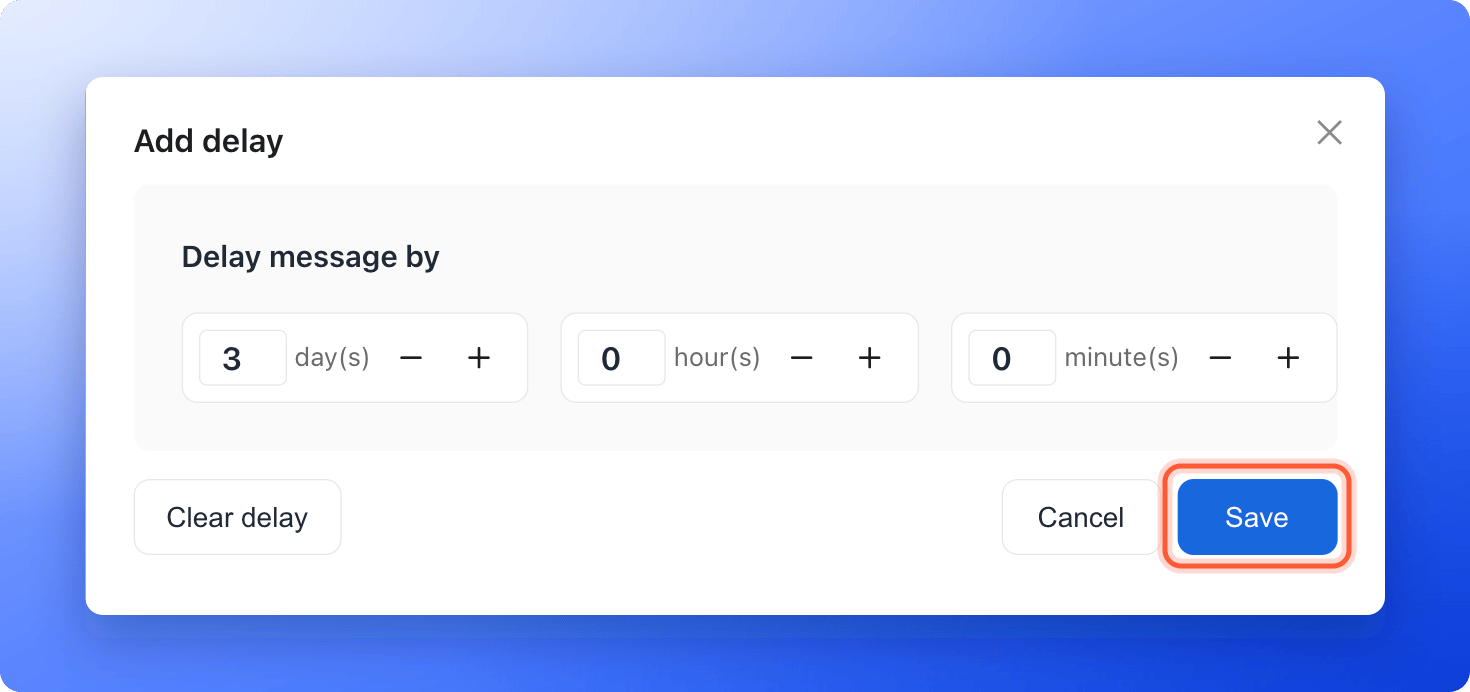
- Under Delay message by, enter the wait in day(s), hour(s) and minute(s). You can type a number or use the minus and plus buttons.
- Click “Save”.
3
Write the follow-up
Choose your sender under From, add a subject and write the message. Repeat “Add email” for each step of the sequence. Use “Test” to send yourself a copy of any email.
4
Publish the flow
Click “Publish Flow” at the top right. Every new lead who reaches your trigger status now gets the whole sequence.
Manage the steps
- Reorder or remove an email: click the three dots at the top right of an email (Message actions) and choose Move up, Move down or Delete.
- Clear a delay: open the delay and click “Clear delay”.
- Stop the sequence when a lead moves on: click the Trigger card, turn on Remove leads when their status changes and click “Save”. Converted or advanced leads then stop receiving the flow.
- Turn the flow off: this stops it for everyone. Leads waiting for their next email will not get it.
What to do next
Keep your emails out of spam
Help every email in your sequence reach the inbox.
Email your team when a lead arrives
Get an alert the moment a lead submits.