

- A role that can see lead profiles: Global Admin, Workspace Admin or Contacts Manager. Content Editors do not have access.
Important to note
What a lead profile holds
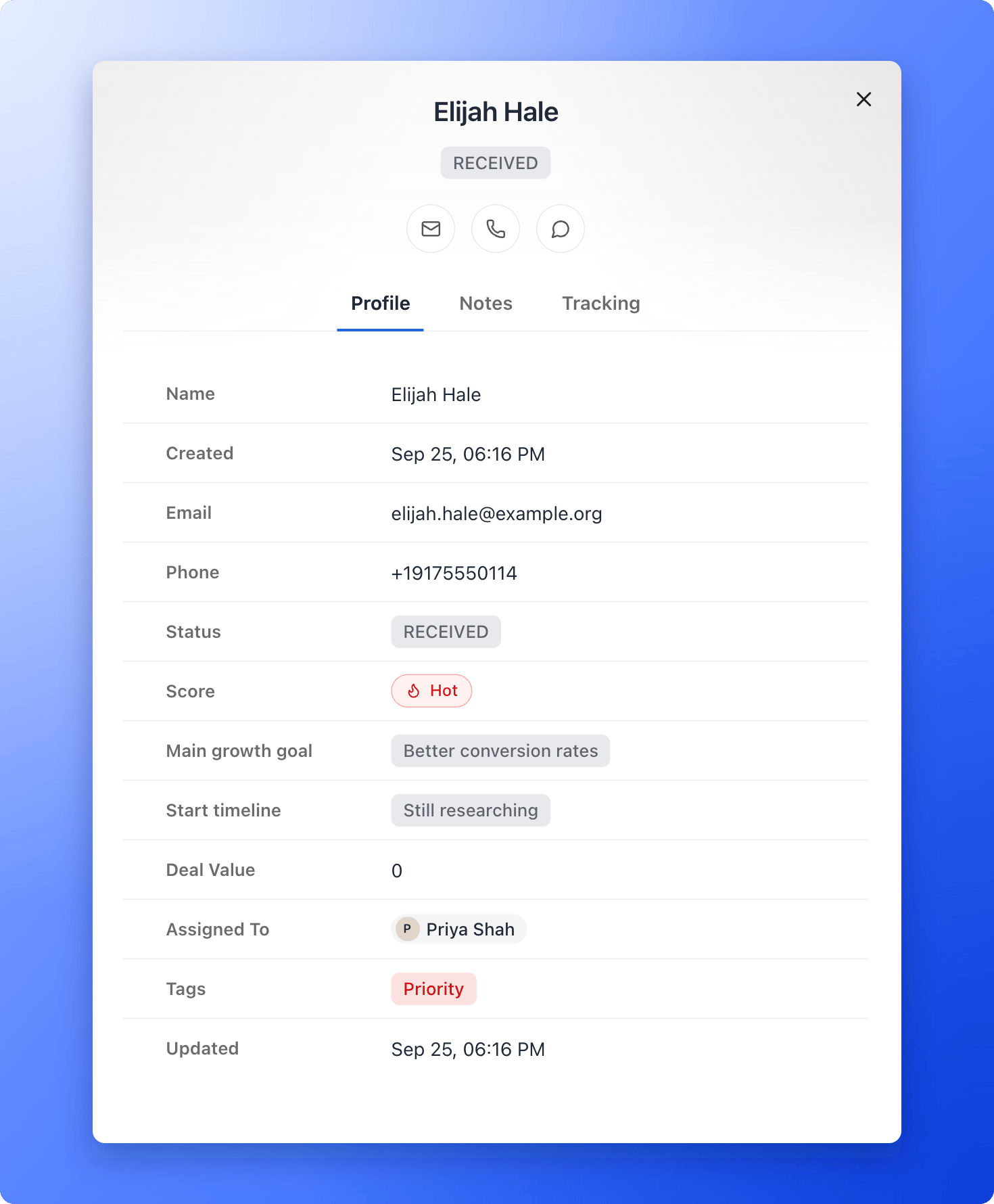
- Contact details: the name, email and phone your form collected. Hover over an email or phone to see a shield that shows whether it was verified.
- Answers: one field for every quiz question and form field in your funnel, with what the person chose or typed.
- Status: where the lead is in your follow-up. New leads start as RECEIVED. See Track leads with statuses.
- Score: Hot, Warm or Cold, shown only when lead scoring is on for the funnel.
- Assigned To and Tags: who owns the lead and how you group it.
- Notes: comments from you and your team.
- Tracking: where the lead came from and what device they used. See See where a lead came from.
- Email flows: which automated emails the lead is in or has received. This section appears only for leads that entered an email flow.
Open a lead profile
- Open your funnel’s Leads tab. See View and manage your leads.
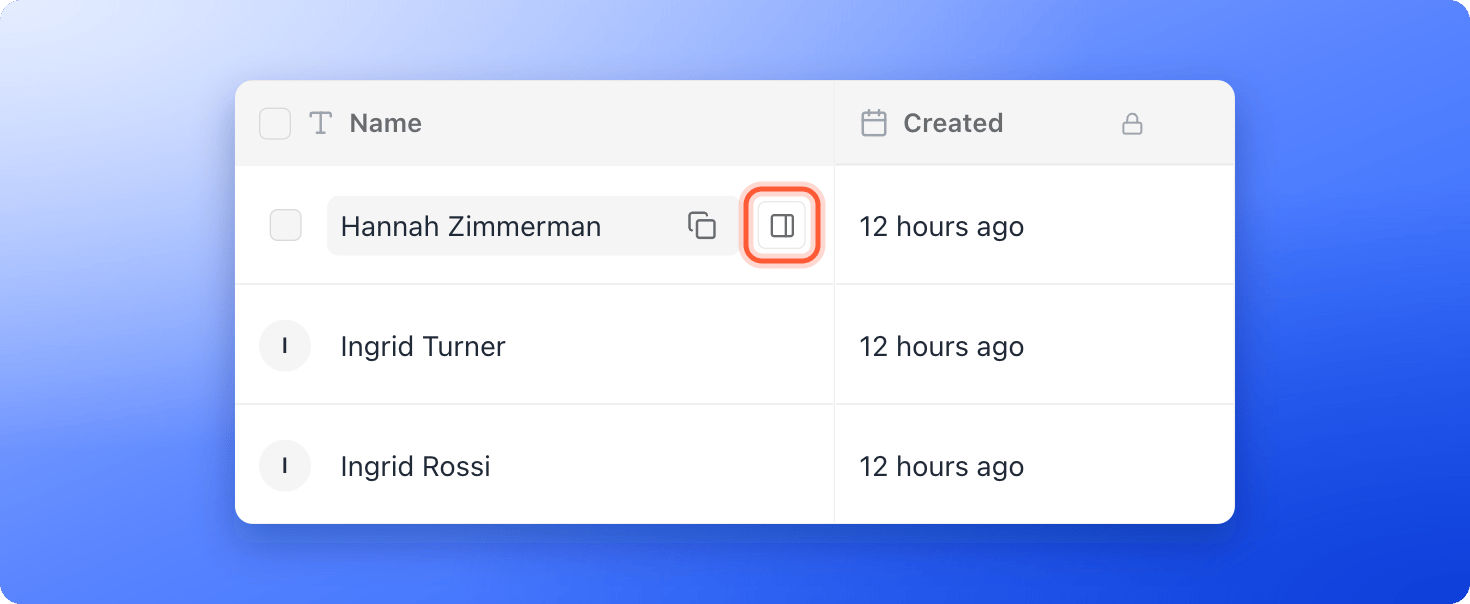
- Hover over the lead’s name and click the “Open lead” icon at the right edge of the name cell.
- Use the tabs Profile, Notes and Tracking to move around. The top of the panel shows the lead’s name, their status and icon buttons to email, call or message them on WhatsApp. The buttons appear when the lead has an email address or phone number.
- Use the up and down arrows to move to the next or previous lead, and the close icon to go back to the table.
What to do next
Track leads with statuses
Show where each lead is in your follow-up.
Set up lead scoring
See who to call first.
See where a lead came from
Find the ad, device and page behind each lead.