

Available on: the Growth plan and above.
- Connect almost any tool. Paste the webhook URL from Zapier, Make, n8n or your own server. No API key from AskFunnel is needed.
- Send every answer in one request. Each lead arrives as JSON (a standard text format that software reads easily) with the contact details, every answer, the lead score (a Cold, Warm or Hot label) and where the lead came from.
- Keep it secure. Every request is signed, so your server can check it came from AskFunnel. You can also add your own headers, such as an API key.
- Never lose a lead quietly. AskFunnel retries automatically, shows every lead in a delivery log, and emails you if something needs your attention.
- The Growth plan or above. See Upgrade your plan.
- A Workspace Admin or Global Admin role. Only they can manage webhooks.
- An account with the tool that will receive your leads, such as Zapier, Make or n8n, or an endpoint from your developer.
Important to note
Setup
1
Get a webhook URL from your tool
Every tool that can receive data gives you a URL for it. Copy that URL.
- Zapier: create a Zap, choose Webhooks by Zapier as the trigger and pick the Catch Hook event. Copy the webhook URL Zapier shows.
- Make: add the Webhooks module as the first step of a scenario and choose Custom webhook. Create the webhook and copy its address.
- n8n: add a Webhook node, set the HTTP method to POST and copy its URL. n8n shows a Test URL and a Production URL. See Build your automation.
- Your own server: ask your developer for an endpoint that accepts a POST request with a JSON body. They will find everything they need in What AskFunnel sends.
2
Add the webhook to your funnel
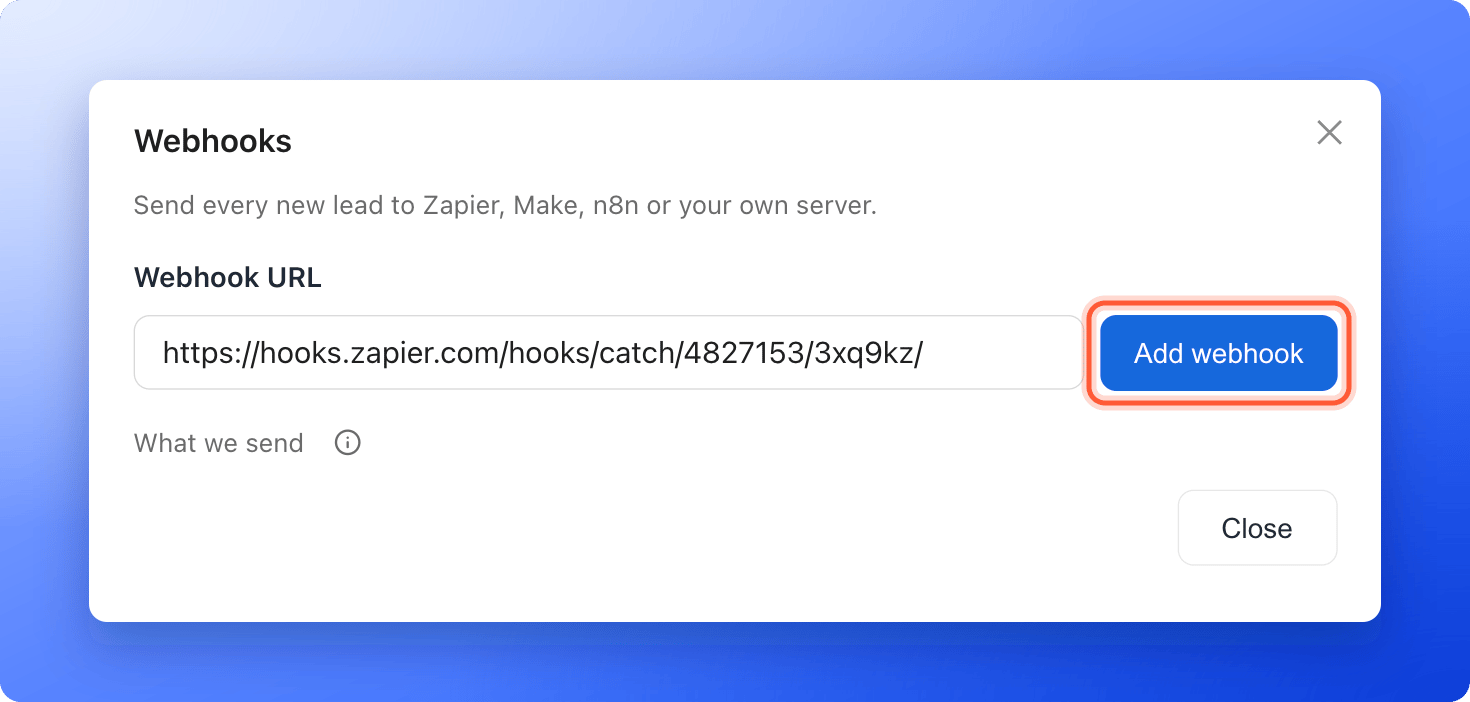
The URL must start with https://, use the standard port (443) and be reachable from the internet. Addresses inside a private network, such as localhost, are refused. It cannot contain a username, a password or a # fragment.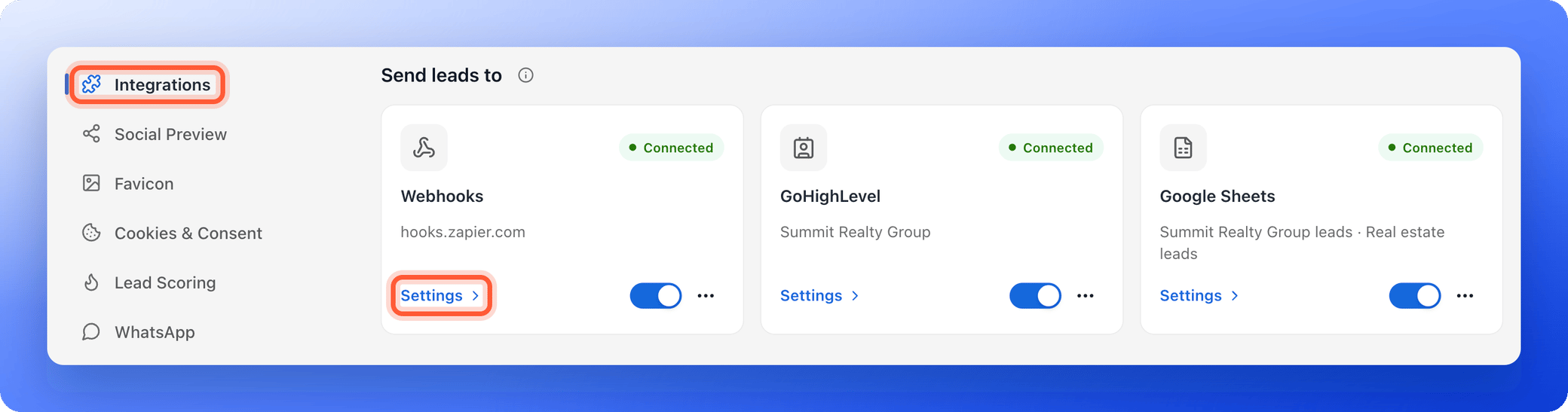
- From your main dashboard, find the funnel you want to connect.
- Click the three small dots (…) on that funnel’s row, then click “Funnel Settings”.
- On the left side menu, click “Integrations”.
- Under Send leads to, on the Webhooks card, click “Settings”.
- Paste your URL into Webhook URL and click “Add webhook”.
3
Send a test
Put your tool in listening mode first, so it can receive the test.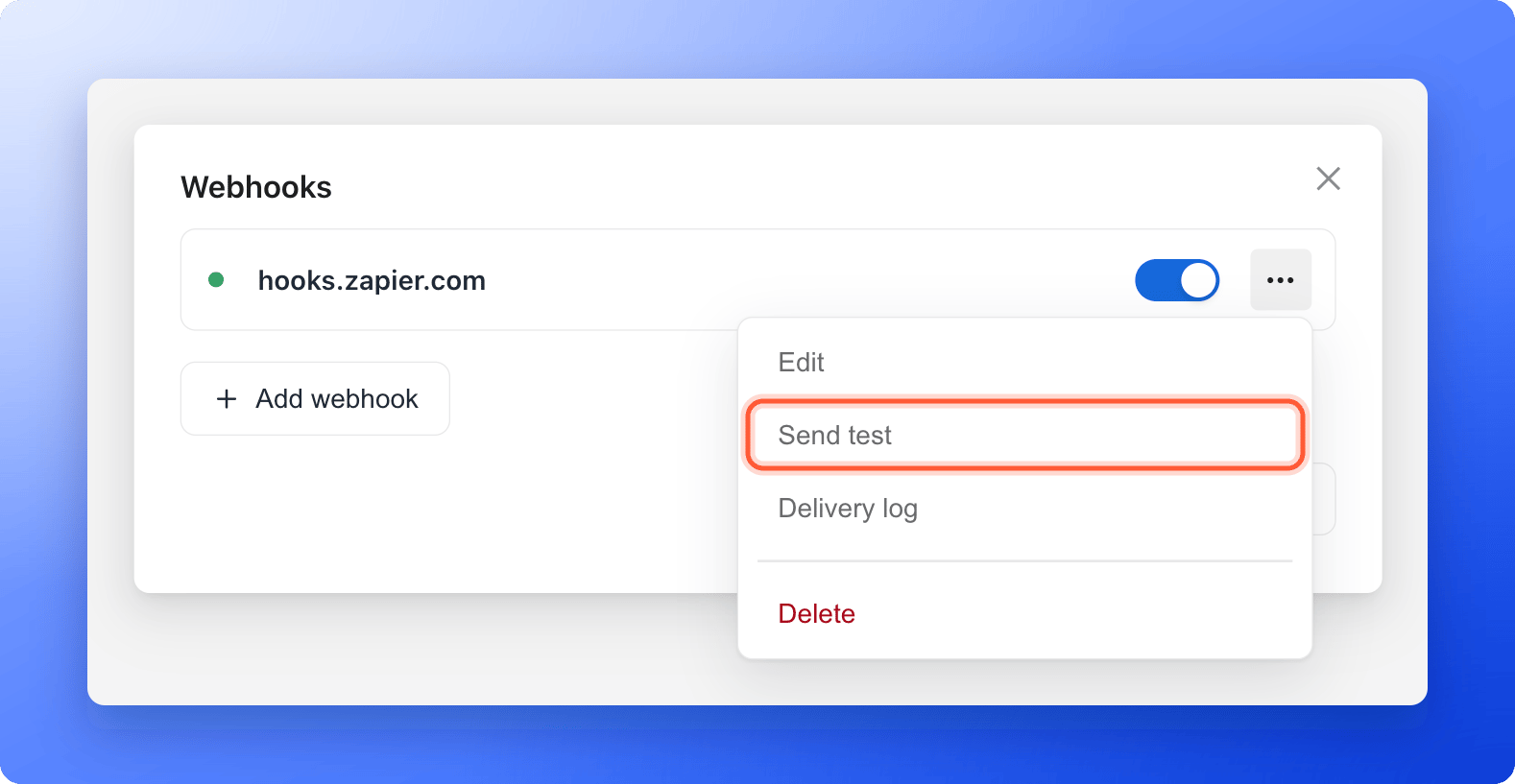
- On the webhook’s row, click the three dots (…), then “Send test”.
- AskFunnel sends a sample lead named AskFunnel Test (test@askfunnel.test), built from your funnel’s own questions. If your server accepts it, you see Test delivered and the status it answered with, for example Test delivered (200 OK). The request contains
"test": true, so your tool can tell it apart from a real lead. - In your tool, use the test request to set up the next steps, for example to add a row in your CRM.
4
Name it and add headers (optional)
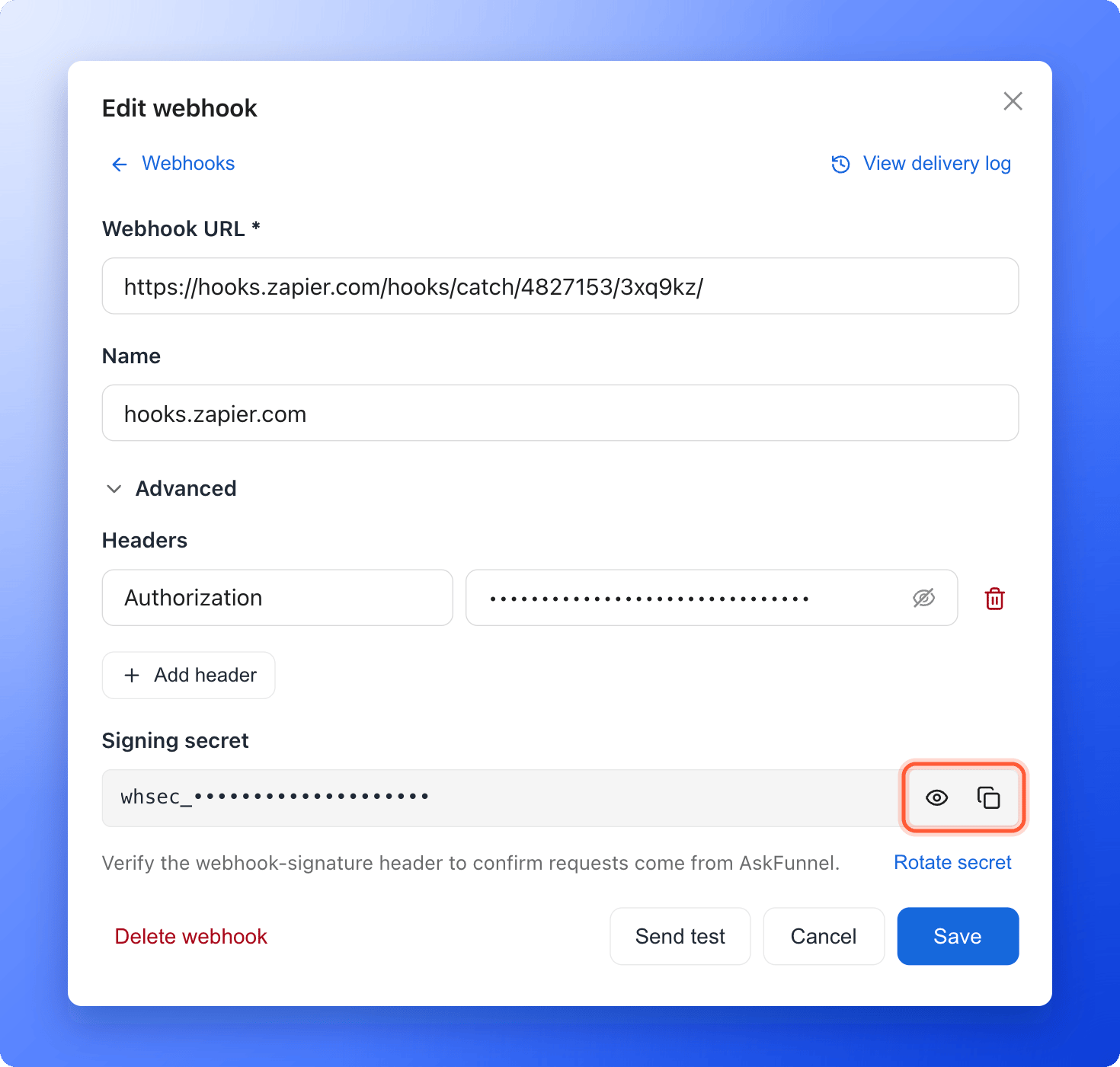
- Click the webhook’s name to open “Edit webhook”.
- Name is optional and only shown in AskFunnel. Without a name, the webhook is named after its host, for example hooks.zapier.com.
- Click Advanced. Under Headers, click “Add header” to send your own header (extra information sent with every request), for example Authorization with the value
Bearer your-token. You can add up to 10. Values are hidden once saved. To change one, type a new value. - The Signing secret is a private code your server can use to check that a request came from AskFunnel. It starts with whsec_. Click the eye icon to show it and the copy icon to copy it. You need it only if your server checks signatures. See Verify the signature.
- Click “Save”.
Some header names are reserved, such as Content-Type and anything that starts with webhook-. AskFunnel shows AskFunnel sets this header itself if you try to use one.
For developers: payload, headers and signature
The exact request AskFunnel sends, how to verify its signature and which answers count as delivered.
Build your automation
Zapier, Make and n8n each have a trigger that waits for a webhook, often called a “catch hook”. After your test arrives, your tool knows the fields of a lead. Build the rest of your automation:- Pick fields such as the contact’s email from the test lead.
- Use the
testfield in a filter step if you want to skip test leads.
Tracking where your leads come from
There is nothing to set up. UTM parameters are tags on your link (source, medium, campaign, term and content) that show where a visit came from. When someone lands on your funnel, AskFunnel captures them and the referrer (the page they came from) automatically. They arrive in theattribution part of every request.
How do I know it is working?
- The Webhooks card shows Connected and the address of your webhook, for example hooks.zapier.com. With several webhooks, it shows how many you have.
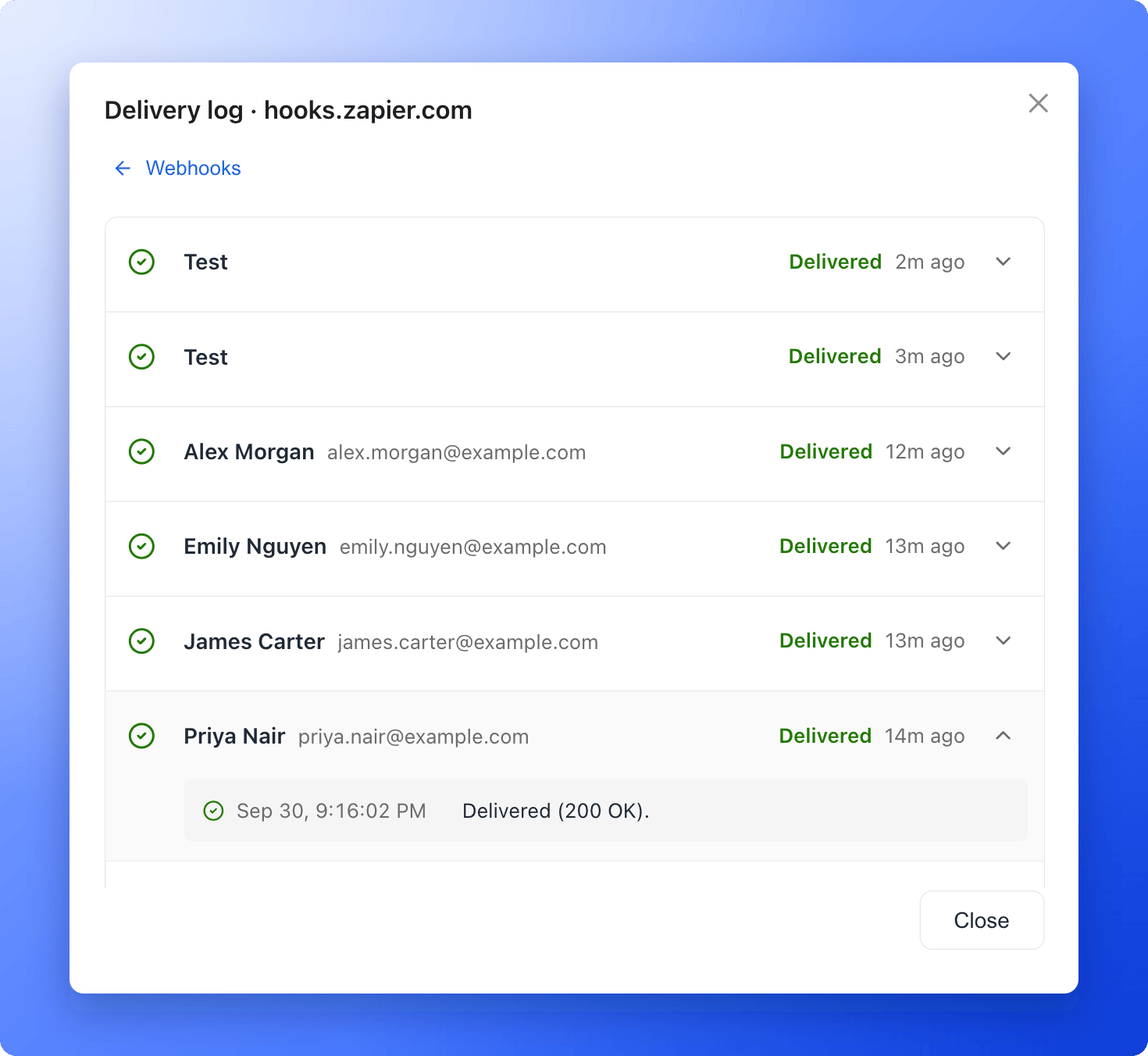
- In the Webhooks settings, click the three dots (…) on a webhook, then “Delivery log”. Each lead shows Delivered, Retrying or Failed, and you can open a lead to see every attempt. Tests are listed as Test.
- If your server cannot be reached, AskFunnel retries automatically, as described in Retries.
- If something needs your attention, the webhook shows Needs attention with the reason, the card shows Needs attention, and the organization owner gets an email.
Troubleshooting
My test fails with Test failed
My test fails with Test failed
The message under it says why. The most common ones:
- Use an https:// URL on port 443, without a username, password or #fragment. Fix the URL.
- The webhook URL points to a private or non-public address. The URL must be reachable from the internet. A server on your own computer or office network will not work.
- Could not reach the endpoint. Check the webhook URL. The address is wrong or the server is down.
- The endpoint did not respond in time. Your server took longer than 15 seconds.
- The endpoint refused the request. Your server answered 401 or 403. Check the webhook’s headers, such as the API key.
- The endpoint was not found. Your server answered 404 or 410. Check the webhook URL.
- The endpoint rejected the request. Your server answered with another error, such as 400. Check what your server expects.
- The endpoint redirected. Use the final URL. Paste the address you end up at, not the one that redirects.
A lead shows Failed in the delivery log
A lead shows Failed in the delivery log
Open the lead in the delivery log to see the reason, fix it, then click “Retry”, or “Retry failed” to send all failed leads again. The reasons are the same as for a failed test. A lead that is too large to send (over 256 KB) cannot be retried.
The webhook says Needs attention
The webhook says Needs attention
Open the delivery log, fix the reason shown, then click “Retry failed”. Saving the webhook after you change its URL or headers also sends the leads that failed again.
The same lead arrived twice
The same lead arrived twice
AskFunnel delivers each lead at least once. If your server was slow and AskFunnel retried, or you clicked “Retry”, the same lead arrives again with the same
webhook-id header and the same id. Ignore a lead whose ID you have already handled. See Retries.The Webhooks card says Growth and above
The Webhooks card says Growth and above
Webhooks are available on the Growth plan and above. Click “Upgrade to Growth” in the Webhooks settings, or see Upgrade your plan. If you had webhooks before, the card shows Not sending. Your webhooks and their settings are kept, and they start sending new leads again once your plan includes webhooks.
Manage the integration
- Send to several tools: click “Add webhook” in the Webhooks settings to add another URL, up to 10.
- Pause one webhook: turn off the switch on its row. Leads that arrive while it is paused are not sent later.
- Change a URL or a header: click the webhook’s name, edit it and click “Save”. Saved header values are kept only while the URL stays on the same website. If you point the webhook to a different website, enter the header values again.
- Change the signing secret: in “Edit webhook”, open Advanced and click “Rotate secret”. Requests signed with the old secret will fail verification, so update your server right after.
- Delete a webhook: click “Delete webhook” in “Edit webhook”, or “Delete” in the webhook’s three dots menu. New leads stop being sent to it.
What to do next
What AskFunnel sends
The request, headers and signature, for developers.
Send leads to HighLevel
Every new lead becomes a contact in HighLevel.
Track your ads
Connect Meta Pixel to see which ads bring leads.