

- A Global Admin role, or a Workspace Admin role for your own workspace. Only Global Admins can invite Global Admins. Workspace Admins can invite Workspace Admins, Content Editors and Contacts Managers to their own workspace.
- The exact email address of the person. They must accept with the same address you invited.
- A free team seat, if the role uses one. See Team seats.
Choose a role
When you invite a client who only needs to see their results, choose Contacts Manager. See What a Contacts Manager can see and do.
Important to note
Send an invitation
1
Open Members and click Invite teammate
- Click your profile picture in the top right corner, then click “Members”.
- Click “Invite teammate”.
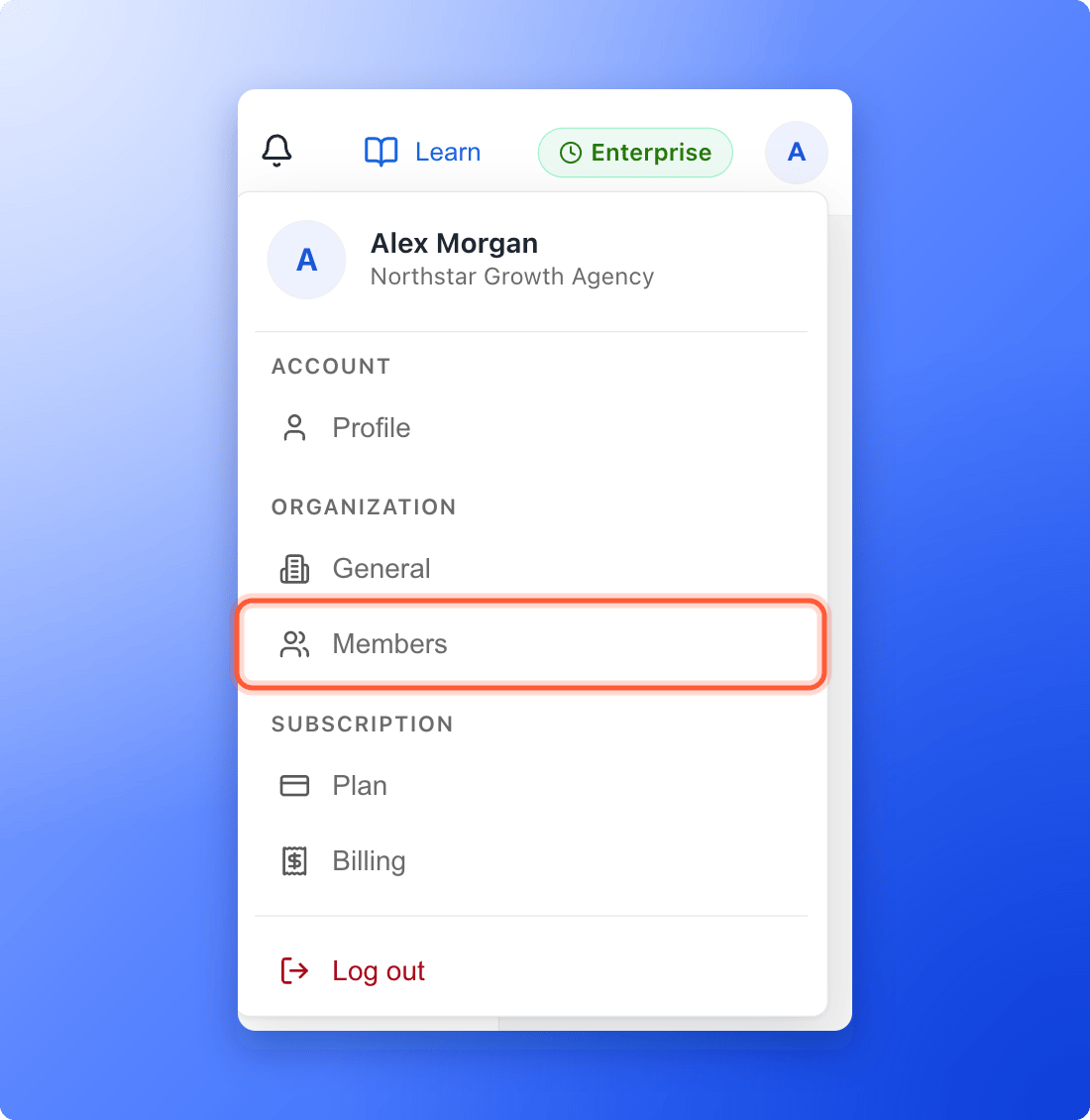
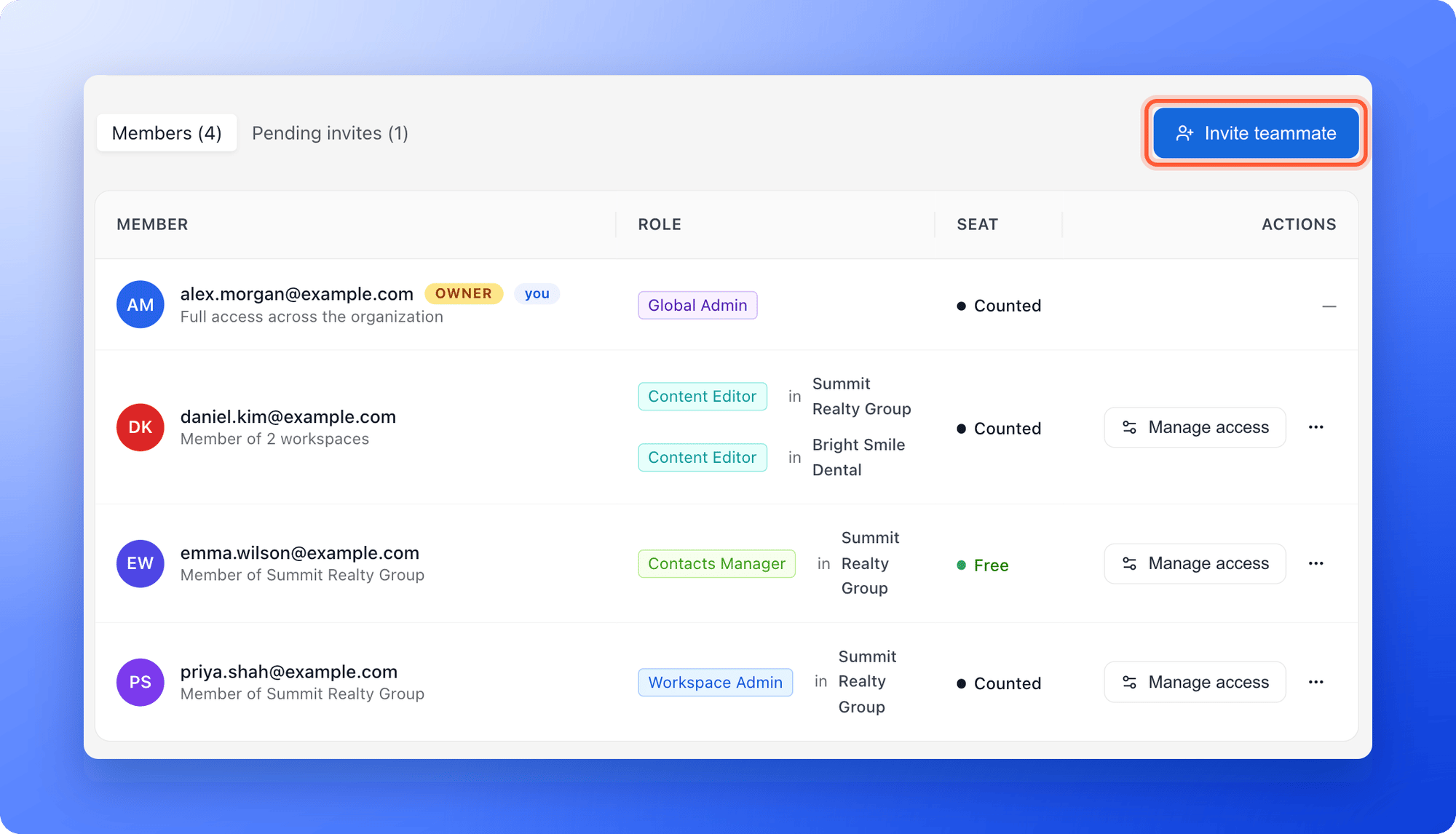
Workspace Admins: Click the … menu on the workspace card, then “Workspace settings”, then Members, and click “Invite member”. The workspace is already selected.
2
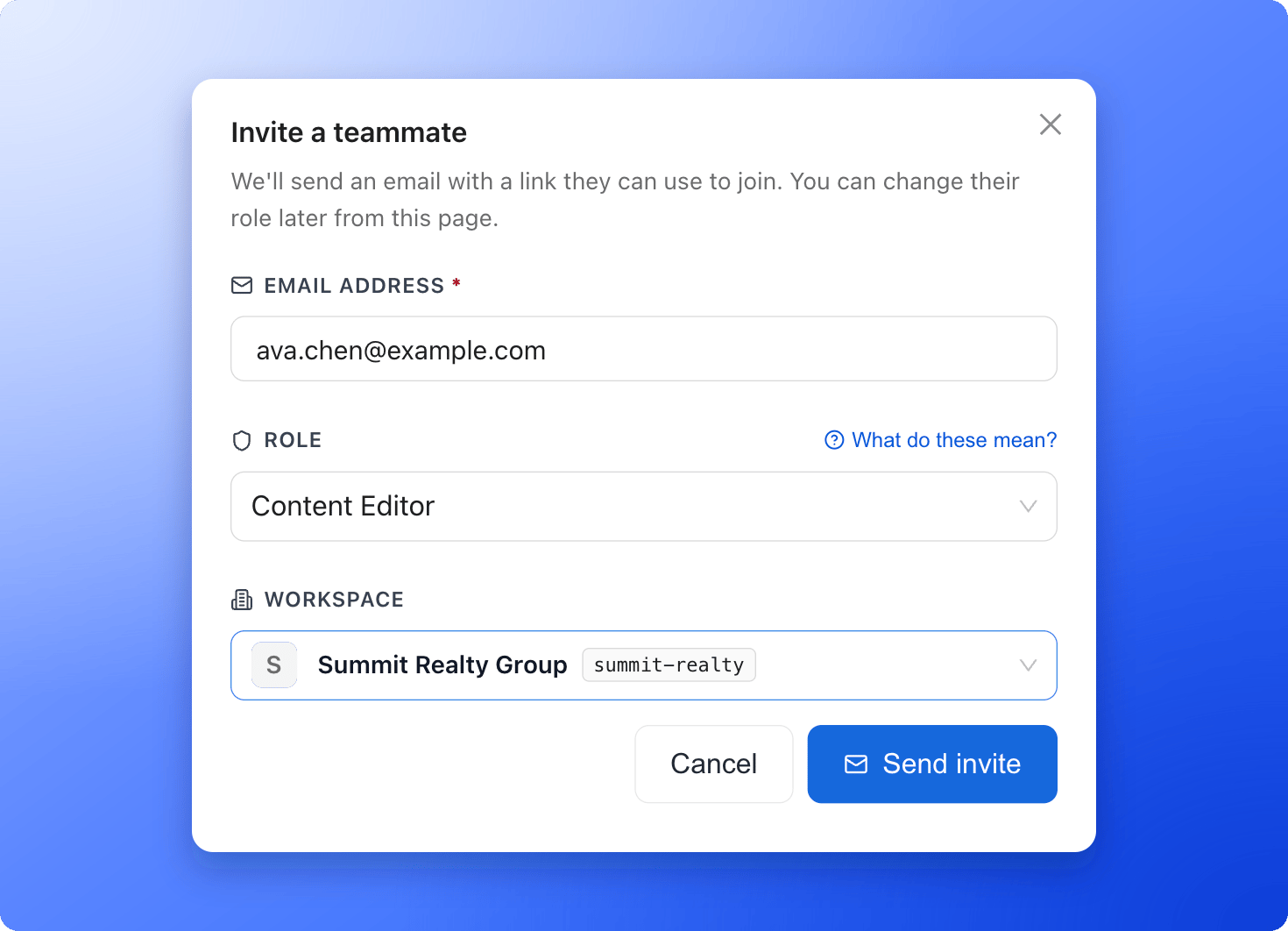
Fill in the invitation
- Email address: Enter the exact email of the person you are inviting.
- Role: Choose a role. Click “What do these mean?” for a short guide.
- Workspace: Choose the workspace they should join. You do not pick one for a Global Admin, because Global Admins have access to every workspace.
3
Send the invitation
Click “Send invite”. You see a message such as “Invitation sent to sofia.alvarez@example.com.” The invitation appears in the Pending invites tab.
What your teammate does
- They receive an email with the subject You’ve been invited to followed by your organization name. It has an “Accept invitation” button.
- On the page that opens, they see their role and workspace. They click “Accept & sign in”, or “Accept invitation” if they are already signed in.
- They land on Your workspaces, where they see the workspace you added them to.
Give an existing member access to another workspace
- Open Members and click “Manage access” on the person’s row.
- Under Add to another workspace, choose the workspace and a role, then click “Add”.
Make someone a Global Admin
Open Members, click the … menu on the person’s row, and click “Promote to Global Admin”. Confirm with “Promote”. They get full access to every workspace, plus your plan and team settings.Troubleshooting
I see that I have reached my plan limit
I see that I have reached my plan limit
Content Editors, Workspace Admins and Global Admins use a seat. Free a seat, add seats or upgrade your plan. See Team seats. You can still invite Contacts Managers.
I see that I sent too many invites in the last hour
I see that I sent too many invites in the last hour
AskFunnel limits how many invitations and resends you can send in an hour. Wait a little and try again.
My teammate did not get the email
My teammate did not get the email
Ask them to check their spam folder and confirm the address is right. Then open the Pending invites tab and click “Resend”. See Resend or cancel a pending invite.
My teammate already has an AskFunnel account
My teammate already has an AskFunnel account
They can accept with the same email address. If they are already a member of another organization, they must leave that organization first.
What to do next
Resend or cancel a pending invite
Check who has not accepted yet.
Team seats
See which roles use a seat and how to add more.
What a Contacts Manager can see and do
Give clients their leads without letting them edit funnels.