

Available on: all plans (Starter, Growth, Scale and Enterprise).
- Check that your emails arrive. Compare Sent with Delivered.
- See what gets attention. Clicked and Opened show which emails your leads act on.
- Spot problems early. A growing Bounced count points to wrong addresses.
- Follow one lead. See each email, whether it arrived and what the lead did with it.
- A flow that is published and has sent at least one email. See Send automated emails to new leads.
- A role that can edit funnels to see the counts in the flow: Global Admin, Workspace Admin or Content Editor.
- A role that can see leads to see one lead’s history: Global Admin, Workspace Admin or Contacts Manager.
Important to note
Read the results in your flow
1
Open your flow
- From your main dashboard, find the funnel. Click the three small dots (…) on its row, then click “Edit Funnel”.
- At the top, next to the funnel name, click the Funnel button and choose “Flows”.
- Choose your flow in the list on the left.
2
Read the line under each subject
Under the subject of each email you see its counts, for example Sent 12 · Delivered 11 · Clicked 3 · Opened 7 · Bounced 1. Before the first send, the line says No sends yet. If Bounced is above zero, it turns red.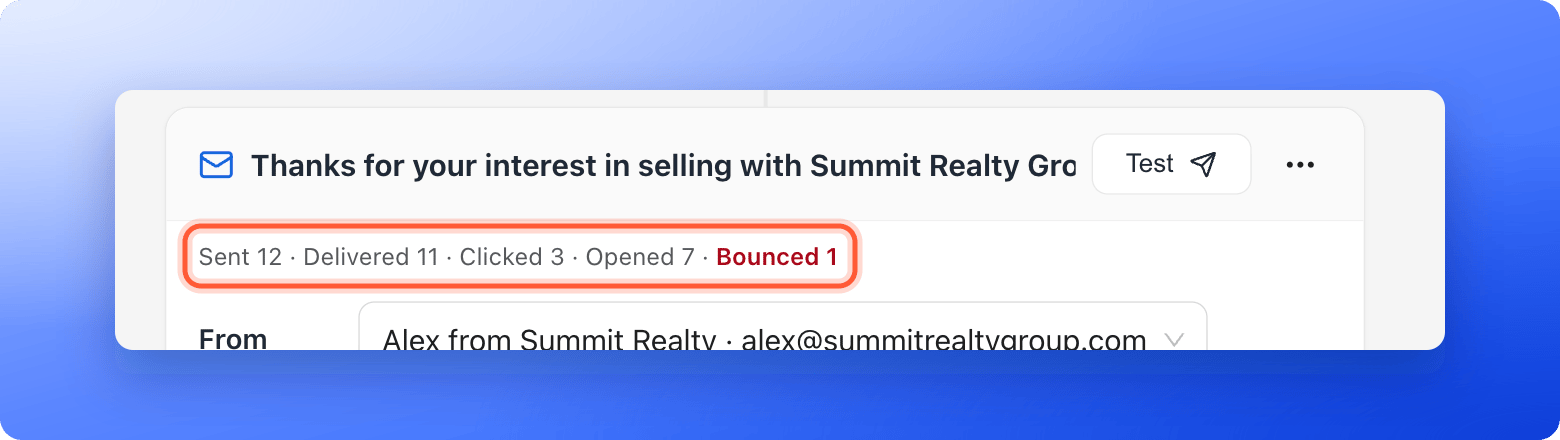
3
Turn on tracking for clicks and opens (optional)
If Clicked stays at zero, or Opened is missing, click tracking or open tracking is off. In Workspace Settings, open Senders, find your domain and turn on Click tracking. After that, an Open tracking switch appears. The full steps are in Add and verify a sender email. Opened shows once open tracking is on for any domain of your workspace.
4
Check one lead
Open the lead from your funnel’s Leads tab and look at Email flows in the Profile tab. Each flow shows its state, Active, Waiting, Paused, Completed, Failed or Cancelled, and these lines for every email: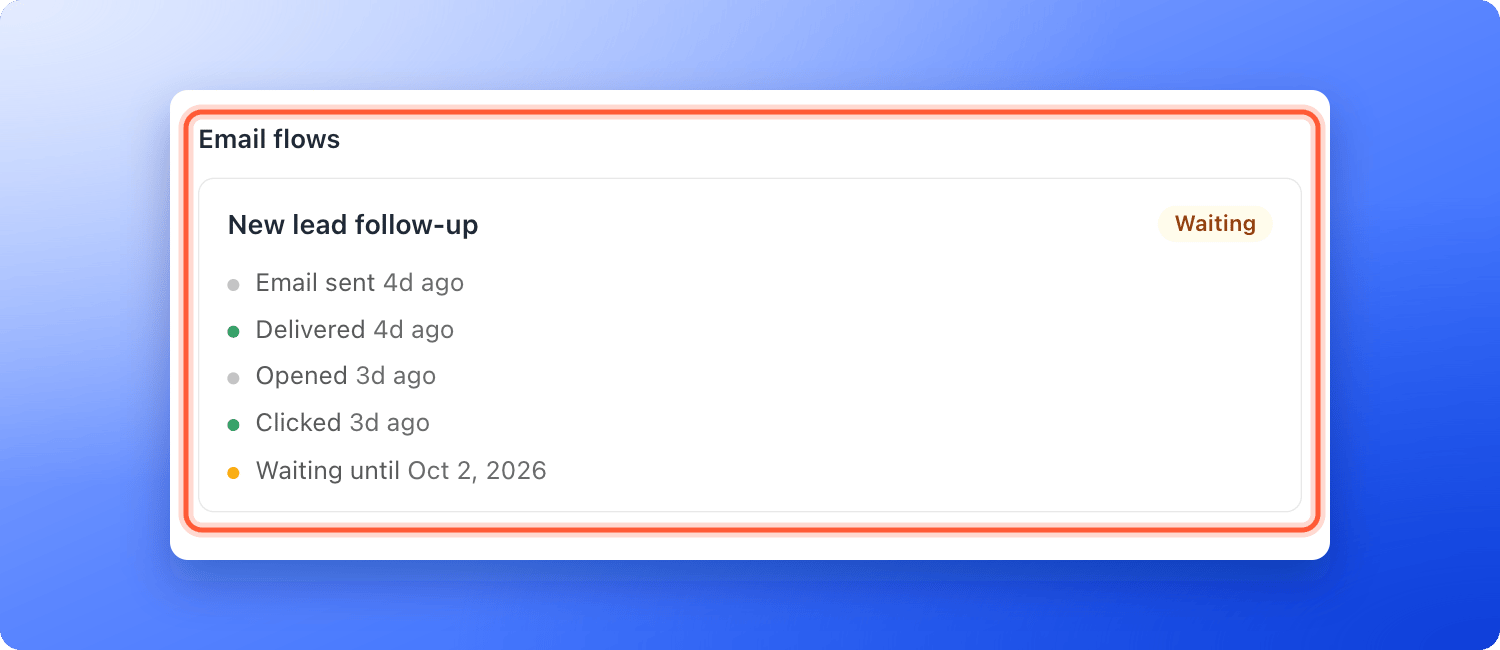
- Email sent
- Delivered
- Opened and Clicked, when tracking is on
- Bounced, or Bounced (temporary) when the problem may pass
- Marked as spam, when the person reported your email
- Waiting until, with the time the next email goes out
- Sending paused to protect deliverability
What each count means
An email the recipient marked as spam counts in Sent, and the lead’s history shows Marked as spam.
What your recipients see
At the bottom of every email, your leads see:- A small AskFunnel badge, unless you turned Branding off on the Growth plan or above. See Remove the Made with AskFunnel branding.
- The line You signed up to receive emails via this funnel, where this funnel links to your funnel.
- The line If you no longer want to receive emails, unsubscribe here.
How do I know it is working?
- After the first send, the line under the subject shows numbers instead of No sends yet.
- Delivered is close to Sent.
- A lead’s Email flows section shows Email sent and Delivered.
Troubleshooting
I see No sends yet
I see No sends yet
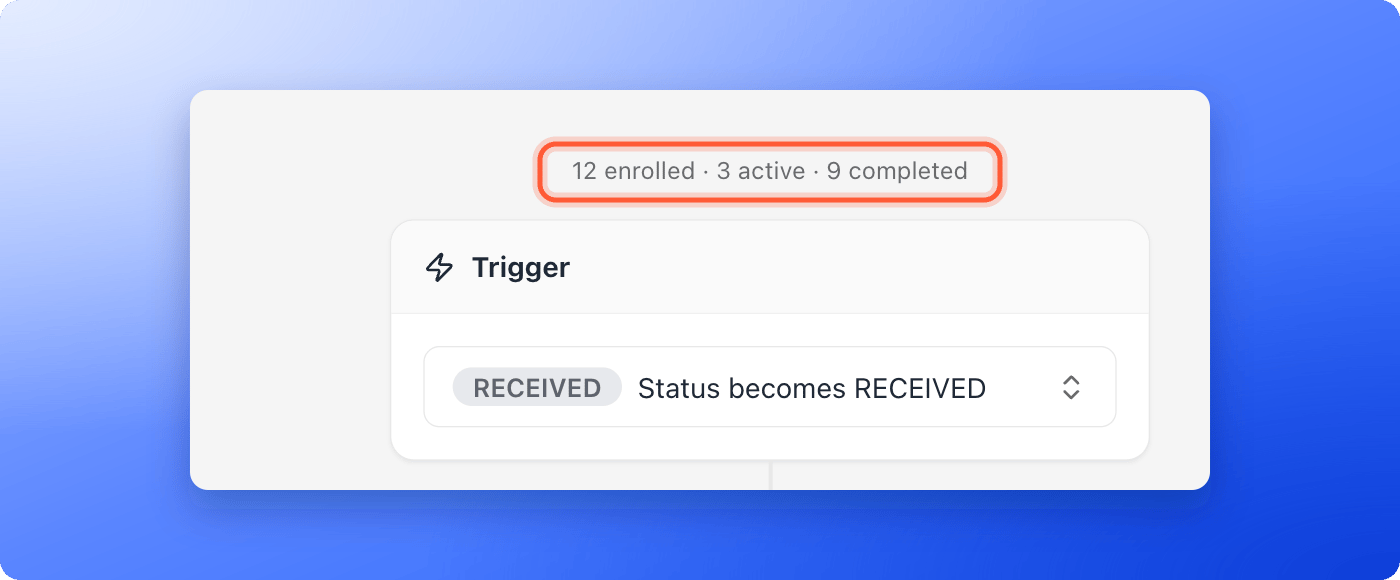
Your flow is published but no lead has reached its trigger status since then. Leads that already had that status when you published are not added. See Send automated emails to new leads.
I do not see any numbers under my emails
I do not see any numbers under my emails
The numbers only show for a flow that has been published at least once. Click “Publish Flow”, and check that your role can edit funnels.
Clicked is always 0
Clicked is always 0
Click tracking is off for your sender’s domain, the email has no links, or nobody clicked yet. Turn on Click tracking in Workspace Settings, under Senders.
Opened does not show
Opened does not show
Opened only appears when Open tracking is on for one of your sender domains. It can also be switched on only after click tracking is active. See Add and verify a sender email.
Delivered is lower than Sent
Delivered is lower than Sent
Some emails have not been confirmed yet, or they bounced. Check again after a few minutes. If Bounced is above zero, open the leads whose Email flows show Bounced and fix or delete those addresses.
Opens look too high
Opens look too high
Some mail apps, such as Apple Mail, load the tracking image without anyone reading the email. Use Clicked as the more reliable number.
A lead says Sending paused to protect deliverability
A lead says Sending paused to protect deliverability
AskFunnel paused sending to protect your sender reputation. See Keep your emails out of spam.
Can I remove the unsubscribe line?
Can I remove the unsubscribe line?
No. The signup line and the unsubscribe line are required for email, so they always appear.
What to do next
Keep your emails out of spam
Help every email reach the inbox.
Add and verify a sender email
Set up your sender and turn on tracking.
Send a series of follow-up emails
Add delays and more emails to your flow.