

- Check every screen. See your pages as they look on a computer, a tablet and a phone.
- Follow every route. Try each answer that sends visitors to a different page.
- Check the lead. Make sure the contact details and the answers arrive.
- Check what happens next. See your thank you screen, your connected tools and your emails.
- A funnel with a lead form. See Set up your lead capture form.
- A role that can edit and publish funnels: Global Admin, Workspace Admin or Content Editor.
- A verified email address. Publishing needs it.
- To open the test lead, a role that can see leads: Global Admin, Workspace Admin or Contacts Manager. Content Editors cannot open leads, so ask a teammate who can. See View and manage your leads.
Important to note
Run the test
1
Check each screen size in the builder
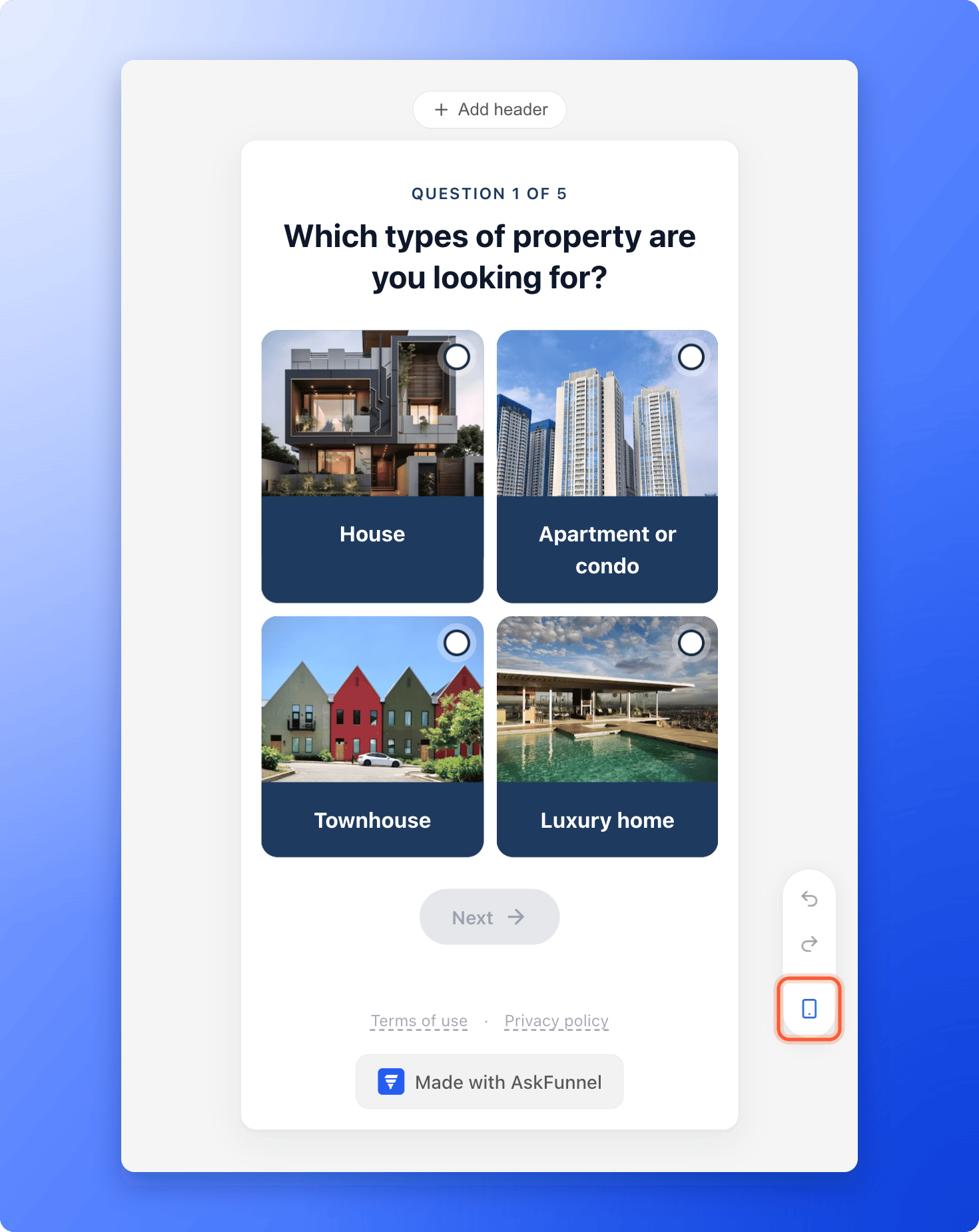
- In the builder, find the device button at the right side of the canvas. Its icon shows the view you are in now. The builder opens in Mobile view.
- Click it to switch to the next view. The order is Desktop, then Tablet, then Mobile, then back to Desktop. Point at the button to see the name of the next view.
- On each page, look for text that is cut off or too small, images that are cropped badly and buttons or form fields that sit too far down. On a phone, columns stack one above the other. See Build multi-column layouts.
2
Publish and open your live funnel
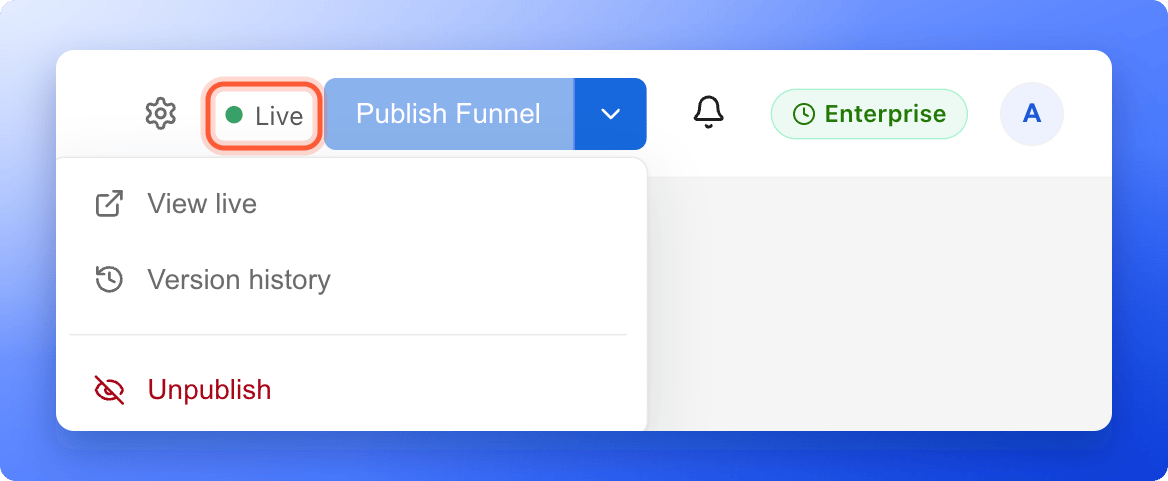
- Click “Publish Funnel” at the top right and wait until the status says Live. See Publish, unpublish and restore an earlier version if the button is grayed out.
- Click the small arrow next to “Publish Funnel”, then click “View live”. Your funnel opens in a new tab and shows exactly what visitors see.
- For a clean test, copy the address into a private browser window, where you are not signed in. Then open the same link on your own phone.
3
Walk through it like a visitor
- Answer every question. If your funnel uses a cookie banner, make a choice like a visitor would. Test it once with the banner accepted and once with it declined. See Set up cookies and visitor consent.
- Try each route. If an answer sends people to a different page, pick it and check that you arrive where you expect. Also try an answer that follows the Otherwise route. See Send visitors to different pages based on their answers.
- Try the form with mistakes. Leave a required field empty, and type an email address without the @ sign. The form points out the problem before it sends anything.
4
Submit a test lead
- On the form page, enter details you will recognize as a test, for example your own name with the word test after it. If you use automated emails, enter an email address you can open.
- Click the submit button once and wait for the next page.
- Read your thank you screen and click its button, if it has one. See Customize your thank you screen.
5
Find the lead and check it
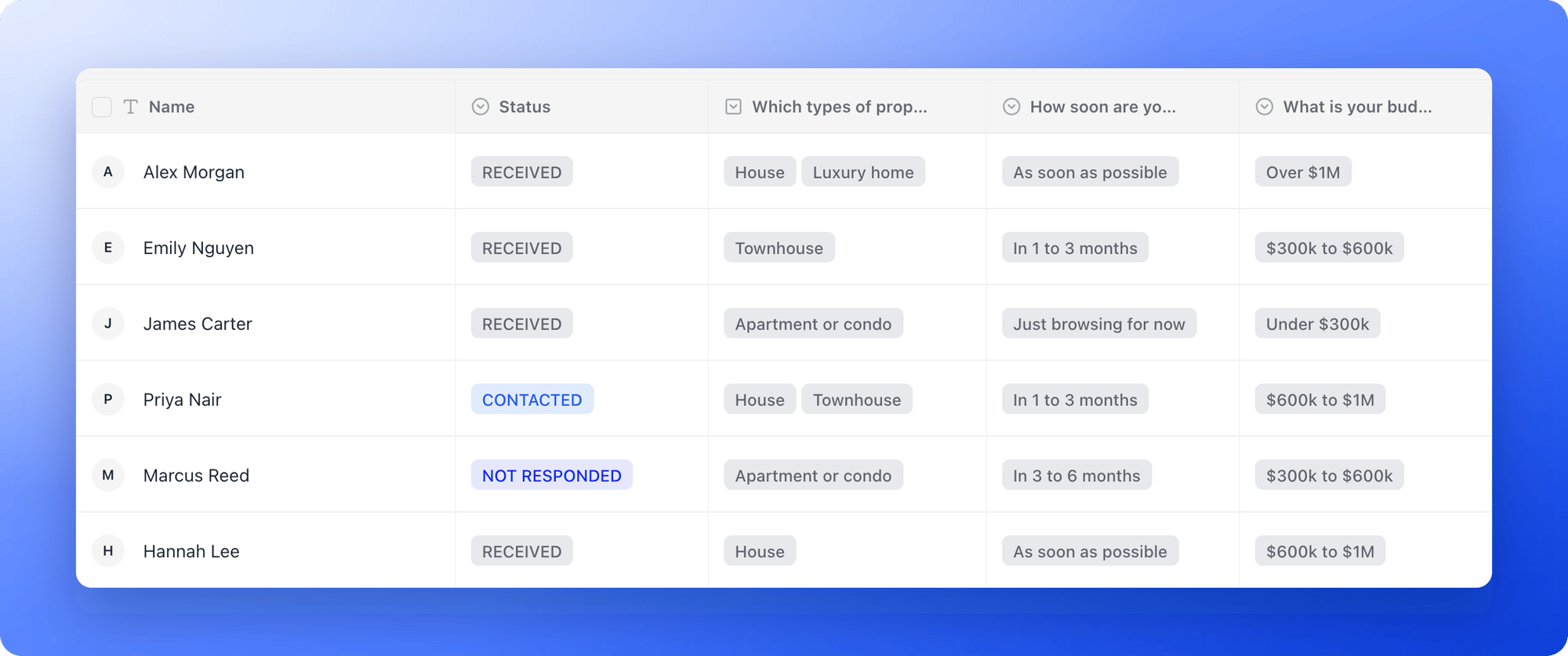
- In the dashboard, open your Funnels page and click your funnel’s row. Its Leads tab opens.
- Click the magnifier icon and type the name you used.
- Hover over the lead’s name and click the “Open lead” icon. In the Profile tab, check that the contact details and every answer match what you entered.
6
Check what happens next and clean up
- Connected tools. Open the lead in your tool, or the delivery log of your webhook, where the lead shows Delivered. See Send your leads to a webhook, Send your leads to Google Sheets and Send your leads to HighLevel.
- Emails. Check your inbox for the automated email and your team’s inbox for the alert, if you set them up. See Send automated emails to new leads and Email your team when a lead arrives.
- Clean up. Delete the test lead. See Delete leads. Other tools keep their copy, so delete it there too.
How do I know it is working?
- Each page reads well on Desktop, Tablet and Mobile, and on your own phone.
- Every answer leads where you planned, and the form points out mistakes.
- After you submit, you reach your thank you screen.
- The test lead is in the Leads tab with the right contact details and answers.
- Your connected tools and emails received it, if you use them.
Troubleshooting
I do not see my changes on the live funnel
I do not see my changes on the live funnel
Changes only go live when you publish. If the status says Edited, click “Publish Funnel”, then wait about a minute and refresh the page. Use a private browser window so your browser does not show an old copy. See Publish, unpublish and restore an earlier version.
I reached the thank you screen but cannot find the lead
I reached the thank you screen but cannot find the lead
- The form saved no lead because the Email and Phone fields were both empty.
- You are in the Leads tab of a different funnel, or a filter or search hides the lead. Clear them, or click View options, then “Reset view”.
- Your plan’s monthly lead limit is used up. The lead is saved but locked and hidden. See What happens when you reach your monthly lead limit.
I do not see View live
I do not see View live
“View live” only shows for a live funnel. Click “Publish Funnel” first.
I cannot open the Leads tab
I cannot open the Leads tab
Content Editors design funnels but cannot see leads. Ask a Global Admin, Workspace Admin or Contacts Manager to check the lead for you, or to change your role. See Invite a teammate or client to a workspace.
The funnel looks different on my phone than in Mobile view
The funnel looks different on my phone than in Mobile view
The device views in the builder are a guide. Trust the live funnel on a real phone. If something looks wrong, fix it in the builder, publish and check again.
My test lead still shows in my analytics after I deleted it
My test lead still shows in my analytics after I deleted it
Analytics counts the form submission, and it can keep counting it after the lead is deleted. See Why your lead and analytics numbers differ.
The automated email did not arrive
The automated email did not arrive
Check your spam folder first. If it is not there, see Keep your emails out of spam.
What to do next
Find and share your funnel link
Copy your link and use it in ads, messages and social posts.
Track campaigns with UTM links
Test a tagged link and see where the lead came from.
Connect your custom domain
Put your funnel on your own web address, then test it again.
Why your numbers differ
Understand your leads and analytics once the traffic arrives.