

- Route by one answer. For example, “Buy” goes to one page and “Sell” goes to another.
- Combine answers. A rule can check this question and questions from earlier pages, joined by and or or.
- Choose what everyone else sees. The Otherwise route catches everyone no rule matches.
- End on different results. Rules can send people to any page or any result of your funnel.
- A funnel open in the builder, with a quiz question on a page. See Build quiz questions.
- The pages or results you want to send people to. See Manage your funnel pages.
- A role that can edit funnels: Global Admin, Workspace Admin or Content Editor.
Important to note
Set up branching
1
Open the Action Flow of your quiz
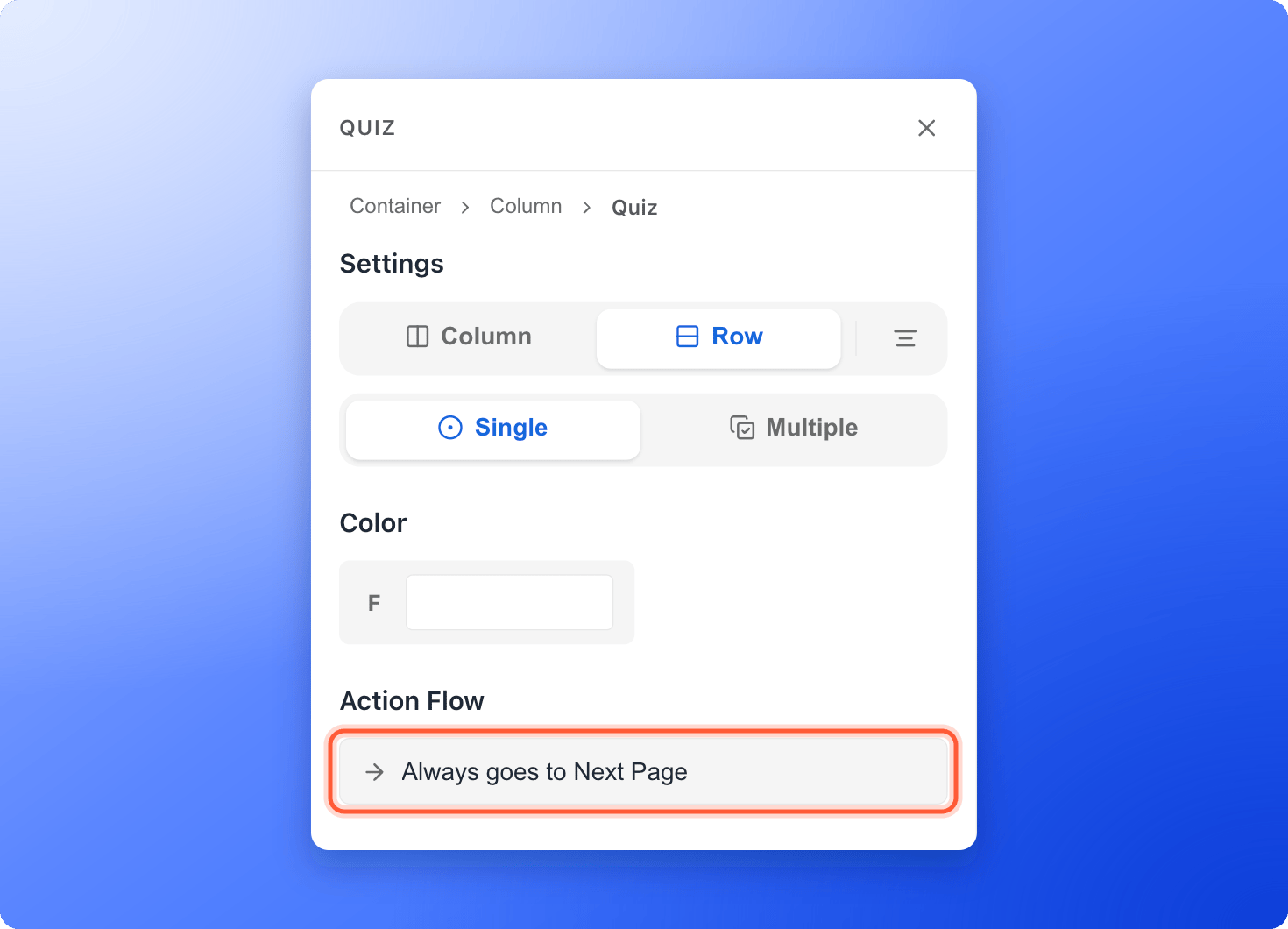
- In the builder, open the page with your quiz and click the quiz to select it.
- In the left panel, find Action Flow. It says Always goes to Next Page.
- Click that line. The Action Flow window opens.
2
Turn on Advanced Branching
Turn on the Advanced Branching switch. The hint says Route to different pages based on the visitor’s answer. The window now shows No rules yet and an “Add a rule” button.If the switch is grayed out, your quiz is set to Multiple. Close the window, select the quiz and click “Single” under Settings.
3
Build your first rule
Click “Add a rule”. A card called Rule 1 appears.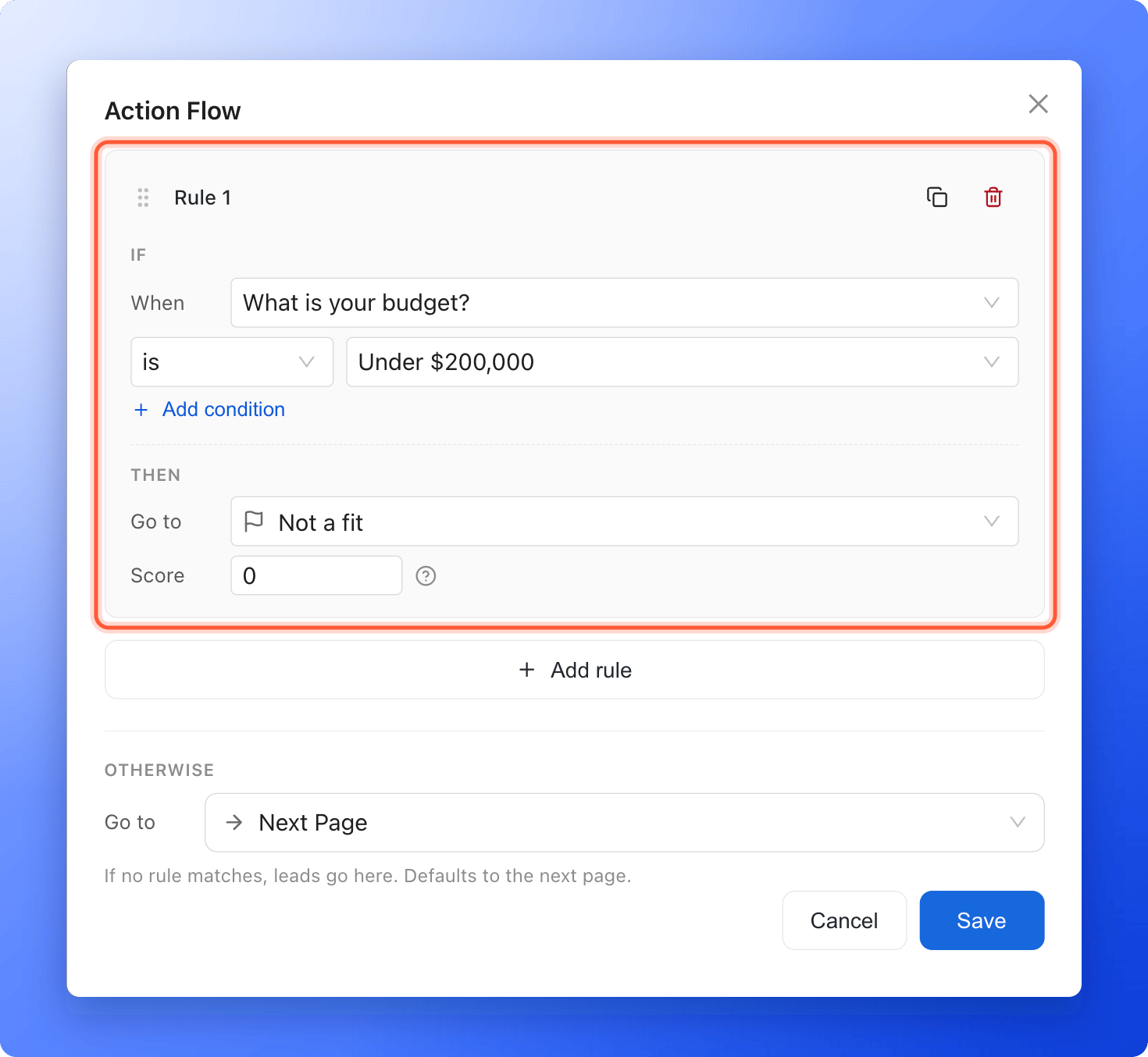
- Under If, the When box shows this question. Keep it. When you open the list, this question has a Current tag, followed by the quizzes on earlier pages.
- Next to it, choose is or is not, then click Pick an option and choose the answer, for example “Under $200,000”.
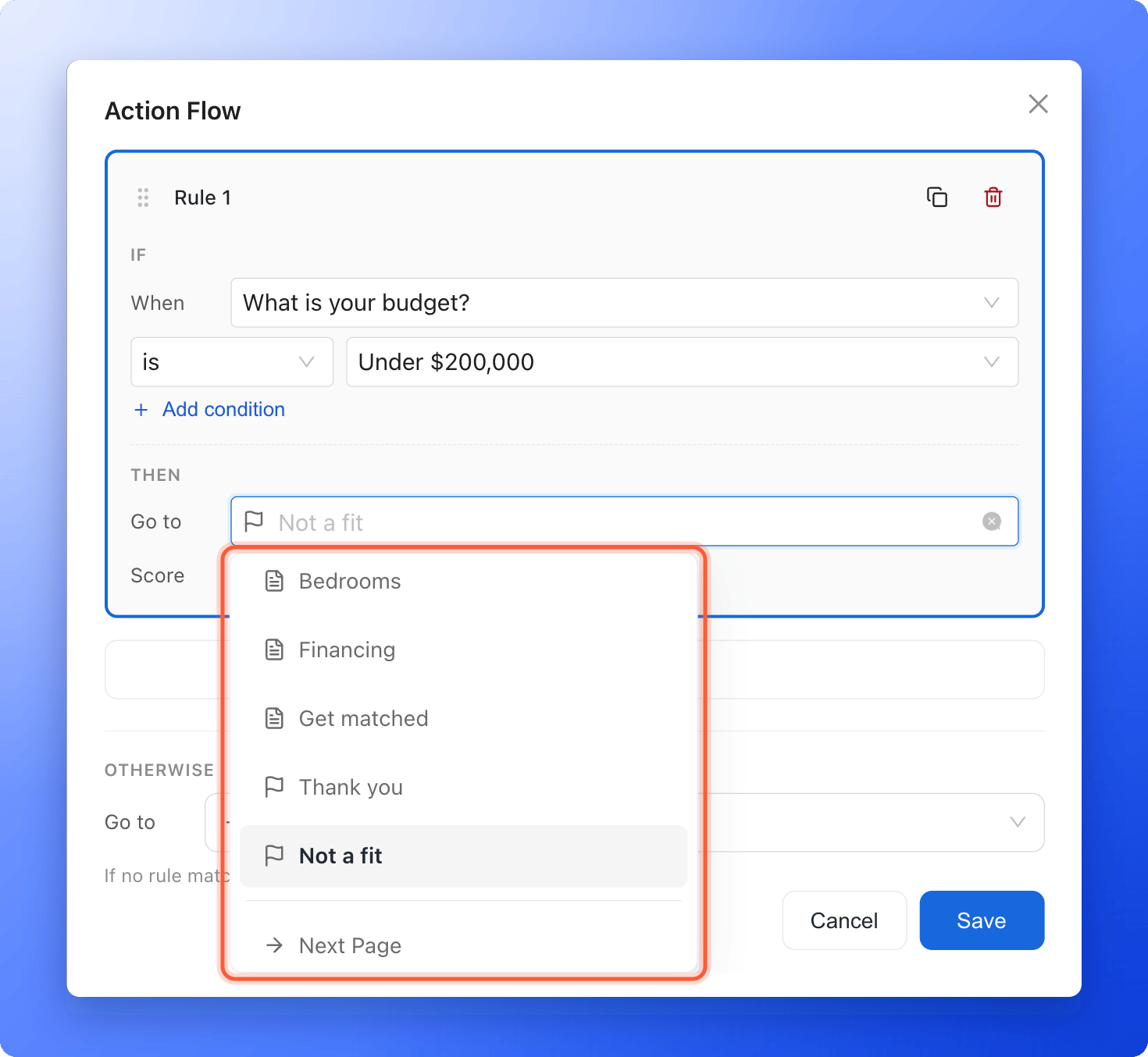
- Under Then, next to Go to, choose where people with that answer go. The list shows your pages and results (results have a flag icon), then Next Page, which means whichever page comes next in your page list.
4
Add more rules or combine answers (optional)
- To add another rule, click “Add rule”. Drag the grip icon at the left of a rule to change the order.
- To check more than one answer in a rule, click “Add condition”. Choose the question under When, which can be this question or a quiz on an earlier page. Join the conditions with and (all must match) or or (any can match).
- To copy or remove a rule, use the copy and trash icons on the rule.
5
Choose what everyone else sees
Under Otherwise, next to Go to, choose where people go when no rule matches. The hint says If no rule matches, leads go here. Defaults to the next page. Most funnels keep Next Page.Click “Save”.
6
Publish and test every path
Click “Publish Funnel”, then open the arrow next to it and click “View live”. There is no private preview, so test on the live page. Go through the funnel once for each answer that has a rule, and once with an answer that has none, and check where you land each time. See Publish, unpublish and restore an earlier version.
Ways to use it
- Filter out poor fits. When “Budget” is “Under $200,000”, Go to a “Not a fit” result. Otherwise goes to the next page.
- Split by need. When “What do you want to do?” is “Sell”, Go to your seller page. Add a second rule for “Buy”. Otherwise goes to a general page.
- Find your best prospects. When “Timeline” is “Within one month” and “Budget” is “Above $500,000”, Go to a page that books a call.
- Score without routing. Leave Go to empty and set a Score instead. See Set up lead scoring.
How do I know it is working?
- Under Action Flow, the summary shows how many rules you have and where Otherwise leads, for example 2 rules · Otherwise Next Page.
- On your live funnel, each answer takes you to the page you chose.
- No rule card shows a red dot or a Can’t match tag.
Troubleshooting
Advanced Branching is turned off
Advanced Branching is turned off
It is only available when the quiz is set to Single. Select the quiz, click “Single” under Settings, then open Action Flow again.
Everyone goes to the same page
Everyone goes to the same page
Open Action Flow and check each rule. A rule only decides the route if it has a Go to page. Also check Otherwise, which is where everyone else goes, and the order of your rules. If an earlier rule matches first, later rules never run.
I cannot save the rules
I cannot save the rules
Each rule needs at least one condition with an answer picked, and either a Go to page or a Score other than 0. The rule shows what is missing, for example Pick an option for every condition or Pick a destination or set a non-zero score.
Visitors skip my contact form
Visitors skip my contact form
A rule or Otherwise sends them past it, for example straight to a result. Open Action Flow and choose the page with your form, or place your form on a page that every path passes through. See Set up your lead capture form.
My test still follows the old route
My test still follows the old route
Your changes only go live when you publish. Click “Publish Funnel” again, wait a minute and test on the live page.
I cannot add another rule
I cannot add another rule
A question can have up to 20 rules. Delete one you do not need, or combine answers into one rule with or.
What to do next
Set up lead scoring
Give points to answers to rank your leads.
Customize your thank you screen
Add results for the different outcomes.
Manage your funnel pages
Plan the order of your pages.