

- Move visitors through your funnel. Send them to the next page, or to any page or result page.
- Scroll to a section. For example, a button at the top that jumps down to your reviews.
- Open a web address. For example your booking page, your main website or a WhatsApp chat link, in the same tab or a new one.
- Start an email or a call. An email link opens the visitor’s mail app, and a phone link starts a call on a phone.
- A funnel open in the builder with a Button or an Image on a page. To add a button, click the “Content” tab, then “Blocks”, and under Core Components click “Button”. To add a picture, see Add images, video, icons and emojis.
- A role that can edit funnels: Global Admin, Workspace Admin or Content Editor.
Important to note
Choose where a button or image goes
1
Turn on Action Flow
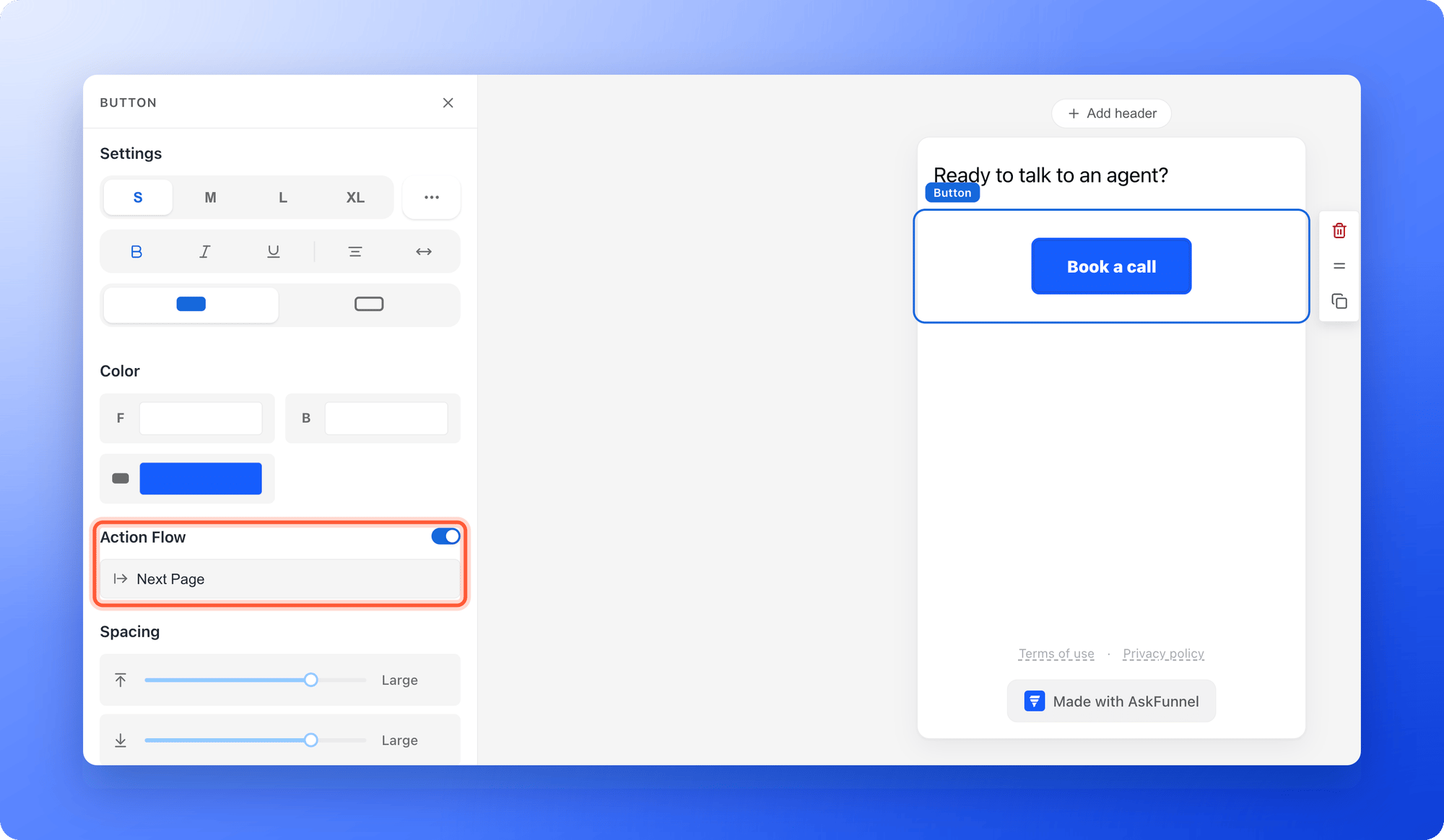
- Click the button or the image on the canvas.
- In the left panel, find Action Flow and turn on its switch.
- A row appears that shows the destination, which starts as Next Page. Click that row. The Action Flow window opens.
2
Pick the destination
Open the Always goes to list. It has two groups: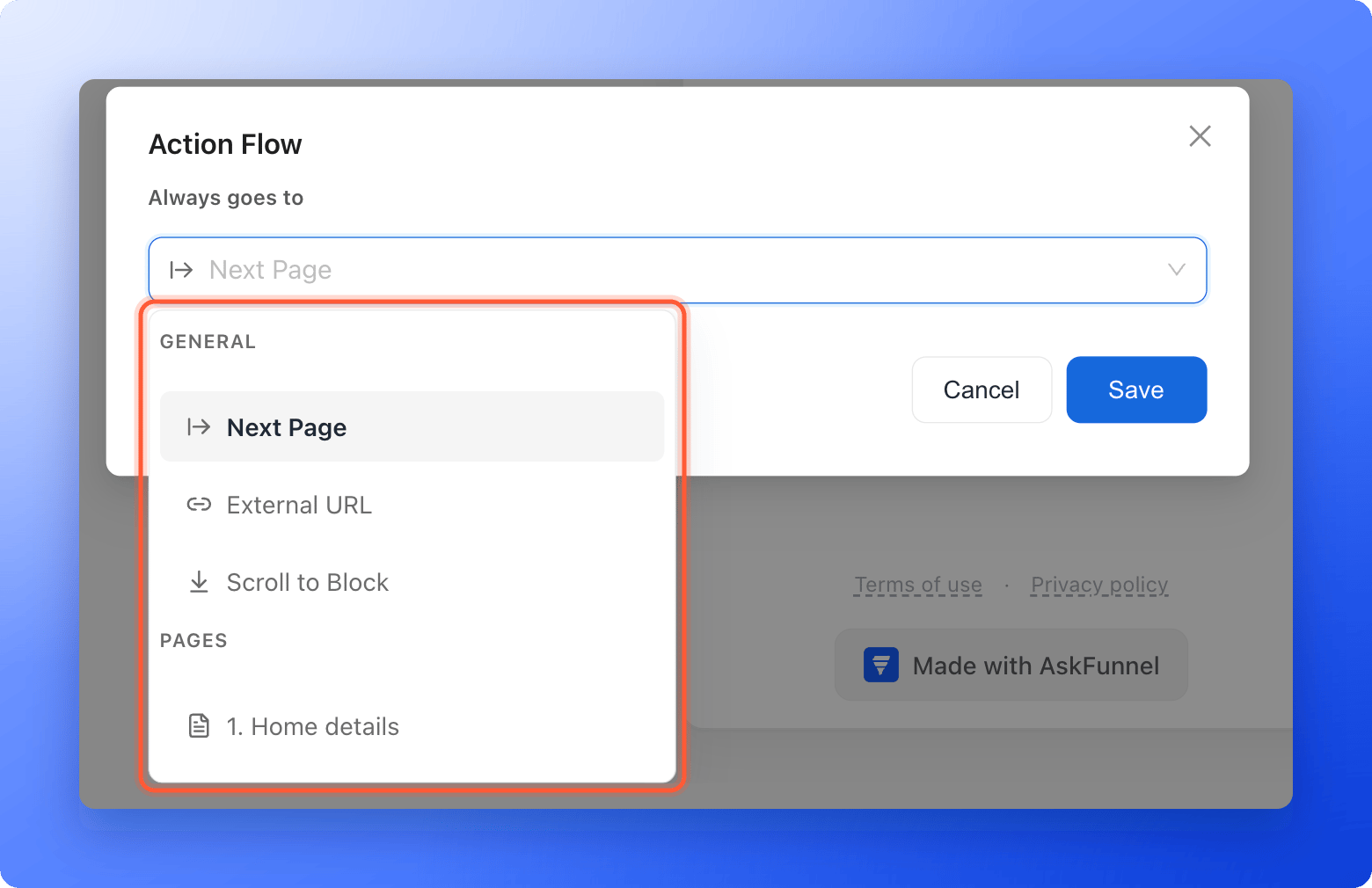
- General: Next Page, External URL and Scroll to Block.
- Pages: your pages, numbered 1, 2 and so on, and your result pages, marked with a flag and lettered A, B and so on.
3
Fill in the details for your choice
- Next Page: nothing more to do. Visitors go to the page after this one in your page list.
- A page or result: nothing more to do. Visitors go to that page.
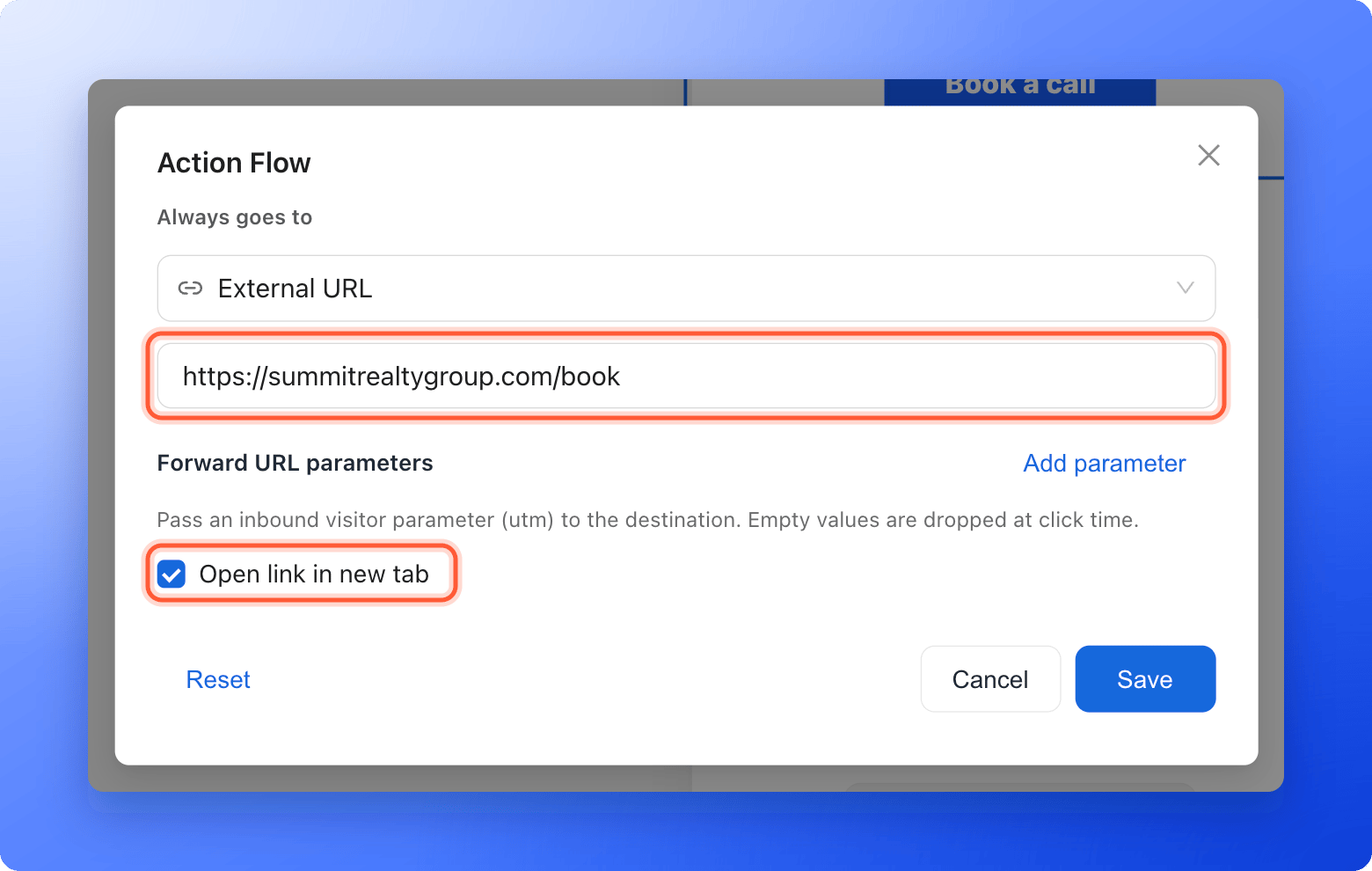
- External URL: type the address in the box, for example
https://summitrealtygroup.com/book. If you type example.com, AskFunnel adds https:// when you click away. To open the link in a new browser tab, tick Open link in new tab. - Scroll to Block: in Select block to scroll to, search for the block and click it. Each block shows its type and the first words of its text.
4
Save and test it
Click “Save”. To go back to the default, click “Reset” in the window. It shows when External URL is chosen.Then click “Publish Funnel”, open the arrow next to it and click “View live”, and click your button or picture. See Publish, unpublish and restore an earlier version.
Links to an email, a phone number or WhatsApp
Choose External URL and type the whole address, including the word at the start:
Email and phone links work best on a phone or on a computer that has a mail or calling app. Keep Open link in new tab off for these, because they do not open a web page.
How do I know it is working?
- Under Action Flow, the row shows where the block goes: Next Page, External URL, Scroll to Block or the name of a page.
- On your live funnel, clicking the button or picture takes you to the right place, opens the right web address, scrolls to the block, or opens a new email or call.
Troubleshooting
My link opens a page that does not exist
My link opens a page that does not exist
The address may be missing https://. AskFunnel adds it when you click out of the box, so check that the box shows the full address, and publish again.
Scroll to Block does not move the page
Scroll to Block does not move the page
Choose a block on the same page as the button. The list also shows blocks from your other pages, but the link only scrolls. It does not take visitors to another page first. To send visitors to another page, choose that page under Pages instead.
My picture is not clickable
My picture is not clickable
Click the picture and turn on Action Flow in the left panel. Videos and icons have no Action Flow. Add a button next to them instead.
What to do next
Pass UTM and custom URL parameters on
Keep your campaign tags when a button opens another page.
Send visitors to different pages by answer
Let the answer to a question decide where visitors go.
Manage your funnel pages
Add, rename and reorder your pages.