

Before you start, you need:
- A funnel open in the builder, on the page you want to edit. See Launch your first funnel.
- A role that can edit funnels: Global Admin, Workspace Admin or Content Editor.
- Your real content: customer quotes you have permission to show, logos of businesses you really work with, and your own photos as JPG, PNG or GIF files of up to 4 MB each.
Important to note
Add a block
1
Open the Blocks panel and click the block
- In the builder, open the page you want to edit.
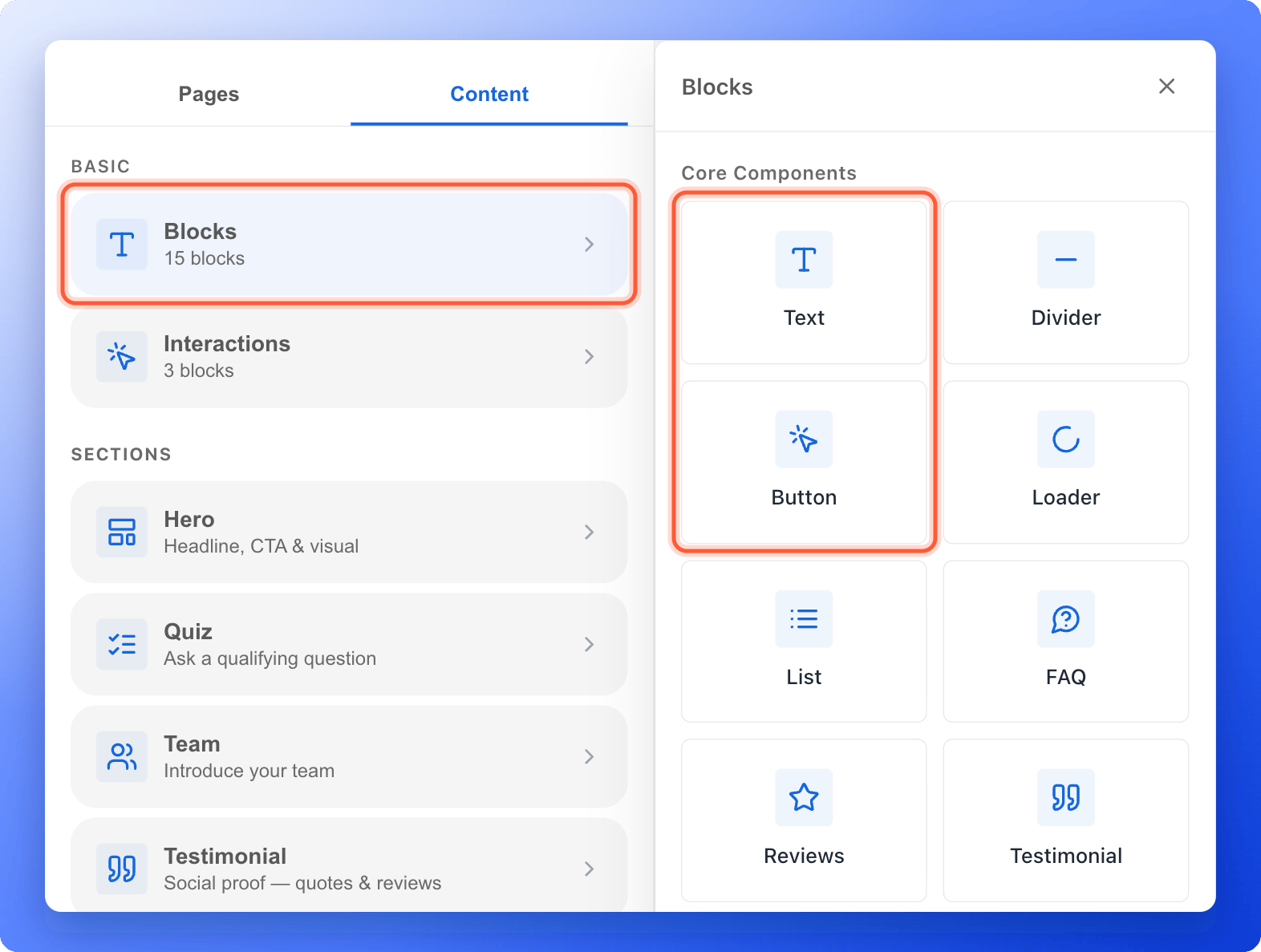
- Click the “Content” tab on the left side menu, then click “Blocks”.
- Under Core Components, click “FAQ”, “Reviews” or “Testimonial”. Scroll down to Media Elements for “Logo Bar”, “Slider” and “Slideshow”.
2
Replace the sample content
Follow the section for your block below. Select the block on the canvas to see its settings in the left panel.
3
Check every screen and publish
Use the device button at the right side of the canvas to switch between Desktop, Tablet and Mobile. Then click “Publish Funnel”. See Test your funnel before you send traffic.
Set up each block
FAQ
- Add a heading. The FAQ has no title of its own. Add a Text block above it, for example “Questions people ask”.
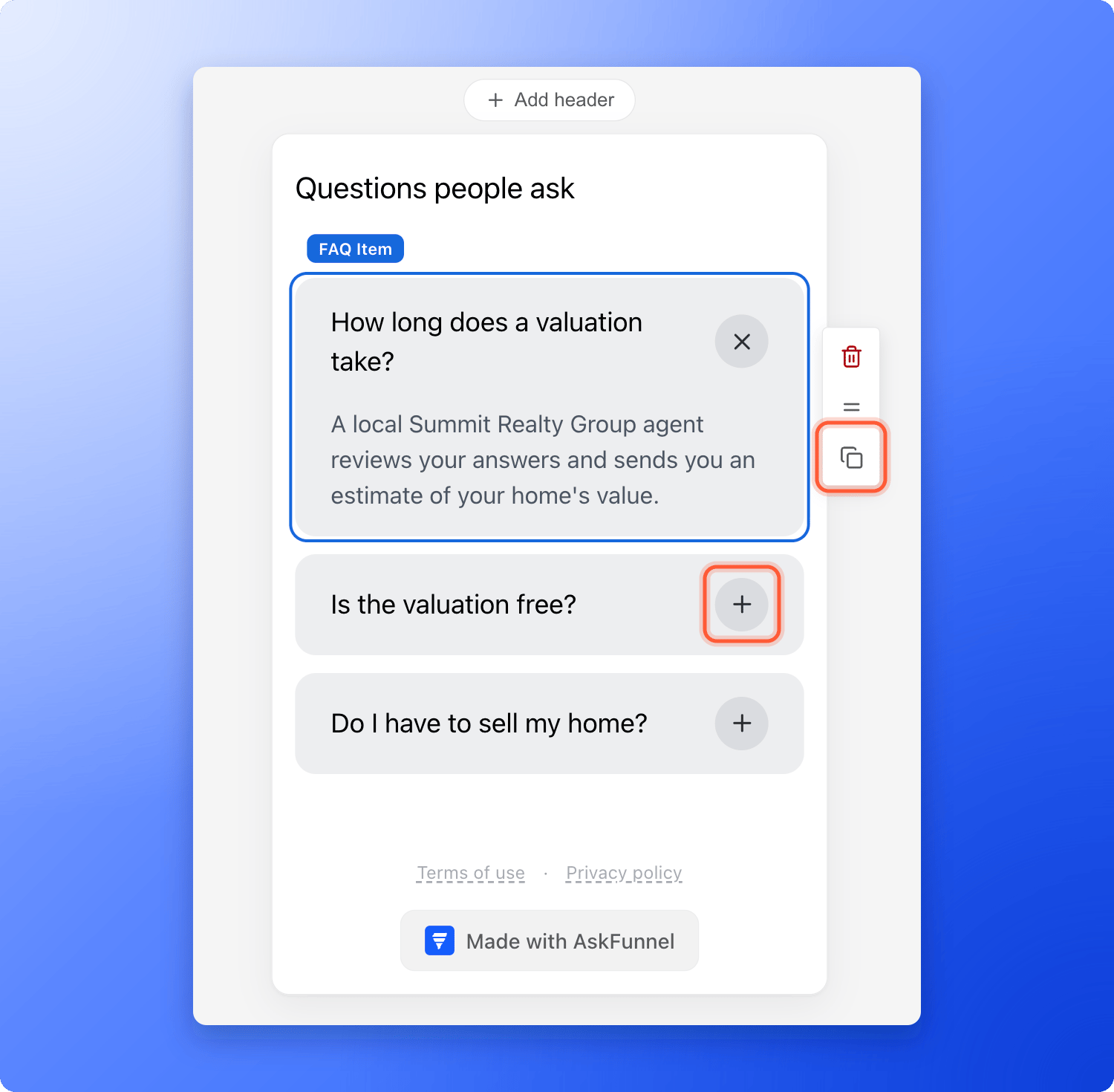
- Write your questions. Click a question and type. Click the round plus button on the card to open the answer, then click the answer and type. Visitors see every card closed, and each card opens and closes on its own.
- Add, remove and reorder. Select a card and click the Duplicate icon in the small toolbar at its right to add a copy. Use the trash icon to delete a card, and drag its = icon to move it. A FAQ holds 1 to 12 questions.
- Change the colors. Select a card and use B under Color to change its background. To color the space behind all the cards, select the whole FAQ instead and use B.
Reviews
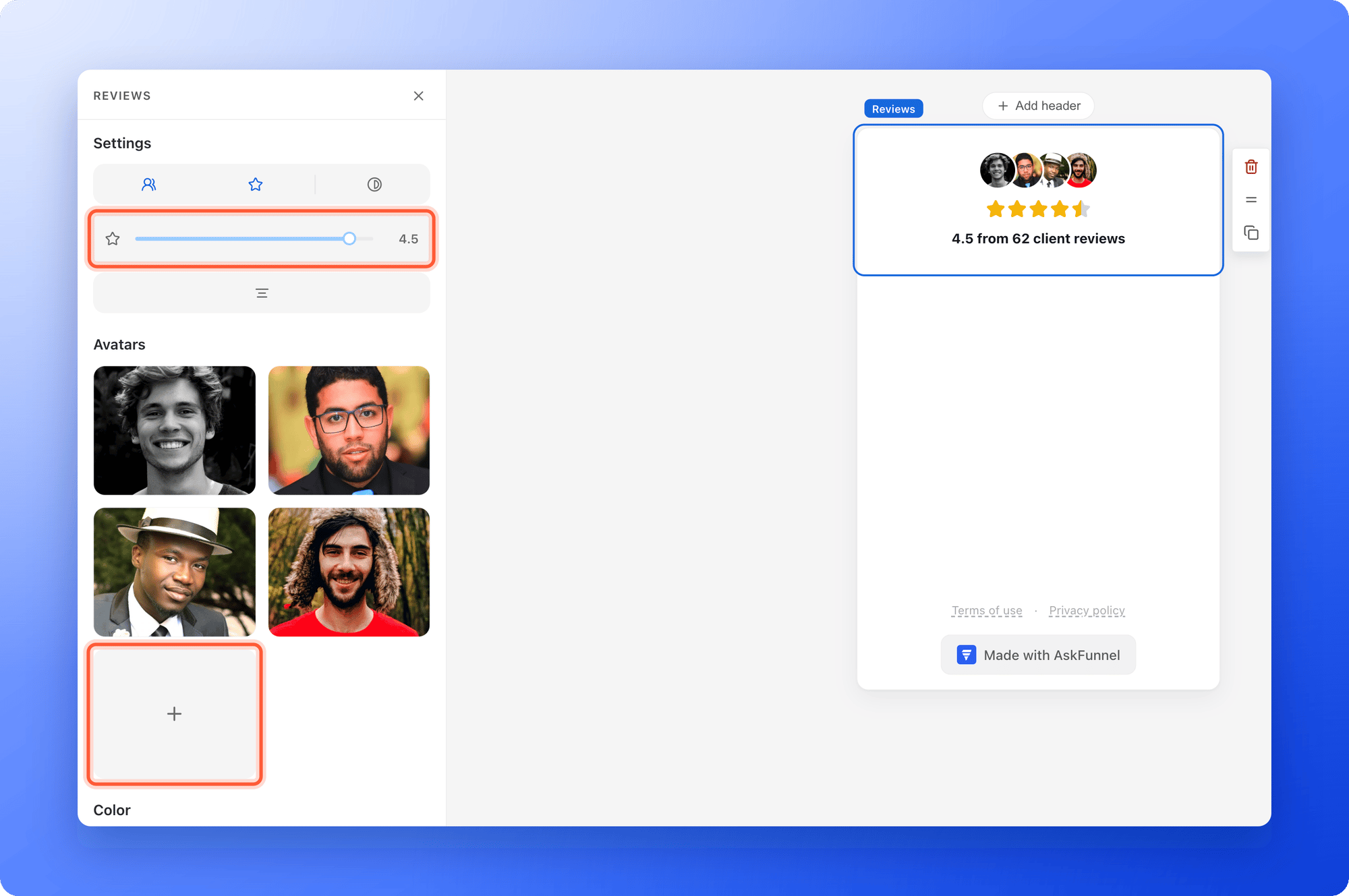
- Set the rating. In the left panel, under Settings, move the Rating slider from 0 to 5 in half steps. The icons next to it switch Show avatars, Show stars and Grayscale avatars on and off, and set the alignment.
- Choose the photos. Under Avatars, click the + card to add a photo. Click a photo to change it, drag a photo to reorder it and click the cross on it to remove it. The window has the tabs Upload, Image and My gallery.
- Write the line of text. Click the line on the canvas and type your own, using your real rating and number of reviews. The sample line is not yours.
- Change the star color. Use the star swatch under Color. It is hidden while the stars are switched off.
Testimonial
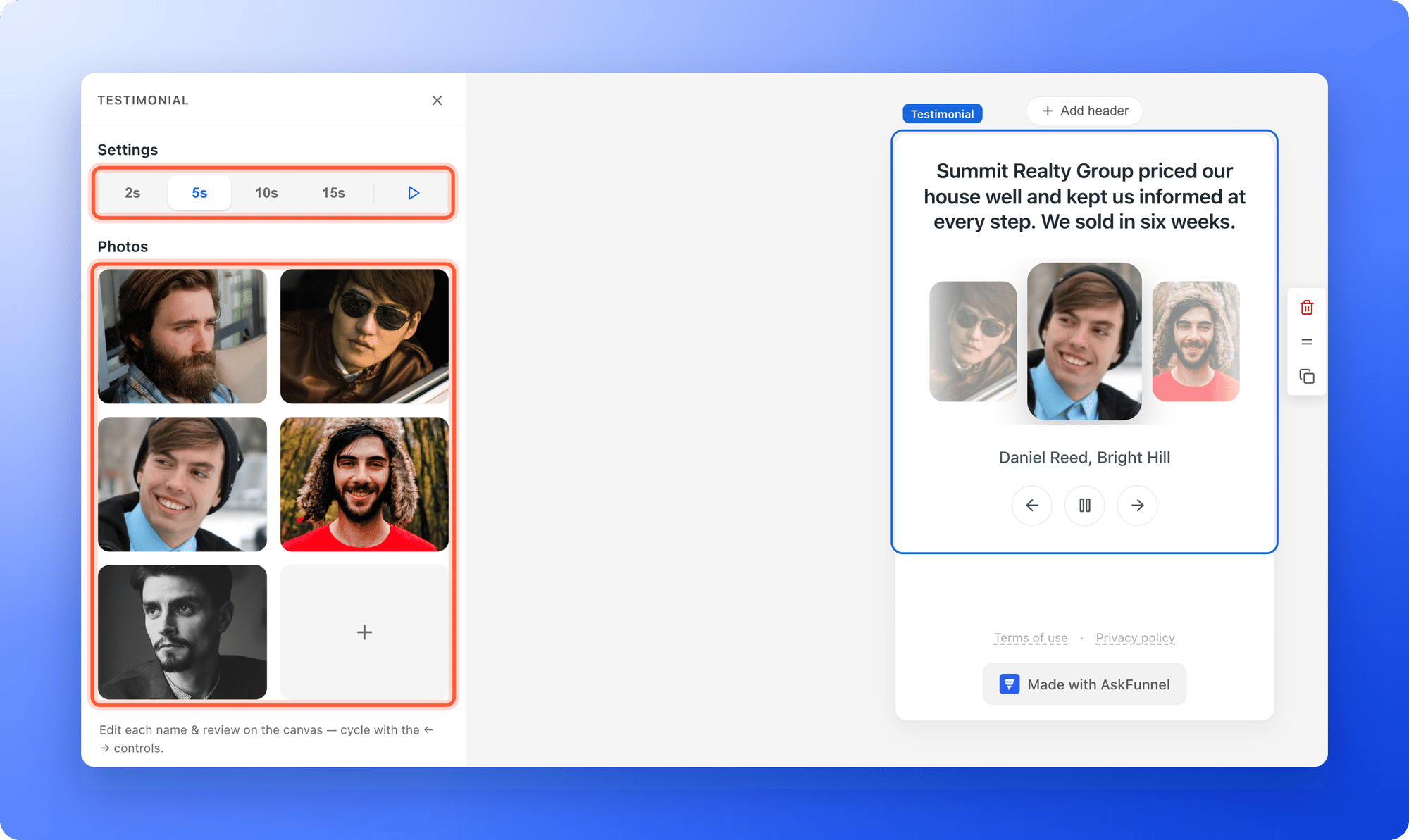
- Choose the speed. Under Settings, pick 2s, 5s, 10s or 15s for how often the review changes, and use the Autoplay icon to stop it from changing by itself. Visitors also get Previous and Next buttons and a pause button.
- Add the customer photos. Under Photos, click the + card and upload the photo. Drag a photo to reorder it, and click the cross on it to remove it. Only show a person’s photo and words with their permission.
- Write the name and the review. On the canvas, click the name and the review text and type. A new testimonial starts with a sample review and name, so replace both. Use the arrows on the canvas to move to the next one.
Logo Bar
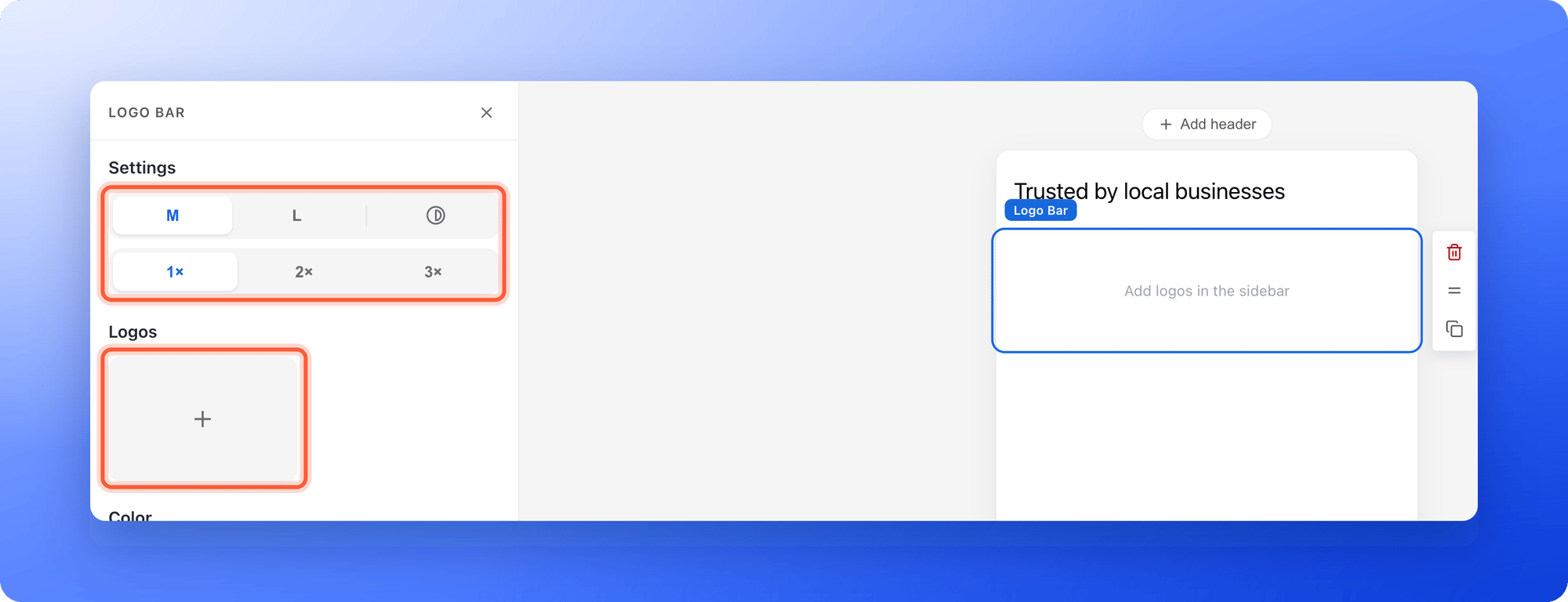
- Choose the size and speed. Under Settings, pick M or L for the logo size, and 1×, 2× or 3× for the scrolling speed. The Grayscale icon turns every logo gray.
- Add your logos. Under Logos, click the + card. In the Logos tab, search for a brand name or paste its website, for example stripe.com. In the Upload tab, add your own file. Drag a logo to reorder it, and click the cross on it to remove it.
- Know how it moves. The logos scroll sideways by themselves. A visitor whose device is set to reduce motion sees a still row instead.
Slider and Slideshow
- Pick the one you want. Slider shows the current photo large in the center, with the next and previous photos smaller on each side. Visitors drag or swipe, click a neighbor, an arrow or a dot, and it loops. Slideshow shows one wide photo at a time with a row of bars at the bottom, one for each photo. Visitors swipe or click a bar, and can pause it.
- Set the shape. Under Settings, choose S, M, L or XL for a photo shape of 16:9, 4:3, 5:4 or 1:1.
- Set the speed. On Slideshow, pick 2s, 5s, 10s or 15s and use the Autoplay icon. A visitor whose device is set to reduce motion does not get autoplay, and can still swipe or click.
- Add your photos. Under Photos, click the + card. The window has the tabs Upload, Image for free photos and My gallery. Drag a photo to reorder it, and click the cross on it to remove it.
How do I know it is working?
- The canvas shows your own text, photos and logos, with no sample content left.
- On Desktop, Tablet and Mobile, nothing is cut off and the text is easy to read.
- After you publish, your live funnel shows the block. The FAQ opens, and the testimonials, the slider and the slideshow move. See Find and share your funnel link.
Troubleshooting
I cannot find the block
I cannot find the block
Click “Content”, then “Blocks”. FAQ, Reviews and Testimonial are under Core Components. Logo Bar, Slider and Slideshow are under Media Elements, further down. Contacts Managers cannot edit funnels, so they do not see the builder.
I cannot delete or add a FAQ question
I cannot delete or add a FAQ question
A FAQ keeps at least 1 question and holds at most 12. Add a question before you delete the last one, or delete one before you add a thirteenth.
My new testimonial is empty
My new testimonial is empty
A new testimonial only has the photo you added. Click the name and the review on the canvas and type them. Use the arrows to find the new one.
I cannot find my logo in the Logos tab
I cannot find my logo in the Logos tab
The Logos tab searches a library of brands, and a small business may not be in it. Click the Upload tab and add your own logo file.
My photo will not upload
My photo will not upload
The Upload tab accepts JPG, PNG and GIF files of up to 4 MB. You see Only JPG, PNG, or GIF files are supported. or File is larger than 4MB. if your file does not fit. Export it again at a smaller size and try again.
The slideshow does not change by itself
The slideshow does not change by itself
Check that the Autoplay icon is on. A visitor whose device is set to reduce motion does not get autoplay. They can still swipe, or click a bar, to move on.
I still see the sample content on my live funnel
I still see the sample content on my live funnel
Your changes only go live when you publish. Click “Publish Funnel”, wait a minute and refresh the live page.
What to do next
Add and arrange blocks
Add, move, copy and delete any block.
Make your funnel match your brand
Set your colors, text, logo and images.
Build multi-column layouts
Place blocks side by side, such as a photo next to a review.
Test your funnel before you send traffic
Check every screen before your ads go live.