

You can also buy extra leads without changing plan. See Choose the right plan.
Before you start, you need:
- For reading this page, nothing.
- To unlock leads, a Global Admin role (the organization owner, or anyone they gave that role to). Only a Global Admin can change the plan or add capacity.
Important to note
How the limit works
- What counts as a lead. Every form submission is one lead.
- Your whole organization shares the limit. Leads from all of your workspaces and funnels are added together.
- The count resets on the first day of each calendar month in UTC (standard world time), not on your billing date.
- The first leads of the month are visible. With a limit of 100, leads 1 to 100 show in your table. From lead 101 on, new leads are locked until the month ends or you add capacity.
- Leads you add capacity for come back oldest first. A new month does not bring back leads that were locked in an earlier month. Only more capacity does.
What you see in AskFunnel
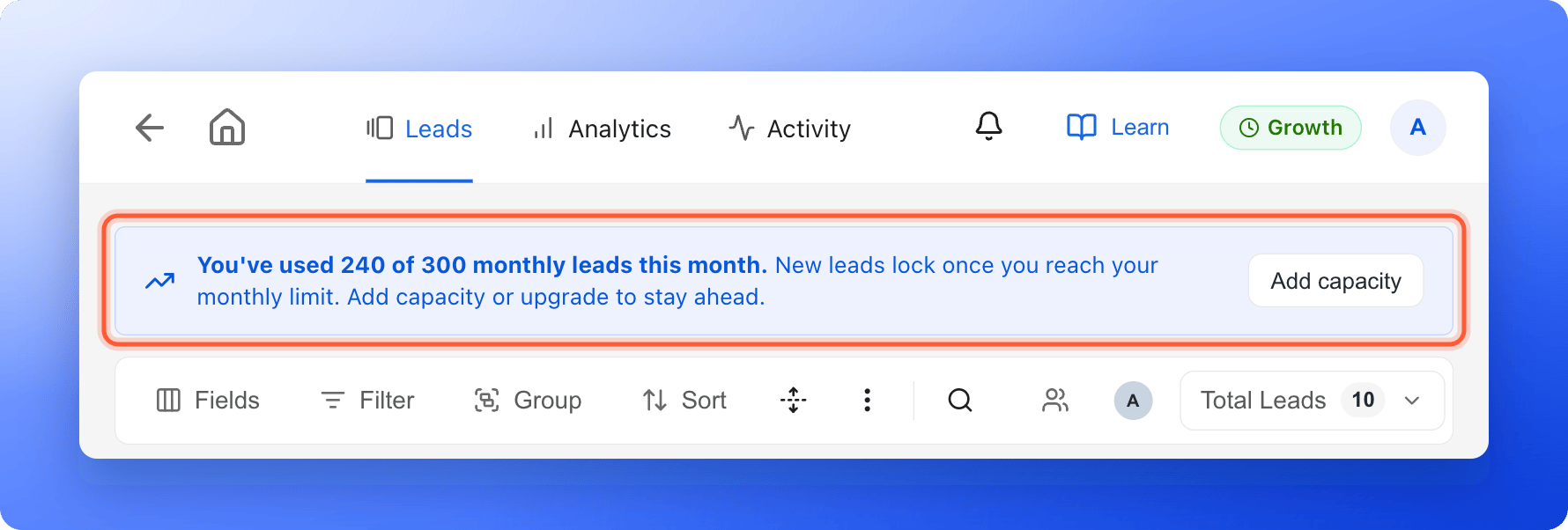
- At 80% of your limit, a banner appears above the Leads table. It says You’ve used 240 of 300 monthly leads this month. (with your own numbers) and New leads lock once you reach your monthly limit. A Global Admin also sees an “Add capacity” button.
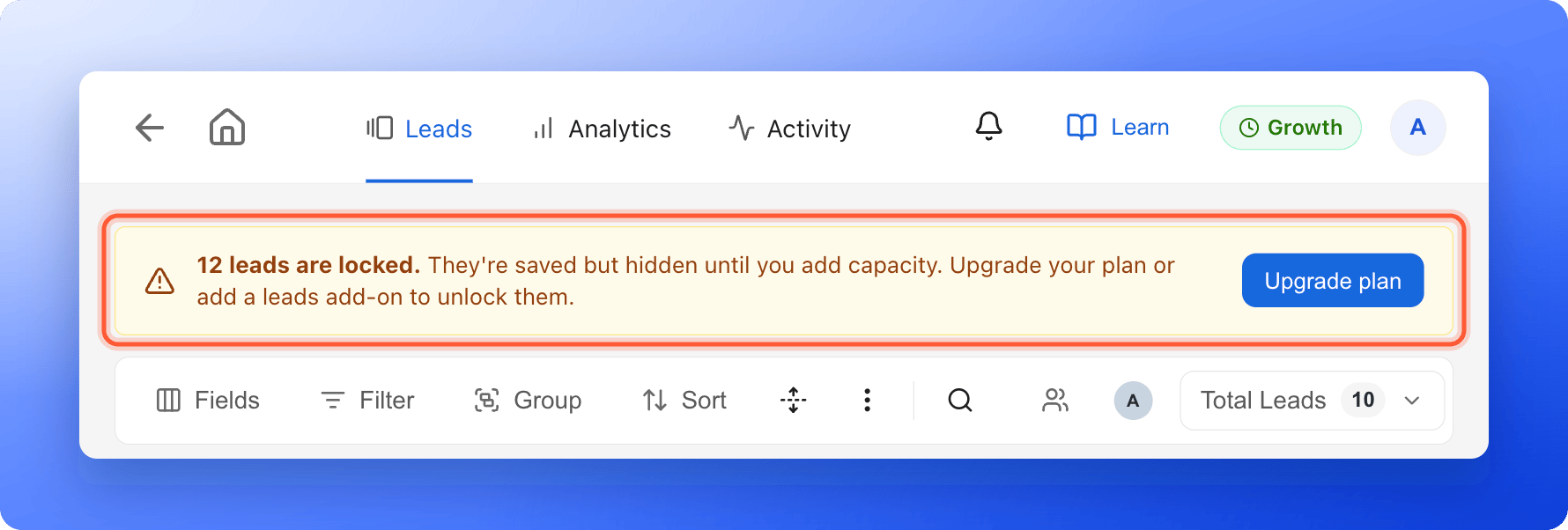
- Once leads are locked, a warning banner says 12 leads are locked. (with your own number) and They’re saved but hidden until you add capacity. A Global Admin also sees an “Upgrade plan” button. Everyone else sees Ask a Global Admin to upgrade the plan or add a leads add-on.
- In the plan badge in the top right corner, the Leads / month row shows how many you have used, for example 240/300. See Check your plan and usage.
Unlock your leads
1
Open the plan page
- Click your profile picture in the top right corner.
- Under Subscription, click “Plan”.
- Click “Change plan”.
2
Add leads or move to a bigger plan
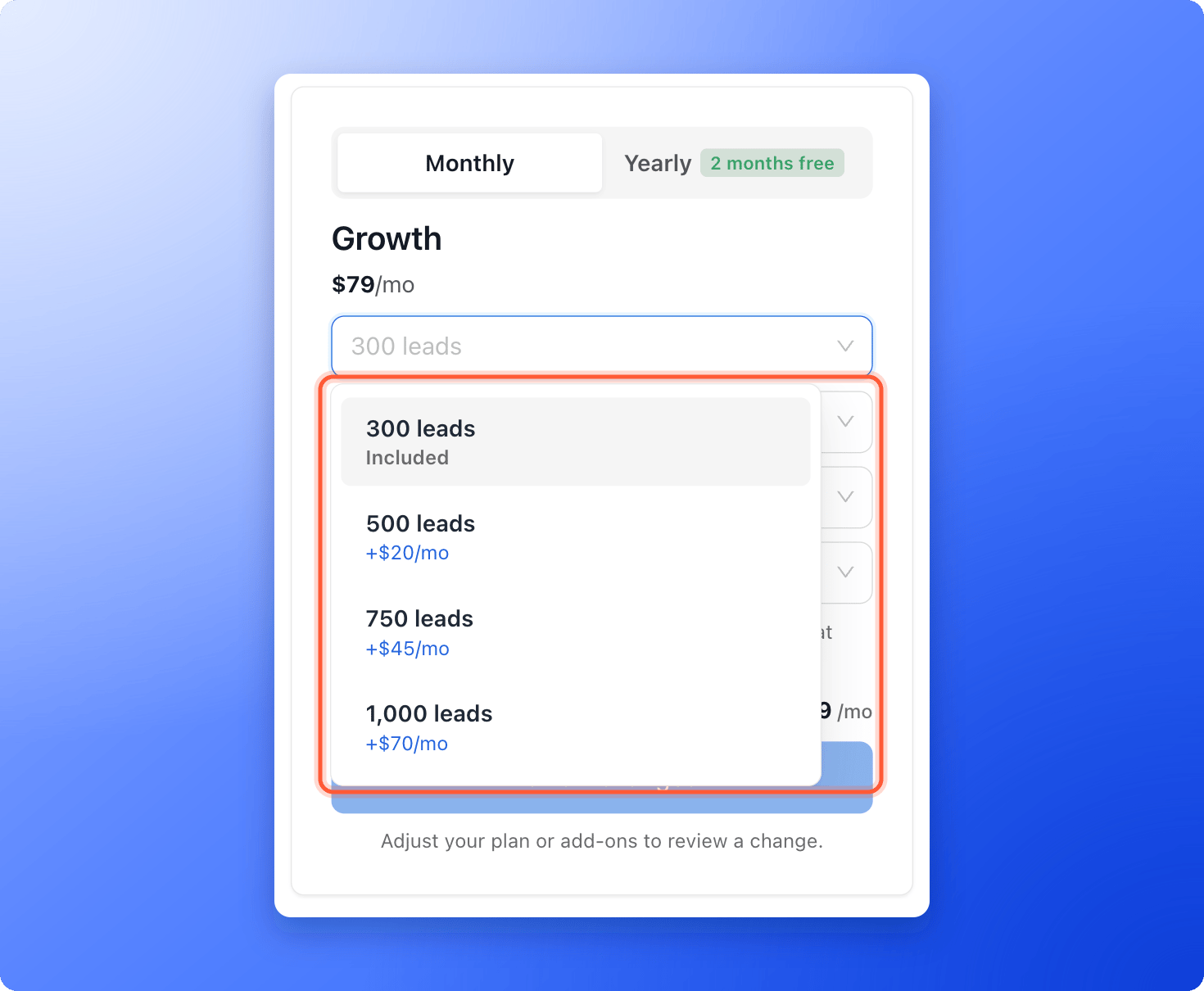
- To stay on your plan, open the Leads drop-down list on the right. Each option shows Included or its extra monthly price.
- Pick a larger amount. Or click “Select” under a bigger plan.
- Click “Review changes”, then “Confirm & pay”.
3
Check your Leads table
Open your funnel’s Leads tab. Locked leads come back oldest first, as far as your new capacity allows. Allow a few minutes. The number in the banner gets smaller as leads unlock, and the banner goes away when none are left.
If your trial or subscription has ended
When a free trial or a paid plan ends, new leads are still saved, but they are locked until you subscribe again. When you subscribe, they unlock, oldest first, as far as your plan allows. You subscribe on the Choose your plan page. See Upgrade your plan.How do I know it is working?
- The warning banner is gone, or shows a smaller number.
- Total Leads above the table goes up.
- New leads show in the table as soon as they arrive.
Troubleshooting
A lead is missing from my Leads table
A lead is missing from my Leads table
Look for the warning banner above the table. If it says leads are locked, the lead is saved but hidden, and it comes back when you add capacity. If there is no banner, check your filters, search and date range. See View and manage your leads.
I upgraded, but some leads are still locked
I upgraded, but some leads are still locked
Leads unlock as far as your new capacity allows, oldest first. If you have more locked leads than the new room, the rest stay locked until you add more, for example a bigger leads amount. Also allow a few minutes. If the banner is still there after that, email support.
It is a new month but my old locked leads did not come back
It is a new month but my old locked leads did not come back
A new month gives you a fresh count for new leads. It does not release leads that were locked earlier. Add capacity to unlock them.
My locked leads have not reached my Google Sheet, webhook or HighLevel
My locked leads have not reached my Google Sheet, webhook or HighLevel
Locked leads are not sent while they are locked. Add capacity and they unlock, then they are sent to your connected tools automatically, oldest first, within about 15 minutes. If a lead still does not arrive, open the destination’s “Delivery log” to see why.
The numbers in Analytics are higher than my Leads table
The numbers in Analytics are higher than my Leads table
Analytics counts every form submission, including locked leads. The Leads table hides them. See Why your lead and analytics numbers differ.
What to do next
Upgrade your plan
Add leads or move to a bigger plan.
Check your plan and usage
See how much of each limit you have used.
Export your leads
Download your leads as a file.