

Available on: all plans (Starter, Growth, Scale and Enterprise). An AI image uses 4 AI credits.
- Upload your own pictures. Drag in a logo, a photo of your team or a product shot.
- Use free photos. Search a library of free photos and add one with a click.
- Create an image with AI. Describe what you want and AI makes it.
- Add a video. Paste a YouTube or Vimeo link or a direct .mp4 link, or pick a free stock clip.
- Add icons and emojis. Use them for benefits, lists and small visual cues.
- A funnel open in the builder. See Launch your first funnel.
- A role that can edit funnels: Global Admin, Workspace Admin or Content Editor.
- For AI images, a verified email address and enough AI credits. See How AI credits work.
Important to note
Add an image
1
Add an Image block or open a picture
To add a new picture: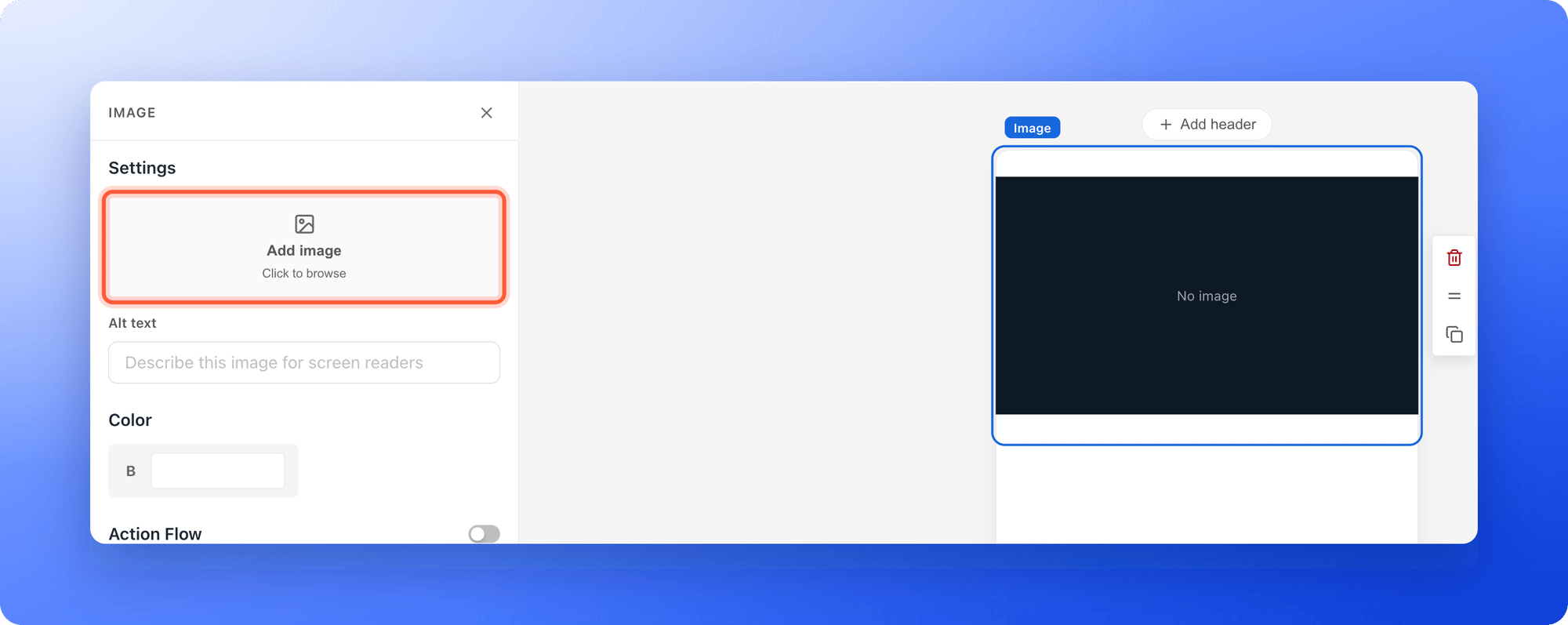
- On the left side menu, click the “Content” tab, then “Blocks”.
- Under Media Elements, click “Image”.
- In the left panel, click the tile that says Add image and Click to browse.
2
Choose where the picture comes from
Click one of the tabs at the top of the window: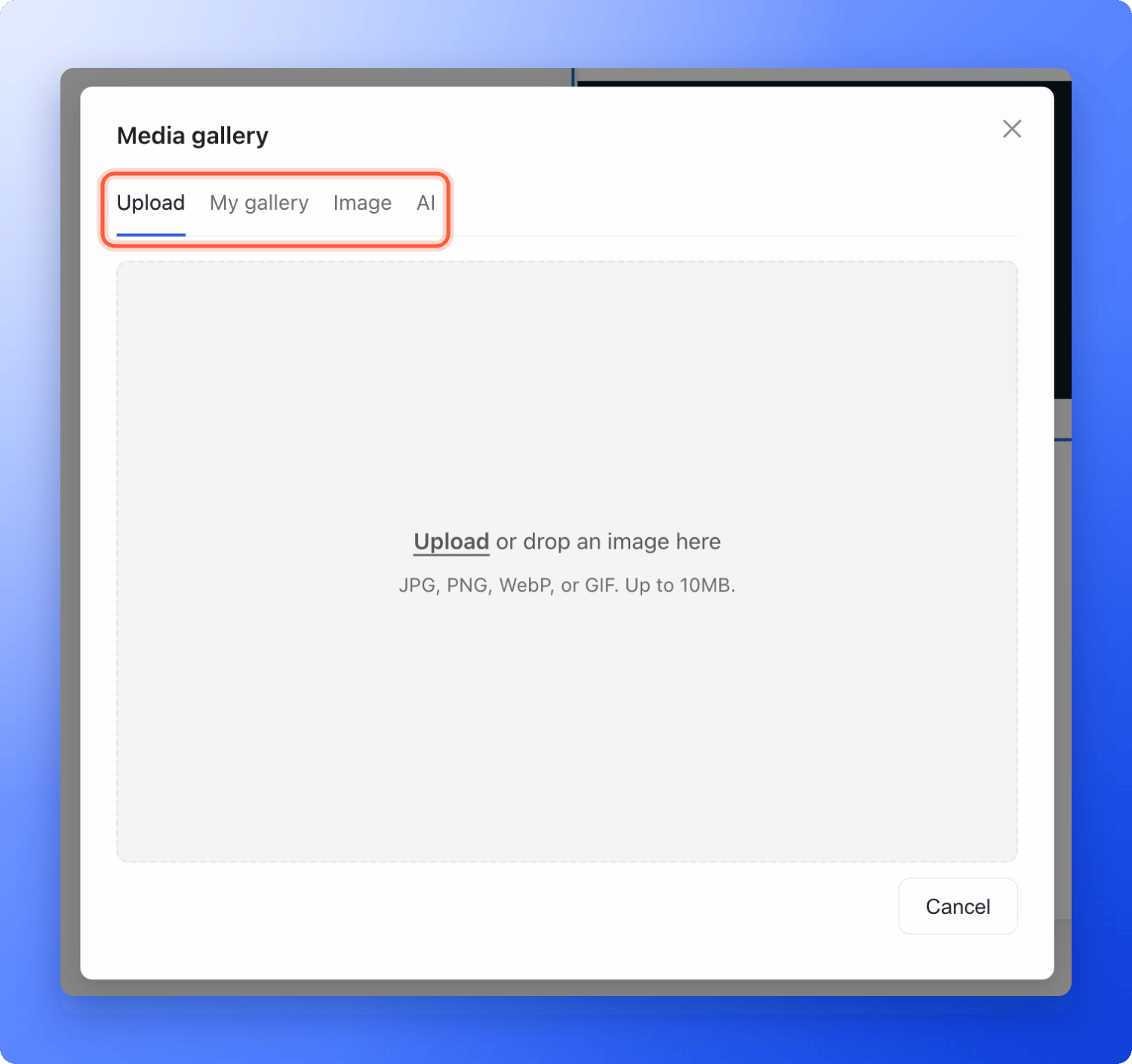
- Upload: click Upload or drop a file onto the window. The picture is added as soon as it finishes uploading. Files must be JPG, PNG, GIF or WebP, up to 10 MB.
- My gallery: pictures already uploaded to your organization, newest first. Type in Search… to find one, click it, then click “Select image”.
- Image: free photos. Type what you want in Search Unsplash images… and press Enter, or click a suggestion such as Business, People or Nature. Click a photo, then “Select image”. Each photo shows its photographer’s name.
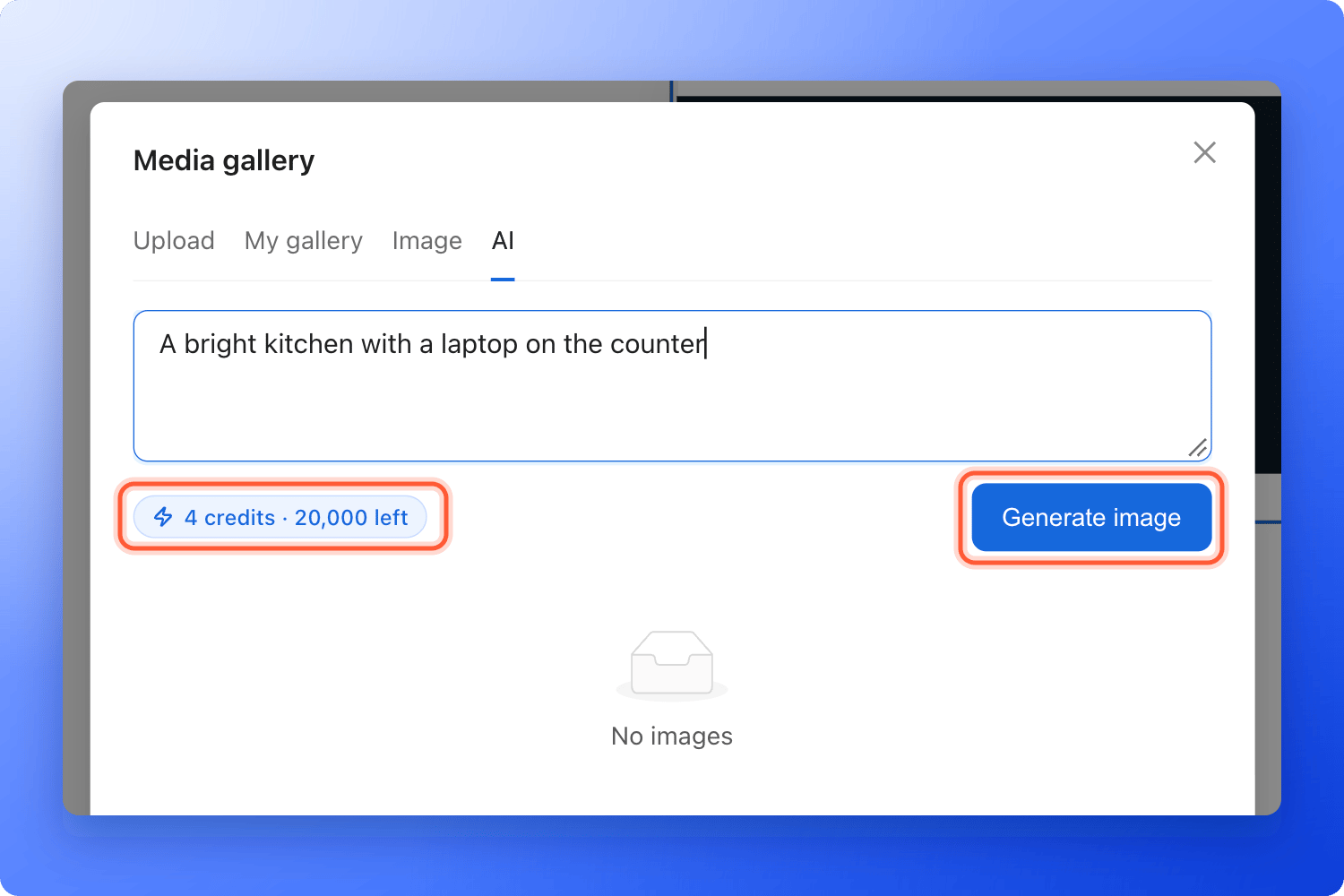
- AI: describe the picture in the box, for example “A bright kitchen with a laptop on the counter”. The chip next to Generate image shows the cost, for example 4 credits and how many you have left. Click “Generate image”, click the result you like, then “Select image”. Each click makes one picture, in a wide 4 to 3 shape, and you can generate again to compare.
3
Frame and describe the picture
With the image block selected, the left panel has these controls: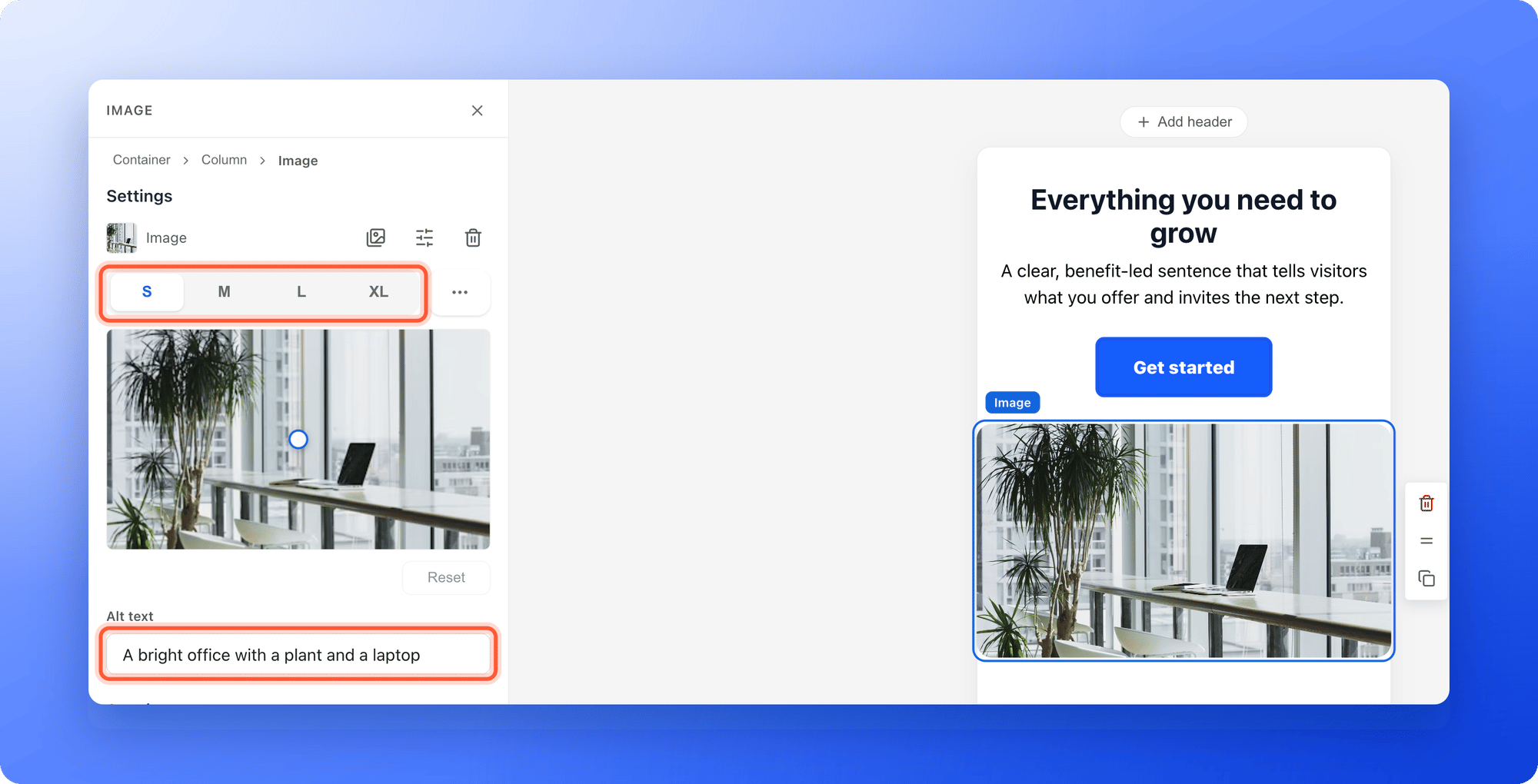
- Size: the S, M, L and XL buttons choose the shape of the frame, from wide (16 to 9) to square (1 to 1). Point at a button to see its ratio.
- Custom crop: the button with three dots opens Crop image, where you can drag the crop box and choose Free, Original, Portrait, Square or Landscape. Click “Save” when you are done.
- Focal point: drag the dot on the small preview to the part of the picture that must always stay visible. Click “Reset” to center it again. This matters when the frame crops the picture on phones.
- Edit and Remove: the icons next to Change crop the picture again or take it off.
- Alt text: describe the picture in a few words, for example “Agent handing keys to a new owner”. Screen readers read it aloud and it shows if the picture cannot load.
The header logo and the Logo bar block use a smaller window with two tabs. Logos searches the logos of well-known companies, and Upload takes your own file. To add your own logo, use Upload. See Make your funnel match your brand.
Add a video
1
Add a Video block
- Click the “Content” tab, then “Blocks”.
- Under Media Elements, click “Video”.
- In the left panel, click the tile that says Add video.
2
Paste a link or pick a free clip
The window has two ways to add a video: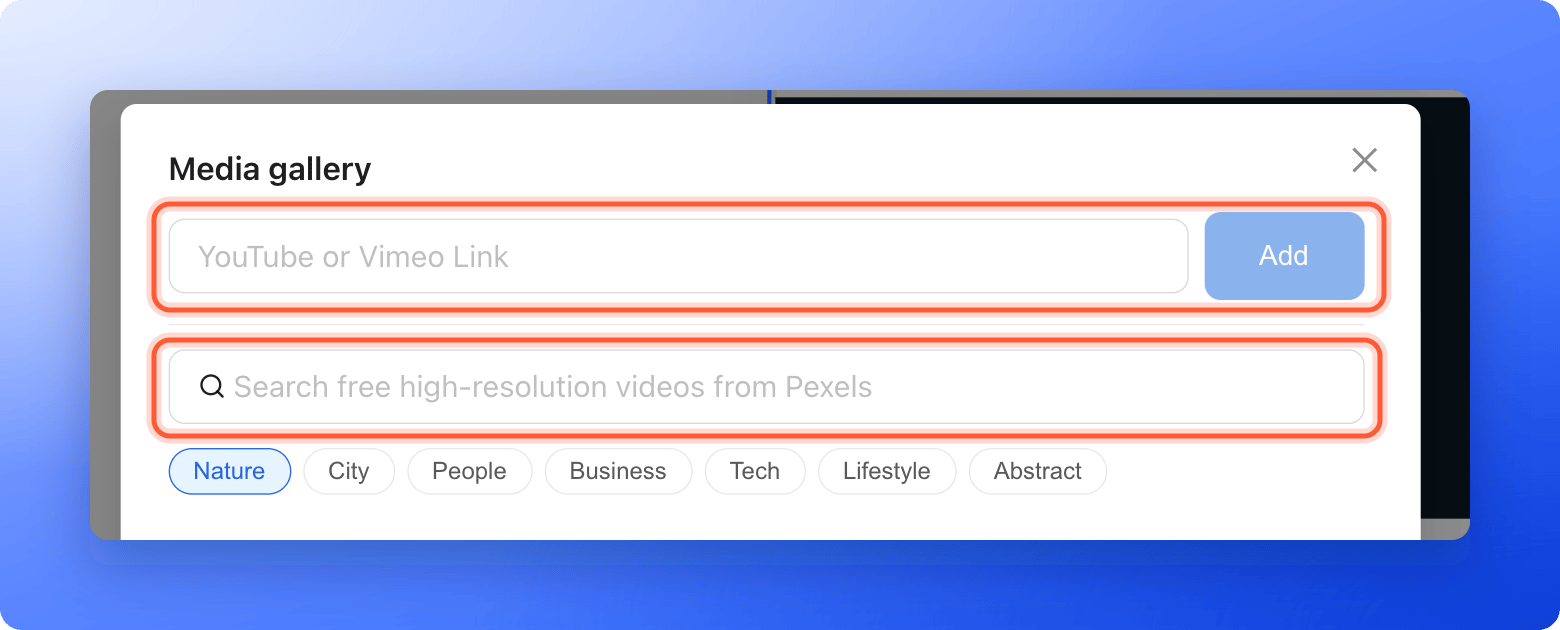
- A link: paste a YouTube link, a Vimeo link or a direct .mp4 link into YouTube or Vimeo Link and click “Add”. If it says Enter a YouTube, Vimeo, or direct .mp4 link., check the address.
- A free clip: type a word into Search free high-resolution videos from Pexels or click a suggestion such as Nature or City. Point at a clip to preview it, then click it to use it. Click “Load more” to see more.
3
Choose the shape and playback
In the left panel:
- Choose Paused or Autoplay. With Paused, visitors see a play button and click to start. With Autoplay, the video starts by itself, without sound.
- Open the shape list and choose Horizontal (16 to 9, for desktop and YouTube style videos), Vertical (9 to 16, for phones, Reels and Stories) or Square (1 to 1).
Add icons and emojis
1
Add a Graphics block
- Click the “Content” tab, then “Blocks”.
- Under Media Elements, click “Graphics”. A row with one icon is added.
2
Pick your icons
- In the left panel, under Icons, click the plus tile (Add icon) to add another one. A row holds up to 12.
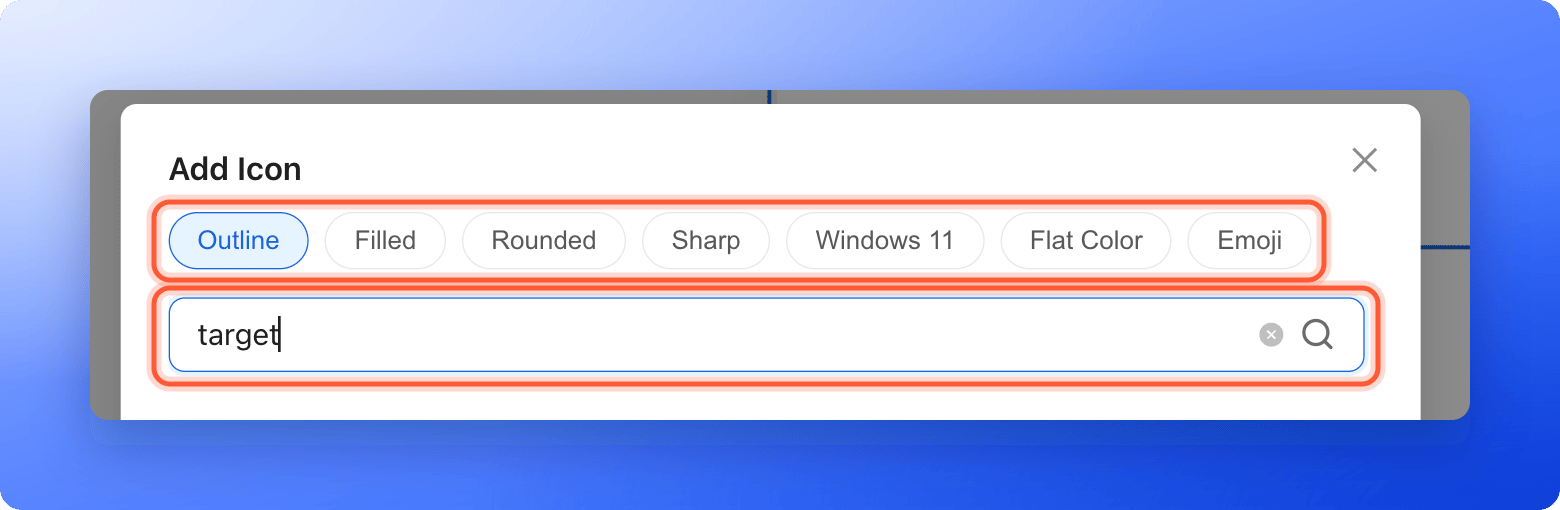
- In the Add Icon window, choose a style: Outline, Filled, Rounded, Sharp, Windows 11, Flat Color or Emoji. Then search, for example “trophy”, “target” or “heart”, and click an icon to add it.
- To change an icon later, click its tile under Icons. To remove one, use the cross on its tile. A row always keeps at least one icon.
3
Size and color them
Choose a size from XS, S, M, L or XL and set the gap between icons. Use the color swatch in the left panel to change the color of a one color icon. Icons in the Flat Color and Emoji styles keep their own colors.
4
Publish your funnel
Click “Publish Funnel”, then open the arrow next to it and click “View live” to check everything on your phone and on your computer. See Publish, unpublish and restore an earlier version.
How do I know it is working?
- The picture, video or icon shows on the canvas right after you pick it.
- On your live funnel, the picture looks sharp and the part you set as the focal point stays in view on a phone.
- A video shows its play button, or plays without sound if you chose Autoplay.
Troubleshooting
Why can't I upload my image?
Why can't I upload my image?
The window only takes JPG, PNG, GIF and WebP files of up to 10 MB. Other formats, such as HEIC from some phones, PDF or SVG, are refused. A message tells you if the type is not allowed or the file is too large. Save the picture again as a JPG or PNG, make it smaller if needed, and try again. If you only see Couldn’t upload the image. Try again., check your connection and retry.
Generate image is grayed out
Generate image is grayed out
Look at the credit chip. You need 4 credits, and the chip shows how many are left this month. If you have fewer, add credits or wait for next month. See How AI credits work.
I see Please verify your email address to use AI features
I see Please verify your email address to use AI features
Open the verification email we sent you and click its link, then try again.
The AI image is not what I wanted
The AI image is not what I wanted
Describe the subject, the setting and the style in more detail, then click “Generate image” again. Each try uses 4 credits. The new picture is added to the list, so you can compare them before you click “Select image”.
My video does not start by itself
My video does not start by itself
Autoplay must be set to Autoplay in the left panel, and the video plays without sound. On a funnel with a cookie banner, a YouTube or Vimeo video starts by itself only after the visitor accepts marketing cookies. A direct .mp4 clip does not need that. Visitors can always click the play button.
It says Enter a YouTube, Vimeo, or direct .mp4 link.
It says Enter a YouTube, Vimeo, or direct .mp4 link.
The address is not one of those. Copy the link from the address bar of the video page, or use a link that ends in .mp4. Other video sites cannot be added.
I cannot find the picture I uploaded
I cannot find the picture I uploaded
Open My gallery and use Search…, or click the refresh icon. My gallery shows pictures uploaded to your whole organization.
My logo or picture looks cropped on a phone
My logo or picture looks cropped on a phone
Drag the focal point to the important part of the picture, or choose a different shape with S, M, L or XL. Use the device icon at the right edge of the canvas to switch to Mobile and check.
What to do next
Make your funnel match your brand
Colors, text styles and your logo.
Link buttons and images
Send visitors to a page, a web address, an email or a phone number.
How AI credits work
See what uses credits and how to add more.