

- Style your text. Choose the size, make it bold, italic or underlined, and pick its color.
- Color your blocks and buttons. Set a font color and a background color, or a gradient, for each block.
- Add your logo. A header holds your logo, and optionally a button.
- Use your own images. Upload pictures, or pick from free photos and icons. See Add images, video, icons and emojis.
- A funnel open in the builder. See Launch your first funnel.
- A role that can edit funnels: Global Admin, Workspace Admin or Content Editor.
- Your logo and images as picture files. The upload window shows the file types and size it accepts.
- Your brand colors as hex codes (a color written like #155DFC). Your designer or your website’s settings can tell you.
Important to note
Style your funnel
1
Style your text
Click a headline or any text on the canvas. A small toolbar appears above it. From left to right it has: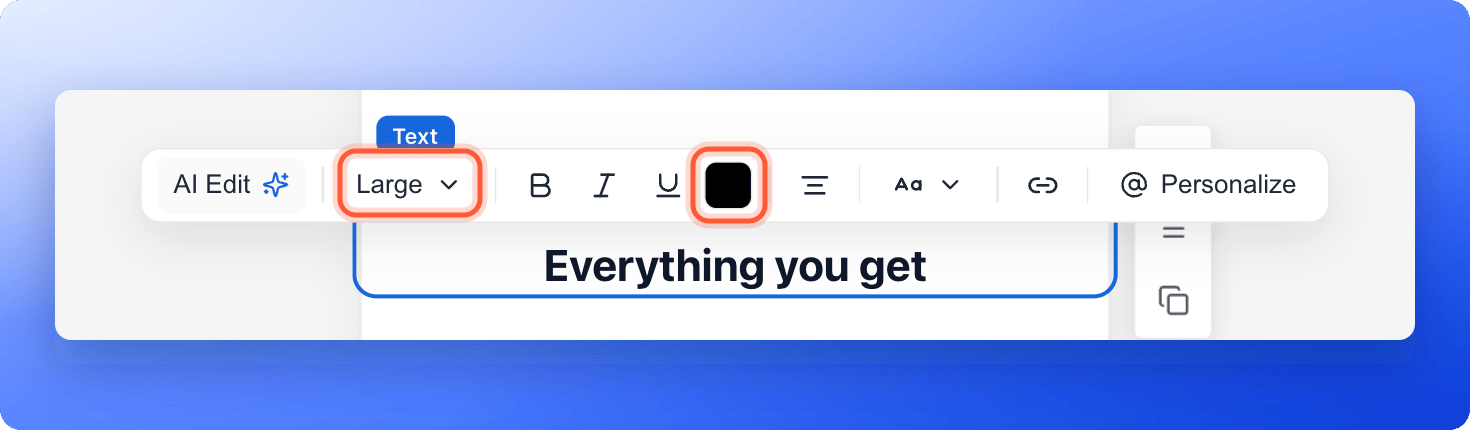
- AI Edit: rewrite, spell check or simplify the text, or tell AI what to change. It does not use AI credits.
- Text size: choose Small, Medium, Large or Extra Large, which are 16, 20, 24 and 30 pixels. More Sizes has other sizes, up to 64 pixels.
- Bold, Italic and Underline: select words first to change only those words.
- Text color: pick a color for the selected words, or for the whole text if nothing is selected.
- Alignment: click the alignment icon to switch between left, center and right.
- Text case: Normal, UPPERCASE, lowercase or Capitalize, on the text blocks that offer it.
- Link: turn the selected words into a link.
- Personalize: add a field such as the visitor’s name, which AskFunnel fills in for each visitor.
2
Set the colors of a block or a button
- Click a block, for example a section or a button. The left panel opens.
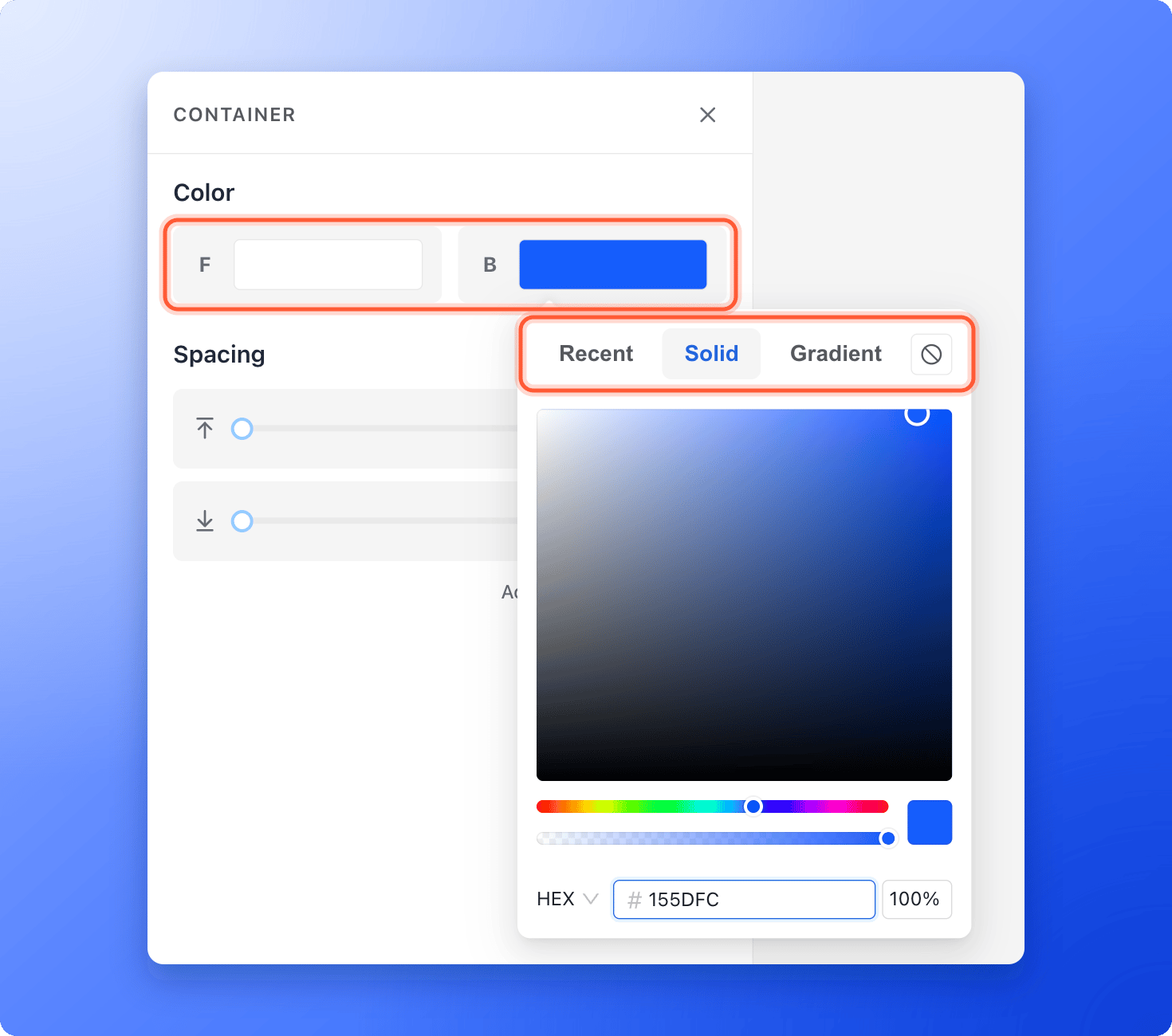
- Open the Color section. F is the font color and B is the background color. A button shows Button color instead.
- Click a swatch. Choose a tab: Recent for colors you used before in this funnel, Solid for one color, or Gradient for a blend. Some blocks, such as a column, also have Image for a background picture.
- On Solid, drag in the color area, or type your hex code in the box under it, for example #155DFC.
- To remove a color, click the crossed circle (Clear color) in the top right of the picker.
3
Add a header with your logo
- Above the canvas, click “Add header”. A header bar with a logo appears at the top of your pages.
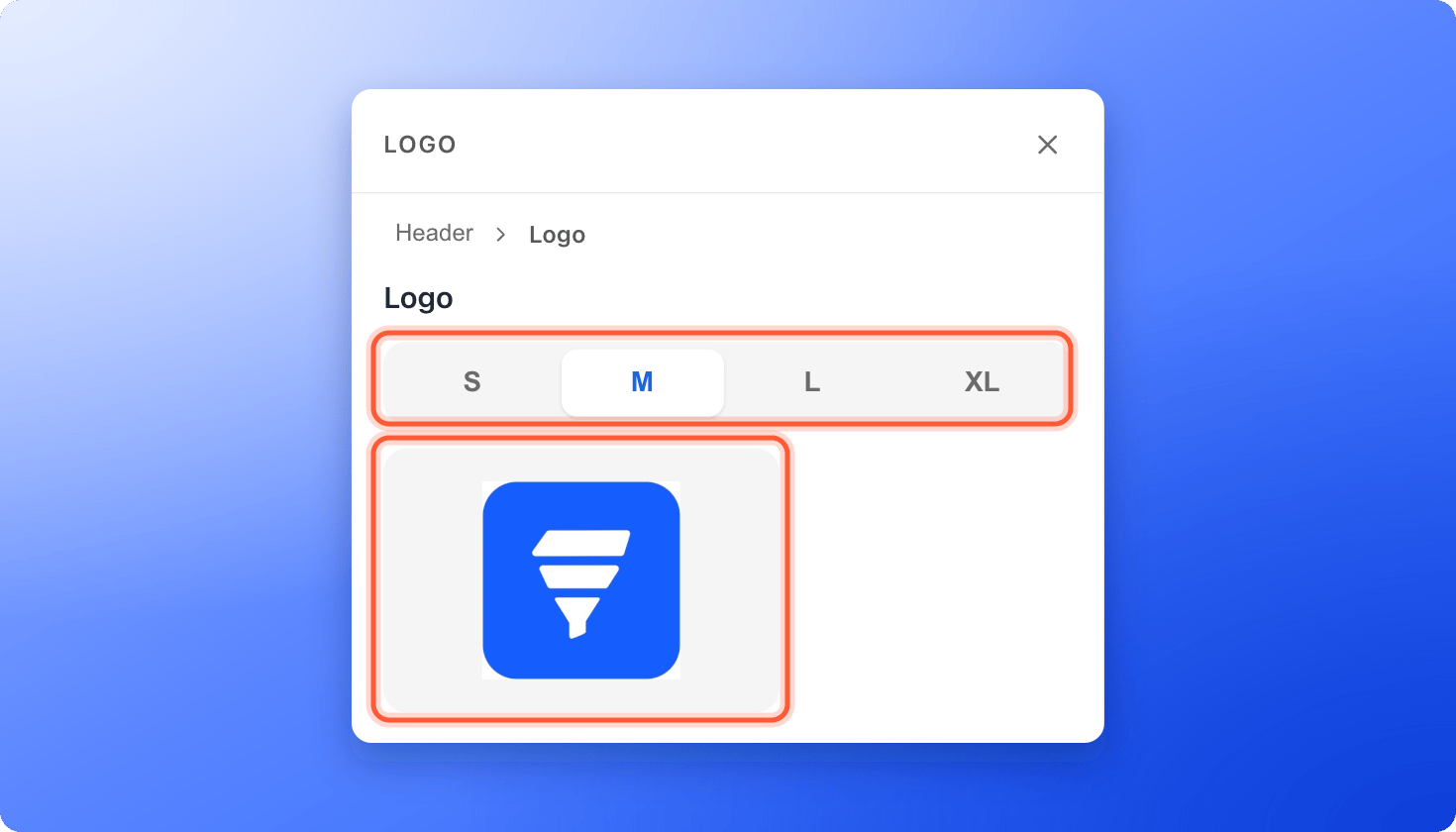
- Click the logo. In the left panel, under Logo, choose a size: S, M, L or XL.
- Click the logo picture under the sizes (Change logo). The window has two tabs. Logos finds a logo from a brand name or a website address. To use your own file, open Upload, then choose your file or drag it in. The window shows the file types and size it accepts.
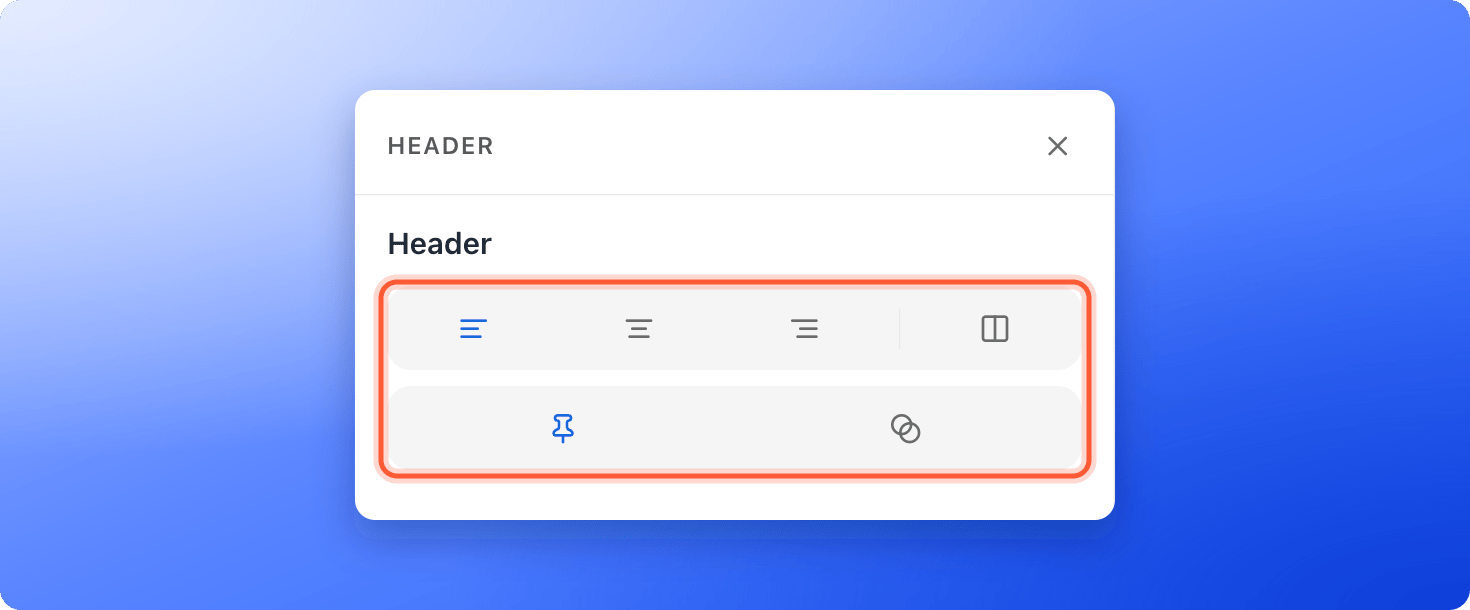
- Click the header bar. Use the icons in the left panel to align the logo left, center or right, or pick the Logo and button layout to add a button on the right.
- Switch on Fixed header (the pin icon) to keep the header at the top while people scroll, and Frosted glass header for a see-through blurred bar. Point at an icon to see its name.
4
Use your own images
Click an image on the canvas, then use the Change control in the left panel. Pick a tab:
- Upload for your own picture. The window shows the file types and size it accepts.
- Image to search free photos.
- My gallery for pictures you uploaded before.
- Icon or Emoji for a simple symbol.
- AI to create a picture from a description. Each AI image uses 4 AI credits. See How AI credits work.
5
Check your footer and publish
Scroll to the bottom of a page and click the footer. The Branding row can hide the Made with AskFunnel line on the Growth plan and above (see Remove the Made with AskFunnel branding). Your legal links are here too. See Set up your privacy policy, terms links and consent.Use the device icon at the right of the canvas to switch between Desktop, Tablet and Mobile and check each view. Then click “Publish Funnel”.
How do I know it is working?
- In the builder, the canvas shows your colors, text and logo.
- After you publish, open your live funnel in a private window on your computer and on your phone. See Find and share your funnel link.
- Your logo is sharp, not stretched, and your text is easy to read on a phone.
Troubleshooting
I want a different font
I want a different font
Custom fonts are not available. Funnels use a standard font from the visitor’s own device. Use text size, bold and color to give your headlines their own look.
I want one place to change my brand color for the whole funnel
I want one place to change my brand color for the whole funnel
There is no global theme. Change the color on each block or page. Use the Recent tab in the color picker to pick the same color quickly each time.
My logo will not upload
My logo will not upload
The upload window only accepts the file types and size it shows. If your file does not fit, the window tells you with a message. Export your logo again as a PNG or JPG, make the file smaller if you need to, and try again.
I still see the AskFunnel logo in my header
I still see the AskFunnel logo in my header
The header starts with a placeholder logo. Click the logo, then click Change logo in the left panel and upload your own.
The Branding switch is grayed out
The Branding switch is grayed out
Hiding Made with AskFunnel is available on the Growth plan and above. Point at the switch to see Available on Growth plans and above. See Choose the right plan.
My live funnel still has the old look
My live funnel still has the old look
Your changes only go live when you publish. Click “Publish Funnel”, wait a minute and refresh the live page.
What to do next
Add and arrange blocks
Build your pages from blocks and sections.
Set your social preview and favicon
Choose the picture and title people see when they share your link.
Connect your custom domain
Put your funnel on your own web address.
Create a funnel with AI
Start from a draft that AI writes for you.