

Available to: Global Admins, on every plan.
- A Global Admin role. Only Global Admins see “Delete workspace”. Workspace Admins can edit a workspace and open its settings, but not delete it.
- An active plan or free trial.
- At least one other workspace. You cannot delete your last one.
Important to note
What happens when you delete a workspace
- The workspace card disappears from Your workspaces right away.
- Its funnels stop working. Live funnels can no longer be opened at their AskFunnel address, and new visitors cannot leave a lead.
- Its team loses access to it. Global Admins keep their access to every other workspace. If this workspace was the only place where someone had a Workspace Admin or Content Editor role, their team seat is freed. See How team seats work.
- Its subdomain can be used again. The subdomain is the first part of the workspace’s web address, and you can give the same one to a new workspace. See Create a workspace.
- Your other workspaces are not touched. Their funnels, leads and teams stay as they are.
Delete a workspace
1
Get ready
- Export your leads from each funnel you may need later.
- Take live funnels offline. Click the three dots (…) on a funnel’s row, then “Unpublish Funnel”. See Publish, unpublish and restore an earlier version.
- Tell the people who use the workspace, such as a client, that it is going away.
2
Open the workspace menu
- Click the home icon in the top left corner to open Your workspaces.
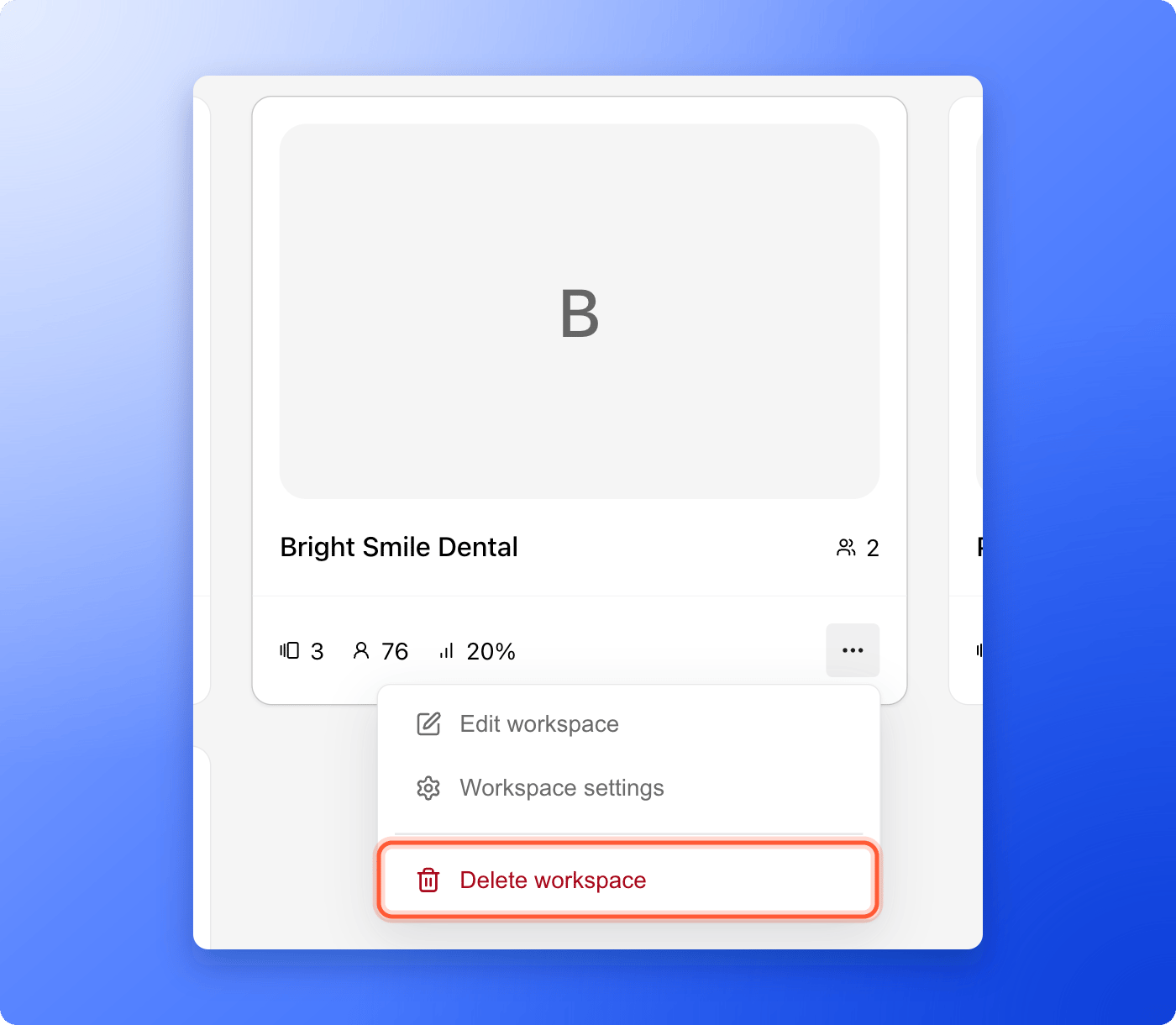
- On the card of the workspace you want to remove, click the three dots (…) at the bottom right.
- Click “Delete workspace”. It is the red item at the bottom of the menu.
3
Confirm
A window titled Delete this workspace? asks you to confirm. Check that you picked the right workspace, then click “Delete workspace”. Click “Cancel” to keep it.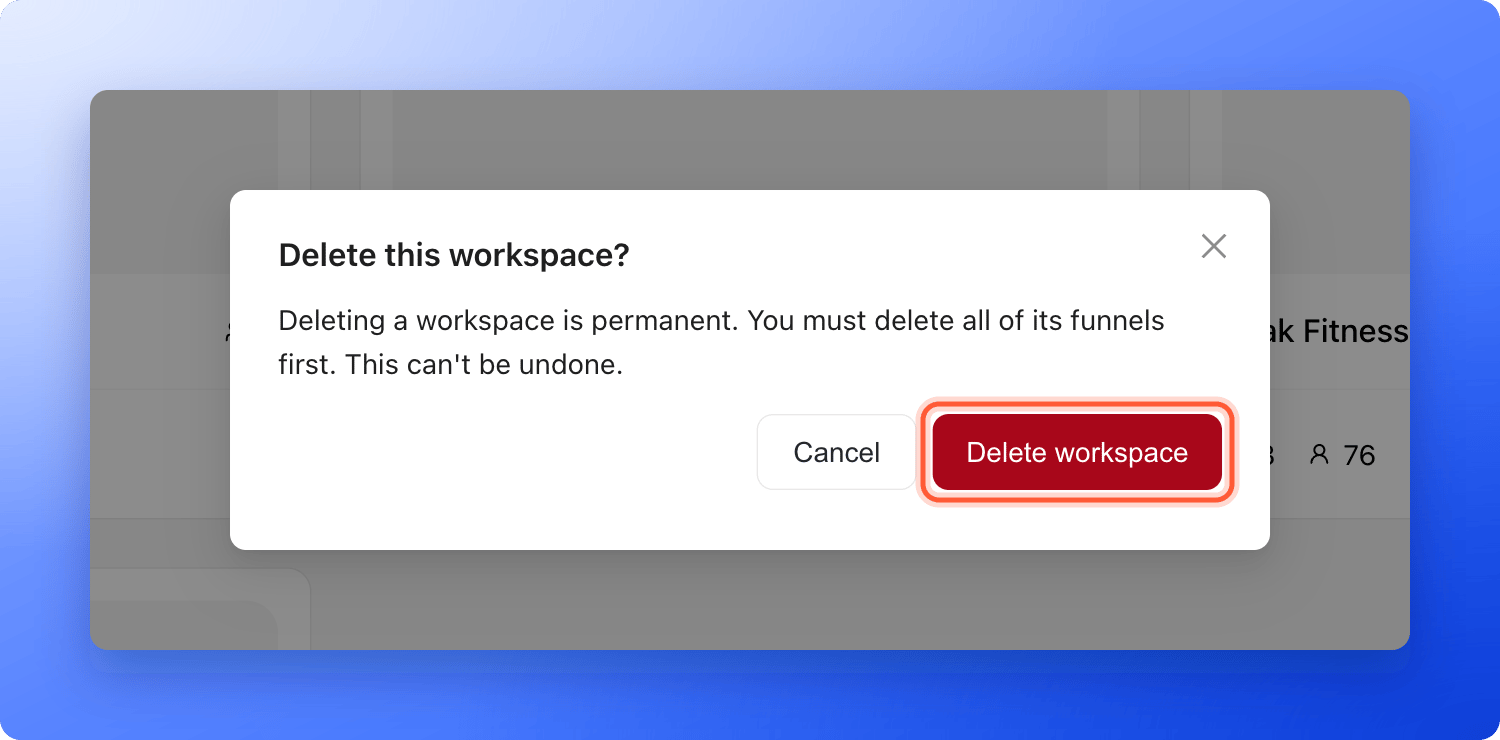
How do I know it is working?
- You see Workspace has been deleted successfully, and the card is gone from Your workspaces.
- The funnels of that workspace no longer open at their address.
- If you deleted the only place where a teammate had a seat, Members shows one less seat in use.
Troubleshooting
I do not see Delete workspace
I do not see Delete workspace
Only Global Admins can delete workspaces. Workspace Admins see “Edit workspace” and “Workspace settings” in the menu. Ask a Global Admin, or ask to be promoted. See Invite a teammate or client to a workspace.
I see You can't delete your last workspace
I see You can't delete your last workspace
Your account needs at least one workspace. Create another one first, then delete this one. See Create a workspace.
The window says I must delete the funnels first
The window says I must delete the funnels first
You do not have to. AskFunnel deletes the workspace even when it still has funnels. Take the live ones offline first, as described above.
I see Only Global Admins can delete workspaces, but I am a Global Admin
I see Only Global Admins can delete workspaces, but I am a Global Admin
Deleting a workspace needs an active plan or free trial. If your trial or subscription has ended, subscribe first. See Upgrade your plan. If that is not the reason, email support.
The card came back, or I see Unable to delete workspace
The card came back, or I see Unable to delete workspace
The delete did not go through, so AskFunnel put the card back. Try again in a minute. If it keeps happening, email support and tell us the name of the workspace.
I deleted a workspace by mistake
I deleted a workspace by mistake
There is no undo button. Within 30 days, email support@askfunnel.com with the name and the subdomain of the workspace, and we can restore it with its funnels and leads. Its members need to be invited again, its funnels published again, and its integrations reconnected. After 30 days it is permanently deleted and cannot be restored.
My live funnel count did not go down
My live funnel count did not go down
A live funnel in a workspace you deleted can keep counting toward your plan’s live funnel limit. Email support and tell us which workspace you deleted.
What to do next
Create a workspace
Add a workspace for a new brand or client.
Export your leads
Keep a copy of your leads before you delete.
Switch between workspaces
Open the workspace you want to work in.