

Available on: all plans (Starter, Growth, Scale and Enterprise). The Conversions API, which sends events from AskFunnel’s servers, needs the Growth plan and above.
- See your events arrive. Watch them appear live in Meta’s Test events tab.
- Check the server events too. Use a test events code to see the Conversions API events next to the browser ones.
- Find what blocks an event. Go through the list of causes, one by one.
- Switch to live ads. Turn off test mode so your events count for your ads again.
- Your Meta Pixel connected to the funnel, with your funnel published. See Meta Pixel.
- Access to Meta Events Manager for your pixel.
- A role that can open Funnel Settings: Global Admin, Workspace Admin or Content Editor.
Important to note
Test your setup
1
Check the Meta Pixel card
- From your funnel list, click the three dots (…) on the funnel’s row, then click “Funnel Settings”.
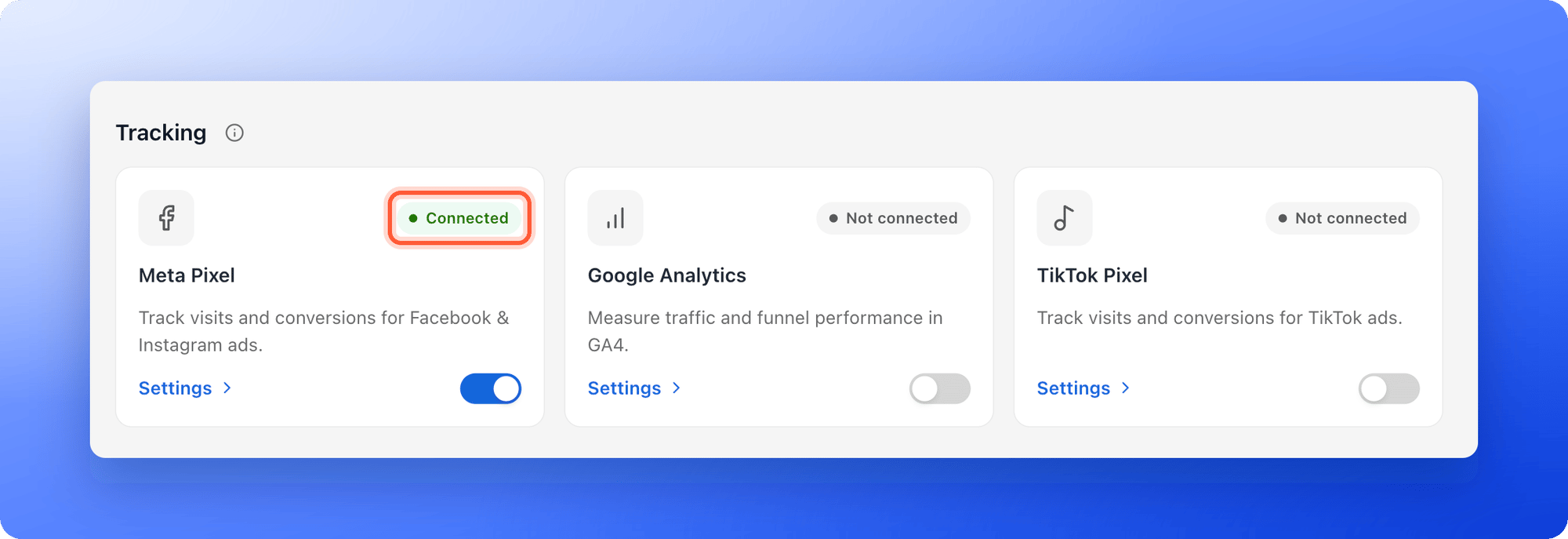
- On the left side menu, click “Integrations”. Under Tracking, look at the Meta Pixel card.
- It must say Connected. Paused means the switch is off, and Not connected means no Pixel ID is saved.
- Click “Settings” and compare Pixel ID with the ID of your pixel in Meta Events Manager, under Data sources. They must be the same, with no spaces. If you changed it, click “Save changes”.
2
Watch the browser events in Test events
- In Meta Events Manager, open your pixel and click Test events.
- In another tab of the same browser, open your live funnel. Accept the cookies if a banner shows.
- Click through your funnel, and submit the form with a test name and email.
3
Test the Conversions API (Growth and above)
Open Settings on the Meta Pixel card again and scroll to Conversions API (server-side). It must show Connected.To see these server events in Test events too, add a test events code: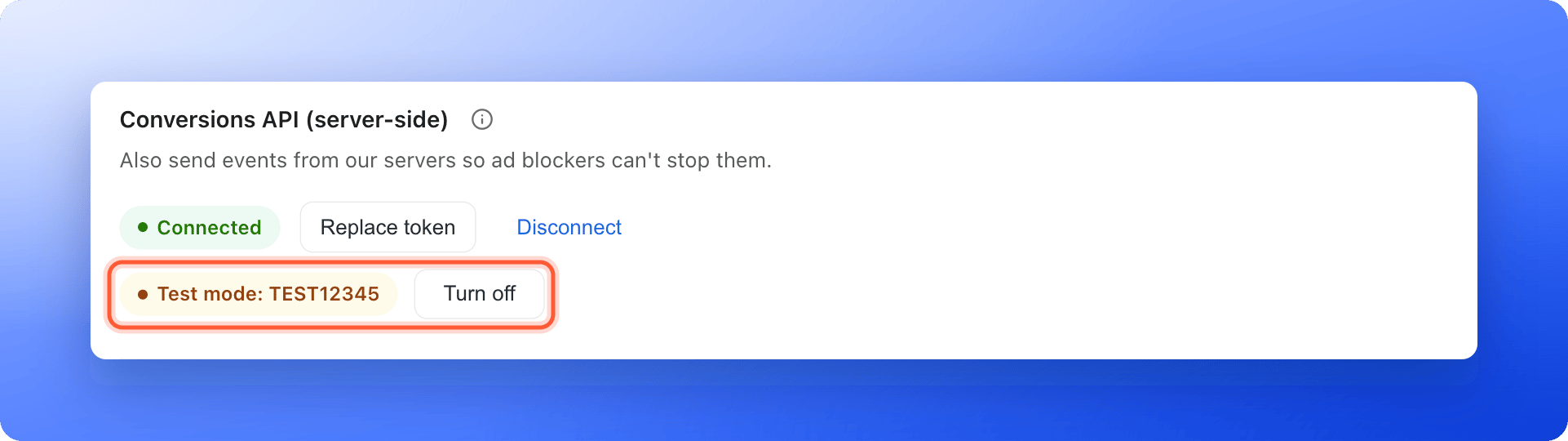
- In Meta’s Test events tab, copy the test code, for example
TEST12345. - In AskFunnel, click “Replace token”, paste your access token again, and paste the code into Test events code (optional).
- Click “Replace token”. You see Conversions API connected. Meta verified your token.
- Submit a test lead on your live funnel with marketing cookies accepted. A Lead event arrives from AskFunnel’s servers.
4
Turn off test mode
When your events look right, click “Turn off” next to Test mode. You see Test mode turned off. Events now reach your ads. Until you do this, server events are excluded from your ads.
Why a server event is not sent
The Conversions API sends a Lead for a new lead only when everything on this list is true:
Leads that arrived before you connected the Conversions API, or while one of these was missing, are not sent later.
Along with each server event, AskFunnel sends the lead’s email and phone number in a scrambled form that Meta cannot read back (hashed), plus cookie details when the visitor accepted marketing cookies. A form that asks for both an email and a phone number gives Meta more to match to a person.
How do I know it is working?
- The Meta Pixel card says Connected, and the Conversions API section says Connected without a red message.
- In Test events, you see the events of your test visit, and with a test code also the server Lead.
- After you turn test mode off, new leads reach Meta as usual and count for your ads. They can take a while to appear in your ad reports.
Troubleshooting
I do not see any events in Test events
I do not see any events in Test events
Check these, in order:
- The Meta Pixel card shows Connected, and the Pixel ID matches your pixel exactly.
- You clicked “Save changes” after you pasted the Pixel ID.
- You opened the live funnel, not the builder, and accepted marketing cookies if your banner is on.
- Your ad blocker is off, and the browser does not send the Global Privacy Control signal.
- A few minutes have passed.
Browser events show, but the server Lead does not
Browser events show, but the server Lead does not
Go through the table in Why a server event is not sent. The most common causes are a missing test events code (so you cannot see server events in Test events), the Growth plan, and a visitor who did not accept marketing cookies.
I see two Lead events for one visit
I see two Lead events for one visit
The browser Lead and the server Lead share one ID, so Meta counts them once. If you see two from the browser, another funnel step is probably mapped to Lead. Open Map events to standard events in the Meta settings and change that entry. See Map your funnel steps to standard events.
I see Save your Meta Pixel ID first
I see Save your Meta Pixel ID first
The Conversions API sends to the Pixel ID that is saved on the funnel. Type your Pixel ID, click “Save changes”, then connect.
I see Meta rejected this token
I see Meta rejected this token
The token is wrong, expired or has no permission. In Meta Events Manager, open your dataset’s Settings, find Conversions API and generate a new token. Paste it whole.
I see Meta couldn't find this Pixel ID for this token
I see Meta couldn't find this Pixel ID for this token
The token was made for a different pixel. Check the Pixel ID, and generate the token from the same dataset.
I see Meta couldn't verify this token right now, or Couldn't reach Meta
I see Meta couldn't verify this token right now, or Couldn't reach Meta
Meta did not answer in time. Wait a minute and click “Connect” again.
Test mode is still on
Test mode is still on
Click “Turn off” next to Test mode. Server events sent in test mode were not counted for your ads, and they are not sent again.
What to do next
Map your funnel steps to standard events
Tell Meta which steps count as a lead or a purchase.
Set up cookies and consent
Choose when tracking starts for your visitors.
Why your lead and analytics numbers differ
Understand differences with Meta Ads Manager.