

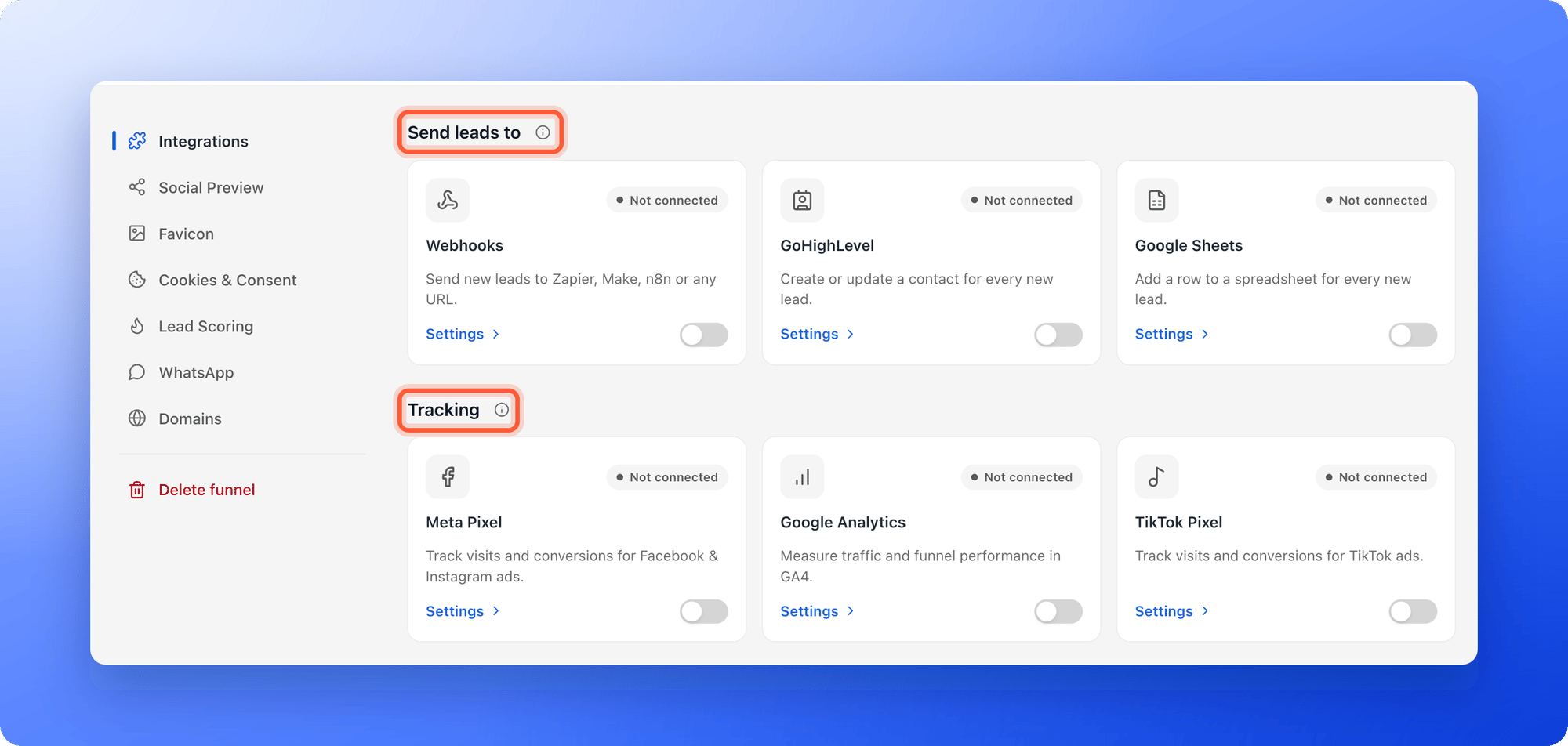
- Send every new lead to the tool you work in. A HighLevel contact, a Google Sheets row, or a message to Zapier, Make, n8n or your own server.
- Track your ads. See which Facebook, Instagram, TikTok or Google visits turn into leads.
- Connect any tool. If a tool is not listed, a webhook can reach it through Zapier or Make.
- A funnel.
- A role that can open Funnel Settings: Global Admin, Workspace Admin or Content Editor. Only Global Admins and Workspace Admins can change where leads are sent. Others see Admins only on those cards.
Important to note
The two kinds of integration
Find your integrations
1
Open the Integrations menu
- From your main dashboard, find the funnel.
- Click the three small dots (…) on that funnel’s row, then click “Funnel Settings”.
- On the left side menu, click “Integrations”.
2
Pick the card you need
Click “Settings” on the card you want, and follow its guide. The table under these steps helps you choose.
3
Connect it and test it
Each guide ends with a test you can run. For lead destinations, use Send test from the card’s three dots menu. For tracking tools, check the ad tool’s test view.
Which card should I use?
A booking calendar, such as Calendly or Cal.com, is not on this page. It is turned on in your lead form. See Let visitors book a call with Calendly or Cal.com.
What the card status means
Each card has a status chip.- Not connected: nothing is set up yet.
- Connected: it is on and working.
- Paused: you turned the switch off. Your setup is kept. Leads that arrive while a lead destination is paused are not sent to it later.
- Needs attention: the last lead could not be sent. The card says why. Open the delivery log to send failed leads again.
- Not sending: a webhook that is on, but your plan no longer includes webhooks.
- Growth and above: webhooks are not included in your plan.
- Admins only: you can see the card but only an admin can change it.
How do I know it is working?
- The card shows Connected.
- A test shows in the other tool: a Test delivered message and a sample lead for a lead destination, or events in the ad tool’s test view for a tracking tool.
- After a real lead, a contact, a row or an automation run shows in your other tool.
Troubleshooting
The card says Admins only
The card says Admins only
Your role cannot change where leads are sent. Ask a Workspace Admin or Global Admin to set it up. See Invite a teammate or client to a workspace.
The Webhooks card says Growth and above
The Webhooks card says Growth and above
Webhooks are available on the Growth plan and above. See Upgrade your plan. Google Sheets and GoHighLevel are available on every plan.
A card says Not available yet
A card says Not available yet
That integration cannot be connected yet. Try again later, or email support.
The card says Needs attention
The card says Needs attention
Open the card’s three dots menu and click “Delivery log”, read the reason, fix it and send the failed leads again. For webhooks, see Read your webhook delivery log.
My tool is not in the list
My tool is not in the list
Connect it with a webhook through Zapier or Make. Both can reach thousands of apps. See Send leads to Zapier and Send leads to Make.
My tracking setup does not show events
My tracking setup does not show events
Check that you clicked “Save changes”, that the card is not Paused, and that visitors accepted cookies if your banner is on. See Check that your Meta Pixel and Conversions API are working.
Do I have to set this up for each funnel?
Do I have to set this up for each funnel?
Yes. Each funnel has its own lead destinations and its own tracking IDs.
What to do next
Send your leads to HighLevel
Every new lead becomes a contact.
Send your leads to a webhook
Zapier, Make, n8n or your own server.
Send leads to Google Sheets
Every new lead becomes a row.
Track your Facebook and Instagram ads
See which ads bring leads.
Track your traffic with Google Analytics
See how visitors move through your funnel.
Track your TikTok ads
See which TikTok ads bring leads.