

Available on: the Growth plan and above. Only Global Admins and Workspace Admins can open it.
- Check a lead. See whether it was Delivered, is still being retried, or Failed.
- Read the reason. Every failed lead shows what the receiving server answered.
- See every attempt. Open a lead to see the time and result of each try, and when the next one is planned.
- Send leads again. Retry one lead or all failed leads with one click.
- A webhook added to a funnel. See Send your leads to a webhook.
- A Workspace Admin or Global Admin role.
- The Growth plan or above to send leads again. Reading the log works on any plan.
Important to note
Open and read the log
1
Open the delivery log
- From your main dashboard, find the funnel. Click the three small dots (…) on its row, then click “Funnel Settings”.
- On the left side menu, click “Integrations”.
- Under Send leads to, on the Webhooks card, click “Settings”.
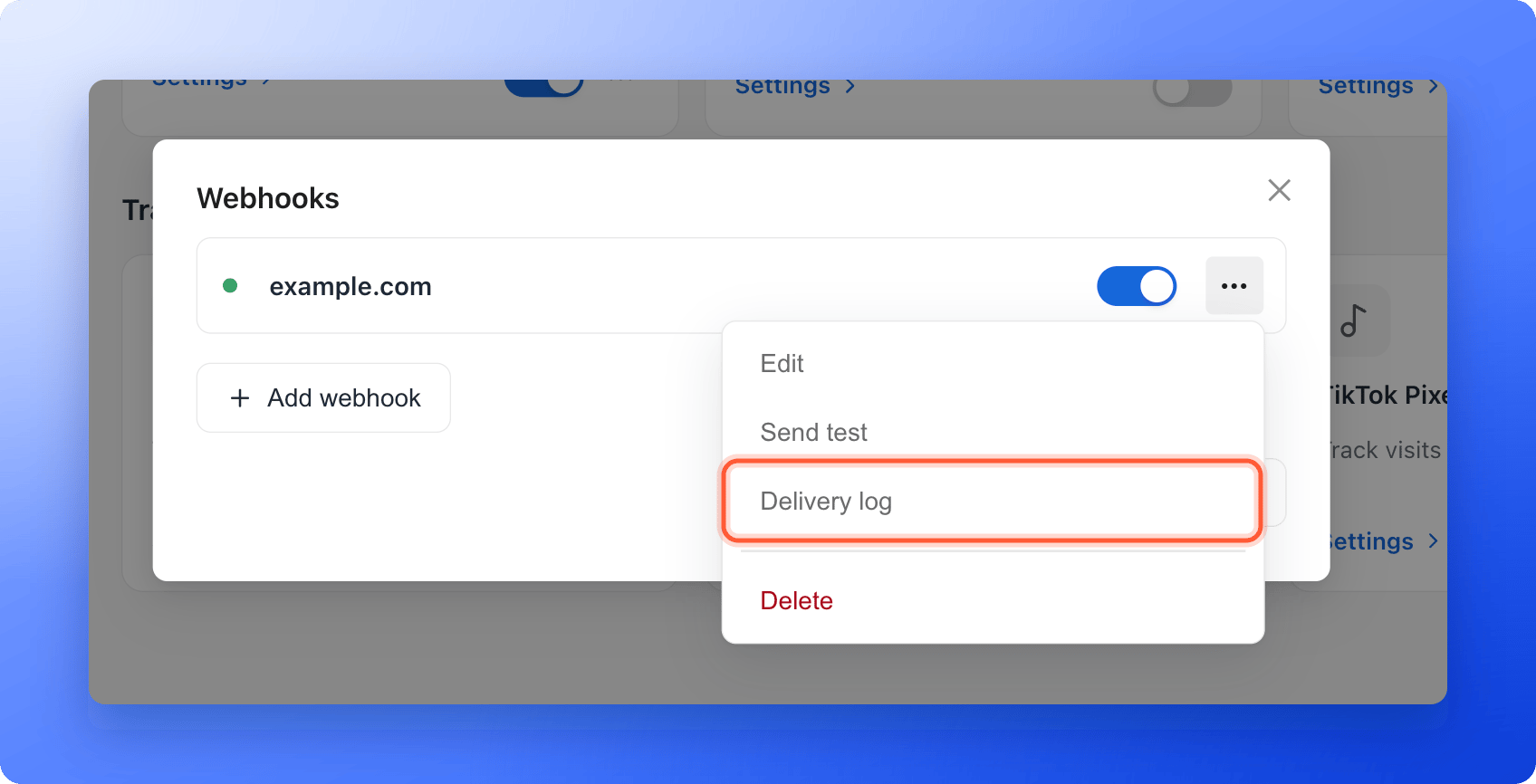
- Click the three dots (…) on the webhook, then “Delivery log”. The window is titled Delivery log followed by the name of the webhook.
2
Read a row
Each row is one lead. From left to right you see: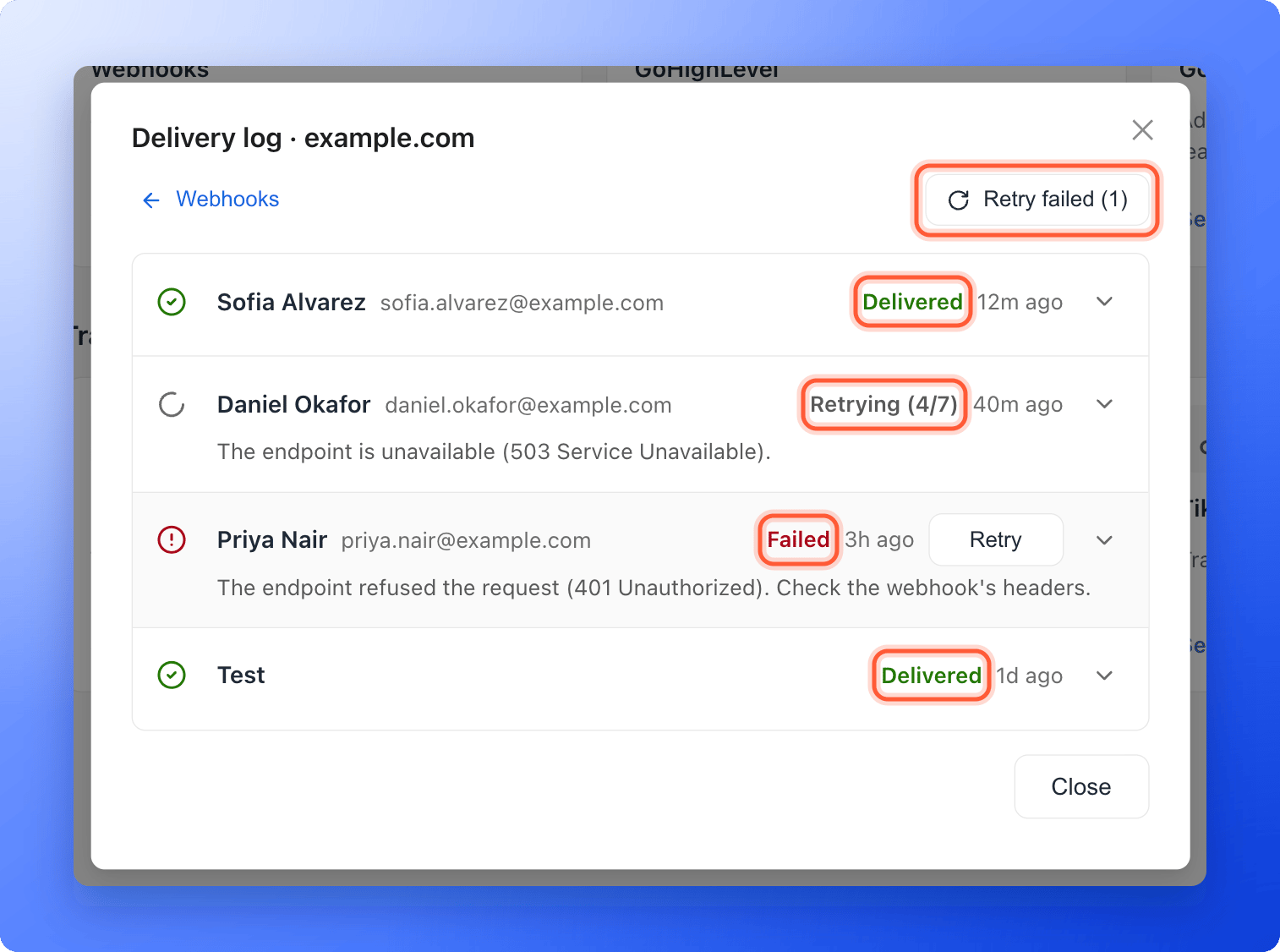
- The lead. Their name and, next to it, their email or phone. Click the name to open the lead in a new tab. A lead you deleted shows as Deleted lead, and a test shows as Test.
- The status. See the table below.
- The time the lead was sent. Point at it to see the exact time.
- “Retry”, on failed leads.
- An arrow that opens the details of the lead.
3
See every attempt
Click the arrow at the right of a row. The lead opens to show one line per attempt, with the exact time and the result, for example Delivered (200 OK). or the reason it failed. If another try is planned, a last line shows Next retry and its time.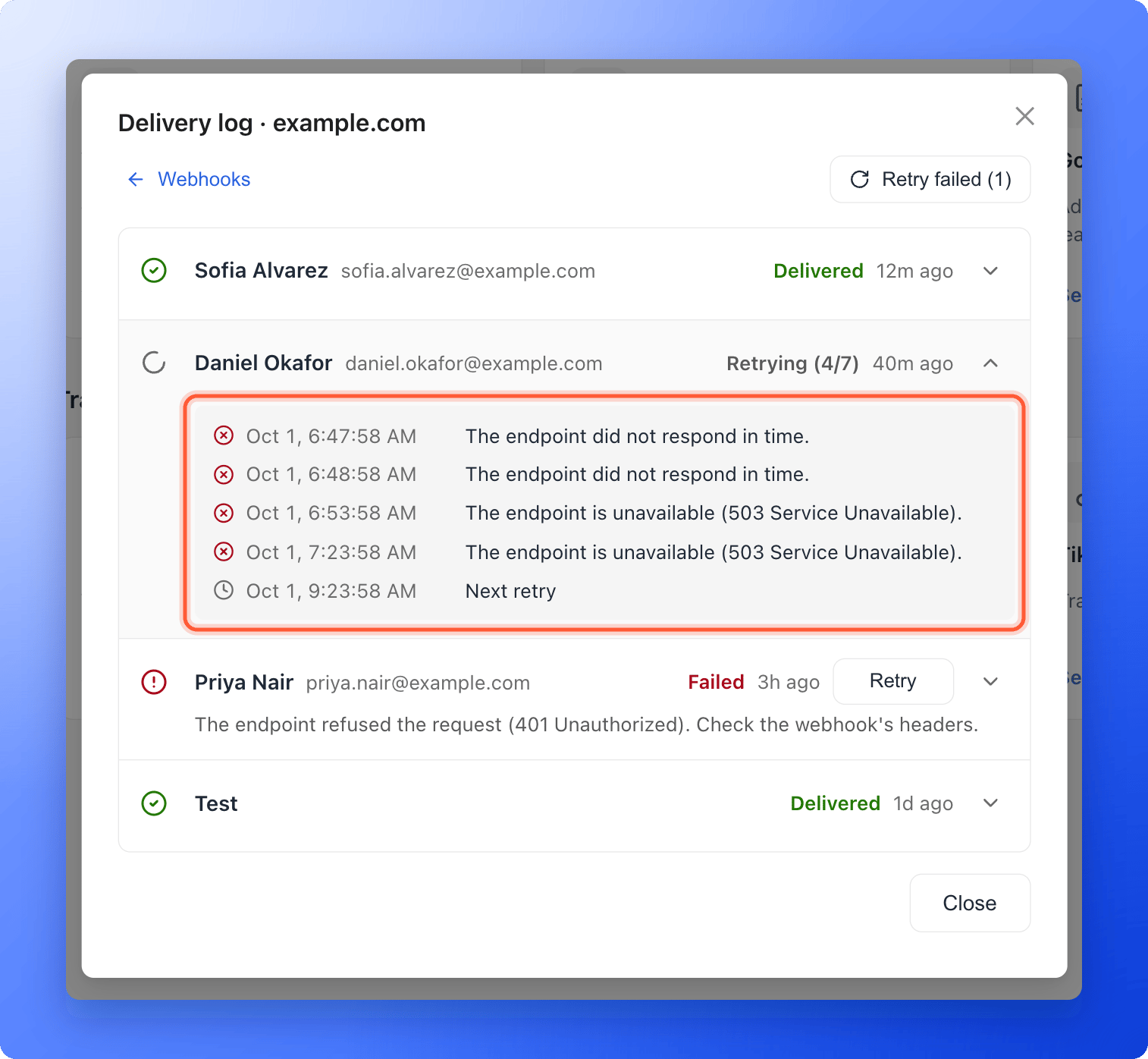
What the statuses mean
AskFunnel retries on its own, after 1 minute, 5 minutes, 30 minutes, 2 hours, 6 hours and 12 hours, for up to 7 tries in all and never after more than 72 hours. See Retries and what counts as success for what your server must answer.
Fix a failed lead and send it again
1
Read why it failed
Open the lead with the arrow, or read the reason under its name. The messages and their fixes are the same as for a failed test. See Troubleshooting.
2
Fix the cause
Change what the reason points to: the webhook address, a header such as an API key, or your own server or automation. If you change the address or a header, click the webhook’s name to open “Edit webhook” and click “Save”.When you save a change to a webhook that needs attention, AskFunnel clears the warning and sends its failed leads again by itself.
3
Check with a test
Click the three dots (…) on the webhook, then “Send test”. When you see Test delivered, the webhook works again, and a failing webhook stops showing Needs attention.
4
Send the failed leads again
Open the delivery log.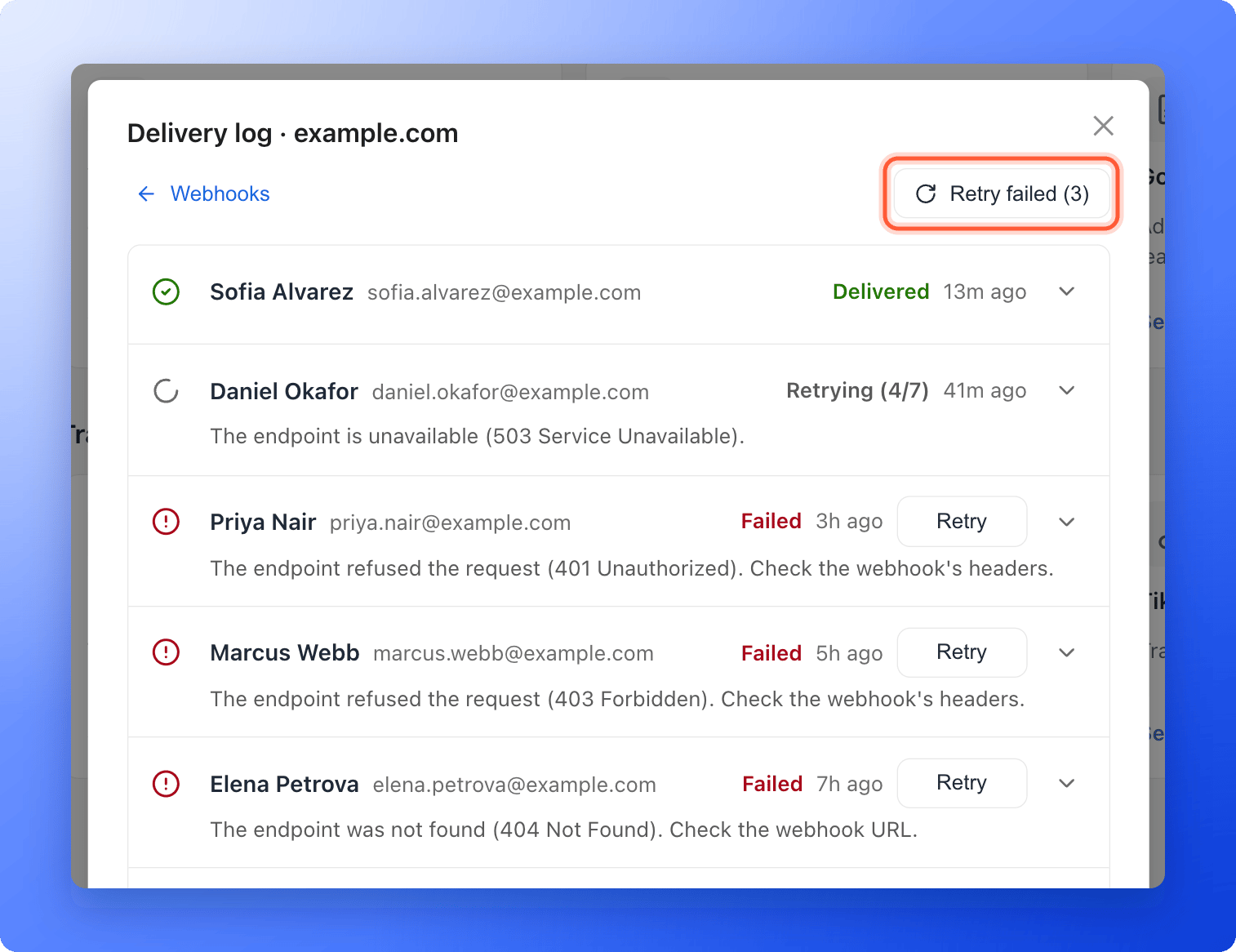
- To retry one lead, click “Retry” on its row. You see Retrying 1 lead.
- To retry all failed leads, click “Retry failed” at the top right. The button shows how many, for example Retry failed (3). A plus sign, such as (20+), means more failed leads are further down the list. You see Retrying 3 leads. It sends up to 500 leads each time. If there is nothing to send, you see There is nothing to retry.
When you get an email about it
When a lead fails for good, the webhook shows Needs attention with the reason, and so does the Webhooks card. AskFunnel also emails the organization owner with the subject An integration needs your attention. It sends at most one email a day for each destination, and the email links to your integration settings. The warning goes away after the next delivered lead, a successful test or a saved fix.How do I know it is working?
- A new lead shows at the top of the log with Delivered, and its details say Delivered (200 OK). or another success code.
- The webhook in the list and its card show On or Connected, without Needs attention.
- The lead appears in your receiving tool, for example in your Zap’s run history.
Troubleshooting
The log says No leads sent yet
The log says No leads sent yet
No lead has arrived since you added the webhook. Click “Send test” to see a Test row. Real leads show up as soon as someone submits your live funnel.
A lead is missing from the log but I can see it in my Leads
A lead is missing from the log but I can see it in my Leads
Check that the webhook existed and was on when the lead arrived, that your plan included webhooks, and that the lead is not older than 30 days. A lead that is locked because you reached your monthly lead limit is never sent. See What happens when you reach your monthly lead limit.
A lead stays on Retrying
A lead stays on Retrying
AskFunnel is waiting for the next planned try. Open the lead to read the reason and the time of Next retry. If you have already fixed the cause, you do not need to wait: click “Retry” once the lead shows Failed.
I see This lead can no longer be sent
I see This lead can no longer be sent
The lead was deleted, or it was too large to send (over 256 KB), so there is nothing left to send. Add the contact to your tool by hand if you still need it. Open the lead in your Leads tab and use Export your leads if you need the data.
The same lead is in my tool twice
The same lead is in my tool twice
AskFunnel delivers each lead at least once. A slow answer, or a click on “Retry”, can send the same lead again with the same ID. Ignore a lead whose ID you already handled.
Only 20 rows show
Only 20 rows show
The log loads 20 leads at a time. Click “Load more” at the bottom to see older ones, up to 30 days back.
What to do next
Send your leads to a webhook
Add a webhook, headers and a signing secret.
What AskFunnel sends
The request, the signature and the retry rules, for developers.
How integrations work
Where leads go, and what each integration tracks.