

Update your profile
1
Open your profile
Click your name at the bottom of the sidebar, then click “Profile”. On a phone, tap “Menu” at the bottom of the screen, then your name, then “Profile”.
2
Change what you need
The page has three groups:
- Personal information: Your Profile photo (JPG, PNG or WebP, up to 5 MB), Full name, Email and Phone. To change your email address, follow Change your email address.
- Location: Your Country and City.
- Online presence: Your Company website, LinkedIn, Facebook page, Twitter / X and Instagram. All are optional.
3
Save your changes
When you change a field, a bar at the top says Unsaved changes. Click “Save” to keep them, or “Discard” to go back to what was saved. You see Profile updated.
Rename your organization
Your organization is the account that holds your workspaces, team and plan. Its name is shown to your team, under your name at the bottom of the sidebar.- Click your name at the bottom of the sidebar, then click “General”.
- Change the Name, then click “Save”. You see Organization name updated.
Delete your account
Deleting your account cannot be undone. It deletes your sign in, your profile and your pictures, and removes you from your organization. The notes and activity you wrote stay for your team, with your name taken off.
1
Open your profile
Click your name at the bottom of the sidebar, then click “Profile”. The last group on the page is Delete account.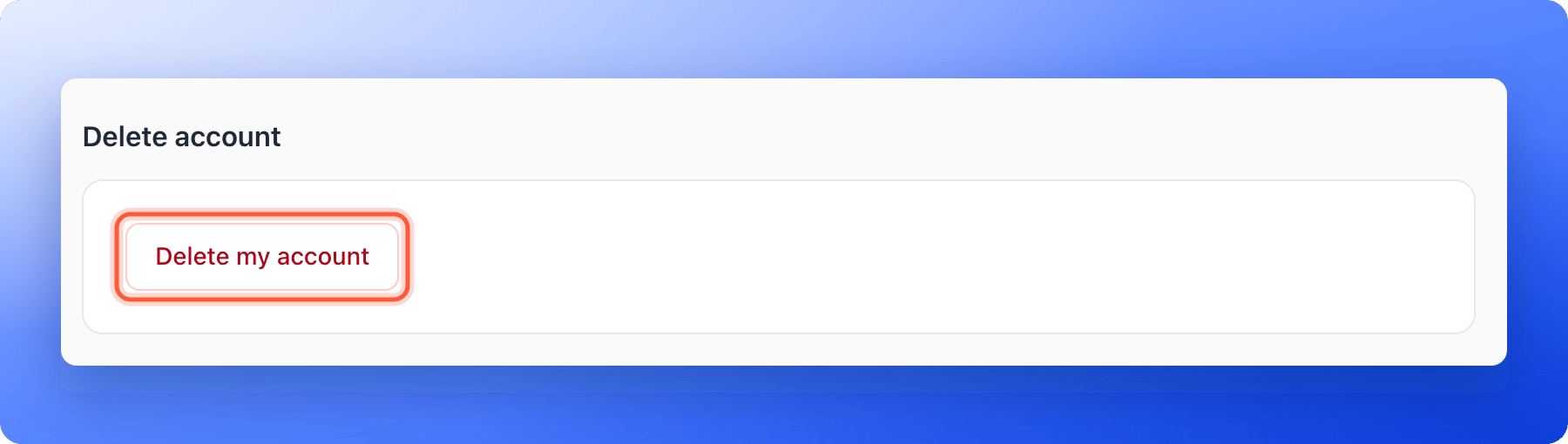
2
Click Delete my account
Click “Delete my account”. A window titled Delete your account? repeats what will happen. Click “Delete my account” to confirm, or “Cancel” to keep your account.
3
Sign in again if asked
For your safety you must have signed in recently. If you have not, you see Check your email for a sign in link. After signing in, come back here and delete your account within five minutes. Click the link in the email, then repeat the steps within five minutes.
Important to note
Troubleshooting
I do not see Delete my account
I do not see Delete my account
You are the owner of the organization, so the group tells you to email support instead. Write to support@askfunnel.com.
I see Couldn't delete your account. Try again.
I see Couldn't delete your account. Try again.
Try again in a minute. If the message names a reason, follow it. If it keeps happening, email support and tell us which address you use.
I changed my name but others still see the old one
I changed my name but others still see the old one
Click “Save” in the Unsaved changes bar. Until you save, the change stays on your screen only.
My photo did not upload
My photo did not upload
Use a JPG, PNG or WebP file up to 5 MB. If you see Couldn’t upload your photo. Try again., try again with a smaller file.
What to do next
Change your email address
Confirm it is you and move your account to a new address.
Invite a teammate or client
Give your team access to your workspaces.
Contact AskFunnel support
Tell us what you were trying to do and what happened.