

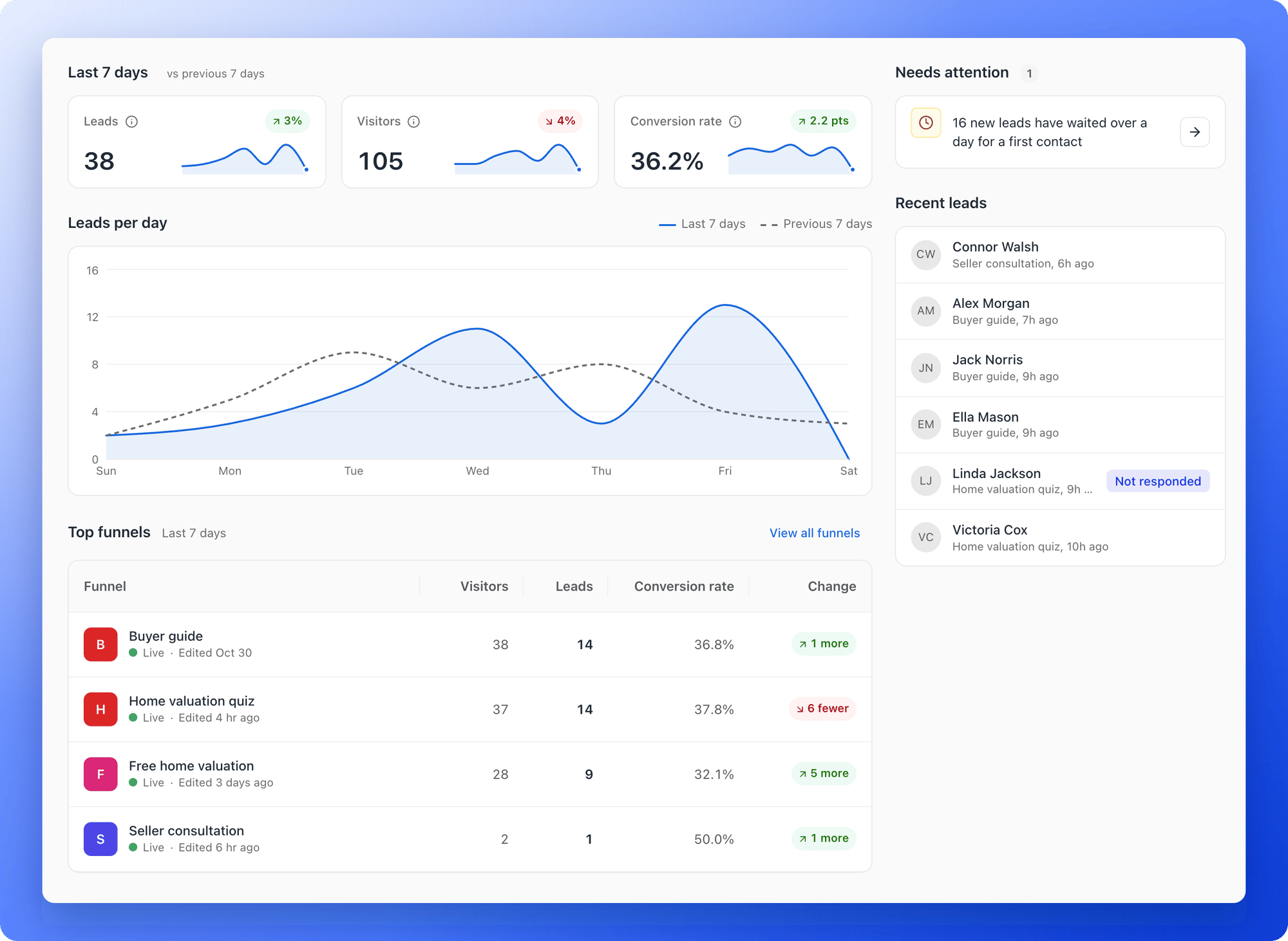
What is on Home
- Last 7 days: Three cards, Leads, Visitors and Conversion rate, each with the change against the 7 days before, green when it went up and red when it went down (for example 3% or 2.2 pts). Click the i icon on a card to see what it counts.
- Leads per day: A chart with one line for the last 7 days and a dashed line for the 7 days before, so you can see a good or bad day at a glance.
- Top funnels: Your best funnels this week, with their Visitors, Leads, Conversion rate and Change. Click a funnel to open it, or click “View all funnels”.
- Needs attention: A short list of things worth fixing, each with a button that takes you there.
- Recent leads: The newest leads, with the funnel they came from and how long ago.
The numbers cover the last 7 days. Leads counts every form submission in the workspace, including leads that your plan has locked. Visitors counts each person once a day, so someone who comes back on another day counts again. Conversion rate is leads divided by visitors. See Why your lead and analytics numbers differ.
What Needs attention can tell you
Each line has a button on its right. Lines show only when they apply.- A failing integration: For example Your webhook is failing. The button is Fix it and opens the funnel’s integrations.
- Leads waiting: For example 16 new leads have waited over a day for a first contact. The button is Open leads.
- A funnel with visitors and no leads: A funnel that had visitors but no leads in 7 days. The button is Open funnel.
- Drafts: Funnels you have not published yet. The button is Publish for one funnel, or Open funnels for several.
- Your lead limit: When you are close to your plan’s monthly leads or have used them all. Only Global Admins see this line. The button is View plan.
See all your workspaces at once
If you are a Global Admin, open the workspace switcher at the top of the sidebar and click All workspaces. Home then adds up every workspace and shows a Workspaces table with the Leads, Change, Visitors and Conversion rate of each one, and how many live funnels it has. Click a row to open that workspace.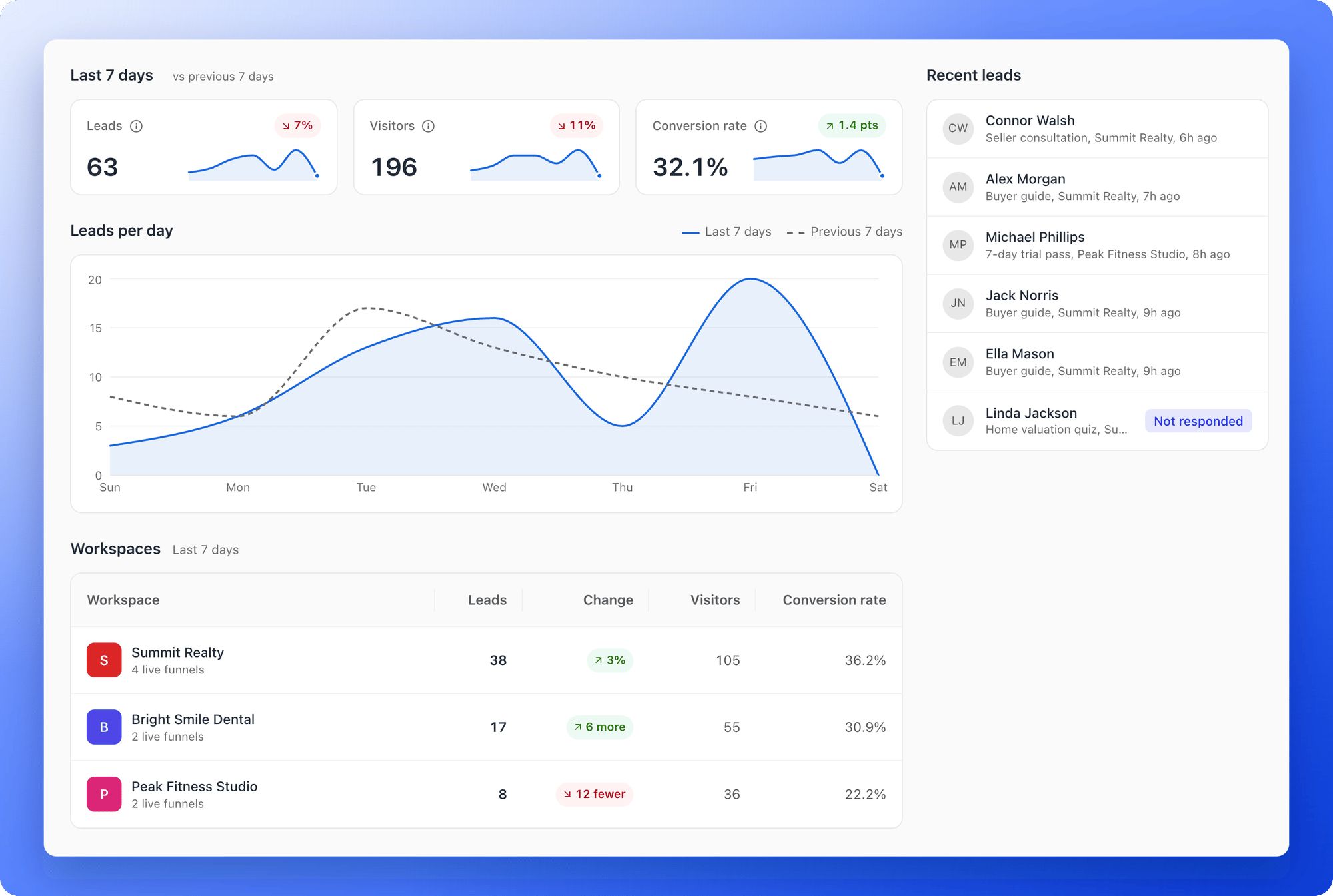
What other roles see
- Workspace Admins and Contacts Managers see the numbers, the chart and the lists described above for the workspaces they belong to.
- Content Editors do not work with lead data. Their Home shows the funnels they edited most recently, with a Create funnel button.
- In a workspace with no funnels yet, Home says Create your first funnel.
How do I know it is working?
- A new workspace shows Your numbers show here in a few minutes. until the first numbers arrive.
- The chart, the cards and the table change as new visitors and leads come in.
Troubleshooting
My numbers are zero
My numbers are zero
Home counts the last 7 days. A funnel that is not live yet, or that you have just published, has no visitors to count. See Publish and restore.
Home says my numbers are taking longer than usual
Home says my numbers are taking longer than usual
Wait a few minutes and open Home again. If it still does not load, email support.
I do not see All workspaces
I do not see All workspaces
Only Global Admins see All workspaces. Everyone else opens the workspaces they were added to. See Switch between workspaces.
Leads on Home do not match my funnel's analytics
Leads on Home do not match my funnel's analytics
Home counts the last 7 days, and the funnel’s analytics count the period you pick. See Why your lead and analytics numbers differ.
What to do next
Funnel analytics
Conversion rates and where people leave a funnel.
View and manage your leads
Follow up with the leads that wait for a first contact.
Find your way around
A tour of the sidebar and the account menu.