

- A role that can manage leads: Global Admin, Workspace Admin or Contacts Manager.
- A CSV or Excel file with the column names in the first row, up to 5 MB and 5,000 rows. To start from a ready layout, click “Download template” in the import window. It is a CSV with your funnel’s field names as the first row.
Important to note
Import a file
1
Open the import window
Open your funnel’s Leads page, click the three vertical dots (View options) in the toolbar and click “Import leads”.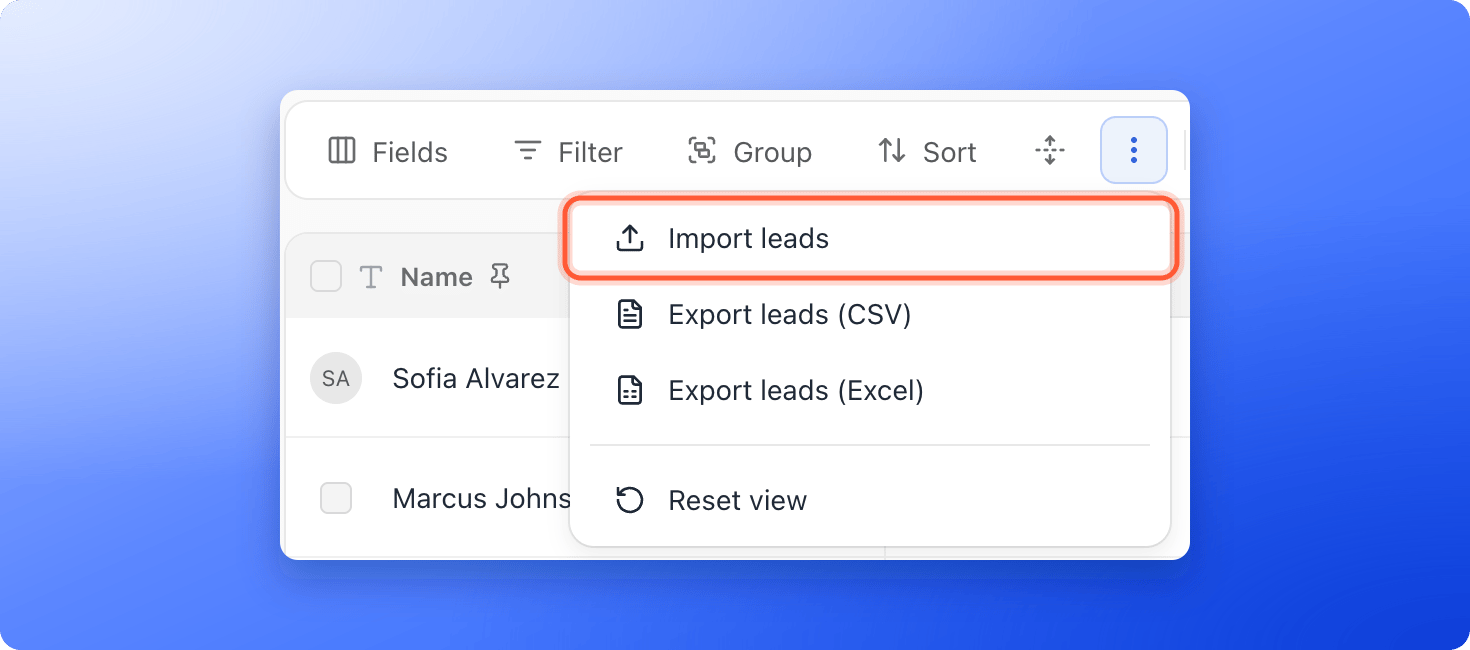
2
Choose your file
Click Choose a CSV or Excel file, or drop the file on the window. If an Excel file has several sheets, pick the one you want in Worksheet. To use another file, click “Replace”.
3
Match the columns
The Map fields step lists Columns in your file on the left and Lead fields on the right. AskFunnel matches the columns it recognizes, such as Full Name, Email and Phone. A column it does not recognize, such as Budget in this file, starts as Skip this column: pick the lead field it belongs to, here the question What is your budget range?. For each column you can: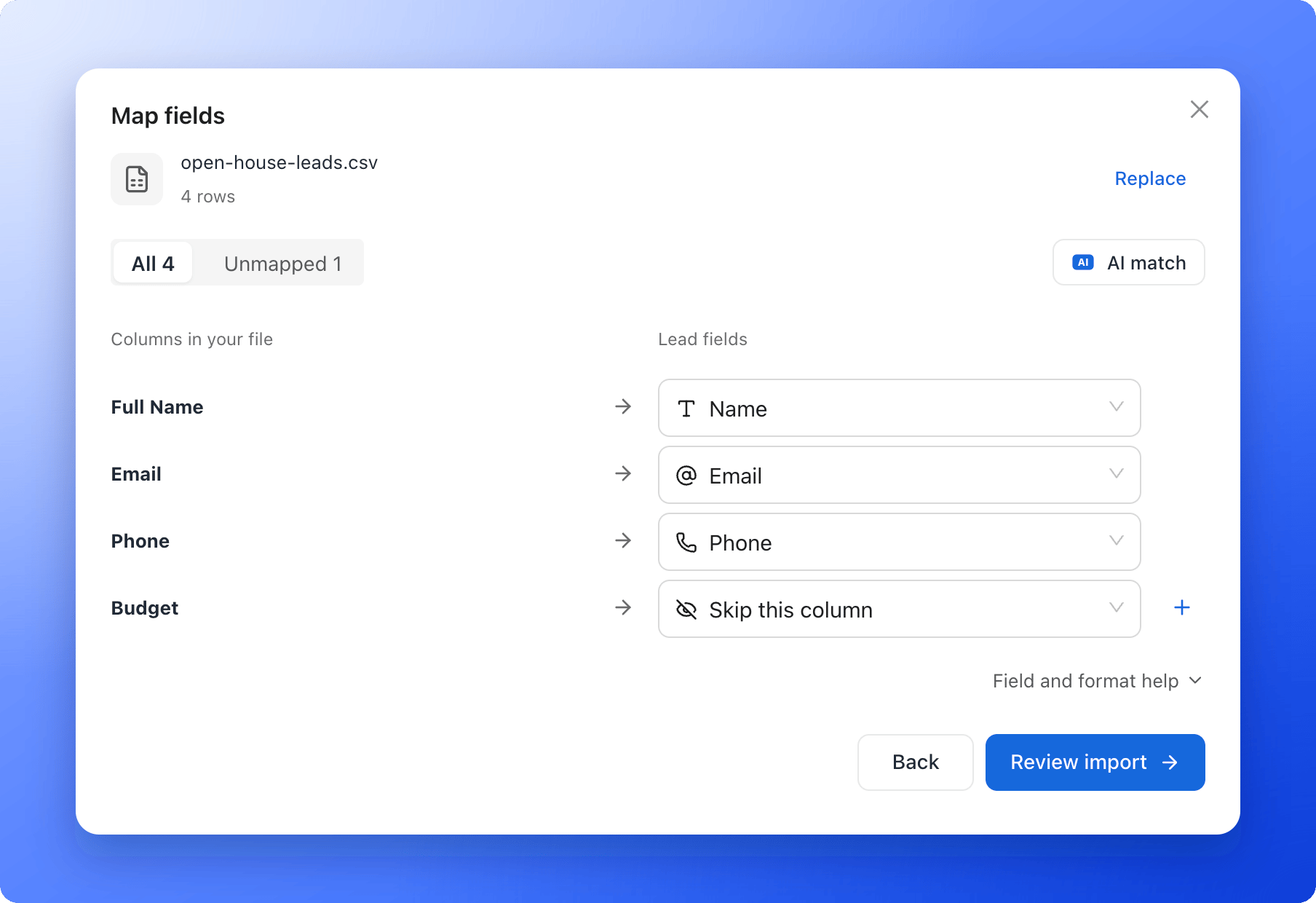
- Pick a different lead field from the list.
- Pick Skip this column to leave it out.
- Click “AI match” (the button with the blue AI tile) to get suggestions for matching your columns. AI match reads column names only. Review each suggestion, marked as an AI suggestion. When every column has a match, the button goes away, because it has nothing left to do.
- Click the plus next to a column to create a new field from it (Create a field for this column). The new field’s form shows the Values in your file so you can pick the right type. When two or more columns have no match, the link Create fields for N columns makes a field for each of them in one go. See Create a custom field.
4
Review and import
Click “Review import”. A preview shows up to 20 rows as they will be saved. The switch Ready and Issues shows how many rows will be imported and how many are skipped, and Download issues gives you a file that says why each row has a problem. A phone number with no country code is read in the country most of your numbers use, or in your workspace’s country. A number AskFunnel cannot read is saved as you wrote it, and that lead gets no WhatsApp messages.Tick They agreed to hear from me by email. only if the people in your file agreed to get emails from you. A ticked lead is treated like a person who ticked the email box on your form. For a lead that is not ticked, automated emails meant only for people who ticked that box skip them. Emails to everyone still reach them.Click “Import N leads” to start.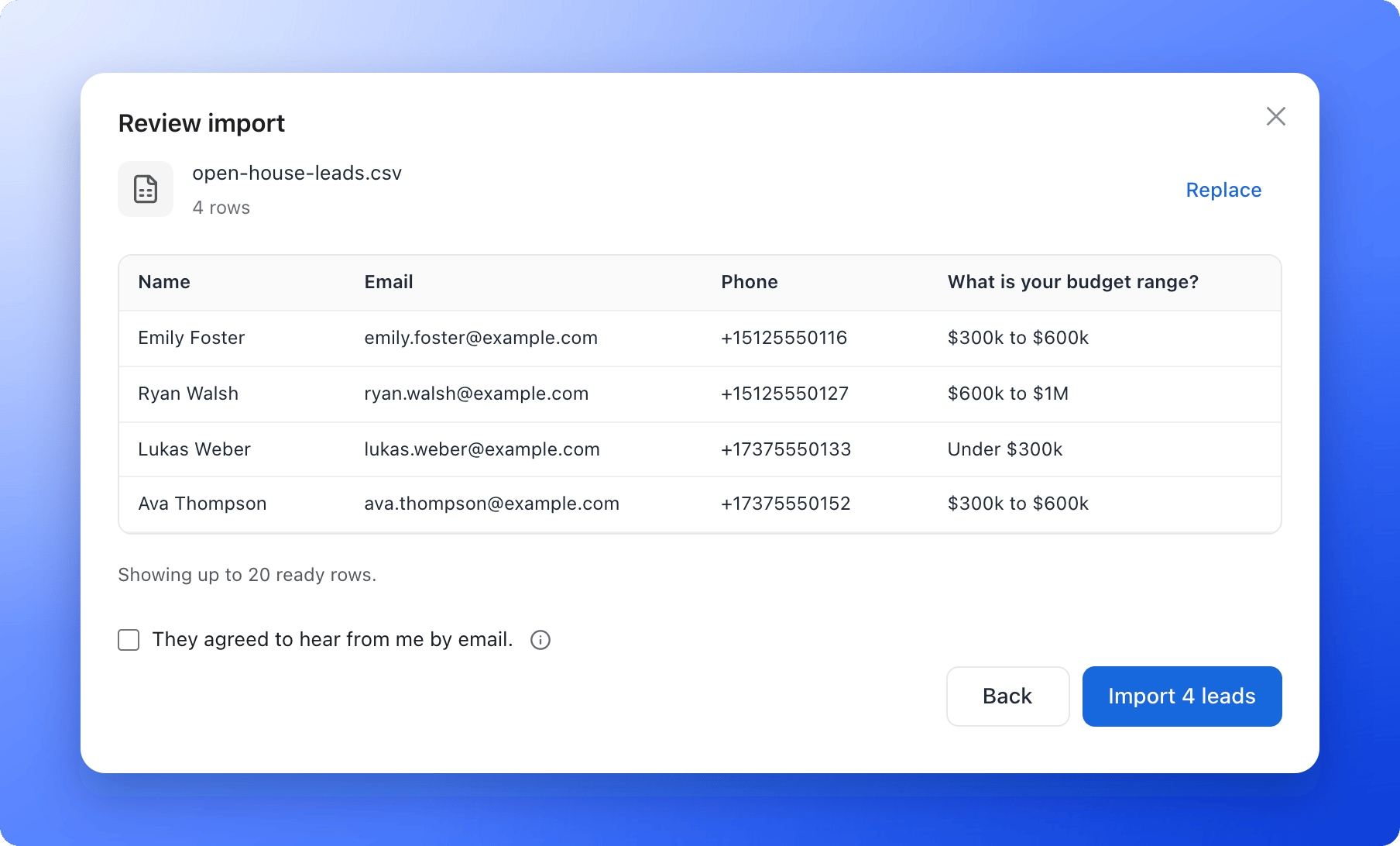
While the import runs
The import runs in the background. The window says You can close this. We’ll keep importing. A card at the corner of the page shows Importing leads with how many are saved, for example 340 of 5,000, and a “Stop” button. You can leave the page. The leads appear in the table as they are saved. When it ends, the card says, for example, 5,000 of 5,000 leads were imported. and the notification bell shows 5,000 leads imported.How do I know it is working?
- The card at the corner of the page counts up while the import runs.
- Total leads and the table show the new leads. Clear your search and filters if you do not see them.
- The activity log shows the leads as imported.
Troubleshooting
Import leads is greyed out
Import leads is greyed out
The funnel is deleting leads. This funnel is deleting leads. Import when it finishes. Wait until the delete card at the corner of the page says it has ended.
This file is too large
This file is too large
This file is too large. Split it and try again. Keep each file to 5 MB and 5,000 rows, and import the parts one after the other.
AskFunnel could not read my file
AskFunnel could not read my file
Couldn’t read this file. Save it as CSV and try again. Open the file in your spreadsheet app, save it as a CSV and choose the new file.
The import stopped or failed
The import stopped or failed
The card says Import stopped. with how many leads were saved, or Couldn’t finish importing. Leads that were saved stay in the funnel. Click “Try again” on the card when it is there. It continues without saving a lead twice.
Some rows are missing
Some rows are missing
Open the Issues view in the review step before you import, or click Download issues. Rows without a valid email or phone, and rows that repeat an email address from earlier in the file, are skipped.
What to do next
View and manage your leads
Search, filter and edit the leads you imported.
Email new leads automatically
Follow up with the leads who agreed to hear from you.