

Open your notifications
1
Click the bell
Click the bell next to your name at the bottom of the sidebar. On a phone, tap the bell at the top right of the screen.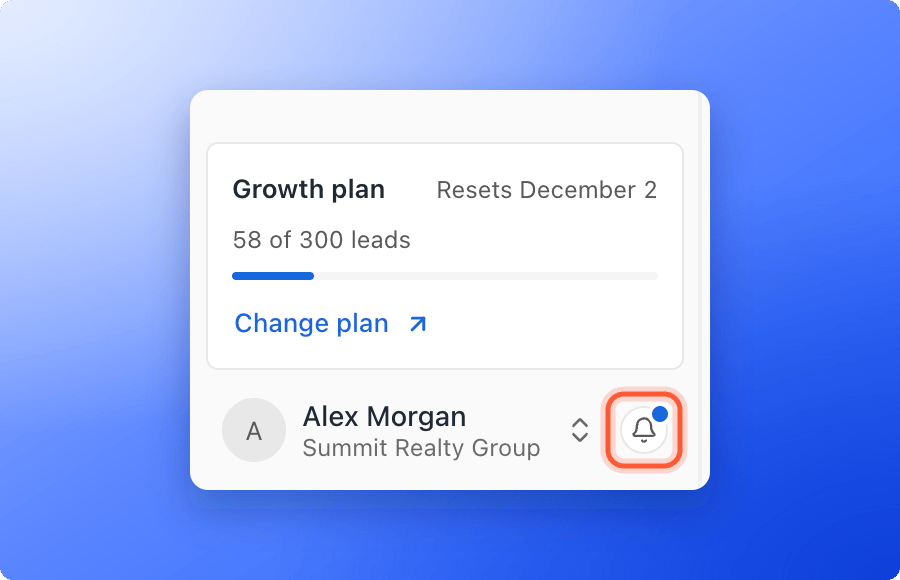
2
Choose what to look at
The list opens with three tabs: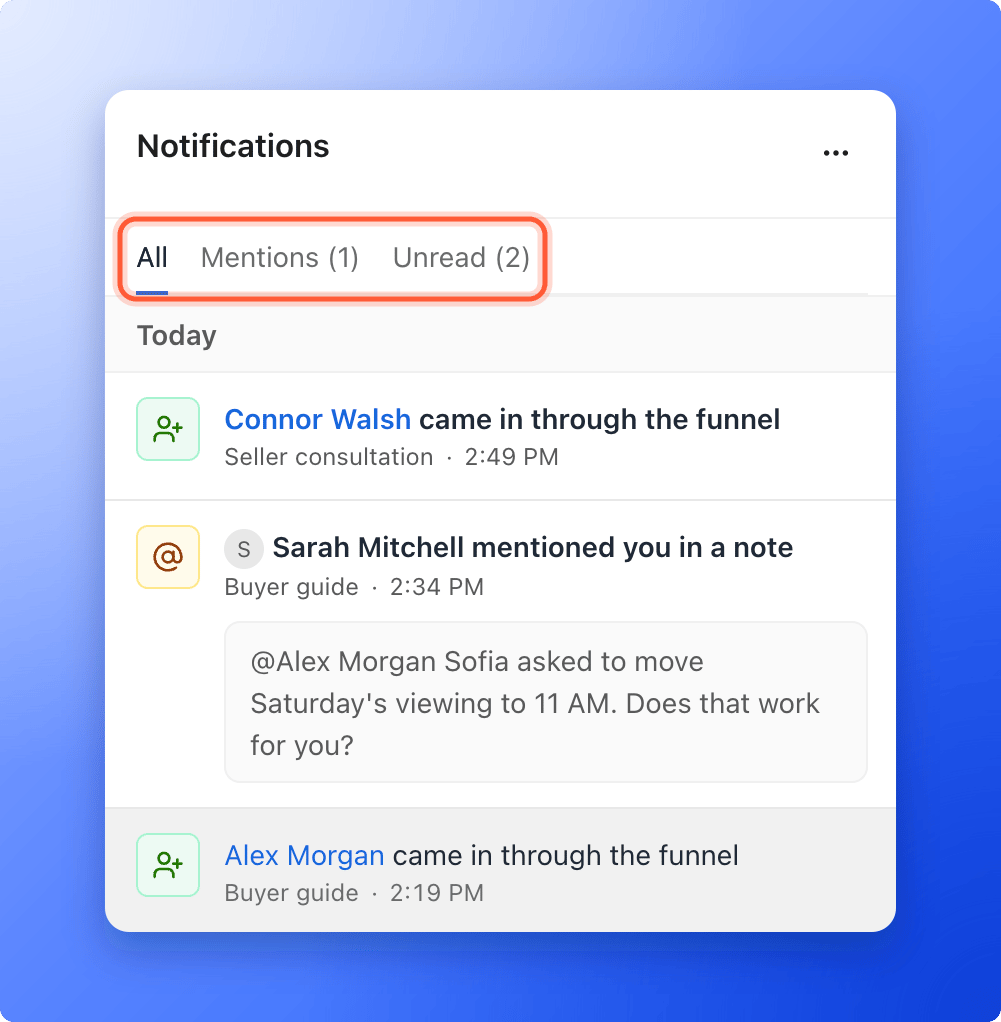
- All: Everything, newest first, grouped by day.
- Mentions: Only the notes where someone mentioned you. A number beside the tab says how many you have not read.
- Unread: Only what you have not read yet. A number beside the tab says how many.
3
Open one
Click a notification to open what it is about, for example the lead. It is marked as read. To mark one as read or unread without opening it, click the small envelope on its row.
4
Mark everything as read
Click the three dots (Notification options) at the top of the list, then “Mark all as read”.
The Notifications page
The full page shows the same tabs, All, Mentions and Unread, with the list grouped as Today, Yesterday, This week and Earlier. Unread rows are bold on a white background, and rows you have read are gray. The tabs on this page show no numbers.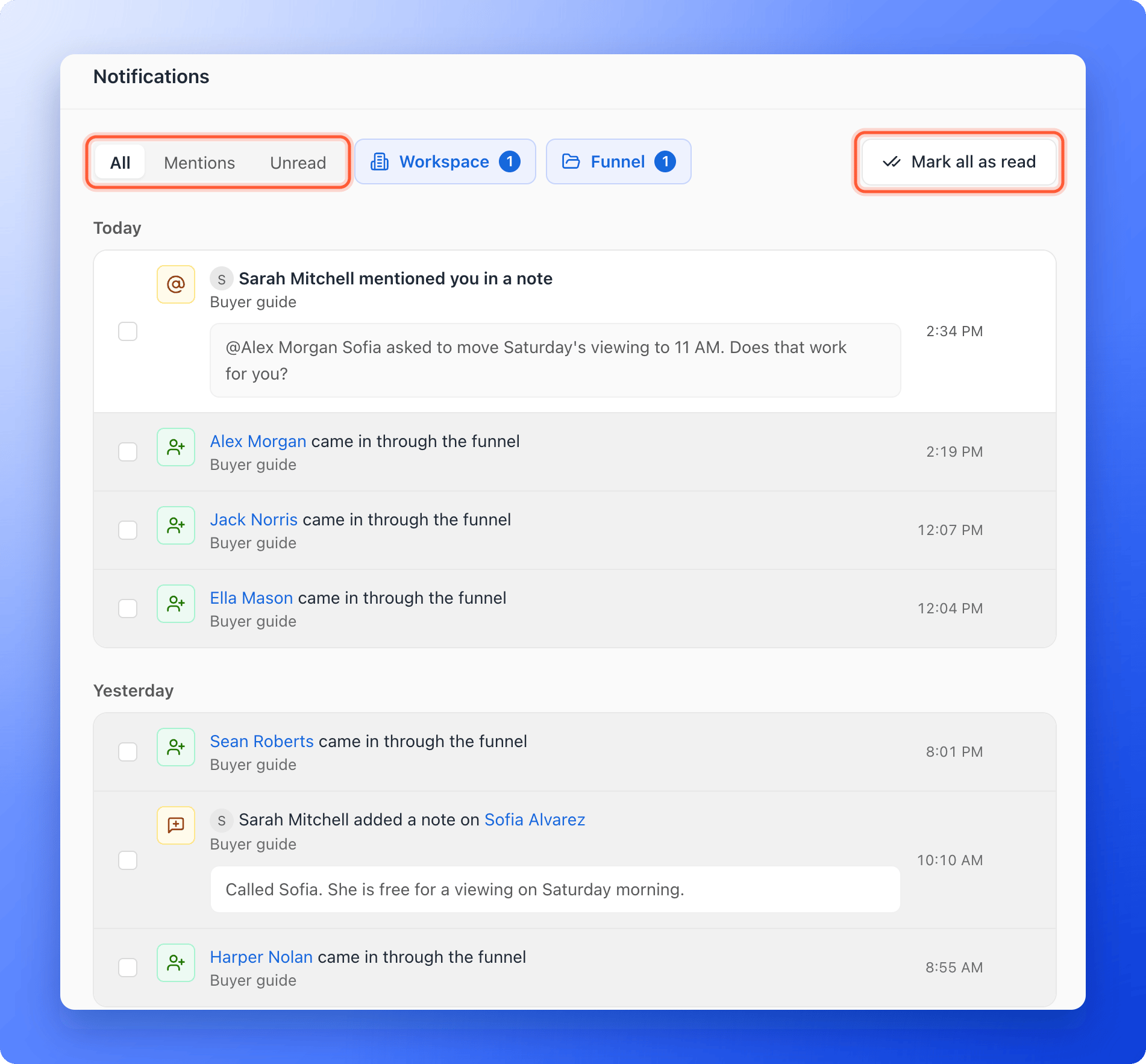
- Filter by workspace and funnel: Click Workspace and choose one. A Funnel filter then appears for that workspace.
- Mark all as read: Click “Mark all as read” at the top right.
- Select several: Tick the boxes at the left of the rows. A bar shows how many you selected and offers Mark as read, Mark as unread, Select page and Delete.
What you are told about
- A new lead came in through a funnel, and leads that were imported, moved, deleted or unlocked.
- A lead’s status or tags changed.
- A note was added, edited or deleted, and a note that mentions you.
- A funnel was created, published, unpublished or deleted.
- Email sending was paused for a workspace, and WhatsApp messages and chats that need you.
How do I know it is working?
- New activity adds a blue dot to the bell, and the Unread tab in the bell’s list shows a number.
- After you open a notification or click “Mark all as read”, the dot and the number go away.
Troubleshooting
I see You're all caught up
I see You're all caught up
You have nothing unread. Click the All tab to see older notifications.
I see Couldn't load notifications
I see Couldn't load notifications
Check your connection and click “Try again”.
I do not see a notification I expected
I do not see a notification I expected
Notifications are about the workspaces you were added to, so ask a Global Admin to add you to the workspace. If it is a lead, check the funnel’s Leads page too.
What to do next
Activity log
See everything that happened in one funnel.
Team alerts
Get an email when a new lead arrives.
Find your way around
A tour of the sidebar and the account menu.