

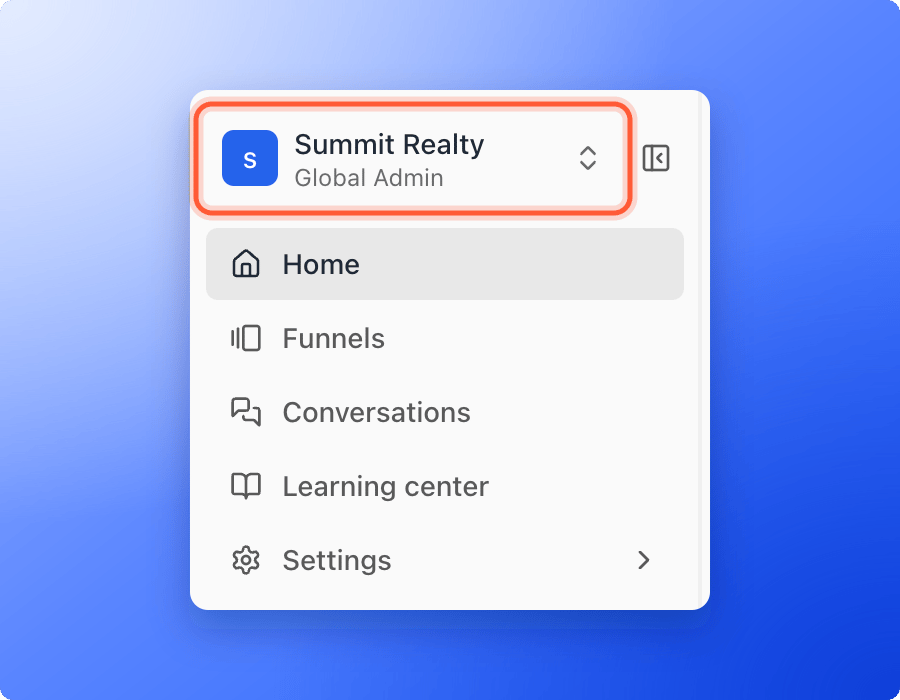
The top of the sidebar
- Workspace switcher: Shows the workspace you are in and your role there. Click it to open another workspace, or, as a Global Admin, to create one. See Switch between workspaces.
- Home: Your numbers for the last 7 days and what needs your attention. See Read your Home overview.
- Funnels: Every funnel in the workspace. Open one to see its leads, analytics and activity, or to edit it.
- Conversations: The chats with your leads. It shows for people who manage leads.
- Learning center: Short video lessons for the main tasks. See Learn AskFunnel with the lessons in the Learning center.
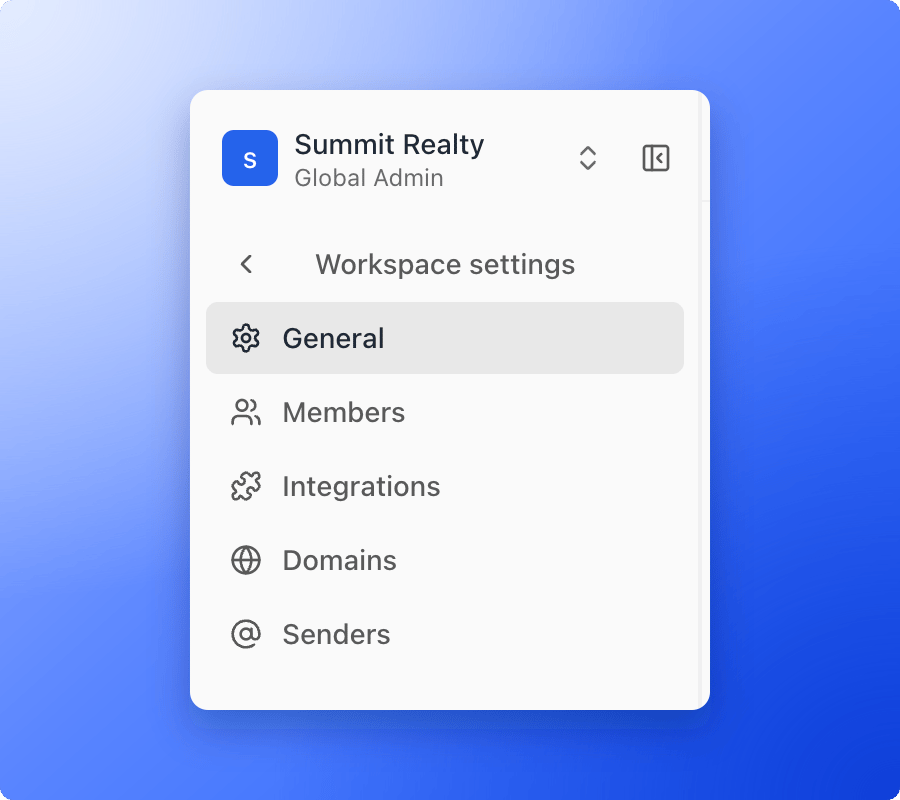
- Settings: Opens a second menu called Workspace settings with General, Members, Integrations, Domains and Senders. Click the arrow at the top of that menu to go back. Global Admins and Workspace Admins see this row.
The bottom of the sidebar
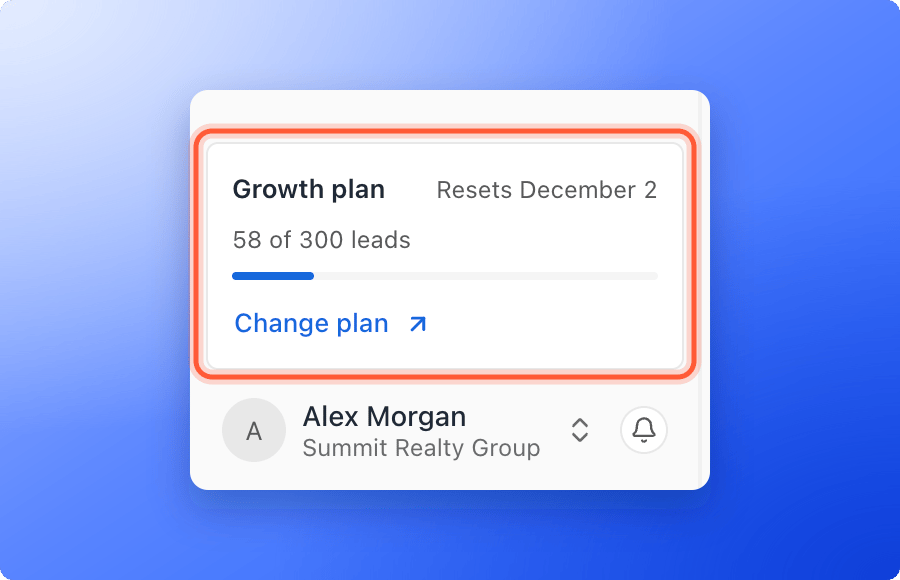
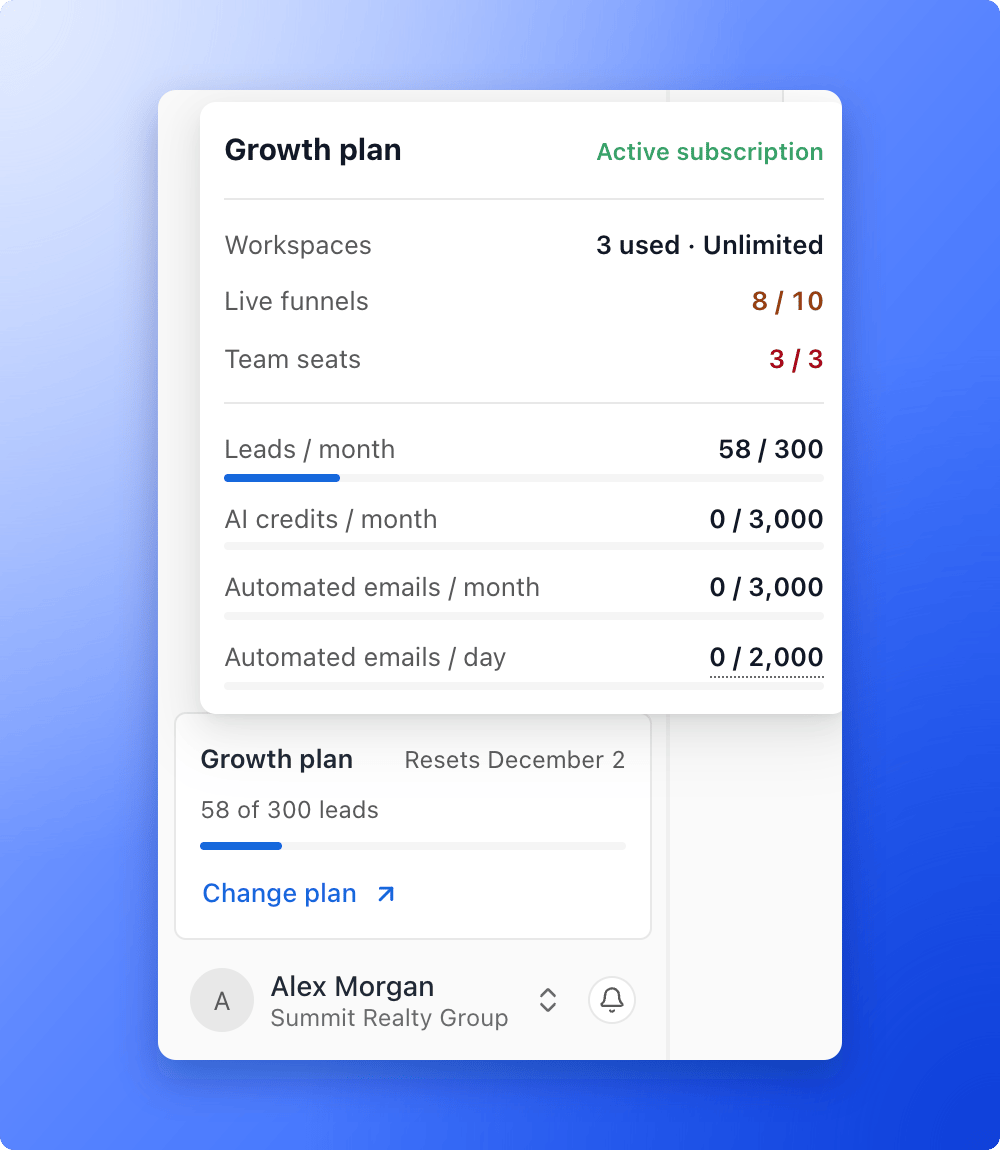
- Plan card: Shows your plan, the day your leads count starts again and how many leads you have used. During a free trial it shows Free trial and the days left. Global Admins also see a link to change the plan. Click the card to see everything your plan includes and how much of it you use.
- Your name and organization: Opens your account menu. See below.
- Notifications bell: Opens your notifications. See Notifications.
Your account menu
Click your name at the bottom of the sidebar.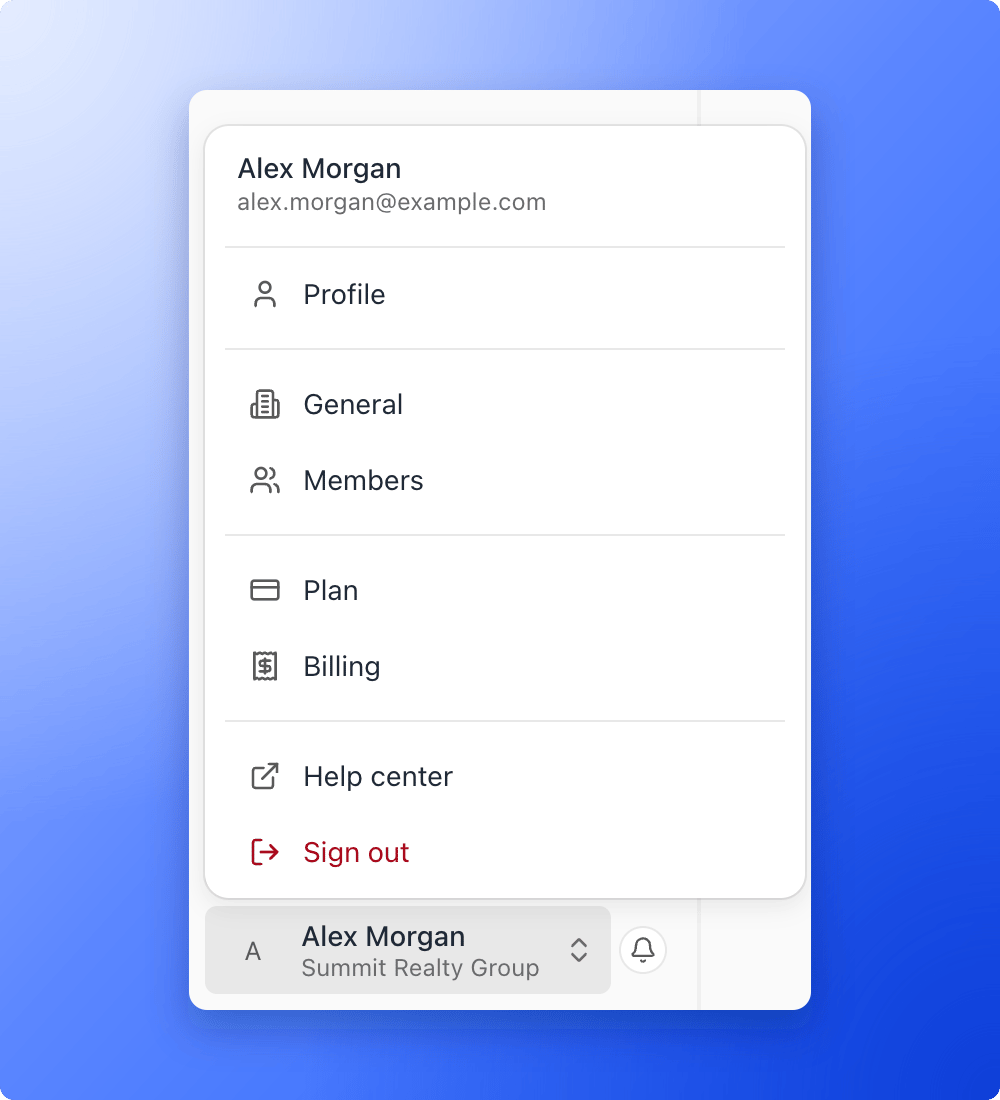
- Profile: Your name, photo, email address and contact details. See Your profile.
- General: Your organization’s name.
- Members: Your team and its invitations. Global Admins only. See Invite a teammate or client.
- Plan and Billing: Your subscription and your invoices. Global Admins only. See Check your plan and usage.
- Help center: Opens this Help Center in a new tab.
- Sign out: Signs you out of AskFunnel.
Inside a funnel
When you open a funnel, the sidebar turns into that funnel’s menu. The top row, Funnels, takes you back to the list. Below it are Leads, Analytics, Activity and Settings, and an Edit funnel button. The page title shows the funnel’s name and whether it is live.What you see depends on your role
Everyone sees Profile and General in the account menu. To see what each role can do, see Invite a teammate or client.
On a phone
On a phone there is no sidebar. The same things are in three places.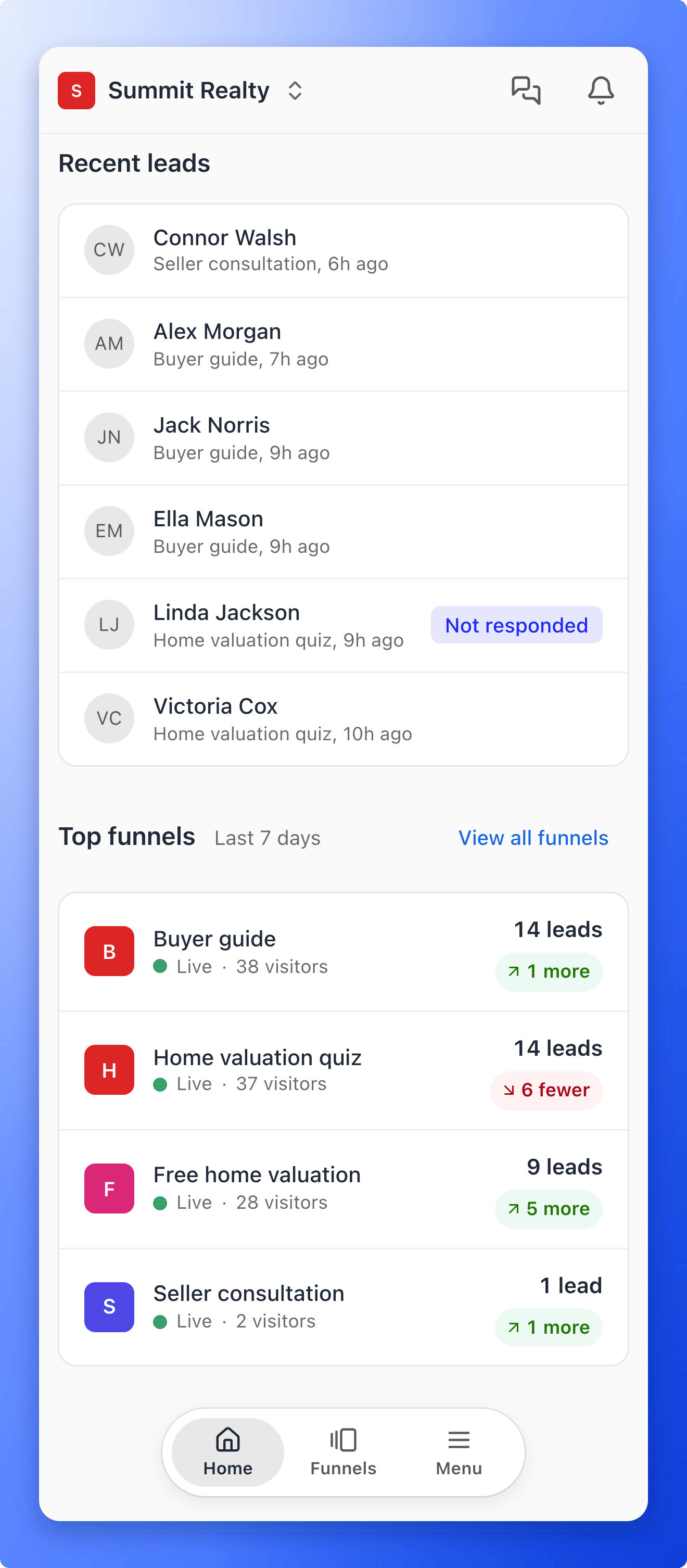
- At the top: The workspace switcher, and icons for conversations (for people who manage leads) and notifications. Tap the workspace name to switch workspace. It opens full screen with a Find a workspace box.
- At the bottom: A bar with Home, Funnels and Menu.
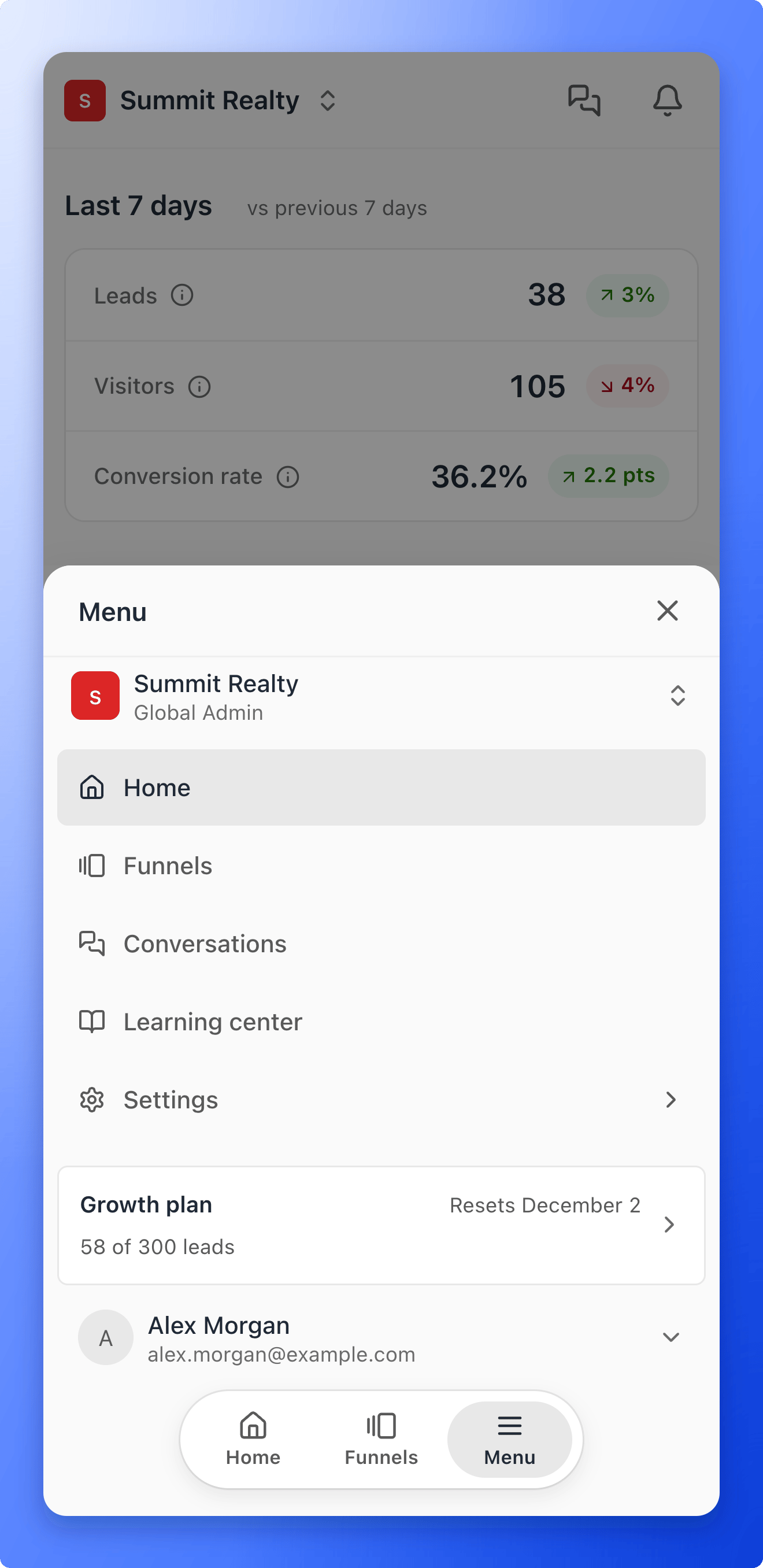
- Menu: Tap Menu to open a sheet with the same rows as the sidebar, your plan card and your account. Tap your name to open Profile, General and the other account pages, and Sign out.
What to do next
Read your Home overview
Your numbers for the last 7 days and what needs your attention.
Switch between workspaces
Open the workspace you want to work in.
Launch your first funnel
From a template to a live funnel in about 15 minutes.