

Available on: the Growth plan and above, for Global Admins and Workspace Admins.
Important to note
Before you connect
Have these ready. They are the things Meta’s window asks for:- Full admin access to your Meta business portfolio. This is your business’s account at Meta (it used to be called Business Manager). Only a full admin can add a WhatsApp number.
- A live website for your business. Meta asks for it when you set up a new business portfolio, to check that your business is real.
- Your business’s real name and category, for WhatsApp.
- A number that is not on WhatsApp yet, or your WhatsApp Business app number. A number used on personal WhatsApp can’t connect until that WhatsApp account is deleted.
- A number that can get a code by text or call, with any voice menu turned off. Meta sends a code to confirm the number. If calls to it go through a voice menu, turn that off first, or the code can’t reach you.
Connect the number
1
Open the WhatsApp page
- In the sidebar, click Settings, then “Integrations”.
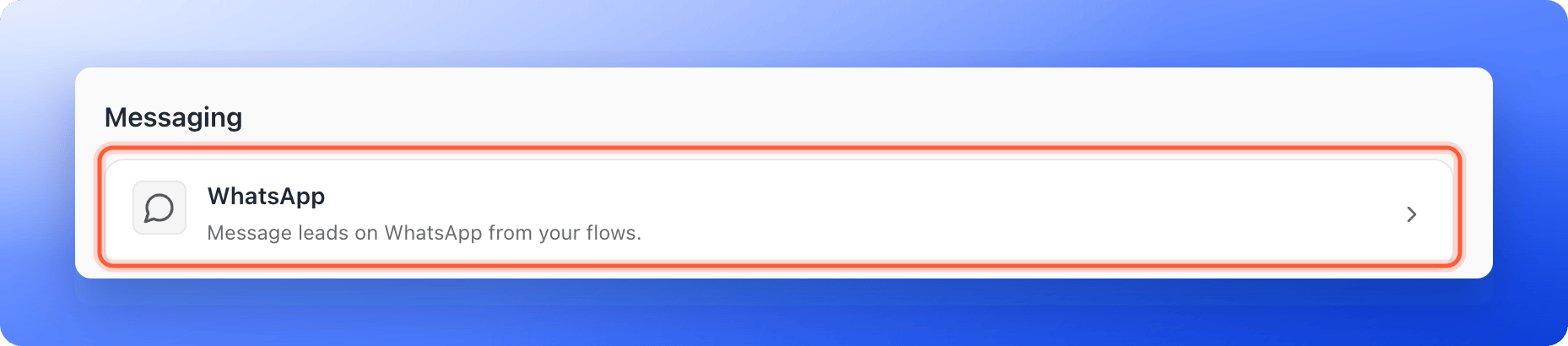
- Under Messaging, click “WhatsApp”.
2
Choose the kind of number
The page says Connect your WhatsApp number and You will need your phone to finish. Choose one: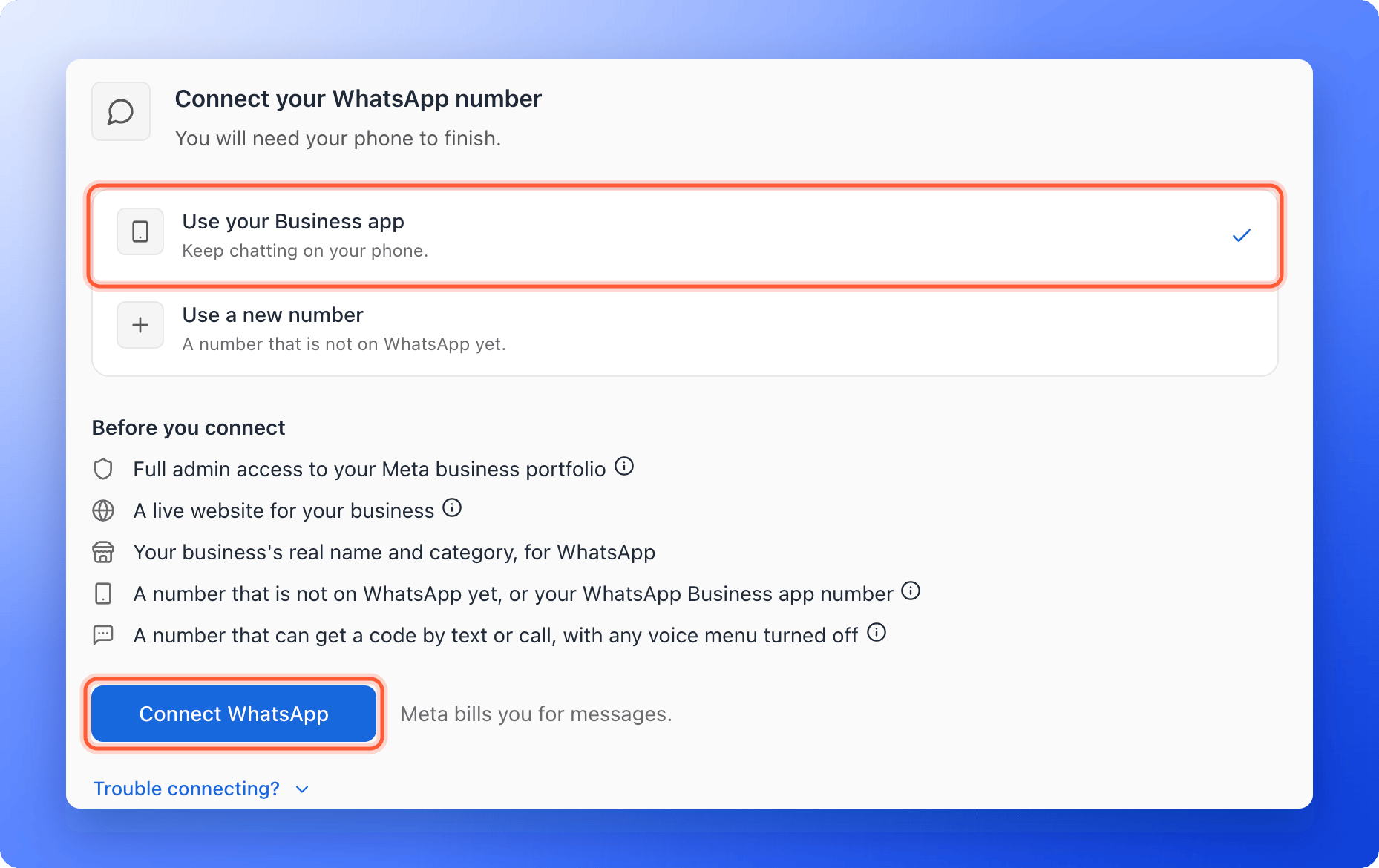
- Use your Business app: keep chatting on your phone. This is for a number you already use in the WhatsApp Business app, and it is where the choice starts.
- Use a new number: a number that is not on WhatsApp yet.
3
Click Connect WhatsApp
Click “Connect WhatsApp”. Meta’s window opens and the button says Waiting for Meta… with Finish in Meta’s window. under it. Follow Meta’s steps there: sign in, choose your business portfolio and confirm your number with the code Meta sends you. To stop, click Cancel.
4
Wait for the connection
When Meta’s window closes, the button says Connecting…. Then AskFunnel says “WhatsApp connected.” and the page shows your number.If you close Meta’s window early, the page says Meta’s window closed before finishing. Connect again when you are ready. Click “Connect WhatsApp” to try again.
Read the state of your number
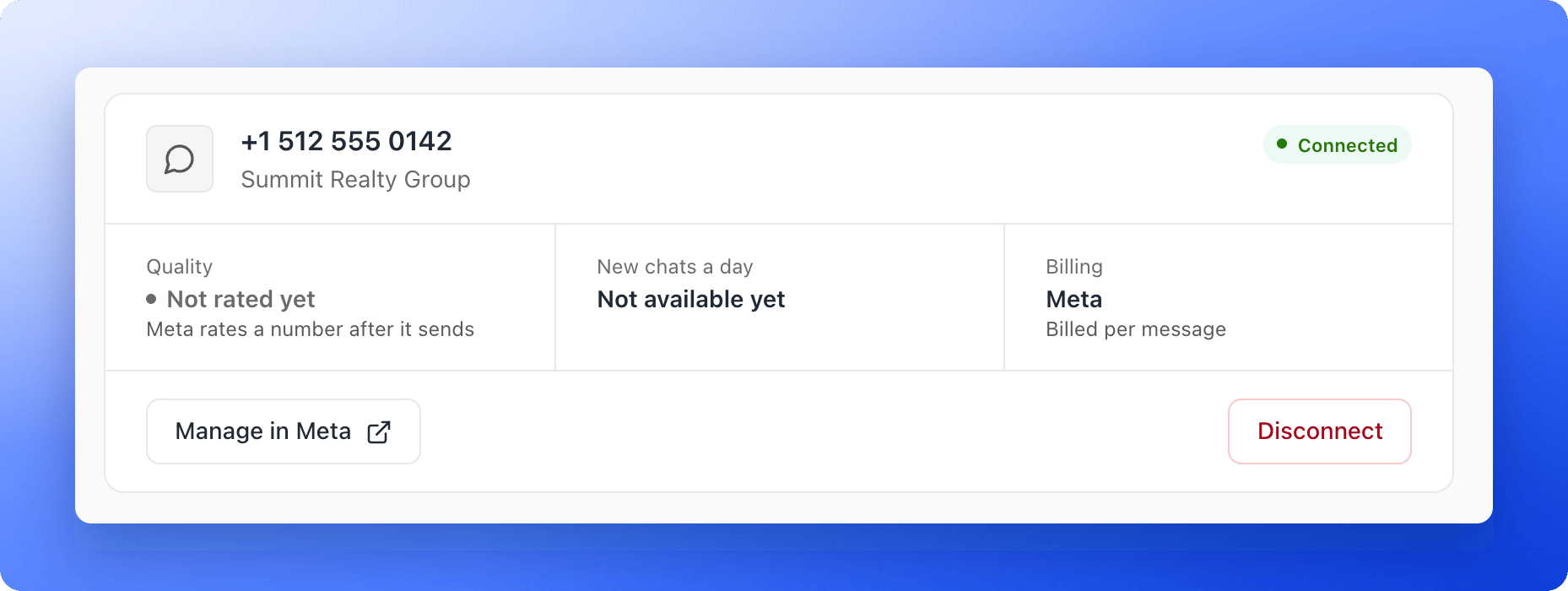
- Connected: the number works. You can send and receive.
- Needs attention: something stopped it, for example Meta restricted it or it has to be connected again. The reason shows in amber, such as WhatsApp needs to be connected again. Click “Connect again” and go through Meta’s window once more. Your team also gets a WhatsApp needs attention notification in the bell, and the Conversations page shows a banner with Open settings.
- Quality: High, Medium (Some blocks or reports), Low (Many blocks or reports) or Not rated yet (Meta rates a number after it sends). Keep it high by messaging only people who agreed to hear from you.
- New chats a day: how many new chats your number may start in a day, as Meta sets it. It says Not available yet until Meta has a figure.
- Phone app: for a Business app number, Linked, when the app was last used and Open it every 14 days.
- Billing: Meta, Billed per message.
Disconnect the number
Click “Disconnect”. A window asks you to confirm and lists the funnels whose flows stop sending WhatsApp messages. It says “Your leads and messages stay, and you can connect again any time.” Click “Disconnect” to confirm. Your chats stay readable in Conversations as history, and the page offers Connect WhatsApp again. On a plan without WhatsApp, for example after a downgrade, a number you already connected stays on this page so you can read and disconnect it, but you cannot connect again until you upgrade.Troubleshooting
Click Trouble connecting? under the Connect button for the common problems. These are the sentences Meta’s window may show and what to do:User does not have permission to create WhatsApp Business Accounts.
User does not have permission to create WhatsApp Business Accounts.
You need full control of the business portfolio you picked. Ask its admin for it, or pick one you manage.
This number is registered to an existing WhatsApp account.
This number is registered to an existing WhatsApp account.
If it is your WhatsApp Business app number, choose Use your Business app. If not, back up its chats and delete that WhatsApp account, or use another number.
Your phone number doesn't appear to be valid.
Your phone number doesn't appear to be valid.
Check the country code and the number. Turn off any voice menu or call forwarding, wait 5 minutes and try again.
The code does not arrive
The code does not arrive
Choose a phone call instead of a text in Meta’s window. A landline gets the code by call.
You have guessed too many times.
You have guessed too many times.
Wait about 12 hours, then connect again and pick the same business and number.
Your verified name violates WhatsApp guidelines.
Your verified name violates WhatsApp guidelines.
Use your business’s real name, as it shows on your website and signs, then try again.
Update your WhatsApp Business App to the latest version to use this phone number.
Update your WhatsApp Business App to the latest version to use this phone number.
Update the app on your phone, then connect again.
Please disconnect your business platform to continue.
Please disconnect your business platform to continue.
In the WhatsApp Business app, open Settings, Account, Business Platform and disconnect. Wait 15 minutes, then connect again.
Your phone number isn't eligible to connect to the WhatsApp Business Platform.
Your phone number isn't eligible to connect to the WhatsApp Business Platform.
Keep using the number in the WhatsApp Business app for a while, then try again. Or choose Use a new number.
Something has gone wrong.
Something has gone wrong.
Often a short problem at WhatsApp. Wait a few minutes and try again.
What to do next
Send WhatsApp messages from a flow
Write the messages your leads get automatically.
Reply to leads on WhatsApp
Answer chats from one inbox.