> ## Documentation Index
> Fetch the complete documentation index at: https://help.askfunnel.com/llms.txt
> Use this file to discover all available pages before exploring further.
# Switch between workspaces
> Use the home screen to see every workspace you can access and open the one you need.
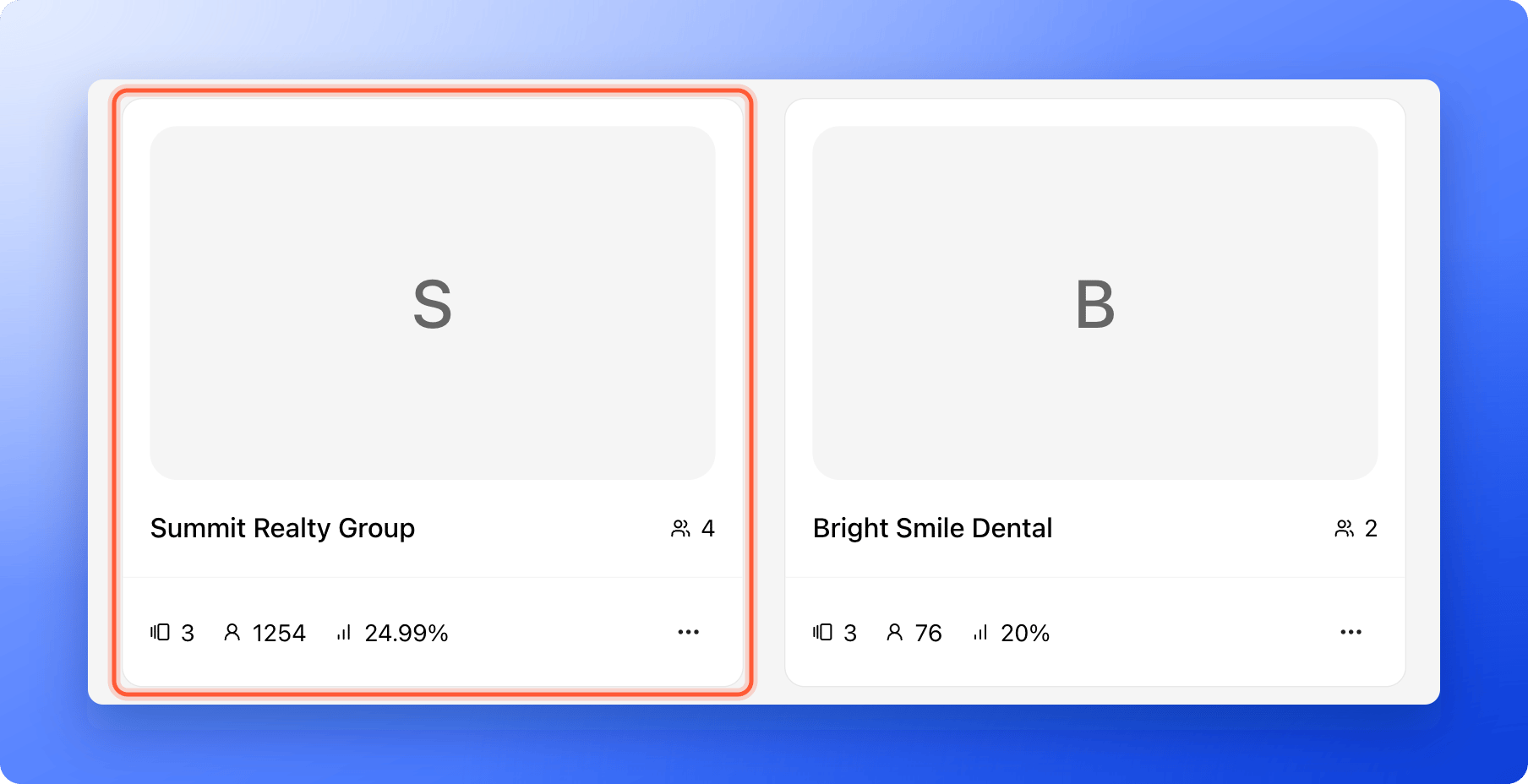
Open the workspace you want to work in from your home screen, **Your workspaces**. It shows every workspace you can open, with a quick summary of each.
## Open a workspace
Click the home icon in the top left corner. It is in the top bar on every page, and you land on **Your workspaces** when you sign in.
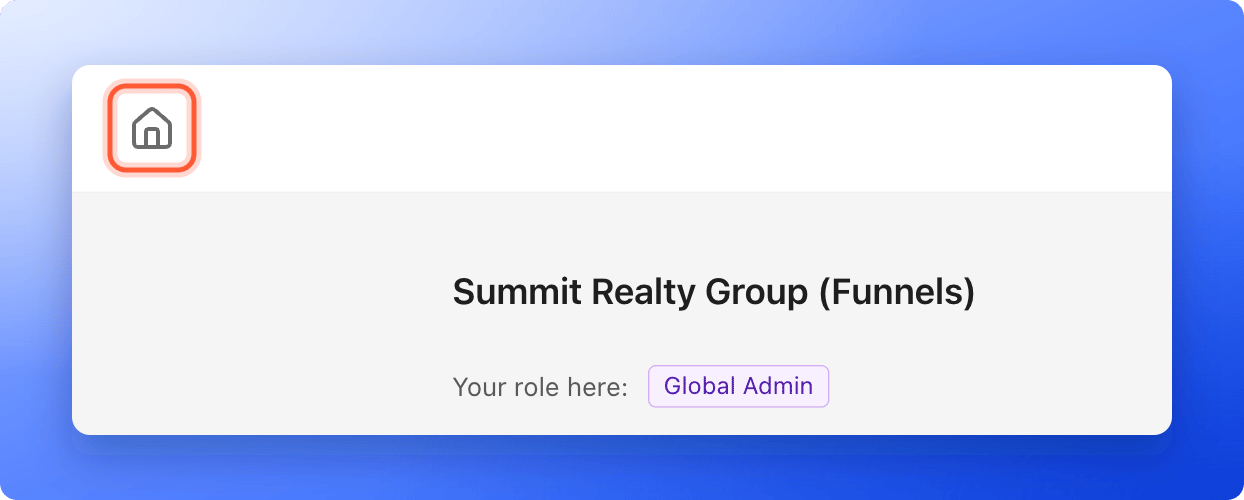 Click anywhere on the card of the workspace you want. You see that workspace's funnels, with a title like **Summit Realty Group (Funnels)**.
 Inside a workspace, **Your role here** shows the role you have in it.
## Read a workspace card
* **Name and cover:** The workspace name and its icon.
* **Members:** The people icon at the top right shows how many people have access.
* **Funnels, leads and conversion rate:** The three icons at the bottom left show these numbers. Hover over an icon to see its name. The conversion rate shows a dash until the workspace has visitors.
* **The ... menu:** **"Edit workspace"** and **"Workspace settings"** for Global Admins and for the Workspace Admin of that workspace. Global Admins also see **"Delete workspace"**.
## Which workspaces you see
Global Admins see every workspace. Everyone else sees only the workspaces they have been added to.
## Troubleshooting
You only see workspaces you have been added to. Ask a Global Admin to [add you to it](/workspaces/give-access).
Your account is not in a workspace yet. Ask a Global Admin to invite you.
## What to do next
Add a workspace for a new brand or client.
Give someone access to a workspace.
Need help? Email [support@askfunnel.com](mailto:support@askfunnel.com).
Inside a workspace, **Your role here** shows the role you have in it.
## Read a workspace card
* **Name and cover:** The workspace name and its icon.
* **Members:** The people icon at the top right shows how many people have access.
* **Funnels, leads and conversion rate:** The three icons at the bottom left show these numbers. Hover over an icon to see its name. The conversion rate shows a dash until the workspace has visitors.
* **The ... menu:** **"Edit workspace"** and **"Workspace settings"** for Global Admins and for the Workspace Admin of that workspace. Global Admins also see **"Delete workspace"**.
## Which workspaces you see
Global Admins see every workspace. Everyone else sees only the workspaces they have been added to.
## Troubleshooting
You only see workspaces you have been added to. Ask a Global Admin to [add you to it](/workspaces/give-access).
Your account is not in a workspace yet. Ask a Global Admin to invite you.
## What to do next
Add a workspace for a new brand or client.
Give someone access to a workspace.
Need help? Email [support@askfunnel.com](mailto:support@askfunnel.com).