> ## Documentation Index
> Fetch the complete documentation index at: https://help.askfunnel.com/llms.txt
> Use this file to discover all available pages before exploring further.
# Invite a teammate or client to a workspace
> Send an email invitation and choose what your teammate or client can do in a workspace.
Invite a teammate, employee, partner or client by email. They get a link to join, and the role you pick decides what they can do.
**Before you start**, you need:
* A Global Admin role, or a Workspace Admin role for your own workspace. Only Global Admins can invite Global Admins. Workspace Admins can invite Workspace Admins, Content Editors and Contacts Managers to their own workspace.
* The exact email address of the person. They must accept with the same address you invited.
* A free team seat, if the role uses one. See [Team seats](/workspaces/team-seats).
## Choose a role
| Role | What they can do | Team seat |
| - | - | - |
| **Global Admin** | Full control across every workspace, your plan and your team. | Counted |
| **Workspace Admin** | Runs one workspace: its funnels, leads and invitations. | Counted |
| **Content Editor** | Designs and publishes funnels. No access to lead data. | Counted |
| **Contacts Manager** | Manages leads and sees analytics. Cannot edit funnels. | Free |
When you invite a client who only needs to see their results, choose **Contacts Manager**. See [What a Contacts Manager can see and do](/workspaces/contacts-manager).
## Important to note
* An invitation link works for 7 days. You can [resend or cancel it](/workspaces/pending-invites).
* If the role uses a team seat, the seat is reserved as soon as you send the invitation.
## Send an invitation
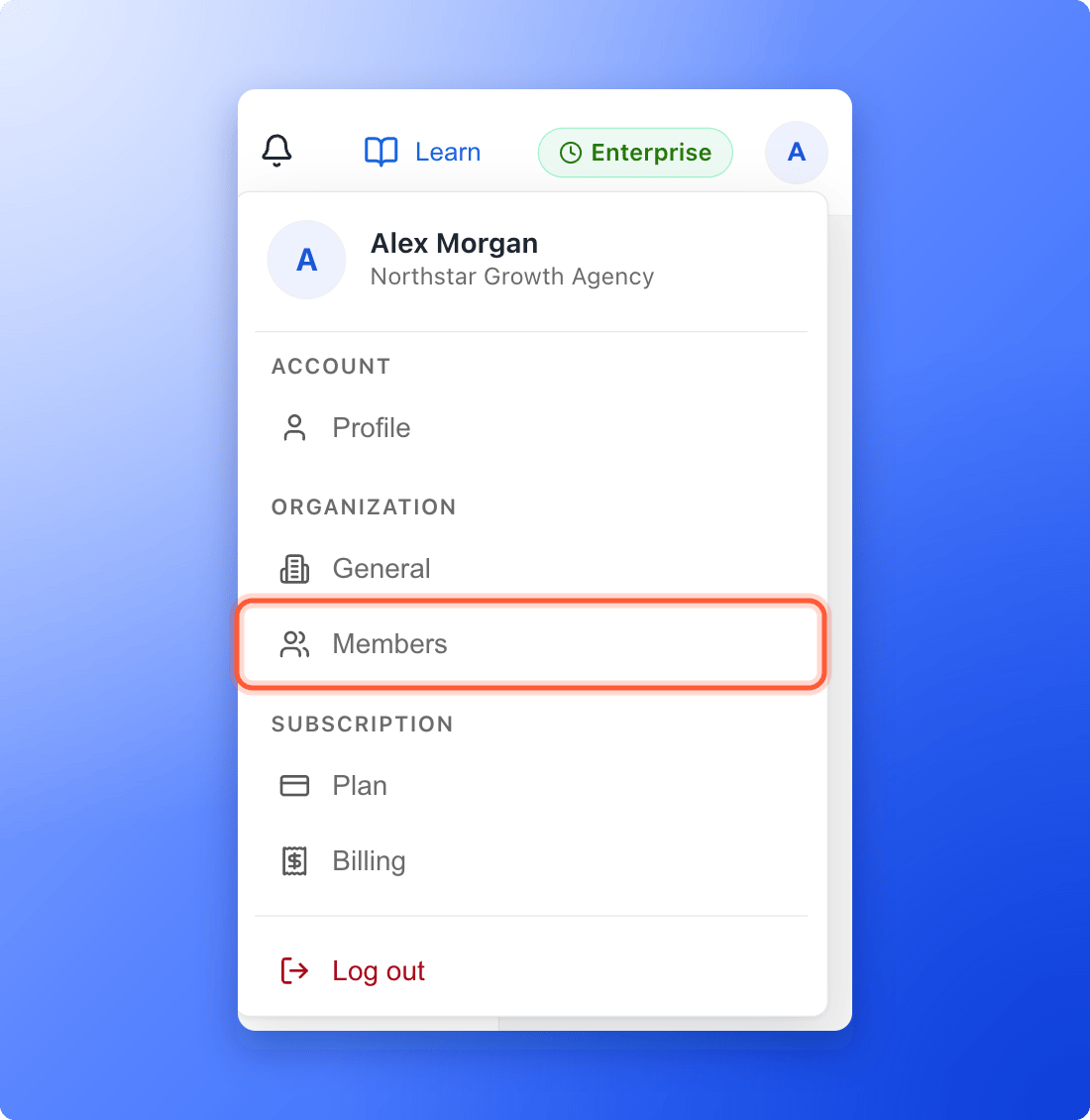
1. Click your profile picture in the top right corner, then click **"Members"**.
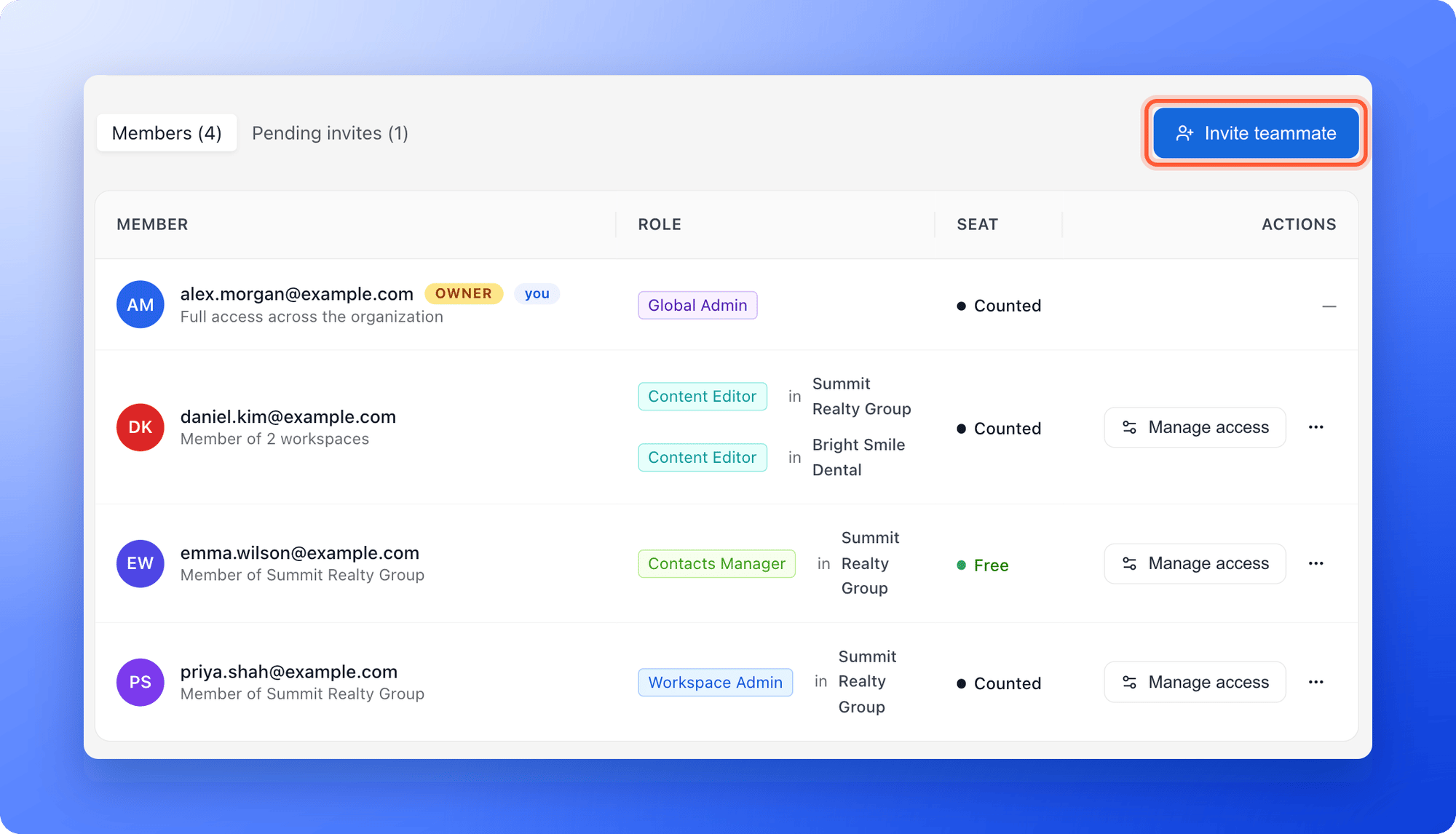
2. Click **"Invite teammate"**.
 **Workspace Admins:** Click the **...** menu on the workspace card, then **"Workspace settings"**, then **Members**, and click **"Invite member"**. The workspace is already selected.
1. **Email address:** Enter the exact email of the person you are inviting.
2. **Role:** Choose a role. Click **"What do these mean?"** for a short guide.
3. **Workspace:** Choose the workspace they should join. You do not pick one for a Global Admin, because Global Admins have access to every workspace.
**Workspace Admins:** Click the **...** menu on the workspace card, then **"Workspace settings"**, then **Members**, and click **"Invite member"**. The workspace is already selected.
1. **Email address:** Enter the exact email of the person you are inviting.
2. **Role:** Choose a role. Click **"What do these mean?"** for a short guide.
3. **Workspace:** Choose the workspace they should join. You do not pick one for a Global Admin, because Global Admins have access to every workspace.
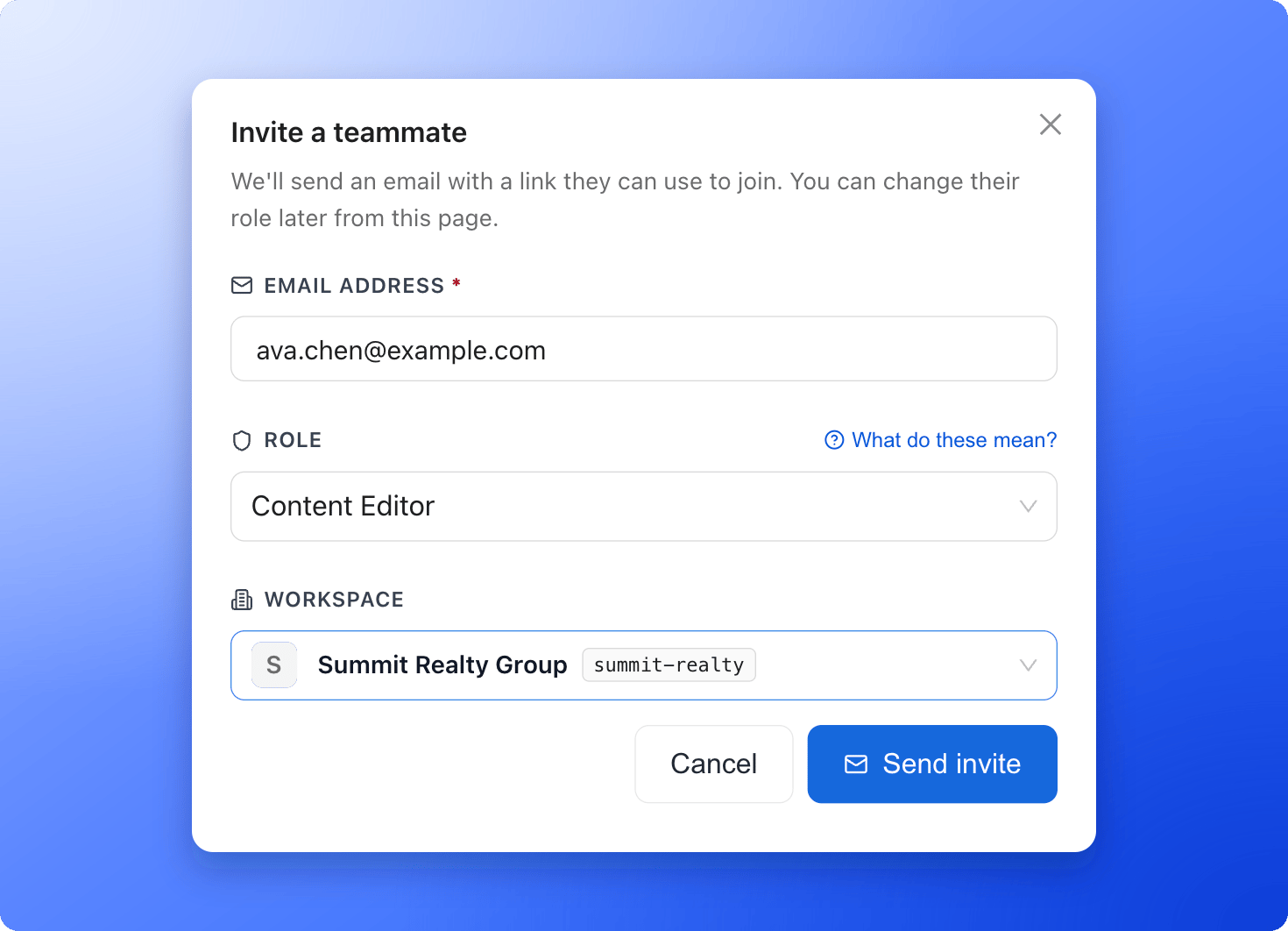 Click **"Send invite"**. You see a message such as "Invitation sent to [sofia.alvarez@example.com](mailto:sofia.alvarez@example.com)." The invitation appears in the **Pending invites** tab.
## What your teammate does
1. They receive an email with the subject **You've been invited to** followed by your organization name. It has an **"Accept invitation"** button.
2. On the page that opens, they see their role and workspace. They click **"Accept & sign in"**, or **"Accept invitation"** if they are already signed in.
3. They land on **Your workspaces**, where they see the workspace you added them to.
## Give an existing member access to another workspace
1. Open **Members** and click **"Manage access"** on the person's row.
2. Under **Add to another workspace**, choose the workspace and a role, then click **"Add"**.
No email is sent, and the change applies right away. To take away access, click **"Remove"** next to a workspace in the same window.
## Make someone a Global Admin
Open **Members**, click the **...** menu on the person's row, and click **"Promote to Global Admin"**. Confirm with **"Promote"**. They get full access to every workspace, plus your plan and team settings.
## Troubleshooting
Only Global Admins see **Members** in the profile menu. If you are a Workspace Admin, invite people from **Workspace settings**, then **Members**.
Content Editors, Workspace Admins and Global Admins use a seat. Free a seat, add seats or upgrade your plan. See [Team seats](/workspaces/team-seats). You can still invite Contacts Managers.
AskFunnel limits how many invitations and resends you can send in an hour. Wait a little and try again.
Ask them to check their spam folder and confirm the address is right. Then open the **Pending invites** tab and click **"Resend"**. See [Resend or cancel a pending invite](/workspaces/pending-invites).
They can accept with the same email address. If they are already a member of another organization, they must leave that organization first.
## What to do next
Check who has not accepted yet.
See which roles use a seat and how to add more.
Give clients their leads without letting them edit funnels.
Need help? Email [support@askfunnel.com](mailto:support@askfunnel.com).
Click **"Send invite"**. You see a message such as "Invitation sent to [sofia.alvarez@example.com](mailto:sofia.alvarez@example.com)." The invitation appears in the **Pending invites** tab.
## What your teammate does
1. They receive an email with the subject **You've been invited to** followed by your organization name. It has an **"Accept invitation"** button.
2. On the page that opens, they see their role and workspace. They click **"Accept & sign in"**, or **"Accept invitation"** if they are already signed in.
3. They land on **Your workspaces**, where they see the workspace you added them to.
## Give an existing member access to another workspace
1. Open **Members** and click **"Manage access"** on the person's row.
2. Under **Add to another workspace**, choose the workspace and a role, then click **"Add"**.
No email is sent, and the change applies right away. To take away access, click **"Remove"** next to a workspace in the same window.
## Make someone a Global Admin
Open **Members**, click the **...** menu on the person's row, and click **"Promote to Global Admin"**. Confirm with **"Promote"**. They get full access to every workspace, plus your plan and team settings.
## Troubleshooting
Only Global Admins see **Members** in the profile menu. If you are a Workspace Admin, invite people from **Workspace settings**, then **Members**.
Content Editors, Workspace Admins and Global Admins use a seat. Free a seat, add seats or upgrade your plan. See [Team seats](/workspaces/team-seats). You can still invite Contacts Managers.
AskFunnel limits how many invitations and resends you can send in an hour. Wait a little and try again.
Ask them to check their spam folder and confirm the address is right. Then open the **Pending invites** tab and click **"Resend"**. See [Resend or cancel a pending invite](/workspaces/pending-invites).
They can accept with the same email address. If they are already a member of another organization, they must leave that organization first.
## What to do next
Check who has not accepted yet.
See which roles use a seat and how to add more.
Give clients their leads without letting them edit funnels.
Need help? Email [support@askfunnel.com](mailto:support@askfunnel.com).