> ## Documentation Index
> Fetch the complete documentation index at: https://help.askfunnel.com/llms.txt
> Use this file to discover all available pages before exploring further.
# Create a workspace
> Add a workspace for a new brand or client, with its own funnels, leads and team.
Create a separate workspace for each client or brand, so their funnels, leads and team stay organized. Every plan includes unlimited workspaces.
**Before you start**, you need:
* A Global Admin role. Only Global Admins can create workspaces. If you do not see the button, ask a Global Admin to create the workspace for you.
## Important to note
* The subdomain is part of your funnel addresses. If you change it later, update any links you already shared.
* Every workspace in your account shares the same plan limits for live funnels, leads, team seats and AI credits.
## Create a workspace
1. Click the home icon in the top left corner.
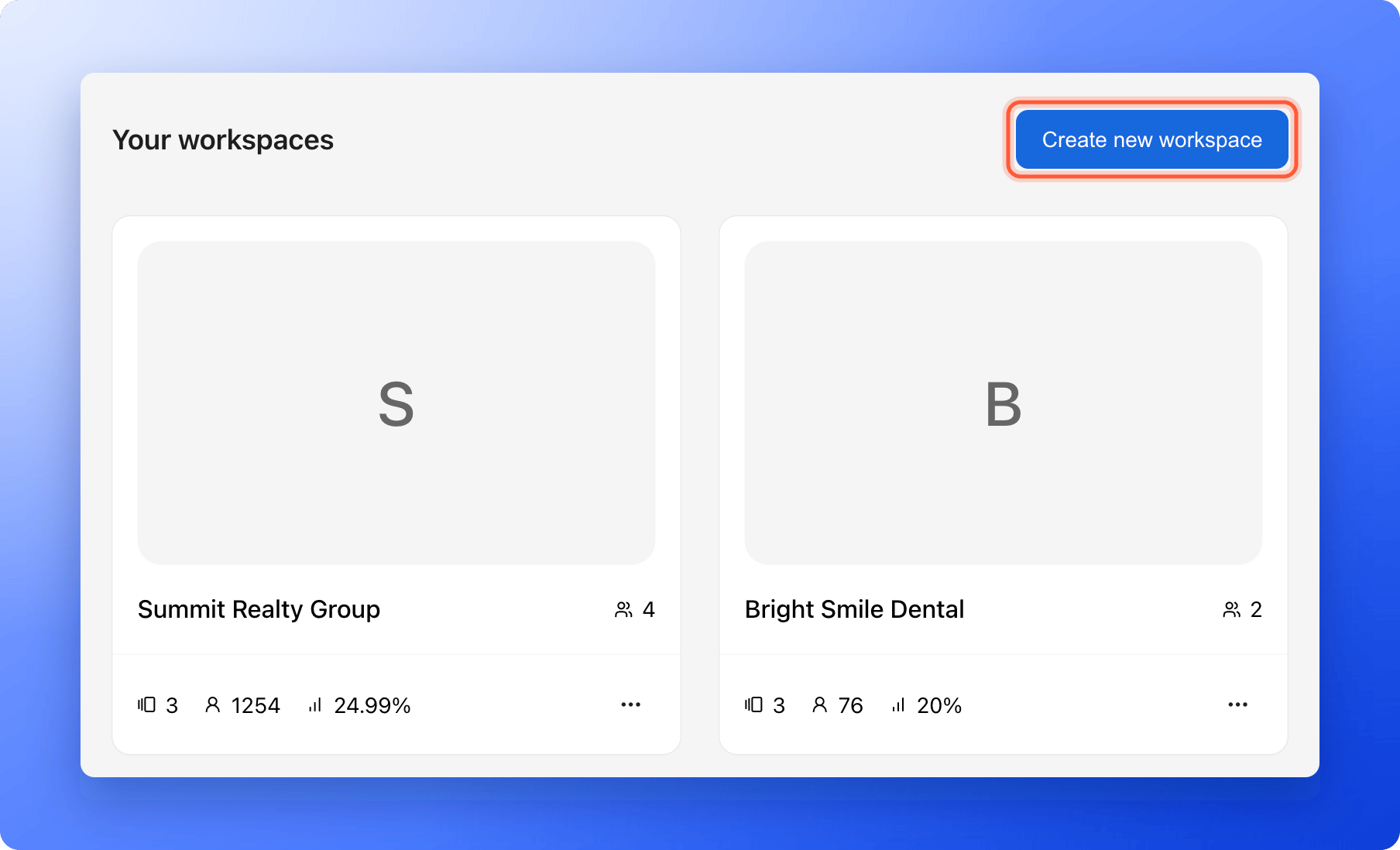
2. Click **"Create new workspace"**. If you have no workspaces yet, click **"Create workspace"** instead.
 1. **Workspace name:** Use a clear name, for example Summit Realty Group. It can be 2 to 60 characters.
2. **Subdomain:** This is the address of your funnels, for example summit-realty.askfunnel.com. A subdomain is the first part of a web address. Use 3 to 20 lowercase letters, numbers or hyphens. You see **Subdomain is available** when the address is free.
3. **Workspace icon:** Optional. Click **+ Select**, choose or upload an image, and click **"Select image"**. The icon helps you tell clients apart.
1. **Workspace name:** Use a clear name, for example Summit Realty Group. It can be 2 to 60 characters.
2. **Subdomain:** This is the address of your funnels, for example summit-realty.askfunnel.com. A subdomain is the first part of a web address. Use 3 to 20 lowercase letters, numbers or hyphens. You see **Subdomain is available** when the address is free.
3. **Workspace icon:** Optional. Click **+ Select**, choose or upload an image, and click **"Select image"**. The icon helps you tell clients apart.
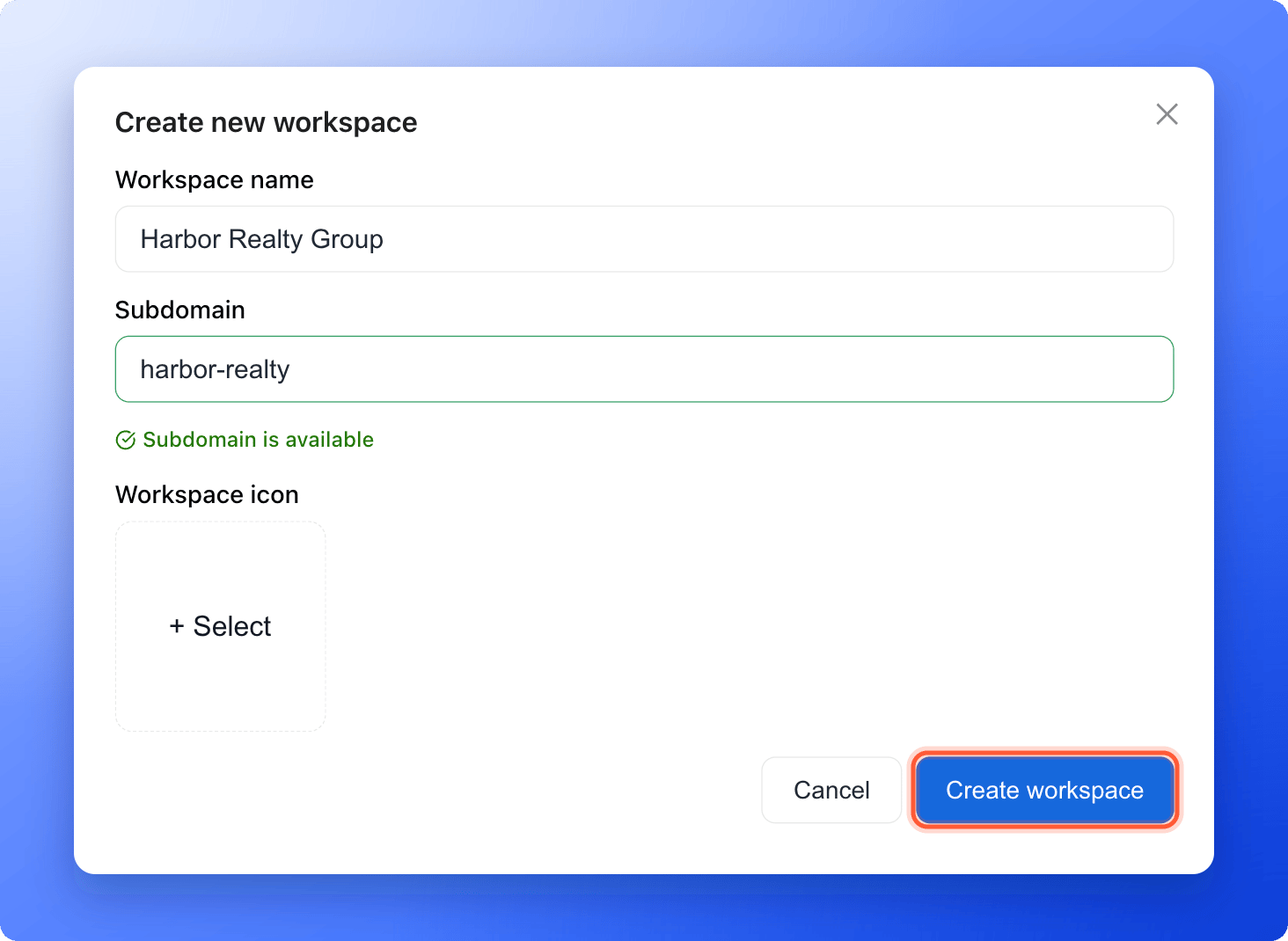 Click **"Create workspace"**. A card with **Creating...** appears, then you see the message "Workspace created successfully".
To change the name, subdomain or icon later, click the **...** menu on the workspace card, then **"Edit workspace"**.
## Troubleshooting
Only Global Admins can create workspaces. Ask a Global Admin, or ask to be [promoted to Global Admin](/workspaces/give-access).
A subdomain needs 3 to 20 characters: lowercase letters, numbers and hyphens. It cannot start or end with a hyphen, cannot have two hyphens in a row, and cannot be a reserved word. If you see "This subdomain is already taken", choose a different one.
## What to do next
Click the new card to open the workspace and start building.
Add your team or your client to the workspace.
Move between your clients' workspaces.
Need help? Email [support@askfunnel.com](mailto:support@askfunnel.com).
Click **"Create workspace"**. A card with **Creating...** appears, then you see the message "Workspace created successfully".
To change the name, subdomain or icon later, click the **...** menu on the workspace card, then **"Edit workspace"**.
## Troubleshooting
Only Global Admins can create workspaces. Ask a Global Admin, or ask to be [promoted to Global Admin](/workspaces/give-access).
A subdomain needs 3 to 20 characters: lowercase letters, numbers and hyphens. It cannot start or end with a hyphen, cannot have two hyphens in a row, and cannot be a reserved word. If you see "This subdomain is already taken", choose a different one.
## What to do next
Click the new card to open the workspace and start building.
Add your team or your client to the workspace.
Move between your clients' workspaces.
Need help? Email [support@askfunnel.com](mailto:support@askfunnel.com).