> ## Documentation Index
> Fetch the complete documentation index at: https://help.askfunnel.com/llms.txt
> Use this file to discover all available pages before exploring further.
# Email your team when a lead arrives
> Send an automatic email to teammates when a new lead comes in, so someone follows up right away.
Available on: **all plans** (Starter, Growth, Scale and Enterprise).
A team alert is an email flow that sends to your own team instead of the lead. You can alert them about every lead, or only about the leads that matter most.
**Before you start**, you need:
* A verified sender. See [Add and verify a sender email](/messages/custom-sender-email).
* Teammates who have accepted their invitation. Only they can be picked. See [Give access to a workspace](/workspaces/give-access).
* Some familiarity with flows. See [Send automated emails to new leads](/messages/automated-emails).
## Important to note
* Alerts go to each member's account email address, and each recipient counts as one email toward your monthly allowance. See [Send automated emails to new leads](/messages/automated-emails).
* The footer stays on alerts. Team alerts include the same footer as emails to leads, with an unsubscribe line. A teammate who unsubscribes stops getting flow emails from this workspace.
* Rules use your funnel's questions and form fields. You can choose an answer or a contact detail, but not a lead's score, tags or custom fields.
## Set up a team alert
1. From your main dashboard, click the three small dots (**...**) on the funnel's row, then **"Edit Funnel"**.
2. Click the **Funnel** button at the top and choose **"Flows"**.
3. Click **"New flow"** and click the **Trigger** card.
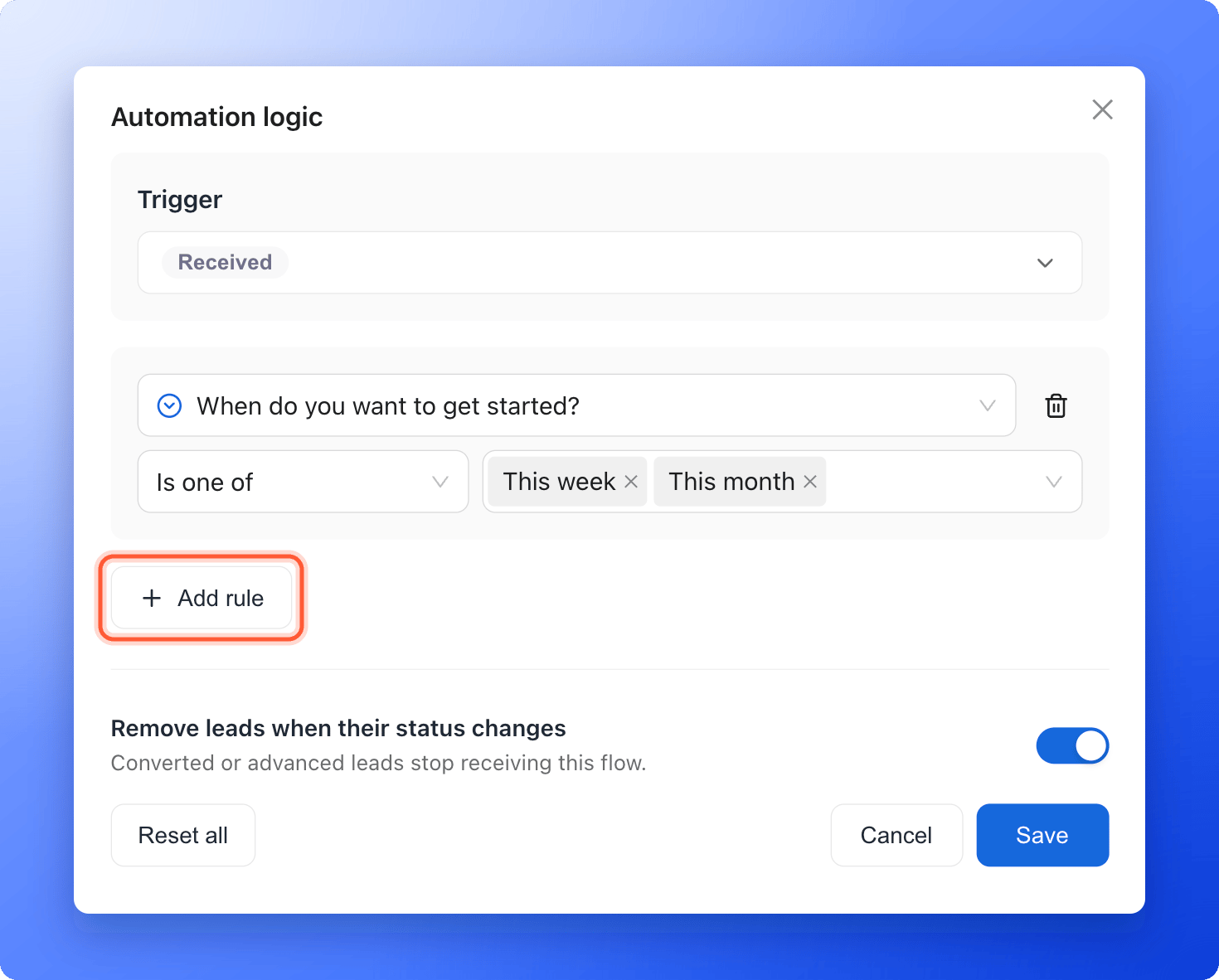
4. Pick the status that should notify your team. **RECEIVED** alerts them about every new lead. To alert them about only some leads, click **"Add rule"**, choose a question such as your budget question, set **Is one of** and pick the answers that mean a hot lead. Click **"Save"**.
 1. Next to **From**, choose your verified sender.
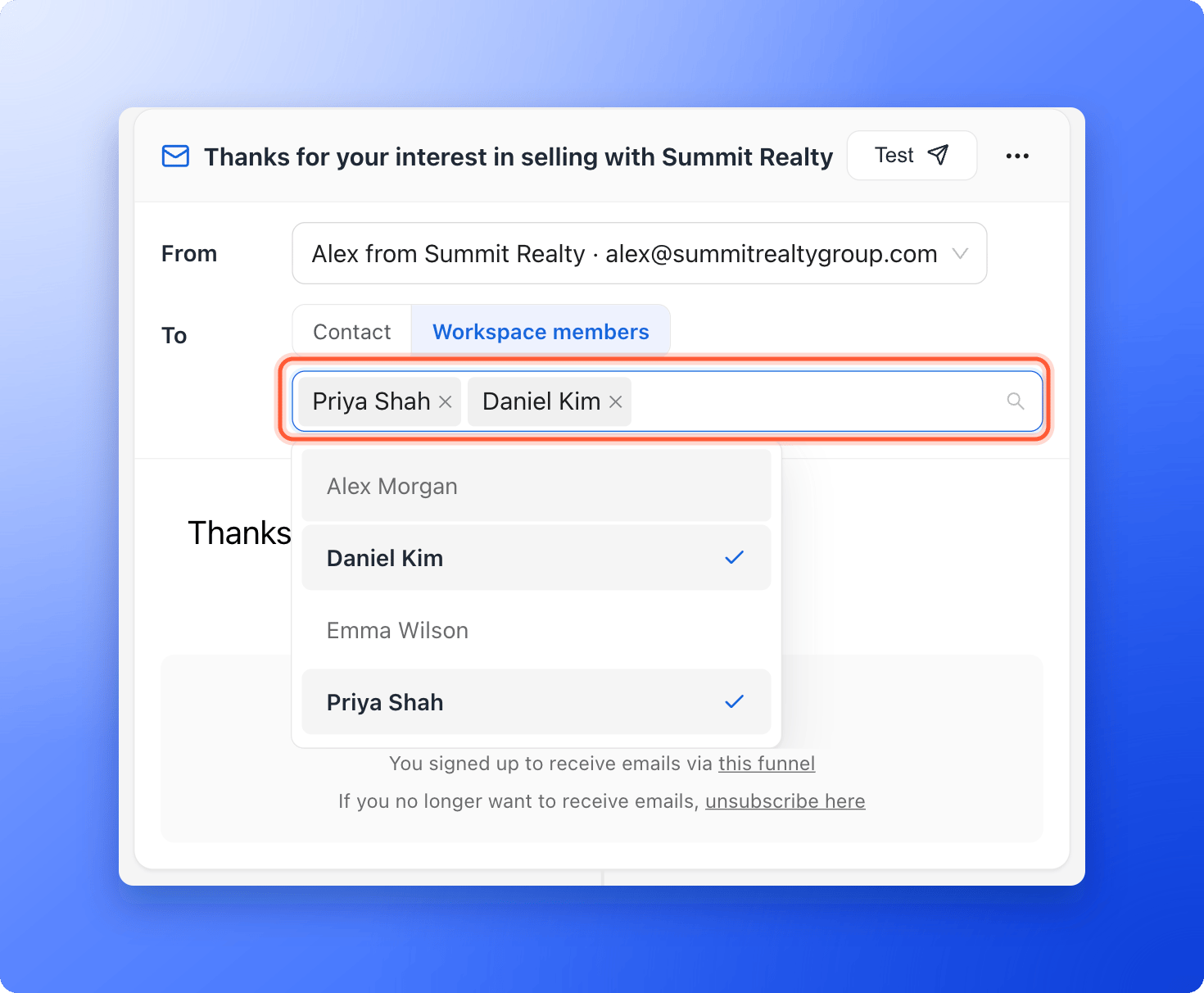
2. Next to **To**, click **"Workspace members"**.
3. Click **Choose members to notify** and select the teammates who should get the alert. You can pick up to 20.
1. Next to **From**, choose your verified sender.
2. Next to **To**, click **"Workspace members"**.
3. Click **Choose members to notify** and select the teammates who should get the alert. You can pick up to 20.
 Add a clear subject, such as "New hot lead, follow up now", and write the message. Type **@** to insert details from the lead, such as their name, so your team sees who to contact. Pick the field, then enter a fallback (the text used when the field is empty) or click **"No fallback"**.
Click **"Test"** to send the alert to your own inbox, then click **"Publish Flow"**. From now on, every lead who matches the trigger sends your team an email.
Write the alert as a short to-do: who the lead is, what they asked for and what to do next. Add a line such as "Update their status to CONTACTED once you reach out" so your [lead statuses](/leads/contact-status) stay current.
## Troubleshooting
Your workspace has no accepted teammates yet. Hover over the button to see why. Invite teammates in your workspace settings, and pick them once they accept. See [Give access to a workspace](/workspaces/give-access).
Check that the flow is **Live**, that you picked members under **To**, and that the lead matched your trigger and rules. Ask your teammates to check their spam folders. If a teammate clicked unsubscribe in an earlier alert, they no longer get flow emails from this workspace.
## What to do next
Email the lead too, with a welcome message or a guide.
Help your emails reach the inbox.
Start a chat from the lead's profile.
Need help? Email [support@askfunnel.com](mailto:support@askfunnel.com).
Add a clear subject, such as "New hot lead, follow up now", and write the message. Type **@** to insert details from the lead, such as their name, so your team sees who to contact. Pick the field, then enter a fallback (the text used when the field is empty) or click **"No fallback"**.
Click **"Test"** to send the alert to your own inbox, then click **"Publish Flow"**. From now on, every lead who matches the trigger sends your team an email.
Write the alert as a short to-do: who the lead is, what they asked for and what to do next. Add a line such as "Update their status to CONTACTED once you reach out" so your [lead statuses](/leads/contact-status) stay current.
## Troubleshooting
Your workspace has no accepted teammates yet. Hover over the button to see why. Invite teammates in your workspace settings, and pick them once they accept. See [Give access to a workspace](/workspaces/give-access).
Check that the flow is **Live**, that you picked members under **To**, and that the lead matched your trigger and rules. Ask your teammates to check their spam folders. If a teammate clicked unsubscribe in an earlier alert, they no longer get flow emails from this workspace.
## What to do next
Email the lead too, with a welcome message or a guide.
Help your emails reach the inbox.
Start a chat from the lead's profile.
Need help? Email [support@askfunnel.com](mailto:support@askfunnel.com).