> ## Documentation Index
> Fetch the complete documentation index at: https://help.askfunnel.com/llms.txt
> Use this file to discover all available pages before exploring further.
# Send a series of follow-up emails
> Add delays and more emails to a flow so leads get a timed series of messages.
Available on: **the Growth plan and above**. On Starter, a flow can send one email. Clicking **"Add email"** on Starter opens an upgrade prompt.
Send several emails with a wait between them, for example a welcome email now, a reminder after a day and an offer after three days. One email is often not enough. You build a sequence in the same flow editor you use for a single email.
**Before you start**, you need:
* A flow with a trigger and a first email. See [Send automated emails to new leads](/messages/automated-emails).
* A verified sender. See [Add and verify a sender email](/messages/custom-sender-email).
## Important to note
* A lead goes through a flow once. If their status returns to the trigger status later, they do not start again.
* Edits to a live flow need a new publish. Click **"Publish Flow"** again. Leads already in the flow finish with the version they started on.
* Every email counts toward your monthly allowance, shown in [Send automated emails to new leads](/messages/automated-emails).
## Build a sequence
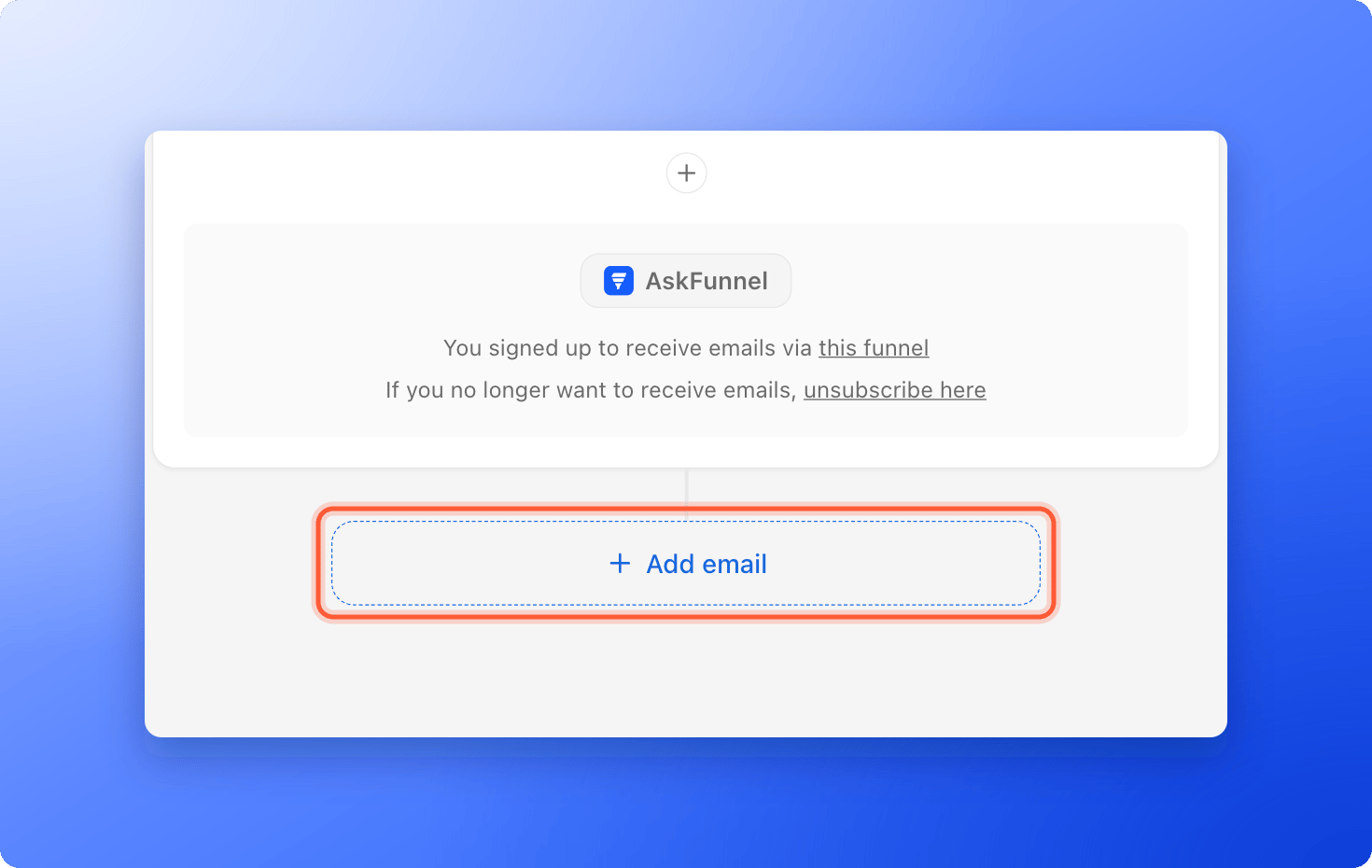
Click **"Add email"** below your last email. AskFunnel adds a **Delay** step and a new email after it.
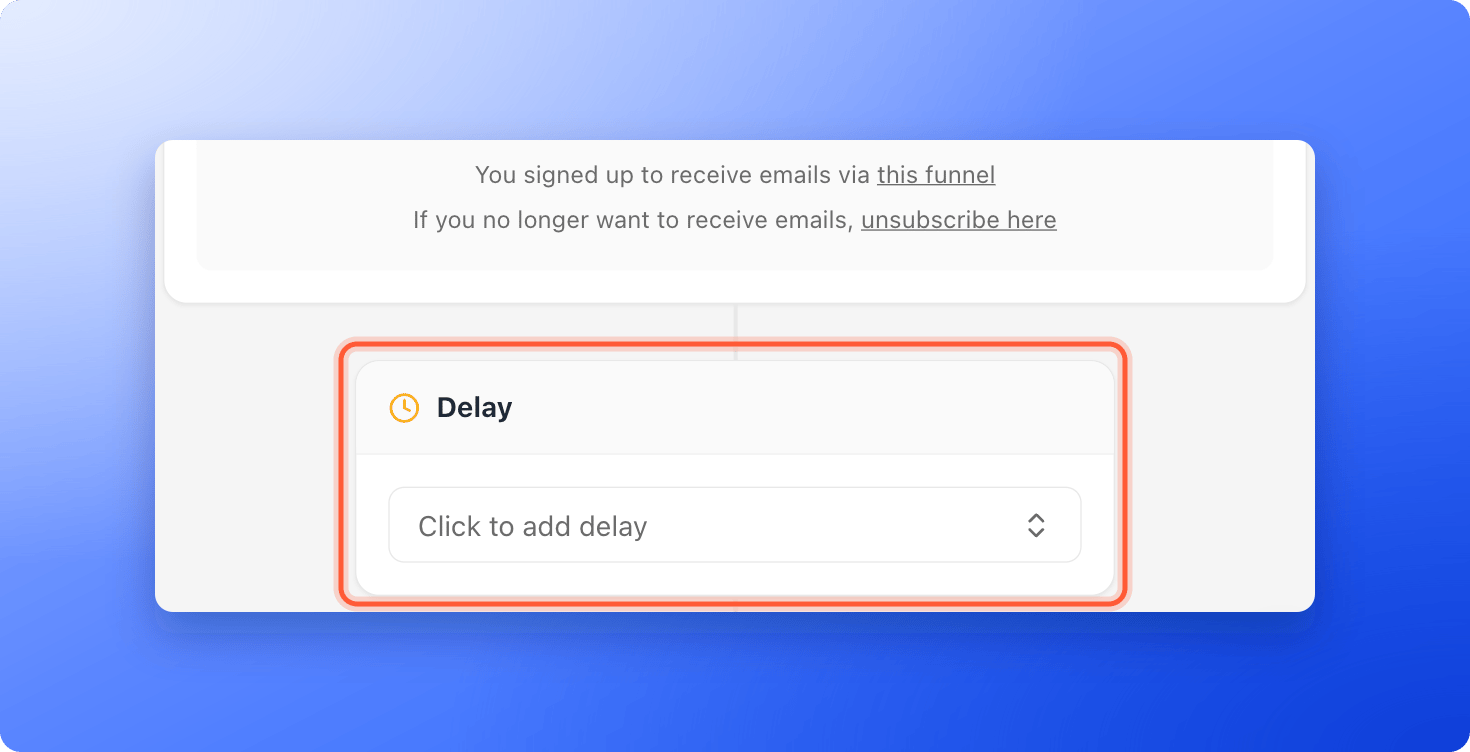
 Click the **Delay** card above the new email. It says **Click to add delay** until you set it.
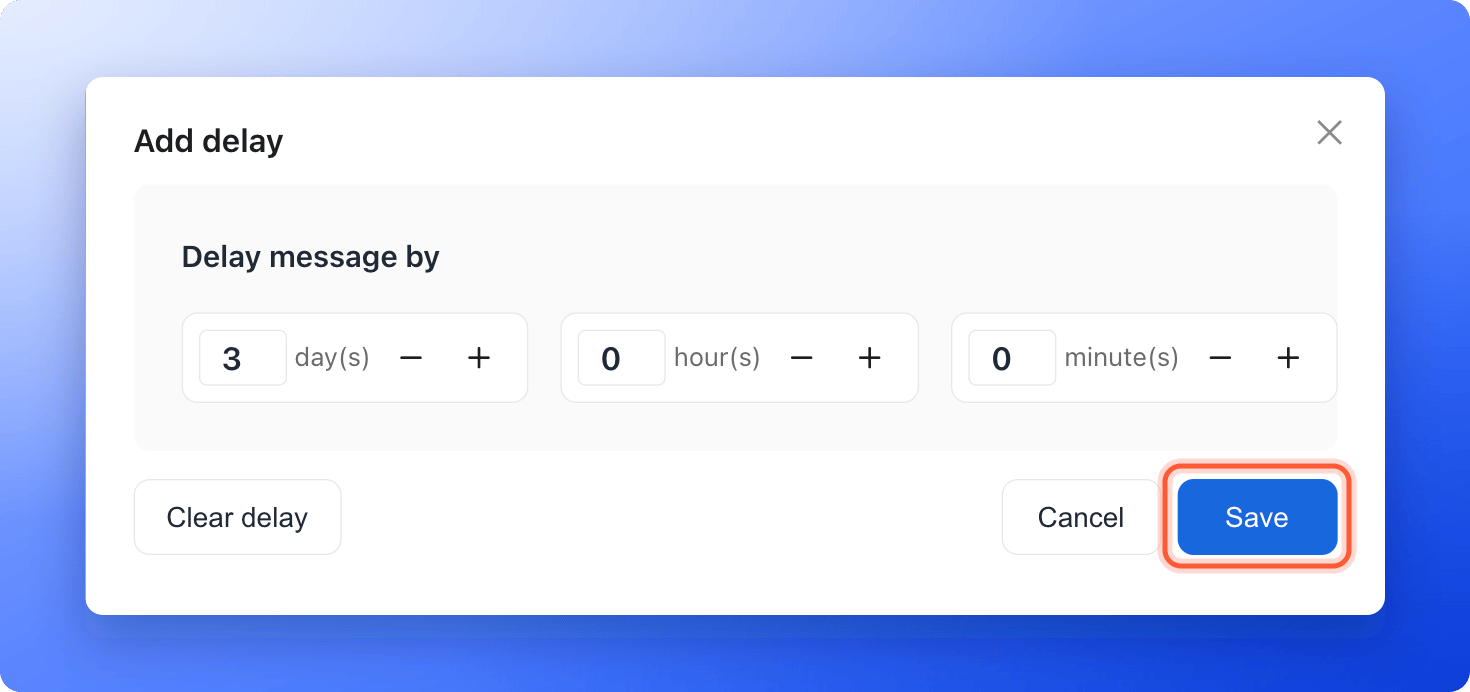
 1. Under **Delay message by**, enter the wait in **day(s)**, **hour(s)** and **minute(s)**. You can type a number or use the minus and plus buttons.
2. Click **"Save"**.
1. Under **Delay message by**, enter the wait in **day(s)**, **hour(s)** and **minute(s)**. You can type a number or use the minus and plus buttons.
2. Click **"Save"**.
 The wait starts when the step before it finishes. So a delay before your first email counts from the moment the lead reaches your trigger status, and a delay before the second email counts from when the first was sent. Leave a delay empty to send straight away. The most you can enter is 365 days, 23 hours and 59 minutes.
Choose your sender under **From**, add a subject and write the message. Repeat **"Add email"** for each step of the sequence. Use **"Test"** to send yourself a copy of any email.
Click **"Publish Flow"** at the top right. Every new lead who reaches your trigger status now gets the whole sequence.
## Manage the steps
* **Reorder or remove an email:** click the three dots at the top right of an email (**Message actions**) and choose **Move up**, **Move down** or **Delete**.
* **Clear a delay:** open the delay and click **"Clear delay"**.
* **Stop the sequence when a lead moves on:** click the **Trigger** card, turn on **Remove leads when their status changes** and click **"Save"**. Converted or advanced leads then stop receiving the flow.
* **Turn the flow off:** this stops it for everyone. Leads waiting for their next email will not get it.
Turn on **Remove leads when their status changes** for any sequence that sells or follows up, so a lead you already moved to **MEETING** or **CONVERTED** does not keep getting emails.
## What to do next
Help every email in your sequence reach the inbox.
Get an alert the moment a lead submits.
Need help? Email [support@askfunnel.com](mailto:support@askfunnel.com).
The wait starts when the step before it finishes. So a delay before your first email counts from the moment the lead reaches your trigger status, and a delay before the second email counts from when the first was sent. Leave a delay empty to send straight away. The most you can enter is 365 days, 23 hours and 59 minutes.
Choose your sender under **From**, add a subject and write the message. Repeat **"Add email"** for each step of the sequence. Use **"Test"** to send yourself a copy of any email.
Click **"Publish Flow"** at the top right. Every new lead who reaches your trigger status now gets the whole sequence.
## Manage the steps
* **Reorder or remove an email:** click the three dots at the top right of an email (**Message actions**) and choose **Move up**, **Move down** or **Delete**.
* **Clear a delay:** open the delay and click **"Clear delay"**.
* **Stop the sequence when a lead moves on:** click the **Trigger** card, turn on **Remove leads when their status changes** and click **"Save"**. Converted or advanced leads then stop receiving the flow.
* **Turn the flow off:** this stops it for everyone. Leads waiting for their next email will not get it.
Turn on **Remove leads when their status changes** for any sequence that sells or follows up, so a lead you already moved to **MEETING** or **CONVERTED** does not keep getting emails.
## What to do next
Help every email in your sequence reach the inbox.
Get an alert the moment a lead submits.
Need help? Email [support@askfunnel.com](mailto:support@askfunnel.com).