> ## Documentation Index
> Fetch the complete documentation index at: https://help.askfunnel.com/llms.txt
> Use this file to discover all available pages before exploring further.
# Add and verify a sender email
> Choose the from address your leads see on automated emails, and verify your domain so the emails are delivered.
The sender is the from address. AskFunnel sends only from an address on your own domain that you have verified. This protects your emails from spam filters and lets leads see your brand, not ours. You need a verified sender before you can publish an [automated email](/messages/automated-emails).
**Before you start**, you need:
* A Global Admin or Workspace Admin role. Only they can manage senders. Senders belong to a workspace, so every funnel in that workspace can use them.
* An email address on your own domain, such as [you@yourcompany.com](mailto:you@yourcompany.com). Free addresses from Gmail, Outlook or Yahoo cannot be verified.
* Access to the DNS settings where your domain is managed, such as Namecheap, GoDaddy or Cloudflare. DNS records are settings that prove you own the domain.
## Add a sender
1. Go to your **Workspaces** page, click the three dots on the workspace's row and choose **"Workspace settings"**. See [What is a workspace?](/workspaces/what-is-a-workspace).
2. Click **"Senders"** in the left menu.
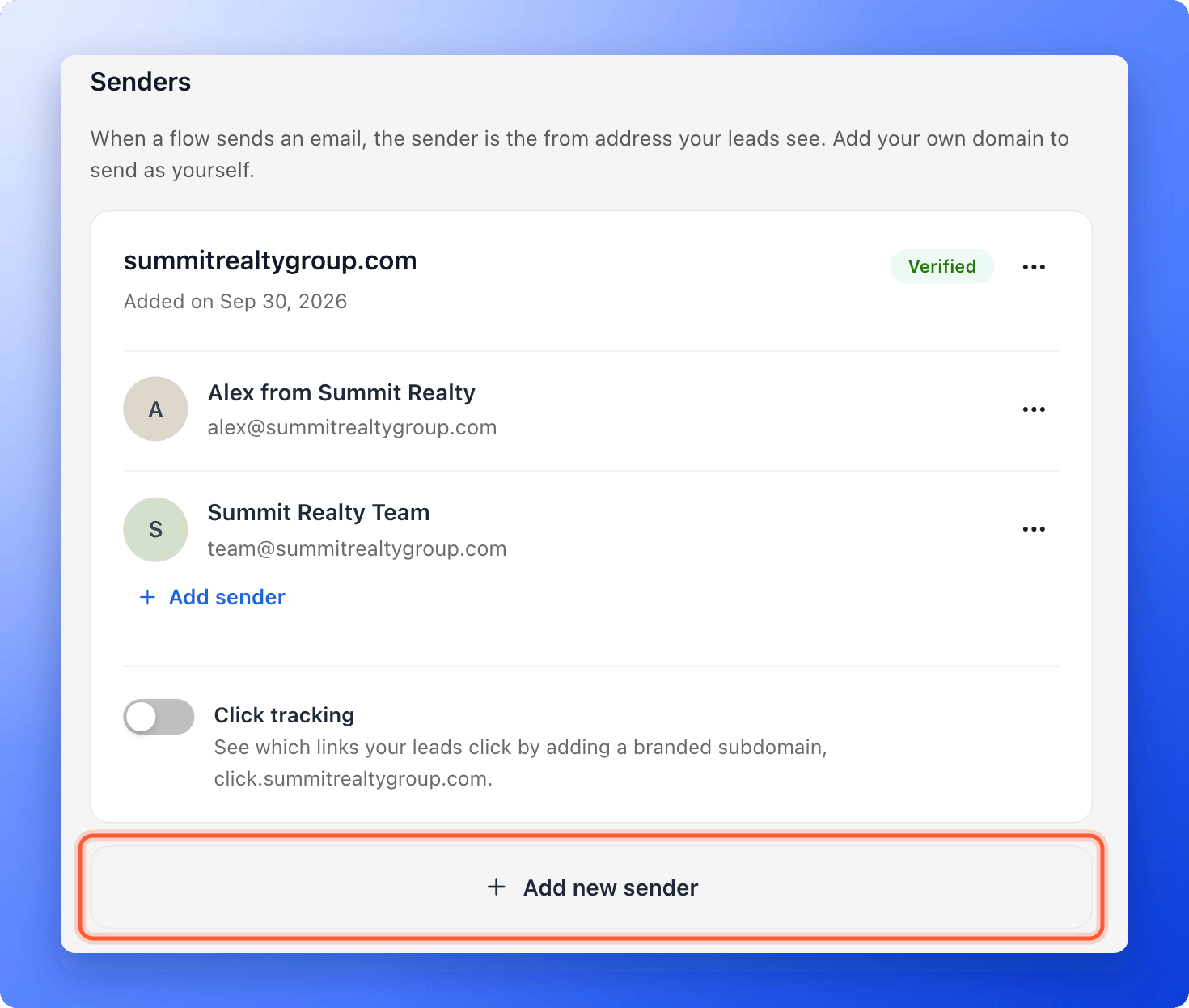 You can also start from a flow: in an email's **From** list, click **"Add new sender"**.
1. Click **"Add new sender"**, then **"Continue"** on the first screen.
2. Under **Sender email**, type an address on your own domain, for example [you@yourcompany.com](mailto:you@yourcompany.com).
3. Under **Sender name**, type the name leads see in their inbox, for example "Jane from Acme".
4. Click **"Continue"**.
You can also start from a flow: in an email's **From** list, click **"Add new sender"**.
1. Click **"Add new sender"**, then **"Continue"** on the first screen.
2. Under **Sender email**, type an address on your own domain, for example [you@yourcompany.com](mailto:you@yourcompany.com).
3. Under **Sender name**, type the name leads see in their inbox, for example "Jane from Acme".
4. Click **"Continue"**.
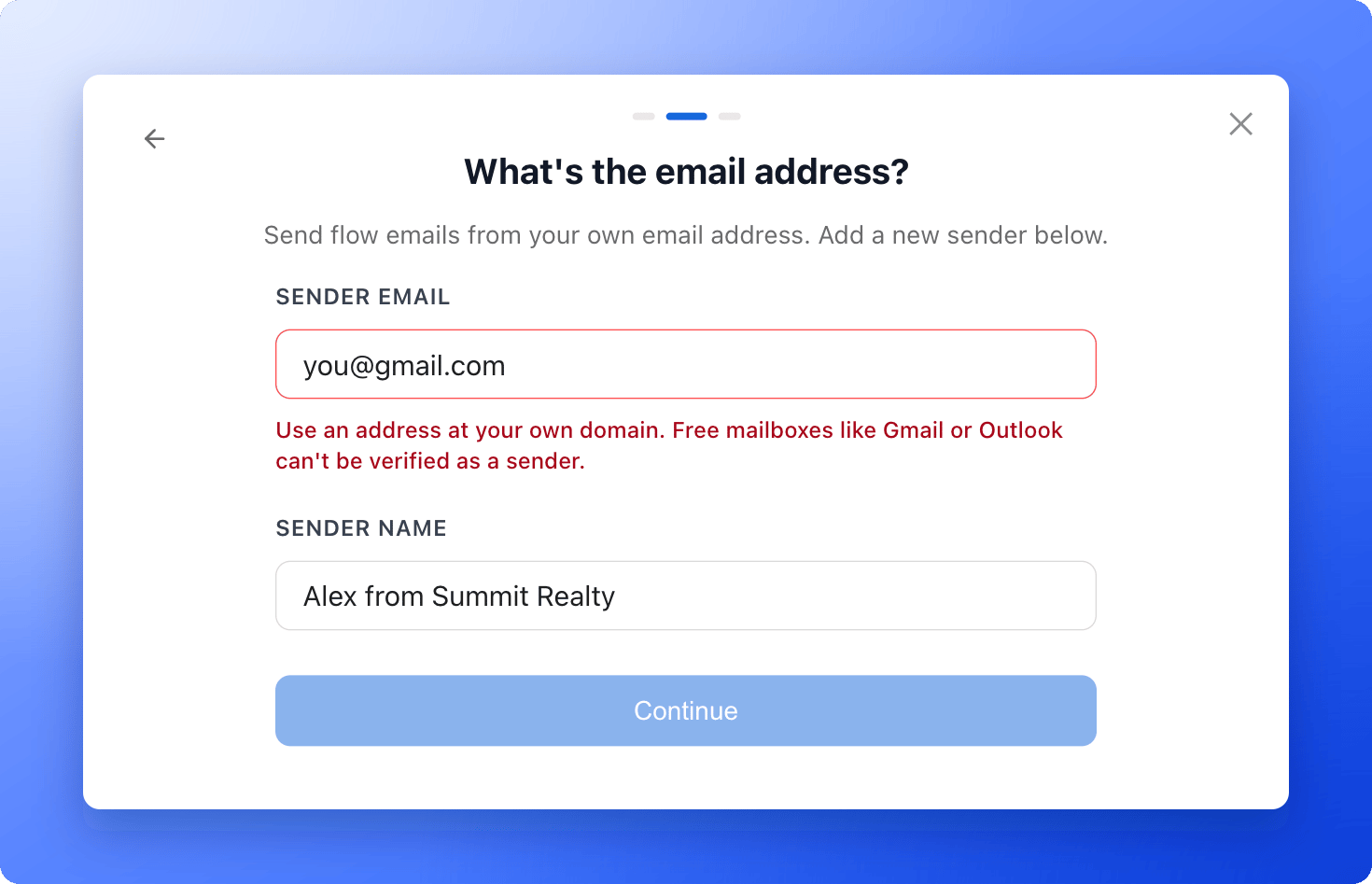 If you type a free address from Gmail, Outlook or Yahoo, AskFunnel asks for an address at your own domain.
If the domain is new to your workspace, the **Verify your domain** window lists DNS records with a **Type**, a **Host** and a **Value**.
1. Log in to the place where your domain is managed.
2. Add each record exactly as shown. Use the copy icons next to the **Host** and **Value**.
3. The records under **Recommended: improves inbox placement** are optional, but they help your emails reach the inbox.
4. Back in AskFunnel, click **"Verify records now"**.
If you type a free address from Gmail, Outlook or Yahoo, AskFunnel asks for an address at your own domain.
If the domain is new to your workspace, the **Verify your domain** window lists DNS records with a **Type**, a **Host** and a **Value**.
1. Log in to the place where your domain is managed.
2. Add each record exactly as shown. Use the copy icons next to the **Host** and **Value**.
3. The records under **Recommended: improves inbox placement** are optional, but they help your emails reach the inbox.
4. Back in AskFunnel, click **"Verify records now"**.
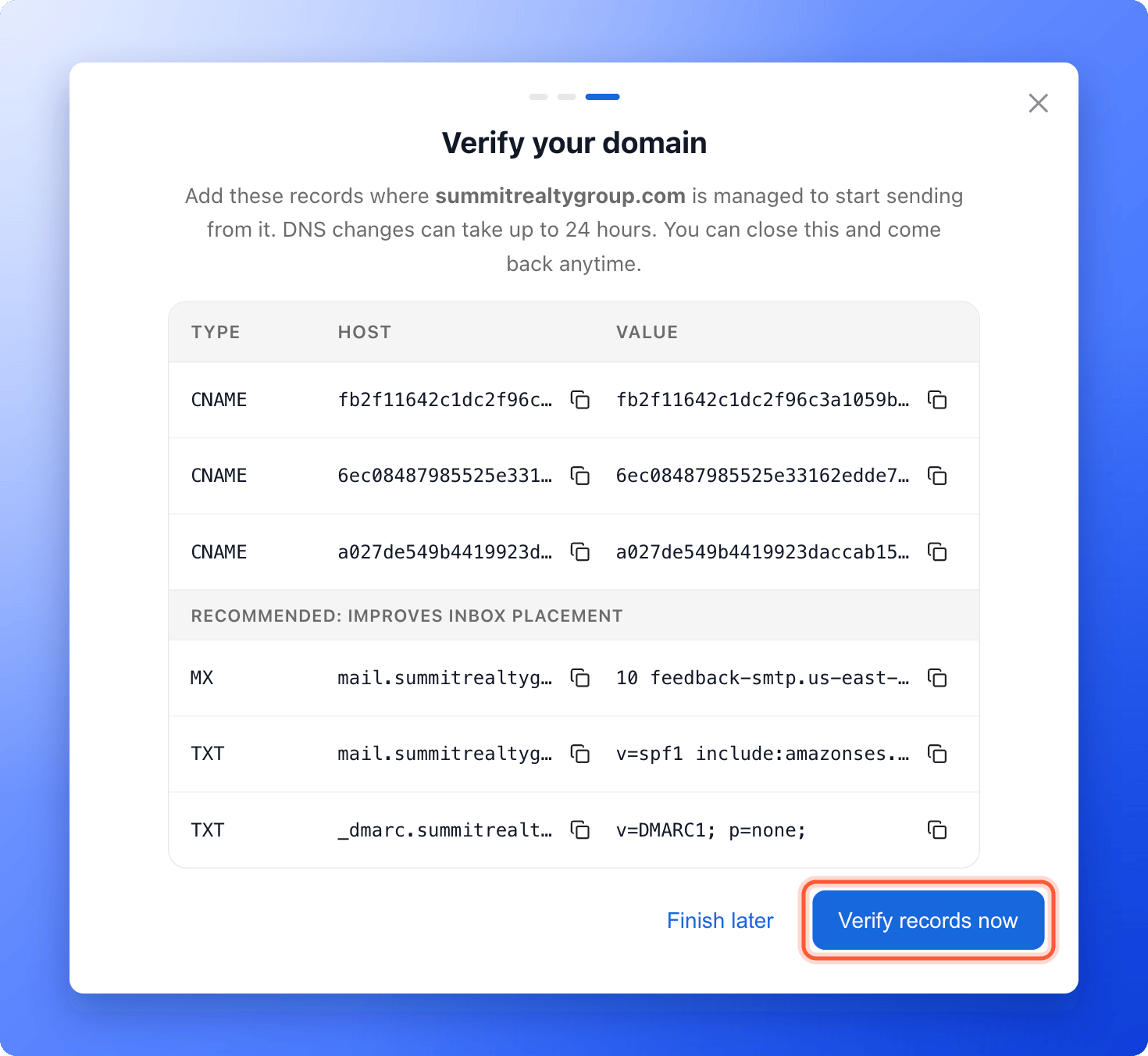 DNS changes can take anywhere from a few minutes up to 24 hours. If the records are not found yet, click **"Finish later"** and come back. On the **Senders** tab, click the three dots on your domain, choose **"Verify records"** and try again.
When verification works, AskFunnel says "Domain verified. Your sender is ready." and the domain shows **Verified**. A domain that is still waiting shows **Pending**, and one whose records were not found shows **Failed**.
## Add another sender on a verified domain
Once a domain is **Verified**, click **"Add sender"** on its card. Type only the part before the @, add a **Sender name** and click **"Continue"**. The sender is ready right away, with no new DNS records.
## Turn on click and open tracking
To see which links your leads click, use the **Click tracking** switch on the domain's card. AskFunnel shows one more record to add at your DNS provider, for a branded address such as click.yourcompany.com. Add it, then click **"Verify record"**. When it says "Click tracking is active.", the switch stays on.
After that, an **Open tracking** switch appears. It uses an invisible image to detect opens. This can slightly affect deliverability (whether your emails reach the inbox), and Apple Mail inflates open counts, so turn it on only if you need it.
Tracking results appear on each email in your flow. See [Send automated emails to new leads](/messages/automated-emails).
## Manage your senders
* **Rename a sender:** click the three dots next to it, choose **"Rename sender"**, change the name and click **"Save"**.
* **Delete a sender:** click the three dots, choose **"Delete"** and confirm. Any flow that used it cannot send until you choose another sender.
* **Turn off tracking:** click the three dots on the domain, choose **"Turn off tracking"** and confirm.
* **Remove a domain:** click the three dots on the domain and choose **"Remove domain"**. Its senders are deleted, and flows cannot send from it until you add and verify it again.
## Troubleshooting
Only senders on a **Verified** domain appear. Open **Senders**, check the domain status and finish verification.
Check that every record was saved exactly as shown, with the same **Host** and **Value**. Some DNS providers add your domain to the end of the host automatically, so you may need to type only the first part. Wait up to 24 hours, then click **"Verify records now"** again.
Ask a Workspace Admin or Global Admin to add the sender, or to give you the Workspace Admin role.
## What to do next
Build a flow that emails each new lead with your new sender.
Help your emails reach the inbox.
Need help? Email [support@askfunnel.com](mailto:support@askfunnel.com).
DNS changes can take anywhere from a few minutes up to 24 hours. If the records are not found yet, click **"Finish later"** and come back. On the **Senders** tab, click the three dots on your domain, choose **"Verify records"** and try again.
When verification works, AskFunnel says "Domain verified. Your sender is ready." and the domain shows **Verified**. A domain that is still waiting shows **Pending**, and one whose records were not found shows **Failed**.
## Add another sender on a verified domain
Once a domain is **Verified**, click **"Add sender"** on its card. Type only the part before the @, add a **Sender name** and click **"Continue"**. The sender is ready right away, with no new DNS records.
## Turn on click and open tracking
To see which links your leads click, use the **Click tracking** switch on the domain's card. AskFunnel shows one more record to add at your DNS provider, for a branded address such as click.yourcompany.com. Add it, then click **"Verify record"**. When it says "Click tracking is active.", the switch stays on.
After that, an **Open tracking** switch appears. It uses an invisible image to detect opens. This can slightly affect deliverability (whether your emails reach the inbox), and Apple Mail inflates open counts, so turn it on only if you need it.
Tracking results appear on each email in your flow. See [Send automated emails to new leads](/messages/automated-emails).
## Manage your senders
* **Rename a sender:** click the three dots next to it, choose **"Rename sender"**, change the name and click **"Save"**.
* **Delete a sender:** click the three dots, choose **"Delete"** and confirm. Any flow that used it cannot send until you choose another sender.
* **Turn off tracking:** click the three dots on the domain, choose **"Turn off tracking"** and confirm.
* **Remove a domain:** click the three dots on the domain and choose **"Remove domain"**. Its senders are deleted, and flows cannot send from it until you add and verify it again.
## Troubleshooting
Only senders on a **Verified** domain appear. Open **Senders**, check the domain status and finish verification.
Check that every record was saved exactly as shown, with the same **Host** and **Value**. Some DNS providers add your domain to the end of the host automatically, so you may need to type only the first part. Wait up to 24 hours, then click **"Verify records now"** again.
Ask a Workspace Admin or Global Admin to add the sender, or to give you the Workspace Admin role.
## What to do next
Build a flow that emails each new lead with your new sender.
Help your emails reach the inbox.
Need help? Email [support@askfunnel.com](mailto:support@askfunnel.com).