> ## Documentation Index
> Fetch the complete documentation index at: https://help.askfunnel.com/llms.txt
> Use this file to discover all available pages before exploring further.
# Send automated emails to new leads
> Build an email flow that sends a welcome email, a guide or a discount code when a lead reaches a status.
Available on: **all plans** (Starter, Growth, Scale and Enterprise). Starter flows can send one email. Flows with several emails need the Growth plan or above.
Build a flow that emails your leads on its own. A flow is a set of emails that sends automatically. A common use is a welcome email with a downloadable guide or a discount code, sent the moment a lead completes your funnel. Each flow belongs to one funnel and starts when a lead reaches the status you choose.
**Before you start**, you need:
* A verified sender, which is the from address your leads see. See [Add and verify a sender email](/messages/custom-sender-email).
* A funnel whose form asks for an email address. Leads without one are skipped. See [Set up your lead capture form](/funnels/lead-capture-forms).
## Important to note
* A flow only starts for leads who reach its trigger status after it is live. Leads that already have that status when you publish are not added, and each lead goes through a flow once.
* Every email has a footer you cannot remove. It includes the lines "You signed up to receive emails via this funnel" and "If you no longer want to receive emails, unsubscribe here". Growth and above can turn off the AskFunnel branding: click the footer and switch off **Branding**.
* Each plan has a monthly email allowance: 1,000 on Starter, 3,000 on Growth, 6,000 on Scale and 20,000 on Enterprise. If you reach it, emails wait and go out on the first day of the next month (UTC).
## Create a flow
1. From your main dashboard, find the funnel.
2. Click the three small dots (**...**) on that funnel's row, then click **"Edit Funnel"**.
3. At the top, next to the funnel name, click the **Funnel** button and choose **"Flows"**.
4. Click **"New flow"** on the left. To rename it, click the three dots next to the flow and choose **"Rename"**.
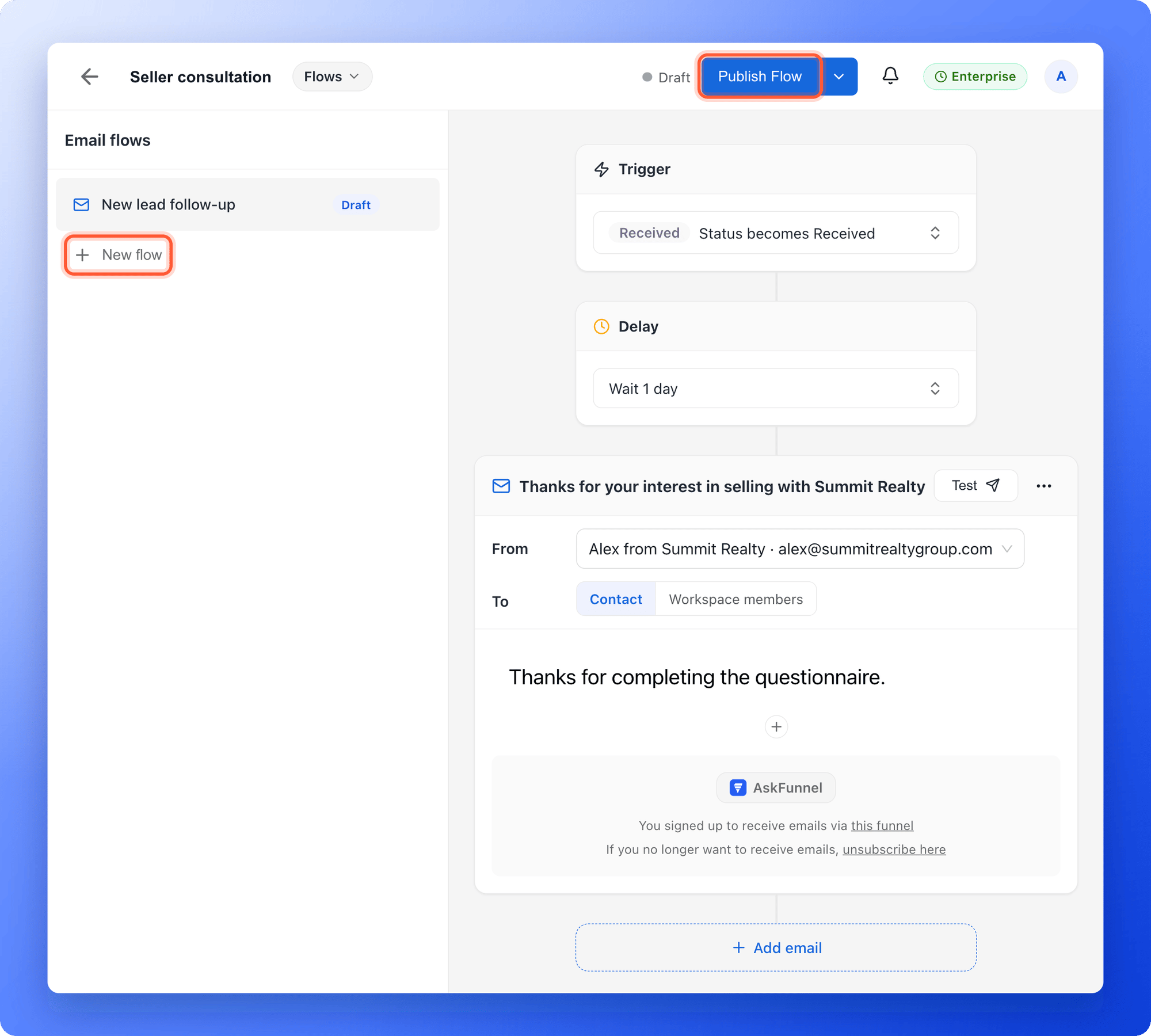 The trigger is the status that starts the flow.
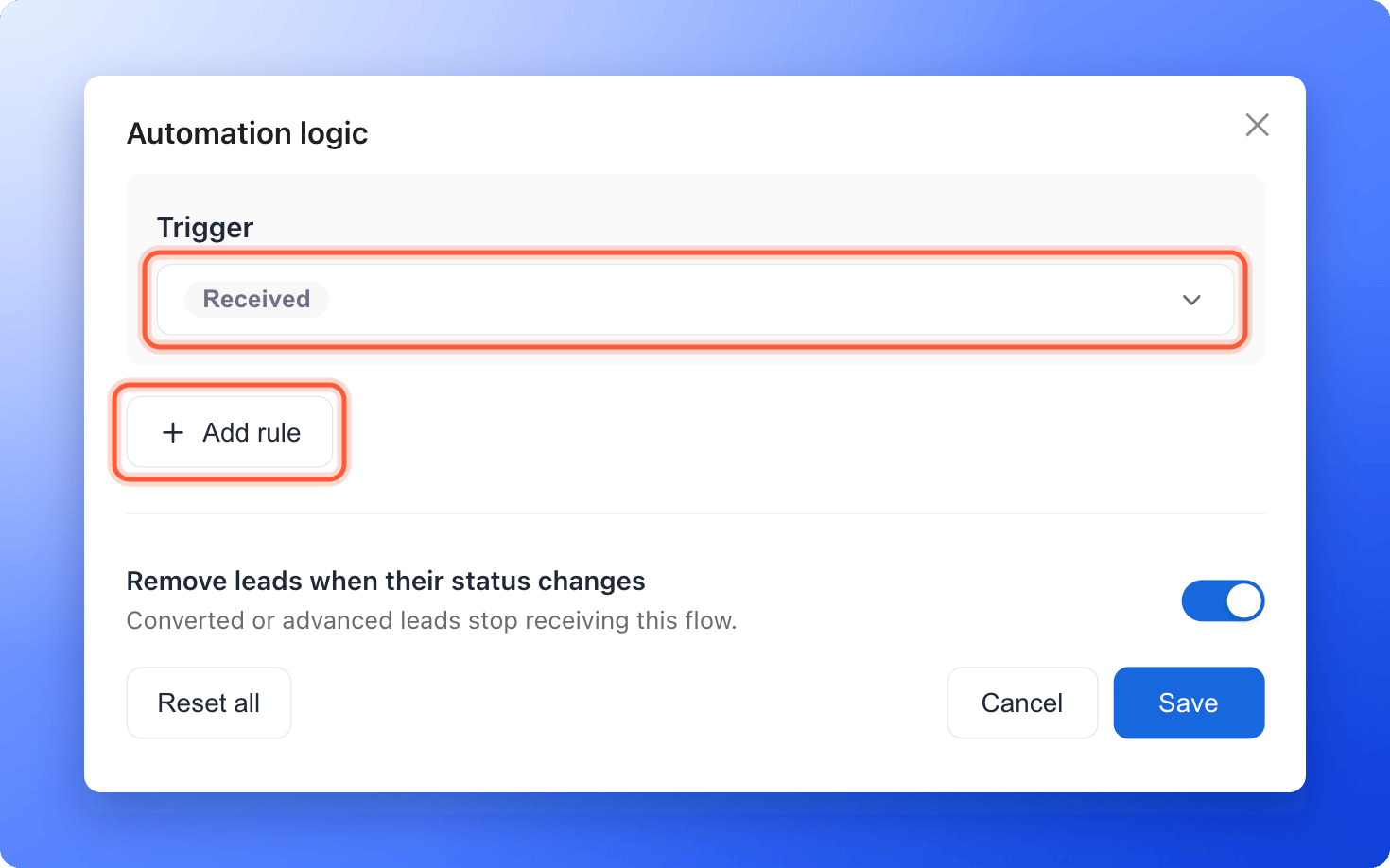
1. Click the **Trigger** card. The **Automation logic** window opens.
2. Under **Trigger**, pick the status that starts the flow. **RECEIVED** means every new lead.
3. Optional: click **"Add rule"** to send only to some leads. Pick a field from **Contact fields** or **Funnel answers**, choose how to compare, for example **Is exactly**, and pick the answer. Add more rules and join them with **And** or **Or**.
4. Click **"Save"**.
The trigger is the status that starts the flow.
1. Click the **Trigger** card. The **Automation logic** window opens.
2. Under **Trigger**, pick the status that starts the flow. **RECEIVED** means every new lead.
3. Optional: click **"Add rule"** to send only to some leads. Pick a field from **Contact fields** or **Funnel answers**, choose how to compare, for example **Is exactly**, and pick the answer. Add more rules and join them with **And** or **Or**.
4. Click **"Save"**.
 1. Next to **From**, choose your verified sender.
2. Leave **To** on **Contact**, which is the lead's email address.
3. Click **Add a subject** and type your subject line.
4. Write your message in the text block. Type **@** to insert a detail from the lead, such as their name. Pick the field, then type a fallback that is used when the field is empty, for example "there", or click **"No fallback"**.
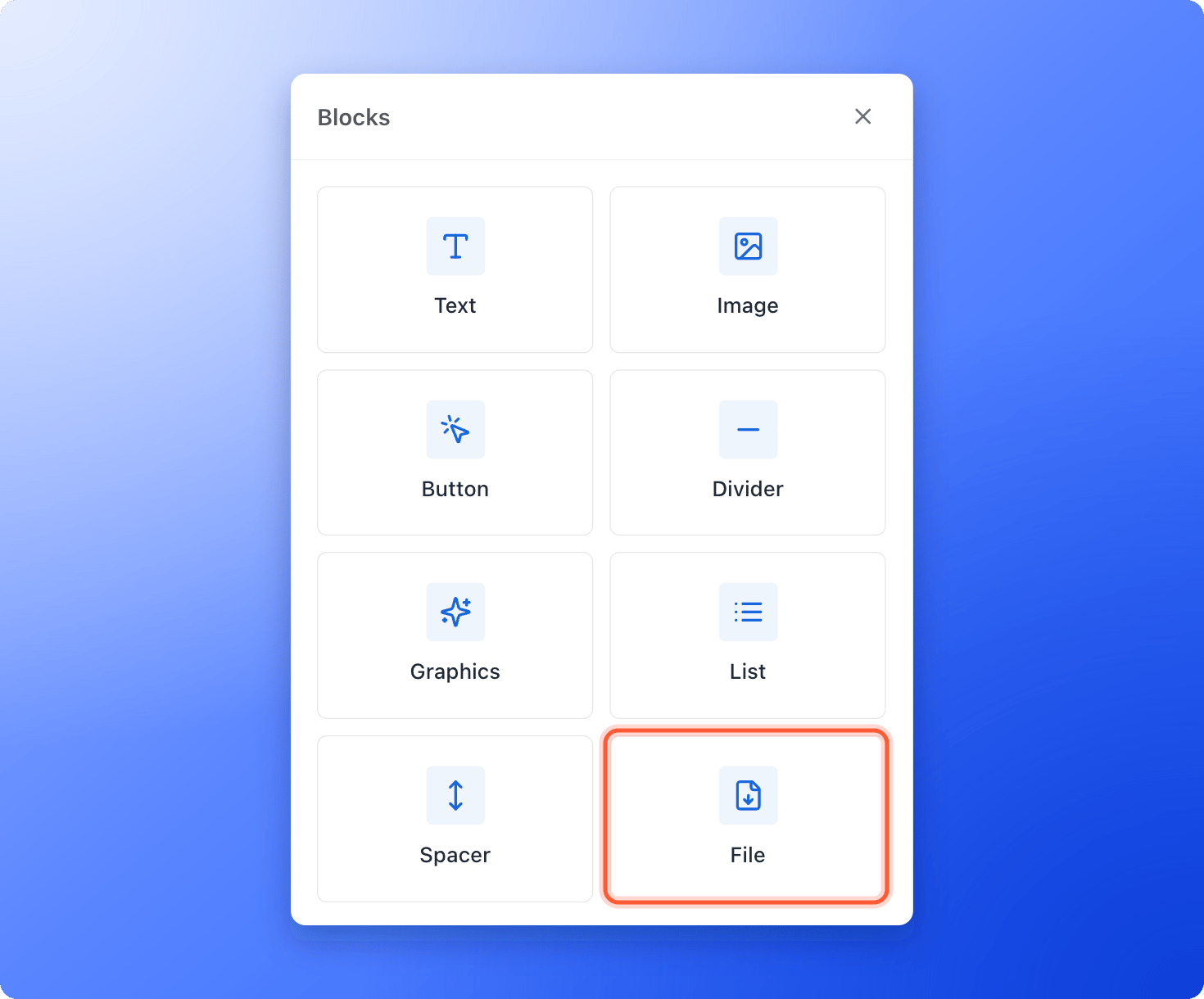
5. To add more, click the **+** below the message and pick a block: **Text**, **Image**, **Button**, **Divider**, **Graphics**, **List**, **Spacer** or **File**.
To send a guide, price list or discount, click the **+** below your text and choose **File**.
1. Next to **From**, choose your verified sender.
2. Leave **To** on **Contact**, which is the lead's email address.
3. Click **Add a subject** and type your subject line.
4. Write your message in the text block. Type **@** to insert a detail from the lead, such as their name. Pick the field, then type a fallback that is used when the field is empty, for example "there", or click **"No fallback"**.
5. To add more, click the **+** below the message and pick a block: **Text**, **Image**, **Button**, **Divider**, **Graphics**, **List**, **Spacer** or **File**.
To send a guide, price list or discount, click the **+** below your text and choose **File**.
 1. Under **File link**, paste a public link to your file, such as a PDF in Google Drive.
2. Under **File name**, type what the lead sees.
3. Change **Button label** from **Download** if you like, for example to "Get the discount guide".
1. Under **File link**, paste a public link to your file, such as a PDF in Google Drive.
2. Under **File name**, type what the lead sees.
3. Change **Button label** from **Download** if you like, for example to "Get the discount guide".
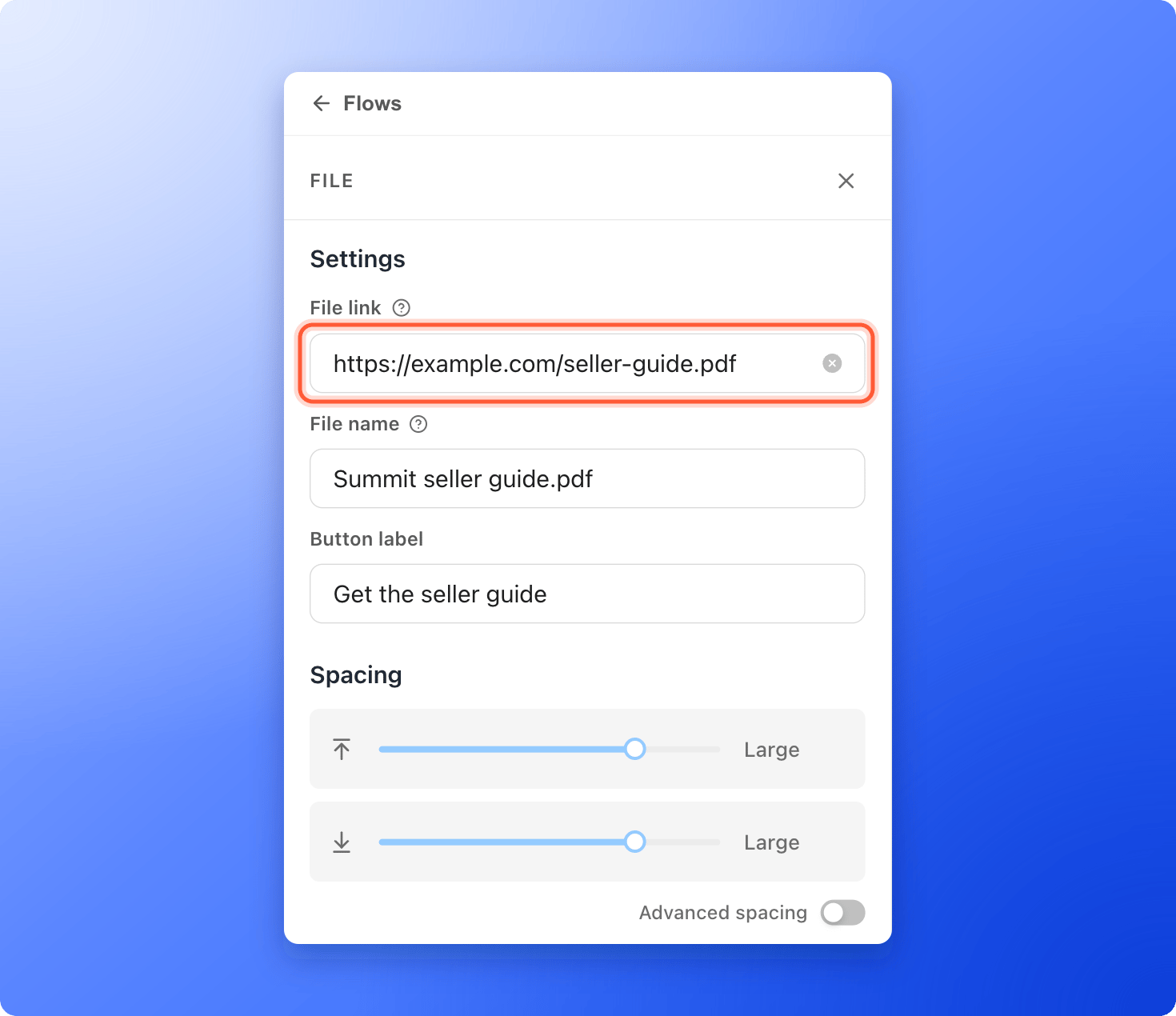 The lead receives a button that opens your link. AskFunnel does not attach files. For a link to a web page, use the **Button** block instead.
Click **"Test"** at the top of the email. A copy arrives in your own inbox with **\[Test]** in front of the subject. The button works after you choose a sender, and your organization can send up to 20 test emails per hour.
Click **"Publish Flow"** at the top right. When it says "Flow published.", the flow is **Live** and new leads who reach your trigger status start receiving it.
## How do I know it is working?
* **In the editor:** the flow shows **Live** in the list on the left and in the top bar. After your first send, each email shows its counts for **Sent**, **Delivered**, **Clicked** and **Bounced**. **Opened** appears when open tracking is on.
* **On a lead:** open the lead and look at **Email flows** in the **Profile** tab. It shows the flow with a state (**Active**, **Waiting**, **Paused**, **Completed**, **Failed** or **Cancelled**) and lines such as **Email sent**, **Delivered**, **Opened**, **Clicked**, **Bounced**, **Marked as spam** and **Waiting until**.
Clicks and opens are counted only when you turn on click or open tracking for your sender's domain. See [Add and verify a sender email](/messages/custom-sender-email).
## Edit or turn off a flow
* **Edit a live flow:** a status of **Changes available** means you edited a live flow. Click **"Publish Flow"** again to send the changes live. Leads already in the flow finish with the version they started on.
* **Turn a flow off:** this stops it for everyone. Leads still waiting for their next email will not get it.
## Troubleshooting
AskFunnel highlights each step that needs attention and says "Fix the highlighted steps before publishing." The messages you may see are:
* **Choose which lead status starts this flow.** Open the **Trigger** card and pick a status.
* **Choose a sender for this email.** Pick a sender under **From**.
* **Every email needs a subject line.** Type a subject.
* **Add content to this email before publishing.** Add text or another block.
* **Multiple messages require a higher plan.** Starter flows can only send one email.
Click **"Add new sender"** in the list and finish verification. See [Add and verify a sender email](/messages/custom-sender-email).
Open the lead and check **Email flows** in **Profile**. People who unsubscribe are skipped automatically, and so are addresses that bounced or marked a message as spam. Other common reasons: the lead has no email address, the lead reached the status before the flow went live, the flow is off, your monthly allowance is used up, or sending was paused to protect deliverability (whether your emails reach the inbox). See [Keep your emails out of spam](/messages/email-deliverability).
Test emails use sample details. The lead's name appears as Alex Example and other **@** fields show their fallback text.
## What to do next
Add delays and more emails to your flow.
Get an alert the moment a lead submits.
Help your emails reach the inbox.
Choose which status starts each flow.
Need help? Email [support@askfunnel.com](mailto:support@askfunnel.com).
The lead receives a button that opens your link. AskFunnel does not attach files. For a link to a web page, use the **Button** block instead.
Click **"Test"** at the top of the email. A copy arrives in your own inbox with **\[Test]** in front of the subject. The button works after you choose a sender, and your organization can send up to 20 test emails per hour.
Click **"Publish Flow"** at the top right. When it says "Flow published.", the flow is **Live** and new leads who reach your trigger status start receiving it.
## How do I know it is working?
* **In the editor:** the flow shows **Live** in the list on the left and in the top bar. After your first send, each email shows its counts for **Sent**, **Delivered**, **Clicked** and **Bounced**. **Opened** appears when open tracking is on.
* **On a lead:** open the lead and look at **Email flows** in the **Profile** tab. It shows the flow with a state (**Active**, **Waiting**, **Paused**, **Completed**, **Failed** or **Cancelled**) and lines such as **Email sent**, **Delivered**, **Opened**, **Clicked**, **Bounced**, **Marked as spam** and **Waiting until**.
Clicks and opens are counted only when you turn on click or open tracking for your sender's domain. See [Add and verify a sender email](/messages/custom-sender-email).
## Edit or turn off a flow
* **Edit a live flow:** a status of **Changes available** means you edited a live flow. Click **"Publish Flow"** again to send the changes live. Leads already in the flow finish with the version they started on.
* **Turn a flow off:** this stops it for everyone. Leads still waiting for their next email will not get it.
## Troubleshooting
AskFunnel highlights each step that needs attention and says "Fix the highlighted steps before publishing." The messages you may see are:
* **Choose which lead status starts this flow.** Open the **Trigger** card and pick a status.
* **Choose a sender for this email.** Pick a sender under **From**.
* **Every email needs a subject line.** Type a subject.
* **Add content to this email before publishing.** Add text or another block.
* **Multiple messages require a higher plan.** Starter flows can only send one email.
Click **"Add new sender"** in the list and finish verification. See [Add and verify a sender email](/messages/custom-sender-email).
Open the lead and check **Email flows** in **Profile**. People who unsubscribe are skipped automatically, and so are addresses that bounced or marked a message as spam. Other common reasons: the lead has no email address, the lead reached the status before the flow went live, the flow is off, your monthly allowance is used up, or sending was paused to protect deliverability (whether your emails reach the inbox). See [Keep your emails out of spam](/messages/email-deliverability).
Test emails use sample details. The lead's name appears as Alex Example and other **@** fields show their fallback text.
## What to do next
Add delays and more emails to your flow.
Get an alert the moment a lead submits.
Help your emails reach the inbox.
Choose which status starts each flow.
Need help? Email [support@askfunnel.com](mailto:support@askfunnel.com).