> ## Documentation Index
> Fetch the complete documentation index at: https://help.askfunnel.com/llms.txt
> Use this file to discover all available pages before exploring further.
# View and manage your leads
> See every lead a funnel has collected, edit it in place and find the ones you need.
Every person who completes your funnel becomes a lead. Each funnel has its own **Leads** tab: a table that works like a spreadsheet. Click a cell to edit it, and use the toolbar above the table to search, filter, sort and group.
**Before you start**, you need:
* A role that can see leads: Global Admin, Workspace Admin or Contacts Manager. Content Editors design funnels but do not have access to lead data, analytics or the activity log.
## Important to note
* Your view is saved per funnel, in this browser only. Filters, sorts, groups, hidden fields and row height are not shared with your team. To start over, click **View options**, then **"Reset view"**.
* Leads over your plan limit are locked. If you go over your monthly lead limit, a banner tells you how many leads are locked. Locked leads do not appear in the table or in exports until you upgrade or add a leads add-on.
* Very large funnels load up to 3,000 leads (newest first) for searching, filtering, grouping and exporting. When this applies, a notice above the table says so.
## Open your leads
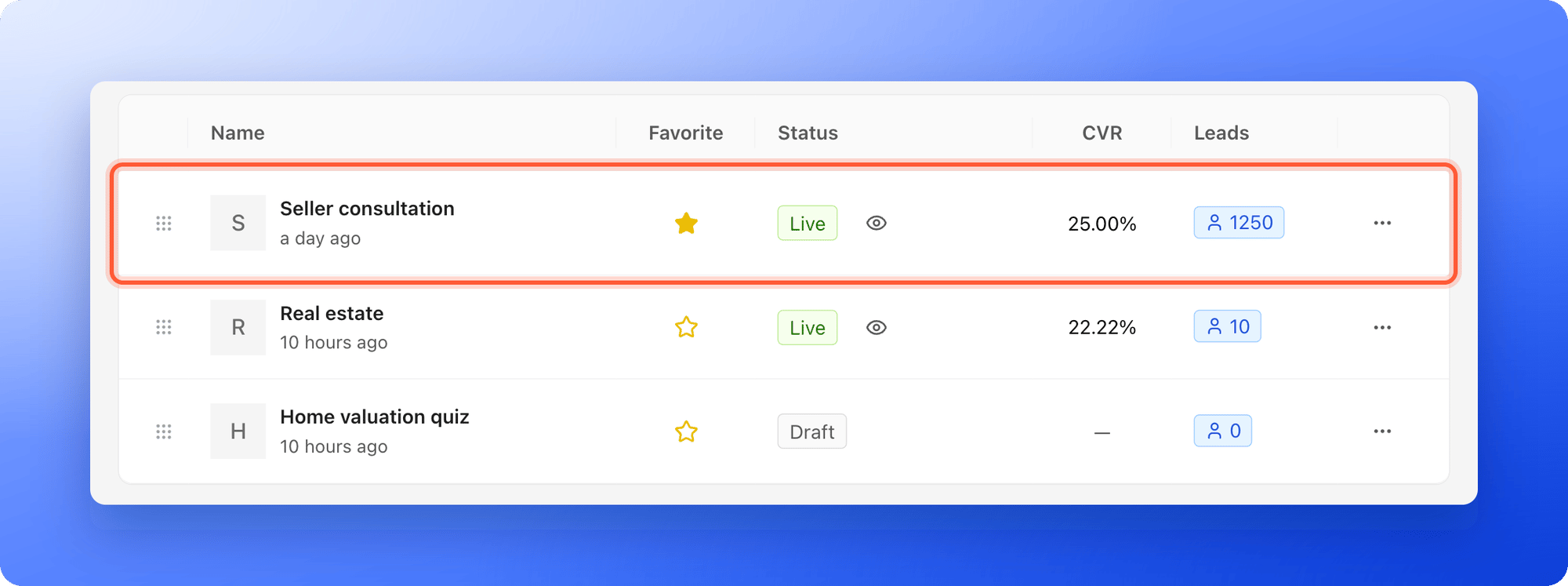
1. Go to your **Funnels** page. Each row shows the funnel's **CVR** (conversion rate, the share of people who become leads) and its number of **Leads**.
2. Click anywhere on the funnel's row. Its **Leads** tab opens.
 The tabs at the top of the page are **Leads**, **Analytics** and **Activity**. Above the table, the toolbar has **Fields**, **Filter**, **Group** and **Sort**, then a row height control, the **View options** menu (three vertical dots) and a search icon. **Total Leads** on the right shows how many leads you have and lets you filter by status.
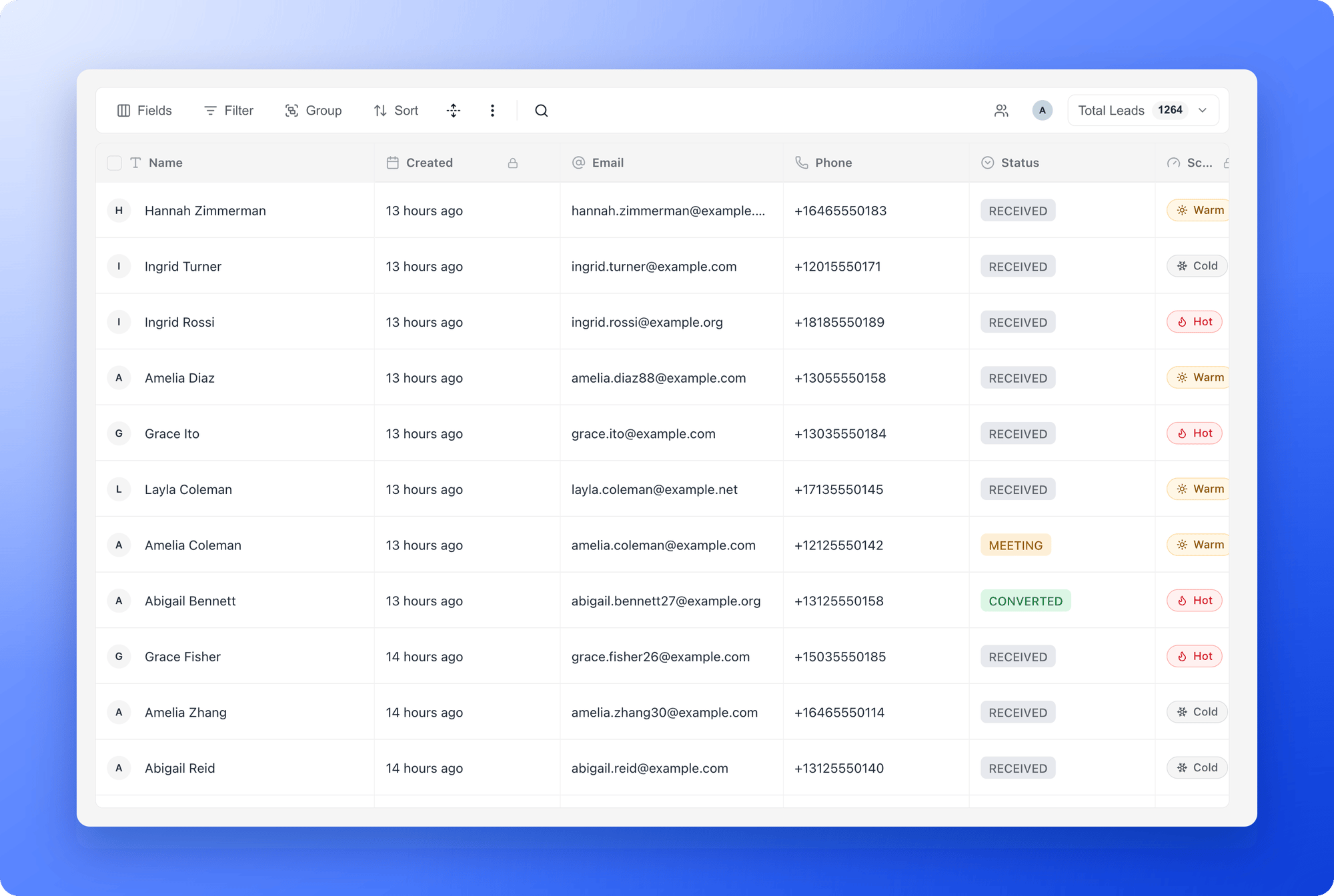 Every question and form field in your funnel becomes a column, next to **Name**, **Email**, **Phone**, **Status**, **Created**, **Assigned To**, **Tags** and more. To choose which columns you see, read [Show, hide and reorder lead fields](/leads/contact-fields).
## What you can do
* **Open a lead:** hover over the lead's name and click the **"Open lead"** icon at the right edge of the name cell. A side panel opens with the tabs **Profile**, **Notes** and **Tracking**. Use the up and down arrows at the top to move to the previous or next lead. See [What is a CRM contact?](/leads/crm-contacts).
* **Edit in the table:** click a cell, type, then press **Enter** or click away to save. Fields with a small lock icon (**Created**, **Score**, **Updated** and **Appointment**) are filled in by AskFunnel and cannot be edited.
* **Change a status:** click the **Status** cell and pick a new one. See [Track leads with statuses](/leads/contact-status).
* **Assign and tag:** click the **Assigned To** cell to give a lead to a teammate, or the **Tags** cell to add tags. To assign several leads at once, tick them and use **"Assign"** in the bar at the bottom.
* **Write notes:** open a lead and use its **Notes** tab to keep a record of calls and next steps.
* **Import leads you already have:** click **View options**, then **"Import leads"**. Upload a CSV or Excel file with column names in the first row (up to 5,000 rows), match its columns to your fields, then review and import.
* **Export or delete leads:** see [Export your leads](/leads/export-contacts) and [Delete leads](/leads/delete-leads).
## Find the leads you need
* **Search:** click the magnifier and type. By default AskFunnel searches all fields. To search one field, click **All fields** and pick the field. Press **Esc** to clear the search.
* **Filter:** click **Filter**, then **"Add filter"**. Choose a field, how to compare it and a value. Add more conditions and join them with **and** or **or**. A number on the button shows how many conditions are active. To filter by date, see [Filter leads by date](/leads/filter-by-date).
* **Filter by status:** click **Total Leads** and tick the statuses you want. The menu also shows how many leads are in each status.
* **Filter by teammate:** click the people icon (**Filter leads by assignee**) and pick **Unassigned** or one or more teammates. Click your avatar (**Me mode**) to show only the leads assigned to you. These controls appear once your funnel has its first lead.
* **Sort and group:** click **Sort** and **"Add sort"** to order the table by any field. Click **Group** and **"Add group"** to group leads by a field, up to three levels deep.
* **Change the row height:** click the row height icon and choose **Short**, **Medium**, **Tall** or **Extra tall**.
## Troubleshooting
Your role does not include lead data. Ask a Workspace Admin to give you the Contacts Manager role, or a Workspace Admin role if you also need to edit funnels.
A filter or search is hiding every lead. Click **"Clear filters"** in the table, or open **Filter** and click **Clear all**.
Check for a number on the **Filter** button, a search in the search box or a teammate filter. If none apply, look for a banner about locked leads above the table.
Fields with a lock icon are managed by AskFunnel. Every other cell can be edited.
## What to do next
See what a lead profile holds and how to open it.
Move leads through your follow-up.
Download your leads as a file.
Send a welcome email the moment someone submits.
Need help? Email [support@askfunnel.com](mailto:support@askfunnel.com).
Every question and form field in your funnel becomes a column, next to **Name**, **Email**, **Phone**, **Status**, **Created**, **Assigned To**, **Tags** and more. To choose which columns you see, read [Show, hide and reorder lead fields](/leads/contact-fields).
## What you can do
* **Open a lead:** hover over the lead's name and click the **"Open lead"** icon at the right edge of the name cell. A side panel opens with the tabs **Profile**, **Notes** and **Tracking**. Use the up and down arrows at the top to move to the previous or next lead. See [What is a CRM contact?](/leads/crm-contacts).
* **Edit in the table:** click a cell, type, then press **Enter** or click away to save. Fields with a small lock icon (**Created**, **Score**, **Updated** and **Appointment**) are filled in by AskFunnel and cannot be edited.
* **Change a status:** click the **Status** cell and pick a new one. See [Track leads with statuses](/leads/contact-status).
* **Assign and tag:** click the **Assigned To** cell to give a lead to a teammate, or the **Tags** cell to add tags. To assign several leads at once, tick them and use **"Assign"** in the bar at the bottom.
* **Write notes:** open a lead and use its **Notes** tab to keep a record of calls and next steps.
* **Import leads you already have:** click **View options**, then **"Import leads"**. Upload a CSV or Excel file with column names in the first row (up to 5,000 rows), match its columns to your fields, then review and import.
* **Export or delete leads:** see [Export your leads](/leads/export-contacts) and [Delete leads](/leads/delete-leads).
## Find the leads you need
* **Search:** click the magnifier and type. By default AskFunnel searches all fields. To search one field, click **All fields** and pick the field. Press **Esc** to clear the search.
* **Filter:** click **Filter**, then **"Add filter"**. Choose a field, how to compare it and a value. Add more conditions and join them with **and** or **or**. A number on the button shows how many conditions are active. To filter by date, see [Filter leads by date](/leads/filter-by-date).
* **Filter by status:** click **Total Leads** and tick the statuses you want. The menu also shows how many leads are in each status.
* **Filter by teammate:** click the people icon (**Filter leads by assignee**) and pick **Unassigned** or one or more teammates. Click your avatar (**Me mode**) to show only the leads assigned to you. These controls appear once your funnel has its first lead.
* **Sort and group:** click **Sort** and **"Add sort"** to order the table by any field. Click **Group** and **"Add group"** to group leads by a field, up to three levels deep.
* **Change the row height:** click the row height icon and choose **Short**, **Medium**, **Tall** or **Extra tall**.
## Troubleshooting
Your role does not include lead data. Ask a Workspace Admin to give you the Contacts Manager role, or a Workspace Admin role if you also need to edit funnels.
A filter or search is hiding every lead. Click **"Clear filters"** in the table, or open **Filter** and click **Clear all**.
Check for a number on the **Filter** button, a search in the search box or a teammate filter. If none apply, look for a banner about locked leads above the table.
Fields with a lock icon are managed by AskFunnel. Every other cell can be edited.
## What to do next
See what a lead profile holds and how to open it.
Move leads through your follow-up.
Download your leads as a file.
Send a welcome email the moment someone submits.
Need help? Email [support@askfunnel.com](mailto:support@askfunnel.com).