> ## Documentation Index
> Fetch the complete documentation index at: https://help.askfunnel.com/llms.txt
> Use this file to discover all available pages before exploring further.
# Filter leads by date
> Show only the leads that arrived on a day, before a day, after a day or between two days.
Show only the leads from a certain day or period by adding a date filter to your **Leads** table. You filter on the **Created** field, which is the moment each lead submitted your funnel.
**Before you start**, you need:
* A funnel with leads, and a role that can see them: Global Admin, Workspace Admin or Contacts Manager. See [View and manage your leads](/leads/view-and-manage-leads).
## Important to note
* Dates follow your browser's time zone. A lead that arrived late in the evening for you is counted on that day. Analytics uses UTC (standard world time) instead, so day totals can differ. See [Read your funnel analytics](/analytics/funnel-analytics).
* Your filter is saved for this funnel, in this browser. Teammates do not see it. Click **View options**, then **"Reset view"** to remove every filter, sort and group.
## Filter by a date
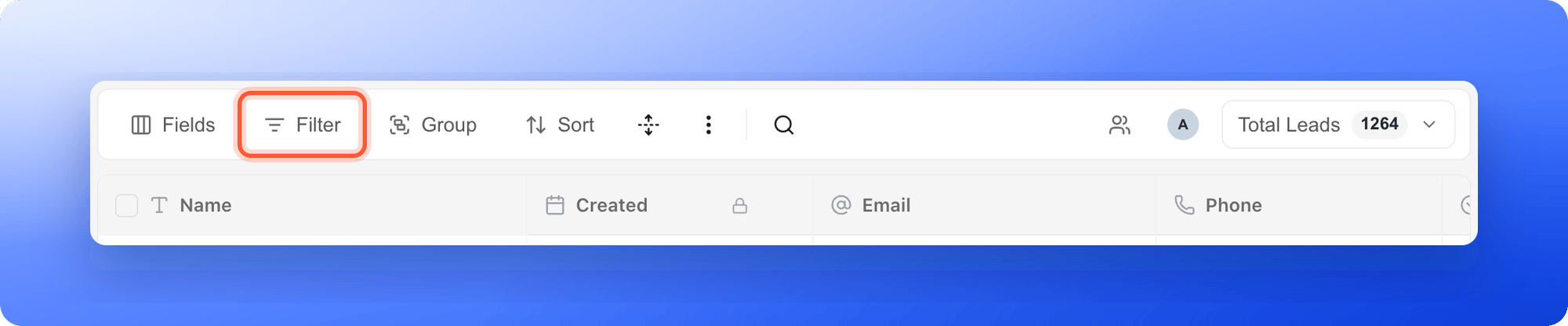
Open your funnel's **Leads** tab and click **Filter** in the toolbar.
 1. Click **"Add filter"**. A row appears that starts with **Where**.
2. In the first box, choose **Created**.
3. In the second box, choose how to compare:
* **is:** leads created on that day.
* **is before** and **is after:** leads created before or after that day, not including the day itself.
* **is on or before** and **is on or after:** the same, but including the day itself.
4. Click the third box (**Pick a date**) and choose the day on the calendar.
1. Click **"Add filter"**. A row appears that starts with **Where**.
2. In the first box, choose **Created**.
3. In the second box, choose how to compare:
* **is:** leads created on that day.
* **is before** and **is after:** leads created before or after that day, not including the day itself.
* **is on or before** and **is on or after:** the same, but including the day itself.
4. Click the third box (**Pick a date**) and choose the day on the calendar.
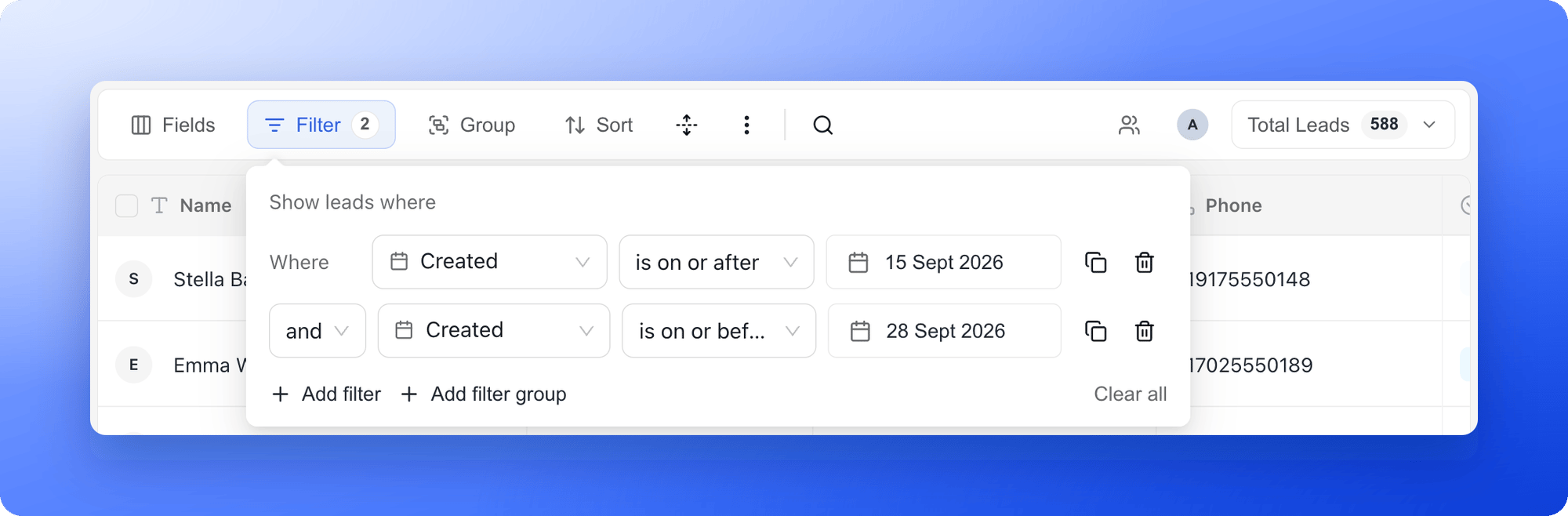 The table updates right away. The number on the **Filter** button shows how many conditions are active.
## Common examples
* **Today's leads:** **Created**, **is**, today's date.
* **Leads since a campaign started:** **Created**, **is on or after**, the start date.
* **Leads between two dates:** add two conditions and leave **and** between them. First **Created**, **is on or after**, the start date. Then **Created**, **is on or before**, the end date.
* **Recent leads in one status:** add another condition with **Status** and **is any of**, then pick the status. See [Track leads with statuses](/leads/contact-status).
If your form has a date question, you can filter on that field too. It appears in the same list of fields.
To put the newest or oldest leads first instead of filtering, click **Sort**, then **"Add sort"**, choose **Created** and pick **First → Last** or **Last → First**.
## Clear the filter
Open **Filter** and click the trash icon (**Remove condition**) on a row, or click **Clear all**. If no leads match, the table says **No leads match your filters** and offers a **"Clear filters"** button.
## What to do next
Download the leads in your filtered view as a file.
Combine a date with a status to find recent leads.
Need help? Email [support@askfunnel.com](mailto:support@askfunnel.com).
The table updates right away. The number on the **Filter** button shows how many conditions are active.
## Common examples
* **Today's leads:** **Created**, **is**, today's date.
* **Leads since a campaign started:** **Created**, **is on or after**, the start date.
* **Leads between two dates:** add two conditions and leave **and** between them. First **Created**, **is on or after**, the start date. Then **Created**, **is on or before**, the end date.
* **Recent leads in one status:** add another condition with **Status** and **is any of**, then pick the status. See [Track leads with statuses](/leads/contact-status).
If your form has a date question, you can filter on that field too. It appears in the same list of fields.
To put the newest or oldest leads first instead of filtering, click **Sort**, then **"Add sort"**, choose **Created** and pick **First → Last** or **Last → First**.
## Clear the filter
Open **Filter** and click the trash icon (**Remove condition**) on a row, or click **Clear all**. If no leads match, the table says **No leads match your filters** and offers a **"Clear filters"** button.
## What to do next
Download the leads in your filtered view as a file.
Combine a date with a status to find recent leads.
Need help? Email [support@askfunnel.com](mailto:support@askfunnel.com).