> ## Documentation Index
> Fetch the complete documentation index at: https://help.askfunnel.com/llms.txt
> Use this file to discover all available pages before exploring further.
# Export your leads
> Download your leads as a CSV or Excel file to back them up, share them or import them into another tool.
Download the leads you see in the table, or only the ones you pick, as a file for backups, reports or another system. You can choose a CSV file (a simple spreadsheet format that almost every tool opens) or an Excel file.
**Before you start**, you need:
* A funnel with leads in its **Leads** tab. See [View and manage your leads](/leads/view-and-manage-leads).
## Important to note
* A view can hold up to 3,000 leads (newest first). If your funnel has more, the menu says **"Export N loaded leads"** and the file contains only those.
* Your file may contain personal data. Store and share it with the same care as the data in AskFunnel.
## Export the leads in your table
The file matches your current view, so set it up first. Use search and filters to choose which leads go in, and use **Fields** to show the columns you want.
Open your funnel's **Leads** tab and click the three vertical dots (**View options**) in the toolbar.
Click **"Export N leads (CSV)"** for a file that works almost everywhere, or **"Export N leads (Excel)"** for an Excel workbook. N is the number of leads in your current view.
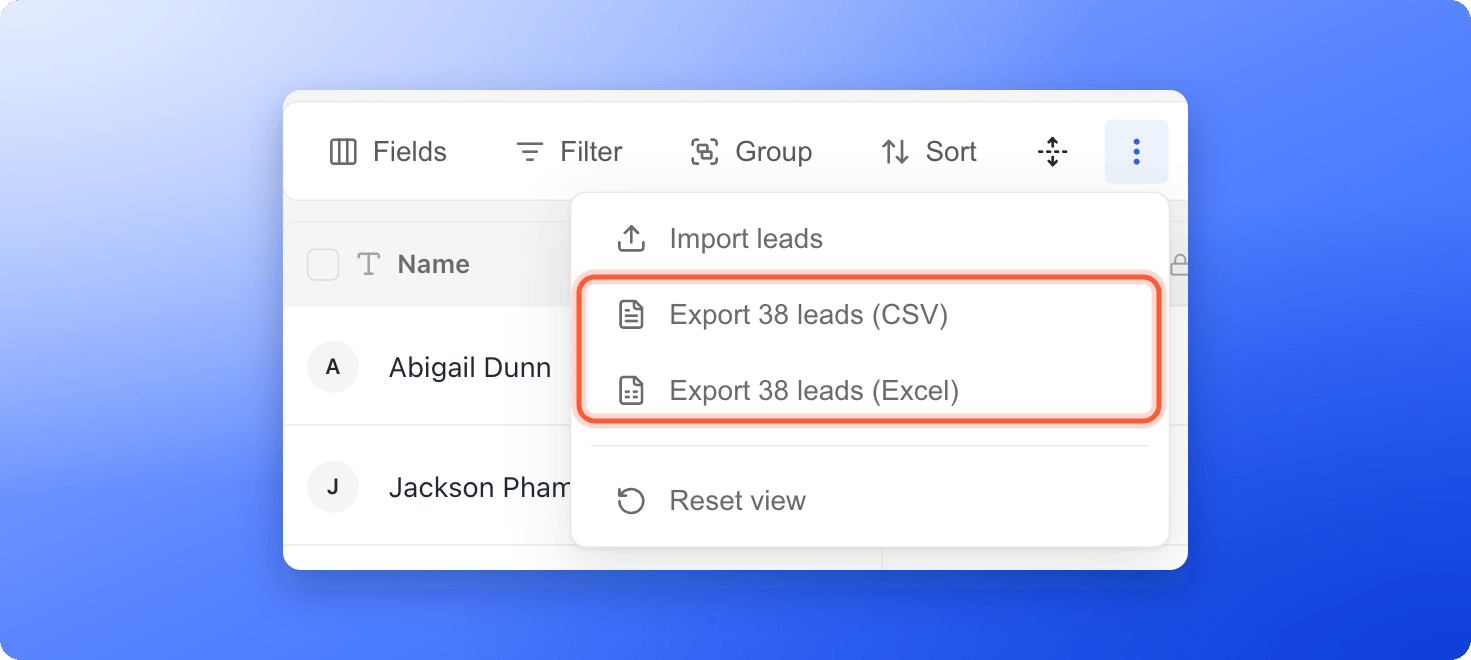 Your browser downloads **leads-export.csv** or **leads-export.xlsx**. Open it in Excel, Google Sheets or any other tool.
## Export only some leads
1. Hover over a lead's avatar in the **Name** column to show its checkbox, then tick each lead you want. To tick every lead in the table, use the checkbox in the header row.
2. A bar appears at the bottom of the screen with the number of leads selected. Click **"Export"**.
Your browser downloads **leads-export.csv** or **leads-export.xlsx**. Open it in Excel, Google Sheets or any other tool.
## Export only some leads
1. Hover over a lead's avatar in the **Name** column to show its checkbox, then tick each lead you want. To tick every lead in the table, use the checkbox in the header row.
2. A bar appears at the bottom of the screen with the number of leads selected. Click **"Export"**.
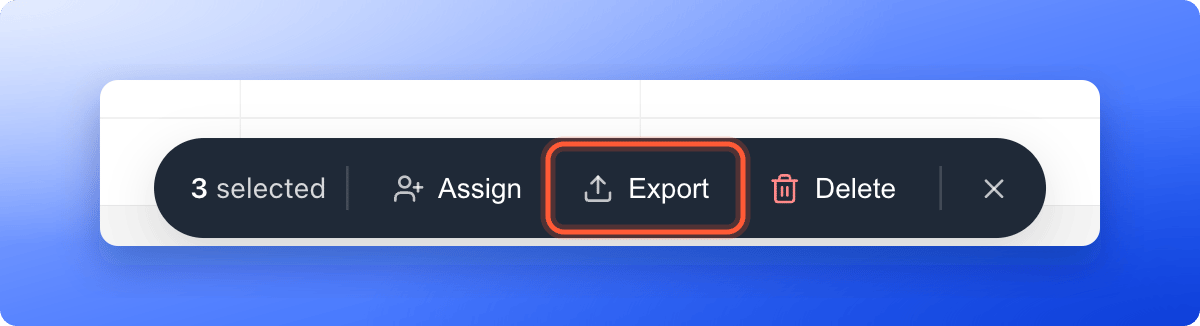 Exports of selected leads are always CSV files.
## What is in the file
* One column for each field you can see, in the same order as the table, with a header row. Hidden fields are left out.
* Choices appear as their names, checkboxes as **Yes** or **No**, and dates in the same format as the table. Fields with several choices list them separated by commas.
* The **Score** column exports as a number, not as **Hot**, **Warm** or **Cold**.
* Locked leads (leads over your plan's monthly limit) are not included.
## Troubleshooting
Hidden fields are not exported. Click **Fields**, turn the field on and export again.
If a value starts with an equals, plus, minus or at sign, AskFunnel adds an apostrophe so spreadsheet apps show it as text instead of running it as a formula.
A notice says **Couldn't export your leads.** Click **Try again**. If nothing downloads, check that your browser is allowed to download files from dash.askfunnel.com.
Clear your search and filters first, then open **View options** and check the number in the export option.
## What to do next
Remove spam, tests and leads you do not need. Export first to keep a copy.
Get your funnel numbers instead of your leads.
Skip manual exports and send every new lead to a spreadsheet.
Need help? Email [support@askfunnel.com](mailto:support@askfunnel.com).
Exports of selected leads are always CSV files.
## What is in the file
* One column for each field you can see, in the same order as the table, with a header row. Hidden fields are left out.
* Choices appear as their names, checkboxes as **Yes** or **No**, and dates in the same format as the table. Fields with several choices list them separated by commas.
* The **Score** column exports as a number, not as **Hot**, **Warm** or **Cold**.
* Locked leads (leads over your plan's monthly limit) are not included.
## Troubleshooting
Hidden fields are not exported. Click **Fields**, turn the field on and export again.
If a value starts with an equals, plus, minus or at sign, AskFunnel adds an apostrophe so spreadsheet apps show it as text instead of running it as a formula.
A notice says **Couldn't export your leads.** Click **Try again**. If nothing downloads, check that your browser is allowed to download files from dash.askfunnel.com.
Clear your search and filters first, then open **View options** and check the number in the export option.
## What to do next
Remove spam, tests and leads you do not need. Export first to keep a copy.
Get your funnel numbers instead of your leads.
Skip manual exports and send every new lead to a spreadsheet.
Need help? Email [support@askfunnel.com](mailto:support@askfunnel.com).