> ## Documentation Index
> Fetch the complete documentation index at: https://help.askfunnel.com/llms.txt
> Use this file to discover all available pages before exploring further.
# Create a custom field
> Add your own columns to a funnel's Leads table for notes, budgets, second phone numbers or internal IDs.
Add your own column to a funnel's **Leads** table to track extra information your funnel does not collect, such as a second phone number, a budget or an internal customer ID. You fill in a custom field by hand.
**Before you start**, you need:
* A role that can change fields: Global Admin, Workspace Admin or Contacts Manager. Content Editors do not have access to lead data.
* A funnel with its **Leads** tab open. See [View and manage your leads](/leads/view-and-manage-leads).
## Important to note
* Custom fields belong to one funnel. Create the same field again in each funnel that needs it. A funnel can have up to 300 fields.
* Custom fields are for your own tracking. They are not available as rules or personalization in [automated emails](/messages/automated-emails).
## Create a field
1. Open your funnel's **Leads** tab.
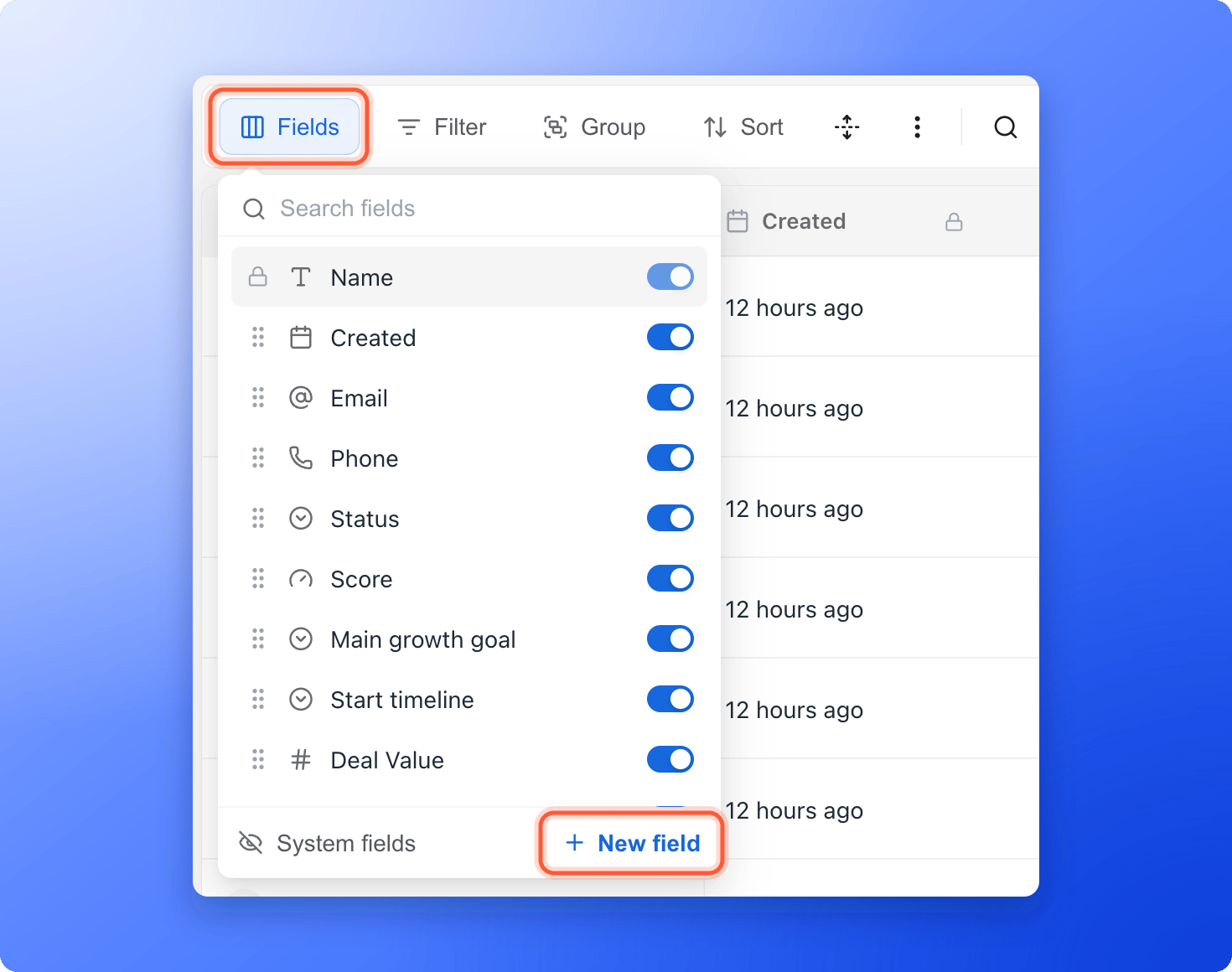
2. Click **Fields** in the toolbar.
3. Click **"New field"** at the bottom right of the panel.
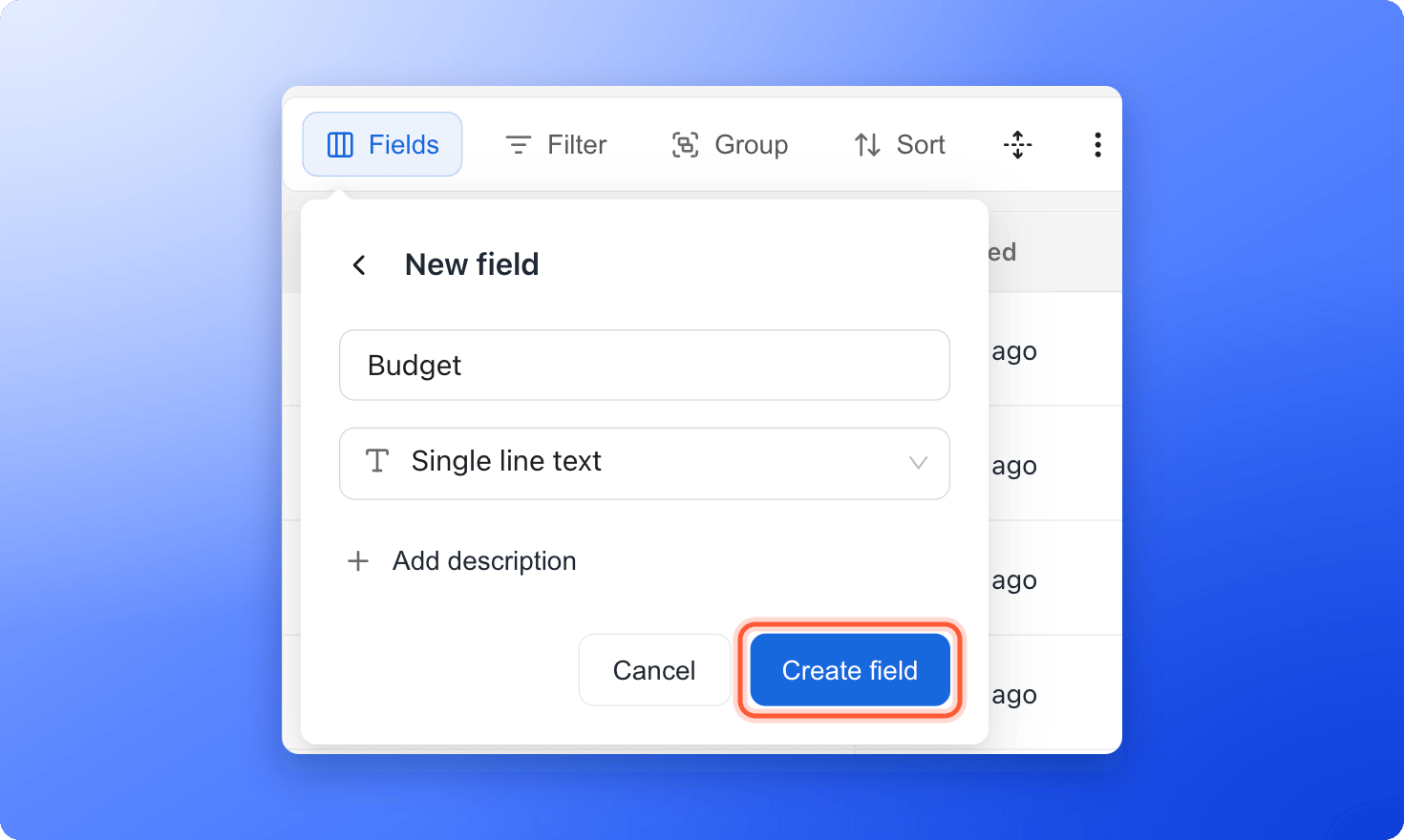
 1. Type a **Field name**, for example "2nd phone number". A name is required.
2. Open the type list and choose what the field will hold. See [Field types](#field-types) below.
3. Optionally click **Add description** to explain what the field is for.
Click **"Create field"**. The new column is added to your table. Scroll to the right to find it, or look for it in the **Fields** panel.
1. Type a **Field name**, for example "2nd phone number". A name is required.
2. Open the type list and choose what the field will hold. See [Field types](#field-types) below.
3. Optionally click **Add description** to explain what the field is for.
Click **"Create field"**. The new column is added to your table. Scroll to the right to find it, or look for it in the **Fields** panel.
 Click a cell in the new column, type the value and press **Enter** or click away to save. For select fields, pick from the list. You can add a new option from the list with **New option**.
## Field types
* **Single line text:** short answers and quick notes.
* **Long text:** longer notes. Turn on **Enable rich text** if you want bold, lists and links.
* **Number:** numeric values such as quantities or budgets.
* **Decimal:** exact amounts such as prices.
* **Single select:** a list where you pick one option. Click **Edit options**, add your options, optionally pick a color for each and click **Save**.
* **Multi select:** a list where you can pick several options.
* **Date**
* **Checkbox**
* **Email**
* **Phone**
* **URL**
* **Assignee:** pick one or more teammates.
## Edit or delete a field
Hover over the column header, click the small arrow and choose **Edit field** or **Delete field**. When you edit a field, click **Save changes** to keep your edits. Only fields you created can be edited or deleted. Fields that come from your funnel's questions and form fields change when you edit the funnel, and **Deal Value** can only be hidden.
Deleting a field removes the column from your table. If you add a field with the same name later, the old values do not come back.
## Troubleshooting
Only Global Admins, Workspace Admins and Contacts Managers can change fields, because Content Editors do not have access to lead data.
## What to do next
Choose which columns you see.
Download your leads, including your custom fields.
Need help? Email [support@askfunnel.com](mailto:support@askfunnel.com).
Click a cell in the new column, type the value and press **Enter** or click away to save. For select fields, pick from the list. You can add a new option from the list with **New option**.
## Field types
* **Single line text:** short answers and quick notes.
* **Long text:** longer notes. Turn on **Enable rich text** if you want bold, lists and links.
* **Number:** numeric values such as quantities or budgets.
* **Decimal:** exact amounts such as prices.
* **Single select:** a list where you pick one option. Click **Edit options**, add your options, optionally pick a color for each and click **Save**.
* **Multi select:** a list where you can pick several options.
* **Date**
* **Checkbox**
* **Email**
* **Phone**
* **URL**
* **Assignee:** pick one or more teammates.
## Edit or delete a field
Hover over the column header, click the small arrow and choose **Edit field** or **Delete field**. When you edit a field, click **Save changes** to keep your edits. Only fields you created can be edited or deleted. Fields that come from your funnel's questions and form fields change when you edit the funnel, and **Deal Value** can only be hidden.
Deleting a field removes the column from your table. If you add a field with the same name later, the old values do not come back.
## Troubleshooting
Only Global Admins, Workspace Admins and Contacts Managers can change fields, because Content Editors do not have access to lead data.
## What to do next
Choose which columns you see.
Download your leads, including your custom fields.
Need help? Email [support@askfunnel.com](mailto:support@askfunnel.com).