> ## Documentation Index
> Fetch the complete documentation index at: https://help.askfunnel.com/llms.txt
> Use this file to discover all available pages before exploring further.
# Track your Facebook and Instagram ads with Meta Pixel
> See which Facebook and Instagram ads bring visitors and leads to your funnel.
Available on: **all plans** (Starter, Growth, Scale and Enterprise). The Conversions API, which tracks from our servers, is available on **the Growth plan and above**.
Tell Meta who opened your funnel, what they did and who became a lead, so you can see which Facebook and Instagram ads work. A pixel is a small piece of code that reports what people do on your funnel back to an ad platform. Connect your Meta Pixel and AskFunnel sends the events for you.
With the Meta Pixel integration, you can:
* **See who visited.** AskFunnel sends Meta a **PageView** when someone opens your funnel.
* **See who became a lead.** When a visitor submits your form, AskFunnel sends a **Lead** event.
* **Follow every step.** Each funnel page, answer and button click is sent to Meta as its own event, so you can see where visitors drop off.
* **Tell Meta what counts.** Map any step to one of Meta's standard events. See [Map your funnel steps to standard events](/integrations/event-mapping).
* **Get past ad blockers.** On the Growth plan and above, the Conversions API sends events from AskFunnel's servers too.
**Before you start**, you need:
* A Meta Pixel and its Pixel ID. You find the ID in Meta Events Manager.
* A funnel to track. See [Launch your first funnel](/getting-started/launch-your-first-funnel).
## Important to note
* When your cookie banner is on, the pixel only tracks visitors who accept marketing cookies. See [Cookies and consent](/funnel-settings/cookies-and-consent).
* Ad blockers and some privacy browsers block the pixel. Test with your ad blocker turned off.
* Each funnel uses one Meta Pixel.
## Setup
1. From your main dashboard, find the funnel you want to track.
2. Click the three small dots (**...**) on that funnel's row, then click **"Funnel Settings"**.
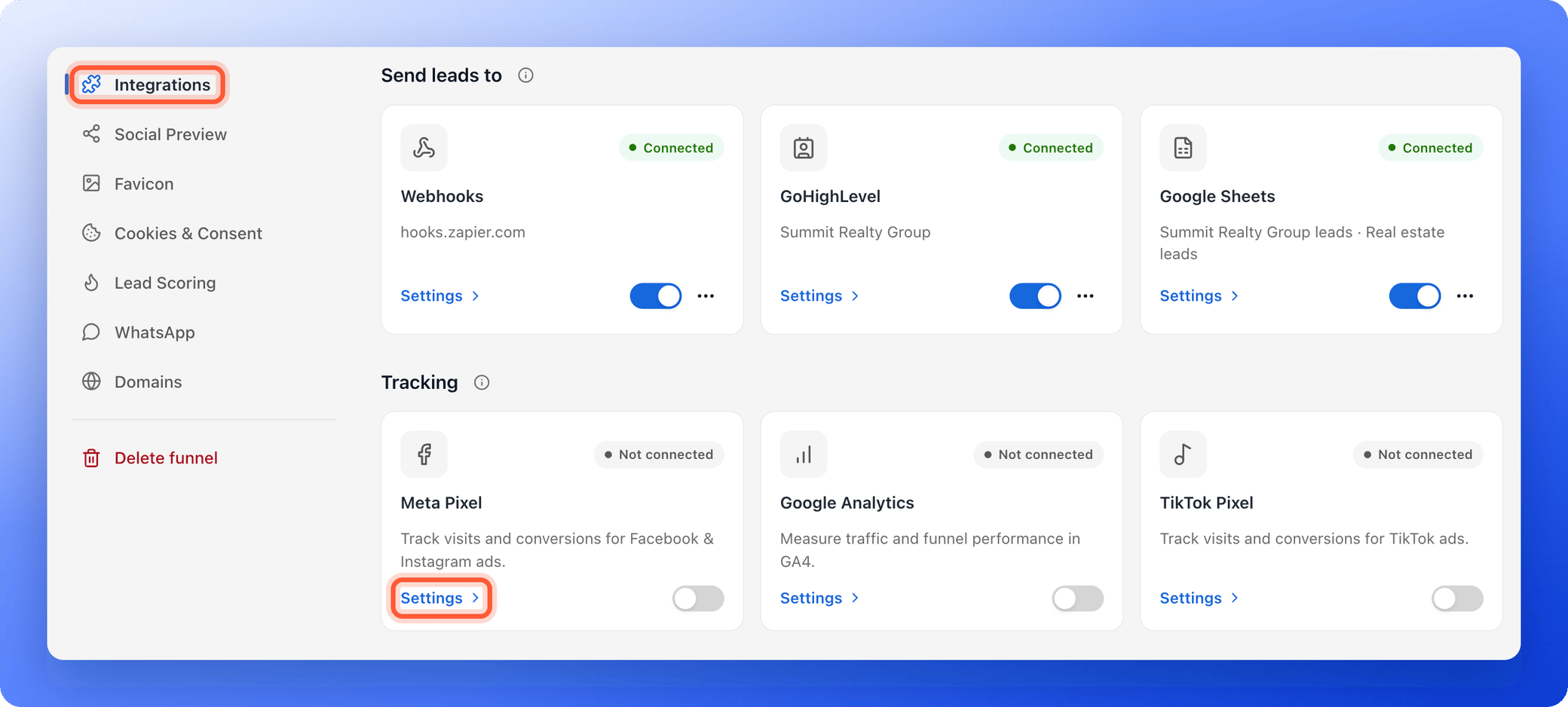
3. On the left side menu, click **"Integrations"**.
4. Under **Tracking**, on the **Meta Pixel** card, click **"Settings"**.
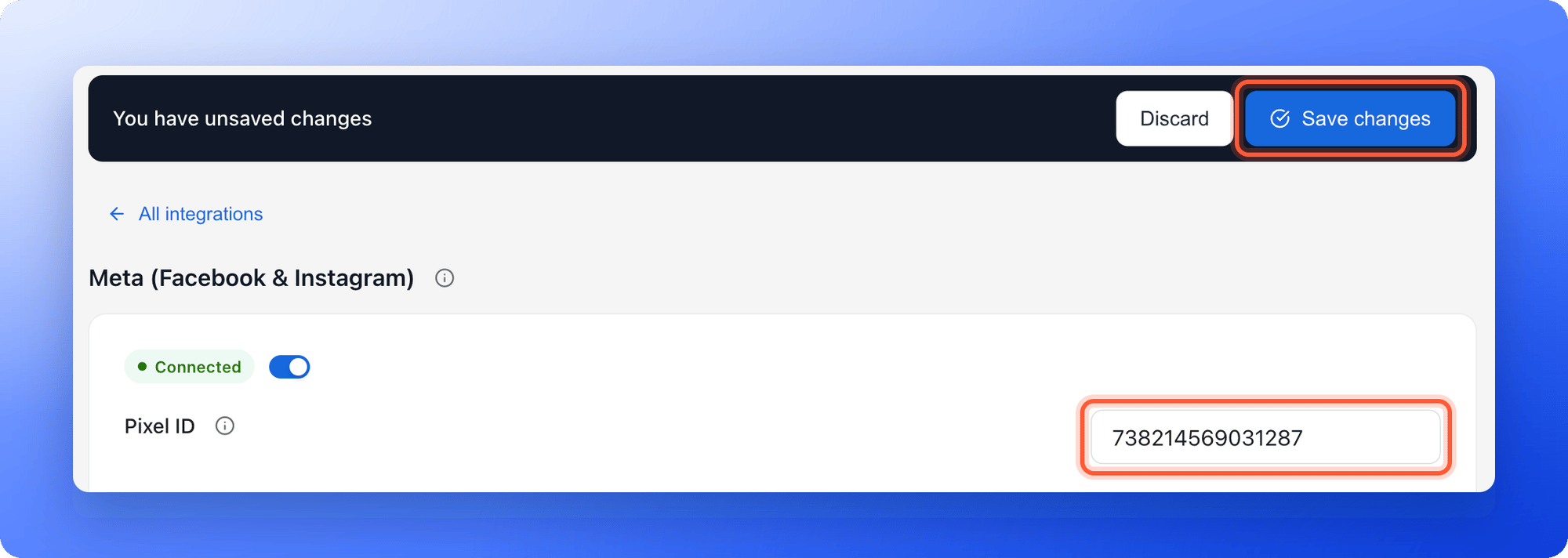
 1. Next to **Pixel ID**, paste your number, for example 1234567890.
2. In the bar that appears at the top, click **"Save changes"**. If your funnel is published, AskFunnel shows **Settings saved. Your live funnel is updated.**
1. Next to **Pixel ID**, paste your number, for example 1234567890.
2. In the bar that appears at the top, click **"Save changes"**. If your funnel is published, AskFunnel shows **Settings saved. Your live funnel is updated.**
 In Meta Events Manager, open **Data sources**, select your dataset and copy its **ID**. A dataset is Meta's name for a pixel.
Under **Map events to standard events**, click **"Add entry"**, pick a funnel step on the left and the Meta event it should send on the right. Standard events are Meta's fixed list of event names, such as Lead or Purchase. Anything you do not map is still sent as a custom event. The full guide is in [Map your funnel steps to standard events](/integrations/event-mapping).
## Add the Conversions API (optional, Growth and above)
Browsers with ad blockers or strict privacy settings often block the pixel, so those leads never reach Meta. The Conversions API sends the same events from AskFunnel's servers, and Meta removes the duplicates.
1. Save your Pixel ID first. **"Connect"** stays locked until the ID is saved.
2. In Meta Events Manager, open your dataset's **Settings**, find **Conversions API** and generate an access token. Copy it.
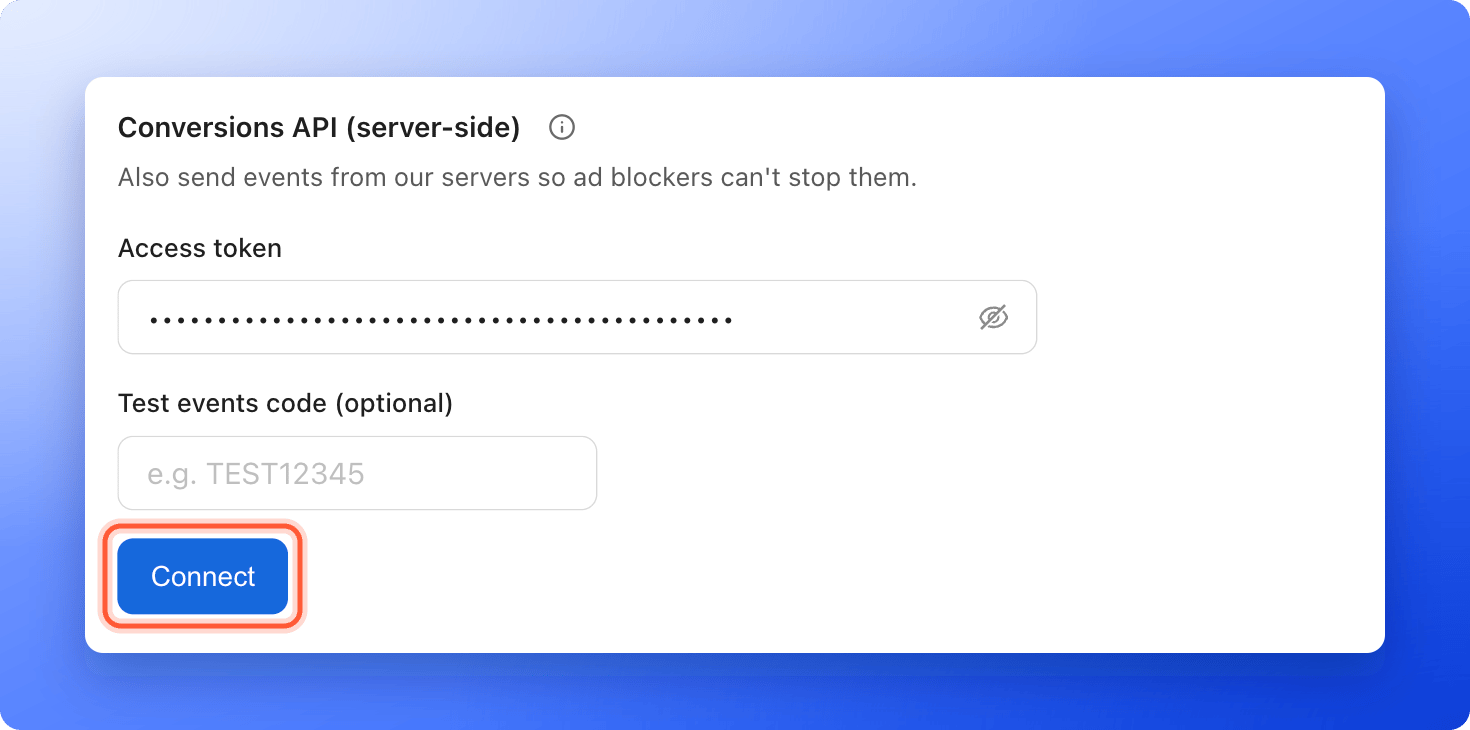
3. In AskFunnel, under **Conversions API (server-side)**, paste the token into **Access token**.
4. Optional: to check your setup first, paste the code from Meta's **Test events** tab into **Test events code (optional)**.
5. Click **"Connect"**. AskFunnel shows **Conversions API connected. Meta verified your token.** This applies right away. You do not need to save or publish.
In Meta Events Manager, open **Data sources**, select your dataset and copy its **ID**. A dataset is Meta's name for a pixel.
Under **Map events to standard events**, click **"Add entry"**, pick a funnel step on the left and the Meta event it should send on the right. Standard events are Meta's fixed list of event names, such as Lead or Purchase. Anything you do not map is still sent as a custom event. The full guide is in [Map your funnel steps to standard events](/integrations/event-mapping).
## Add the Conversions API (optional, Growth and above)
Browsers with ad blockers or strict privacy settings often block the pixel, so those leads never reach Meta. The Conversions API sends the same events from AskFunnel's servers, and Meta removes the duplicates.
1. Save your Pixel ID first. **"Connect"** stays locked until the ID is saved.
2. In Meta Events Manager, open your dataset's **Settings**, find **Conversions API** and generate an access token. Copy it.
3. In AskFunnel, under **Conversions API (server-side)**, paste the token into **Access token**.
4. Optional: to check your setup first, paste the code from Meta's **Test events** tab into **Test events code (optional)**.
5. Click **"Connect"**. AskFunnel shows **Conversions API connected. Meta verified your token.** This applies right away. You do not need to save or publish.
 Once connected, AskFunnel sends a **Lead** event from its servers for each new lead, and a custom event named after the new status whenever you change a lead's status, for example Qualified. Only leads who accepted marketing cookies are sent. The Conversions API does not bypass consent choices or Meta's data rules.
While a test events code is set, **Test mode** shows next to **Connected**. Events sent in test mode appear in Meta's **Test events** tab but never reach your ads. When your setup works, click **"Turn off"** next to **Test mode**.
## Report revenue to Meta (optional, Growth and above)
Once the Conversions API is connected, you can tell Meta when a lead turns into revenue, so it finds buyers and not only form fillers.
1. Turn on **Revenue tracking**.
2. Under **When a lead reaches**, pick the status that means a closed deal, and under **send its Deal Value in**, pick your currency. Click **"Turn on"**. AskFunnel adds a **Deal Value** column to your leads table.
3. Your team types each lead's value into **Deal Value**, before or after moving the lead to that status.
When a lead is in that status and has a value, AskFunnel sends Meta one **Purchase** event with that amount. Leads without a value send no Purchase, and only leads who accepted marketing cookies are sent. Do not also map a funnel step to Purchase, or buyers are counted twice.
## How do I know it is working?
* The Meta Pixel card shows **Connected**, and its switch is on.
* In Meta Events Manager, open your dataset and click **Test events**. Open your funnel in another tab in the same browser and accept the cookies. You see **PageView**, then an event for each page and answer as you click through, then **Lead** when you submit the form.
* With the Conversions API connected, Meta also shows the events sent from AskFunnel's servers.
## Troubleshooting
Check these, in order:
* The card shows **Connected**, not **Paused** or **Not connected**.
* You clicked **"Save changes"** after pasting the Pixel ID, and the ID has no extra spaces.
* You accepted marketing cookies on the funnel, if your cookie banner is on.
* Your ad blocker or browser privacy setting is off for the test.
* A few minutes have passed. Meta can take a little while to show events.
The switch on the card is off. Your setup is kept. Turn the switch on and click **"Save changes"**.
Look for **Test mode** next to **Connected**. Events sent in test mode never reach your ads. Click **"Turn off"**.
The token may have expired or been revoked, so server events are not sending. Generate a new token in Meta Events Manager, then click **"Reconnect"**, paste it and click **"Replace token"**.
**"Connect"** needs a saved **Pixel ID** and an access token. Paste the token, and if you just typed the Pixel ID, click **"Save changes"** first.
Click **"Upgrade to Growth"** or see [Upgrade your plan](/billing/upgrade). The browser pixel keeps working on every plan.
## Manage the integration
* **Pause it:** turn off the switch on the Meta Pixel card, then click **"Save changes"**. Your Pixel ID, mappings and token are kept.
* **Change the pixel:** replace the **Pixel ID** and click **"Save changes"**.
* **Replace the token:** under **Conversions API (server-side)**, click **"Replace token"**.
* **Remove it from the funnel:** if the Conversions API is connected, click **"Disconnect"** first. Server events stop and the stored token is deleted. Then clear the **Pixel ID** and click **"Save changes"**.
## What to do next
Tell Meta and TikTok which steps count as a lead or a purchase.
See how visitors move through your funnel.
Connect TikTok Pixel to see which ads bring leads.
Visitors, conversions and where people drop off.
Need help? Email [support@askfunnel.com](mailto:support@askfunnel.com).
Once connected, AskFunnel sends a **Lead** event from its servers for each new lead, and a custom event named after the new status whenever you change a lead's status, for example Qualified. Only leads who accepted marketing cookies are sent. The Conversions API does not bypass consent choices or Meta's data rules.
While a test events code is set, **Test mode** shows next to **Connected**. Events sent in test mode appear in Meta's **Test events** tab but never reach your ads. When your setup works, click **"Turn off"** next to **Test mode**.
## Report revenue to Meta (optional, Growth and above)
Once the Conversions API is connected, you can tell Meta when a lead turns into revenue, so it finds buyers and not only form fillers.
1. Turn on **Revenue tracking**.
2. Under **When a lead reaches**, pick the status that means a closed deal, and under **send its Deal Value in**, pick your currency. Click **"Turn on"**. AskFunnel adds a **Deal Value** column to your leads table.
3. Your team types each lead's value into **Deal Value**, before or after moving the lead to that status.
When a lead is in that status and has a value, AskFunnel sends Meta one **Purchase** event with that amount. Leads without a value send no Purchase, and only leads who accepted marketing cookies are sent. Do not also map a funnel step to Purchase, or buyers are counted twice.
## How do I know it is working?
* The Meta Pixel card shows **Connected**, and its switch is on.
* In Meta Events Manager, open your dataset and click **Test events**. Open your funnel in another tab in the same browser and accept the cookies. You see **PageView**, then an event for each page and answer as you click through, then **Lead** when you submit the form.
* With the Conversions API connected, Meta also shows the events sent from AskFunnel's servers.
## Troubleshooting
Check these, in order:
* The card shows **Connected**, not **Paused** or **Not connected**.
* You clicked **"Save changes"** after pasting the Pixel ID, and the ID has no extra spaces.
* You accepted marketing cookies on the funnel, if your cookie banner is on.
* Your ad blocker or browser privacy setting is off for the test.
* A few minutes have passed. Meta can take a little while to show events.
The switch on the card is off. Your setup is kept. Turn the switch on and click **"Save changes"**.
Look for **Test mode** next to **Connected**. Events sent in test mode never reach your ads. Click **"Turn off"**.
The token may have expired or been revoked, so server events are not sending. Generate a new token in Meta Events Manager, then click **"Reconnect"**, paste it and click **"Replace token"**.
**"Connect"** needs a saved **Pixel ID** and an access token. Paste the token, and if you just typed the Pixel ID, click **"Save changes"** first.
Click **"Upgrade to Growth"** or see [Upgrade your plan](/billing/upgrade). The browser pixel keeps working on every plan.
## Manage the integration
* **Pause it:** turn off the switch on the Meta Pixel card, then click **"Save changes"**. Your Pixel ID, mappings and token are kept.
* **Change the pixel:** replace the **Pixel ID** and click **"Save changes"**.
* **Replace the token:** under **Conversions API (server-side)**, click **"Replace token"**.
* **Remove it from the funnel:** if the Conversions API is connected, click **"Disconnect"** first. Server events stop and the stored token is deleted. Then clear the **Pixel ID** and click **"Save changes"**.
## What to do next
Tell Meta and TikTok which steps count as a lead or a purchase.
See how visitors move through your funnel.
Connect TikTok Pixel to see which ads bring leads.
Visitors, conversions and where people drop off.
Need help? Email [support@askfunnel.com](mailto:support@askfunnel.com).