> ## Documentation Index
> Fetch the complete documentation index at: https://help.askfunnel.com/llms.txt
> Use this file to discover all available pages before exploring further.
# Send leads to Make
> Start a Make scenario for every new funnel lead, with all their answers, so they reach the apps you already use.
Available on: **the Growth plan and above**.
Make connects your apps with visual automations. Send every new AskFunnel lead to Make and it can add the lead to your CRM, write a row in a spreadsheet, send a message or start anything else you build. A scenario is Make's name for one automation. Each new lead starts your scenario the moment it arrives, with the contact details, every answer and where the lead came from.
You do this with a webhook, which is a web address that receives each new lead. AskFunnel has no separate Make connection to install. The steps are below, and [Send your leads to a webhook](/integrations/webhooks) explains the webhook settings in detail.
With Make, you can:
* **Connect apps AskFunnel does not connect to directly.** For example Airtable, Notion, Slack or your CRM.
* **Use every answer.** Pick the contact's email, phone and each answer in any module of your scenario.
* **Stay in control.** AskFunnel retries automatically and shows every lead in a delivery log.
**Before you start**, you need:
* The Growth plan or above. See [Upgrade your plan](/billing/upgrade).
* A Workspace Admin or Global Admin role. Only they can manage webhooks.
* A Make account. Each lead your scenario handles uses credits from your Make plan, so check the plan's monthly allowance.
* A funnel with a form. See [Set up your lead capture form](/funnels/lead-capture-forms).
## Important to note
* Only new leads are sent. Leads that arrived before you added the webhook are not.
* Make gives each scenario its own webhook address. You cannot use one Make address in two scenarios. You can paste the same address into several funnels, and each lead carries its funnel's name so your scenario can tell them apart.
* If Make cannot take more requests, it answers with an error. AskFunnel then marks the lead **Failed** and does not try again by itself. After the problem is fixed, click **"Retry failed"** in the delivery log.
* If your plan drops below Growth, your webhook is kept, but new leads are no longer sent to it.
## Set up the connection
In Make, create a new scenario, then:
1. Click the first module and search for **Webhooks**. Choose **Custom webhook**.
2. Next to **Webhook**, click **Add**.
3. In **Webhook name**, type a name you will recognize, for example "AskFunnel leads". Click **Save**.
4. Make creates an address and starts listening. Click **Copy address to clipboard**.
Click **Run once**. The **Custom webhook** module now waits for data. Keep this window open.
1. From your main dashboard, find the funnel you want to connect.
2. Click the three small dots (**...**) on that funnel's row, then click **"Funnel Settings"**.
3. On the left side menu, click **"Integrations"**.
4. Under **Send leads to**, on the **Webhooks** card, click **"Settings"**.
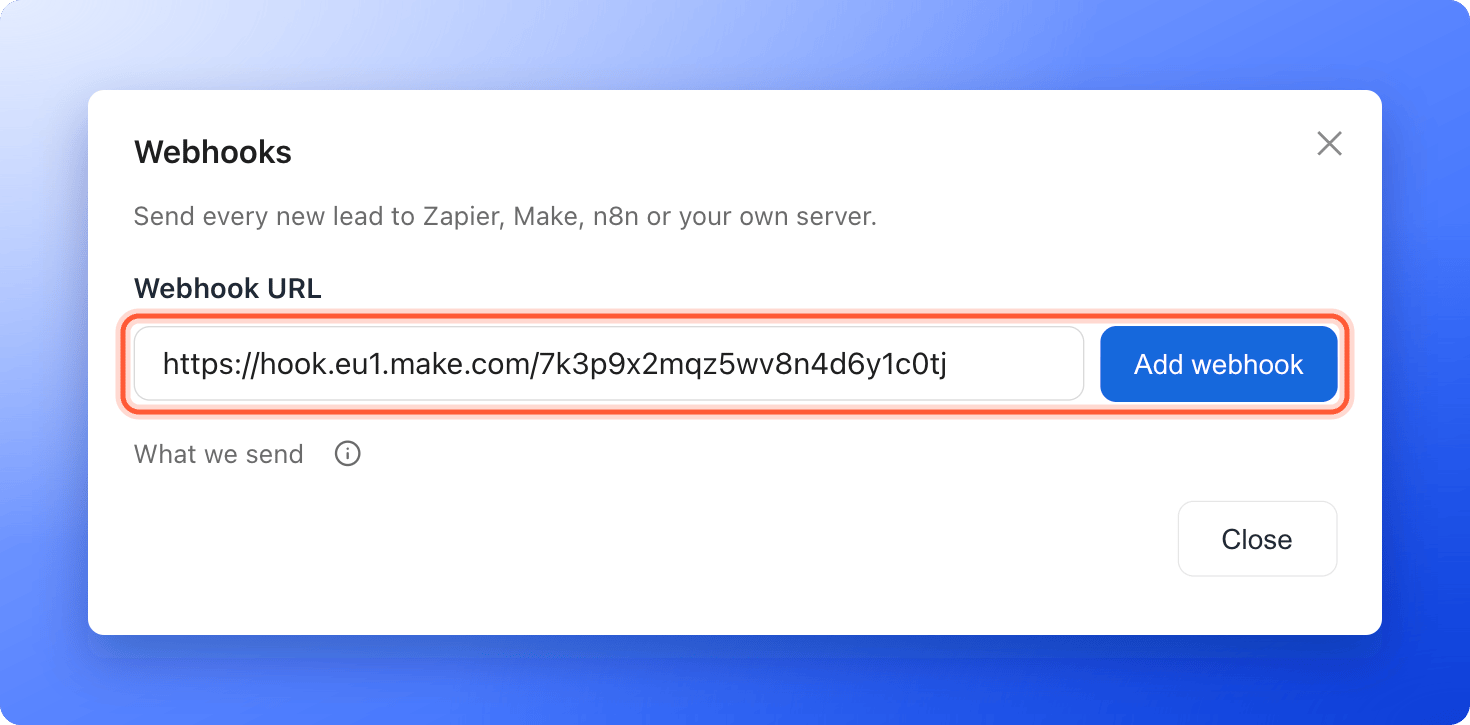
5. Paste the address into **Webhook URL** and click **"Add webhook"**.
You see **Webhook added. New leads will be sent to it.**
 1. In AskFunnel, click the three dots (**...**) on the webhook's row, then **"Send test"**.
2. You see **Test delivered**, for example **Test delivered (200 OK)**. The sample lead is named **AskFunnel Test**.
3. Back in Make, the module learns the fields of a lead from this test and lists them for the next modules.
If Make is not waiting, click **Run once** again and send the test again.
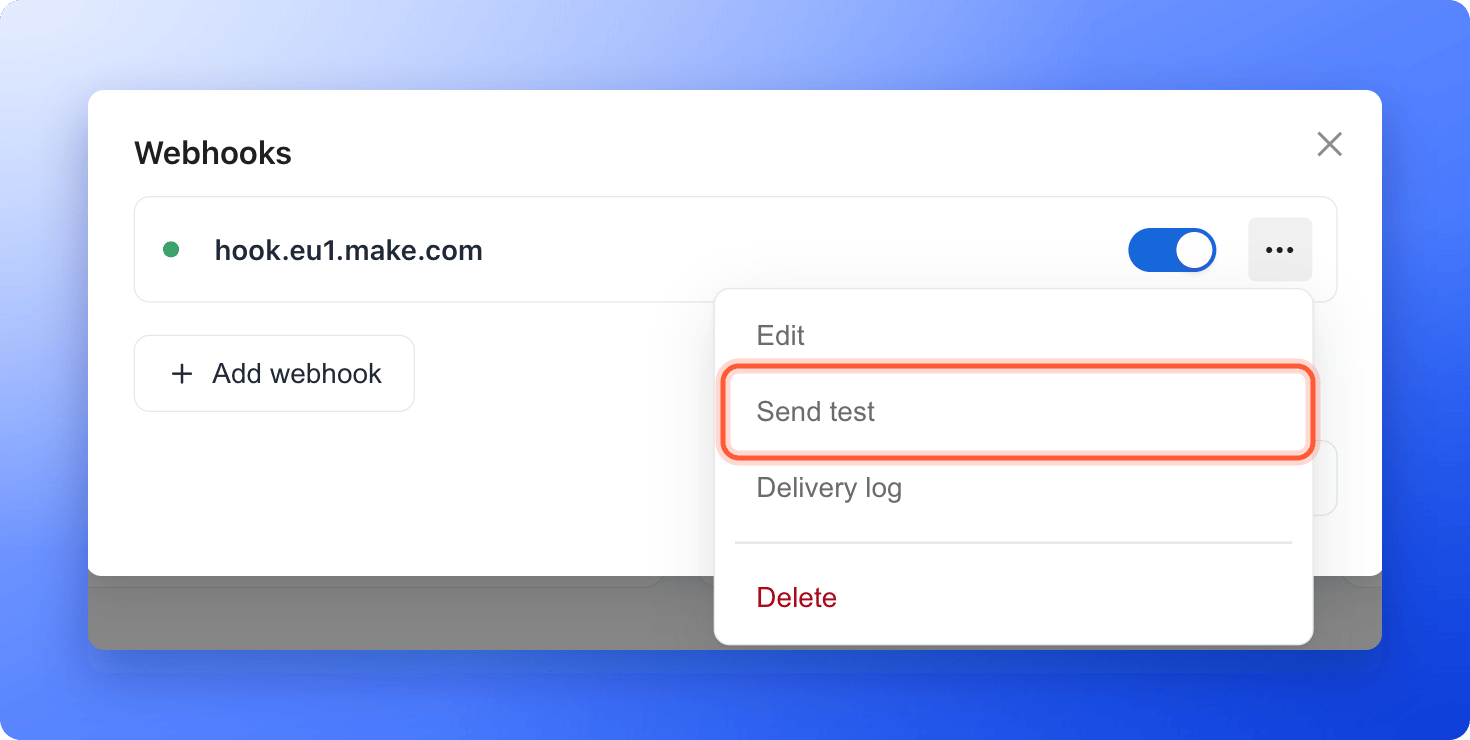
1. In AskFunnel, click the three dots (**...**) on the webhook's row, then **"Send test"**.
2. You see **Test delivered**, for example **Test delivered (200 OK)**. The sample lead is named **AskFunnel Test**.
3. Back in Make, the module learns the fields of a lead from this test and lists them for the next modules.
If Make is not waiting, click **Run once** again and send the test again.
 Add a module for the app you want, for example **Google Sheets**, **Airtable** or **Slack**, and fill its fields with values from the test lead. The lead's name, email and phone are in the contact details, and each answer is in the answers, named after your question. The full list is in [What AskFunnel sends](/integrations/webhook-reference).
* The test lead has `test` set to true. To keep test leads out of your CRM, add a filter between the modules and only continue when `test` is false.
* Answers are named after your questions. If you rename a question later, its name in Make changes too, and you need to pick it again.
Switch your scenario on, so that it runs each time a lead arrives. A scenario that is off does not process leads.
Open your live funnel, fill in the form and submit it. Your scenario runs within moments. Delete the test lead in your other app afterward if you like.
## How do I know it is working?
* The **Webhooks** card in AskFunnel shows **Connected** and the address of your webhook.
* In AskFunnel, click the three dots (**...**) on the webhook, then **"Delivery log"**. Each lead shows **Delivered**, **Retrying** or **Failed**. Tests are listed as **Test**.
* In Make, your scenario's history shows a run for each lead.
## Troubleshooting
Click **Run once** in Make so the **Custom webhook** module is waiting, then send the test again from AskFunnel. Check that the address in AskFunnel is the one from this module.
Make remembers the fields of the first test. After you add or rename a question, open the **Custom webhook** module in Make, click **Detect new values**, then send another test from AskFunnel. The new fields appear for your modules.
Make answered with an error such as 400. This can happen if you set a data structure on the webhook that a lead does not match, or if Make has too many requests waiting. Remove the data structure or fix it, wait until Make has room, then click **"Retry failed"** in the delivery log.
Check that you pasted the whole address from Make, with no spaces, and that the webhook still exists in Make. Other test messages are explained in [Send your leads to a webhook](/integrations/webhooks#troubleshooting).
AskFunnel delivers each lead at least once. If Make was slow and AskFunnel retried, or you clicked **"Retry"**, the same lead arrives again with the same ID. See [The same lead arrived twice](/integrations/webhooks#troubleshooting).
Webhooks are available on the Growth plan and above. Click **"Upgrade to Growth"** in the Webhooks settings, or see [Upgrade your plan](/billing/upgrade).
## Manage the connection
* **Send to Make and other tools:** add up to 10 webhooks to a funnel. Click **"Add webhook"** in the Webhooks settings.
* **Pause it:** turn off the switch on the webhook's row. Leads that arrive while it is paused are not sent later.
* **Remove it:** click **"Delete webhook"** in **"Edit webhook"**. Switch off or delete the scenario in Make too.
## What to do next
Connect Zapier instead, with a Zap.
Headers, signing and the delivery log.
Every field of a lead, for your scenario.
Need help? Email [support@askfunnel.com](mailto:support@askfunnel.com).
Add a module for the app you want, for example **Google Sheets**, **Airtable** or **Slack**, and fill its fields with values from the test lead. The lead's name, email and phone are in the contact details, and each answer is in the answers, named after your question. The full list is in [What AskFunnel sends](/integrations/webhook-reference).
* The test lead has `test` set to true. To keep test leads out of your CRM, add a filter between the modules and only continue when `test` is false.
* Answers are named after your questions. If you rename a question later, its name in Make changes too, and you need to pick it again.
Switch your scenario on, so that it runs each time a lead arrives. A scenario that is off does not process leads.
Open your live funnel, fill in the form and submit it. Your scenario runs within moments. Delete the test lead in your other app afterward if you like.
## How do I know it is working?
* The **Webhooks** card in AskFunnel shows **Connected** and the address of your webhook.
* In AskFunnel, click the three dots (**...**) on the webhook, then **"Delivery log"**. Each lead shows **Delivered**, **Retrying** or **Failed**. Tests are listed as **Test**.
* In Make, your scenario's history shows a run for each lead.
## Troubleshooting
Click **Run once** in Make so the **Custom webhook** module is waiting, then send the test again from AskFunnel. Check that the address in AskFunnel is the one from this module.
Make remembers the fields of the first test. After you add or rename a question, open the **Custom webhook** module in Make, click **Detect new values**, then send another test from AskFunnel. The new fields appear for your modules.
Make answered with an error such as 400. This can happen if you set a data structure on the webhook that a lead does not match, or if Make has too many requests waiting. Remove the data structure or fix it, wait until Make has room, then click **"Retry failed"** in the delivery log.
Check that you pasted the whole address from Make, with no spaces, and that the webhook still exists in Make. Other test messages are explained in [Send your leads to a webhook](/integrations/webhooks#troubleshooting).
AskFunnel delivers each lead at least once. If Make was slow and AskFunnel retried, or you clicked **"Retry"**, the same lead arrives again with the same ID. See [The same lead arrived twice](/integrations/webhooks#troubleshooting).
Webhooks are available on the Growth plan and above. Click **"Upgrade to Growth"** in the Webhooks settings, or see [Upgrade your plan](/billing/upgrade).
## Manage the connection
* **Send to Make and other tools:** add up to 10 webhooks to a funnel. Click **"Add webhook"** in the Webhooks settings.
* **Pause it:** turn off the switch on the webhook's row. Leads that arrive while it is paused are not sent later.
* **Remove it:** click **"Delete webhook"** in **"Edit webhook"**. Switch off or delete the scenario in Make too.
## What to do next
Connect Zapier instead, with a Zap.
Headers, signing and the delivery log.
Every field of a lead, for your scenario.
Need help? Email [support@askfunnel.com](mailto:support@askfunnel.com).