> ## Documentation Index
> Fetch the complete documentation index at: https://help.askfunnel.com/llms.txt
> Use this file to discover all available pages before exploring further.
# Send your leads to HighLevel (GoHighLevel)
> Every new funnel lead becomes a HighLevel contact, with all their answers.
Available on: **all plans** (Starter, Growth, Scale and Enterprise).
Send every new funnel lead to HighLevel as a contact, with their answers, lead score (a Cold, Warm or Hot label based on their answers) and ad source. HighLevel is the all-in-one sales and marketing platform many agencies and businesses use to follow up with their leads.
With the HighLevel integration, you can:
* **Send leads straight to HighLevel.** No Zapier, no exports and no API key. You connect with your HighLevel login.
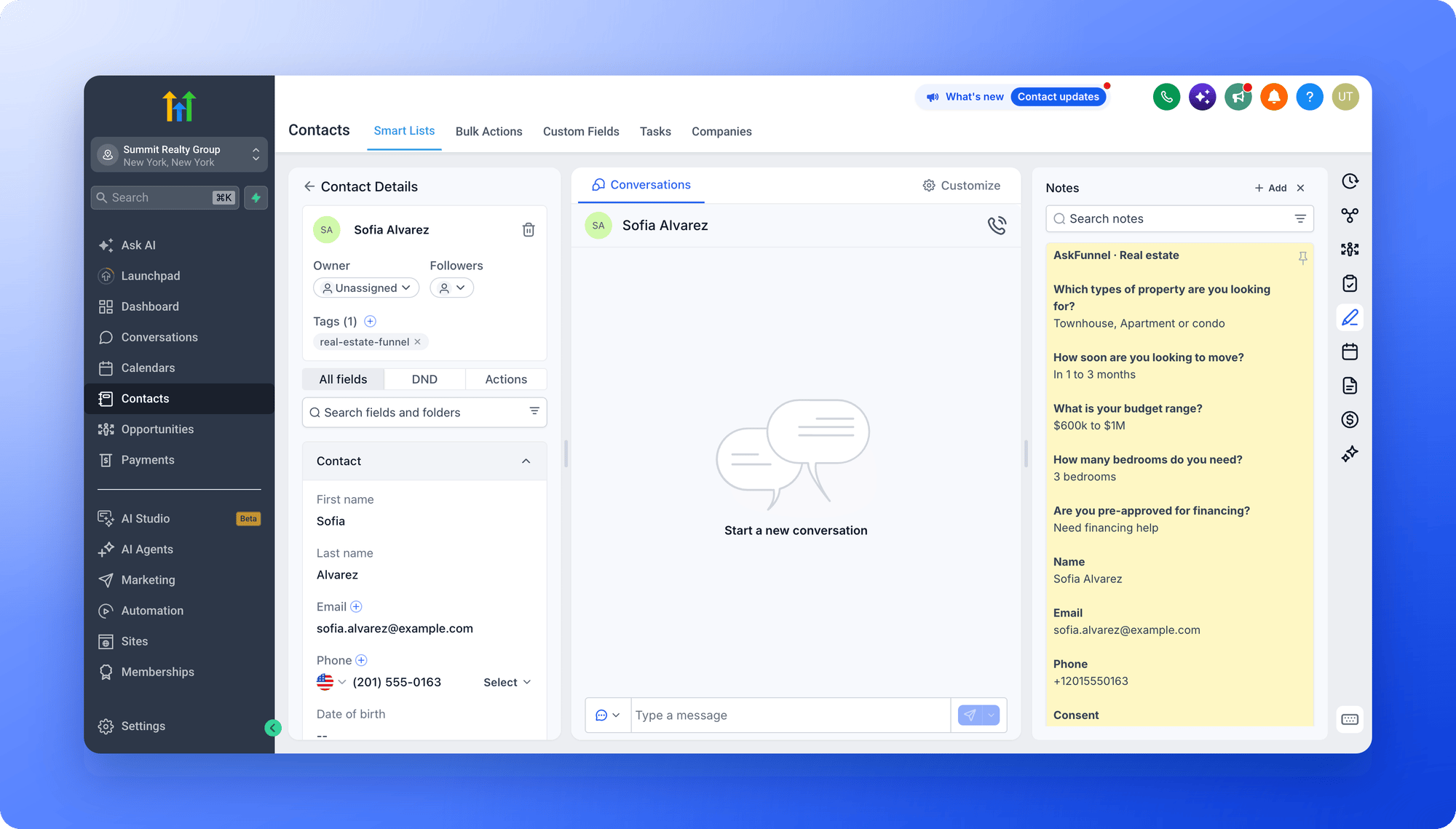
* **Keep every answer on the contact.** Put answers into standard or custom contact fields, and get a note with every question and answer, the lead score and where the lead came from.
* **Start your follow-up right away.** Add tags that start your HighLevel workflows. Tags are added after the answers are saved, so the workflow already has everything it needs.
* **Never lose a lead quietly.** AskFunnel tries again automatically (up to 7 attempts over about 21 hours), shows every lead in a delivery log, and emails you if something needs your attention.
**Before you start**, you need:
* A Workspace Admin or Global Admin role. Only they can manage where leads are sent.
* A HighLevel account with a sub-account (a separate space for one business inside HighLevel) to receive your leads.
* Any custom fields you want to fill, created in HighLevel first. In HighLevel, go to **Settings**, then **Custom Fields**. You cannot choose a field that does not exist yet.
## Important to note
* HighLevel keeps contacts inside a sub-account, so each funnel sends its leads to one sub-account.
* If a contact with the same email or phone already exists, AskFunnel updates that contact, and the fields you match replace the values already there. This follows your HighLevel duplicate contact setting.
## Setup
1. From your main dashboard, find the funnel you want to connect.
2. Click the three small dots (**...**) on that funnel's row, then click **"Funnel Settings"**.
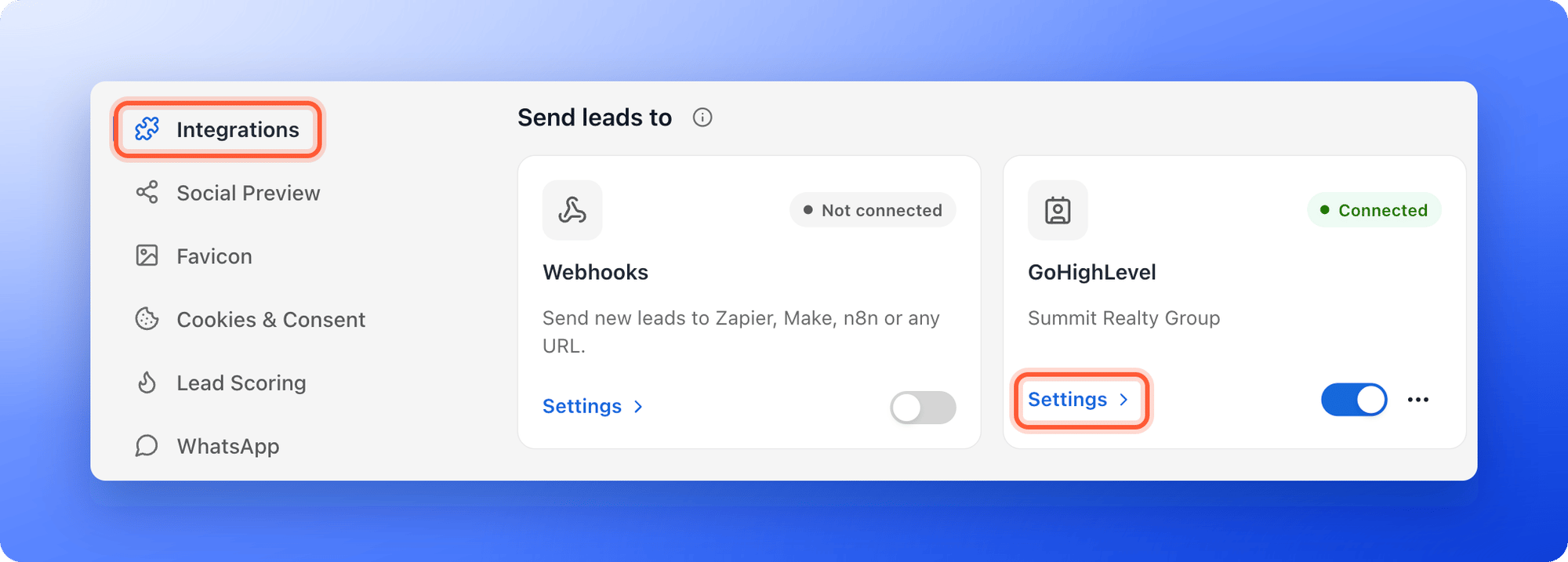
3. On the left side menu, click **"Integrations"**.
4. On the **GoHighLevel** card, click **"Settings"**.
5. Click **"Connect GoHighLevel"**. A HighLevel window opens.
6. Sign in to HighLevel if asked, choose the sub-account that should receive your leads, and approve access.
7. Back in AskFunnel, the sub-account is selected for you. If you signed in as an agency and approved several sub-accounts, pick the one this funnel should use.
HighLevel may first show a message titled **"Install Private App"**. That is expected for AskFunnel's HighLevel app. Click **"Proceed to Install"** to continue.
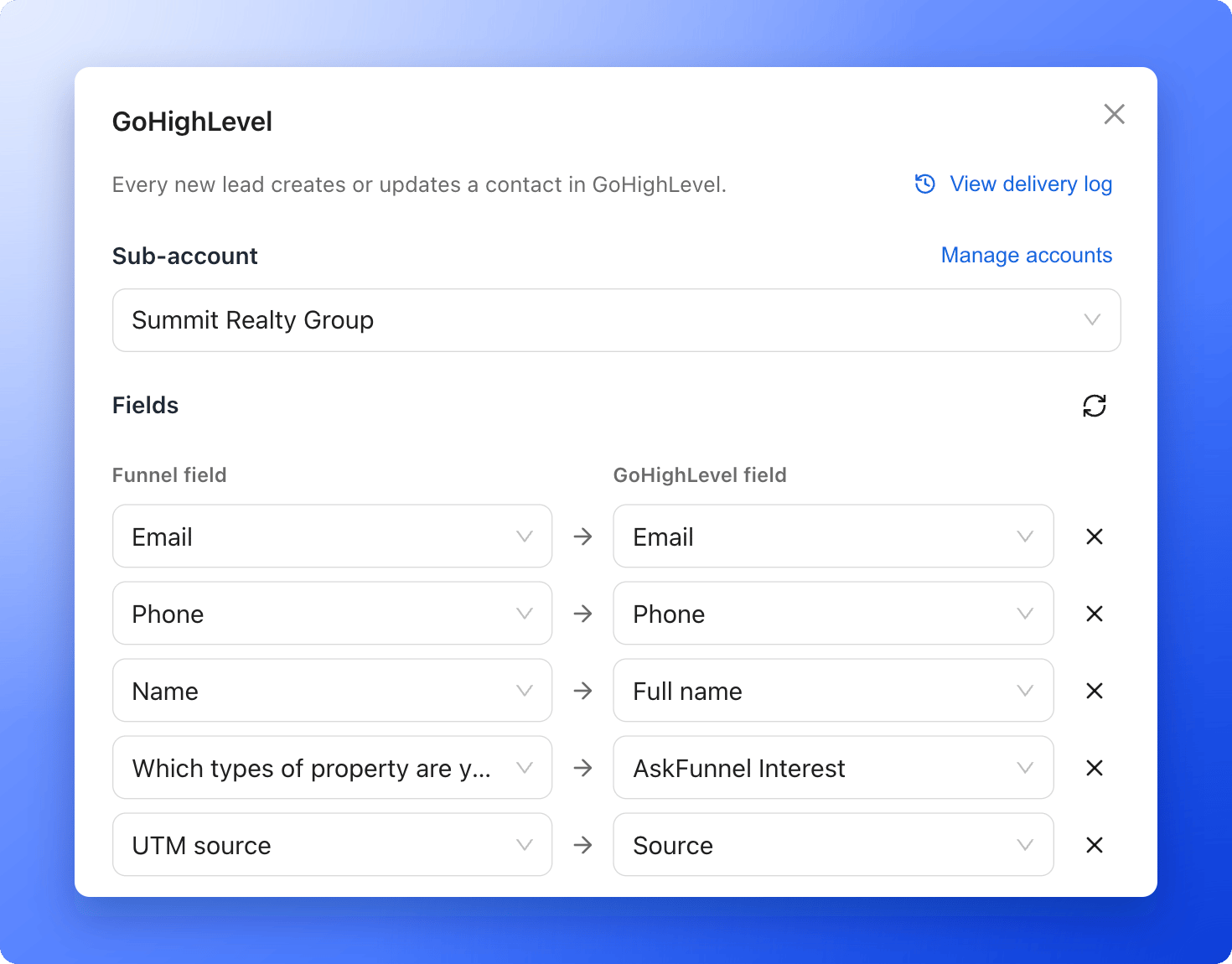
 1. Under **Fields**, each row sends a funnel field (left) to a HighLevel field (right). Email, phone and name are matched for you.
2. Click **"Add field"** to send more answers, for example your budget question to a custom field.
3. Keep at least an email or phone in the list, so HighLevel can find the contact.
1. Under **Fields**, each row sends a funnel field (left) to a HighLevel field (right). Email, phone and name are matched for you.
2. Click **"Add field"** to send more answers, for example your budget question to a custom field.
3. Keep at least an email or phone in the list, so HighLevel can find the contact.
 * Matching an answer to a HighLevel dropdown, radio or checkbox field? Its options must be written exactly the same in both places. AskFunnel checks this when you save and tells you which answers do not match.
* Added a custom field in HighLevel after connecting? Click the refresh icon next to **Fields** to see it.
* **Tags (optional):** choose existing tags or type new ones. They are added to the contact, and tags the contact already has are kept.
* **Add all answers as a note:** on by default. The contact gets a note with every answer, even ones you did not match to a field, plus the lead score and where the lead came from.
* Matching an answer to a HighLevel dropdown, radio or checkbox field? Its options must be written exactly the same in both places. AskFunnel checks this when you save and tells you which answers do not match.
* Added a custom field in HighLevel after connecting? Click the refresh icon next to **Fields** to see it.
* **Tags (optional):** choose existing tags or type new ones. They are added to the contact, and tags the contact already has are kept.
* **Add all answers as a note:** on by default. The contact gets a note with every answer, even ones you did not match to a field, plus the lead score and where the lead came from.
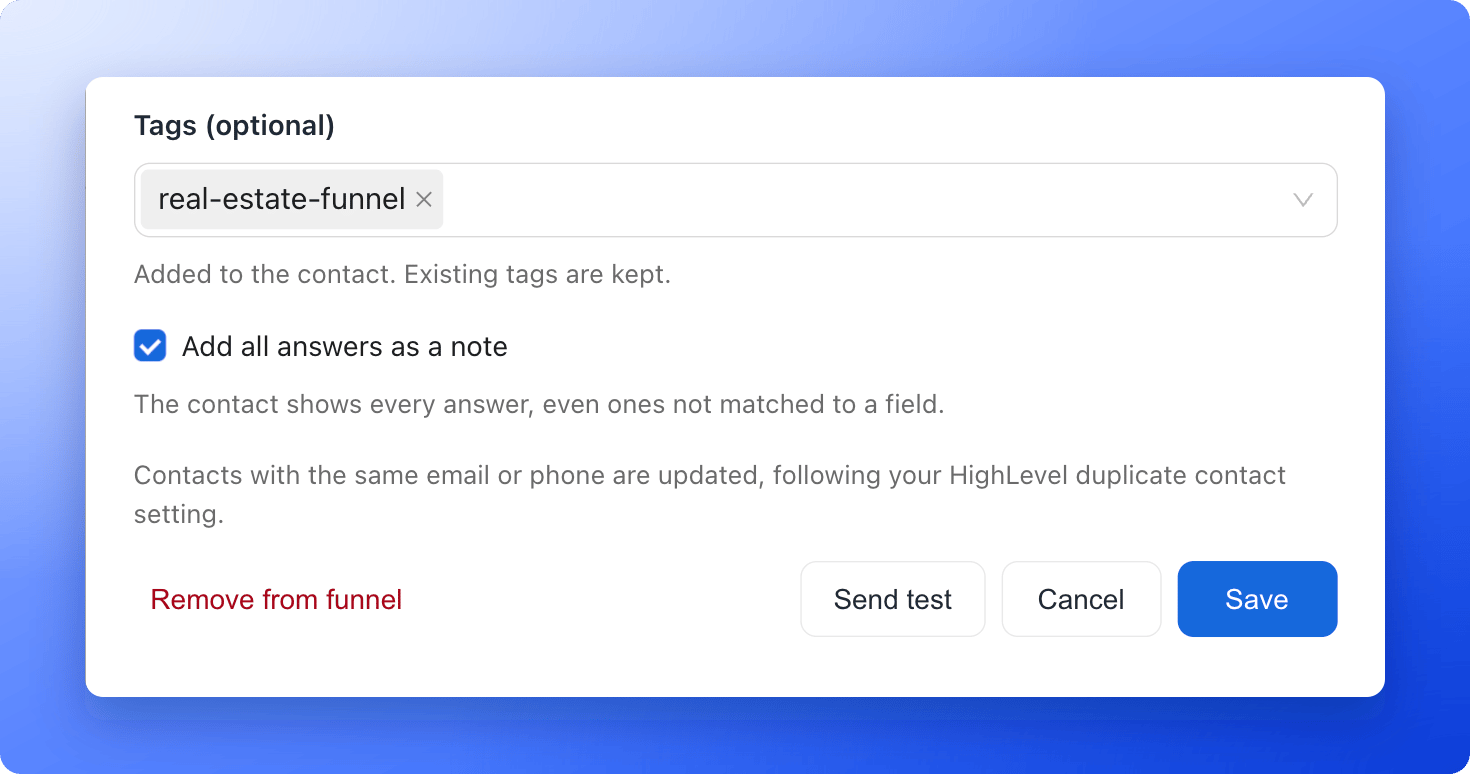 1. Click **"Send test"**. AskFunnel sends a sample lead named **AskFunnel Test** ([test@askfunnel.test](mailto:test@askfunnel.test)) to HighLevel. Open HighLevel to check the contact, then delete it if you like.
2. Click **"Save"**.
And that's it: every new lead now arrives in HighLevel.
1. Click **"Send test"**. AskFunnel sends a sample lead named **AskFunnel Test** ([test@askfunnel.test](mailto:test@askfunnel.test)) to HighLevel. Open HighLevel to check the contact, then delete it if you like.
2. Click **"Save"**.
And that's it: every new lead now arrives in HighLevel.
 ## Tracking where your leads come from
There is nothing to set up. UTM parameters are tags on your link (source, medium, campaign, term and content) that show where a visit came from. When someone lands on your funnel, AskFunnel captures them and the referrer (the page they came from) automatically.
* They always appear in the answers note.
* You can also match them to contact fields, for example **UTM source** to HighLevel's **Source** field.
## Start a HighLevel workflow for new leads
1. In HighLevel, go to **Automation**, then **Workflows**, and click **"Create Workflow"**. Choose **"Start from Scratch"**.
2. Add the **Contact Tag** trigger and set the filter to **Tag Added** with the tag you chose in AskFunnel, for example real-estate-funnel.
3. Add your follow-up steps, such as a text message, an email or a task for your team, and publish the workflow.
Because AskFunnel adds tags last, the contact already has every answer when the workflow starts, so you can use them in your messages and conditions.
## How do I know it is working?
* The GoHighLevel card shows **Connected** and the name of your sub-account.
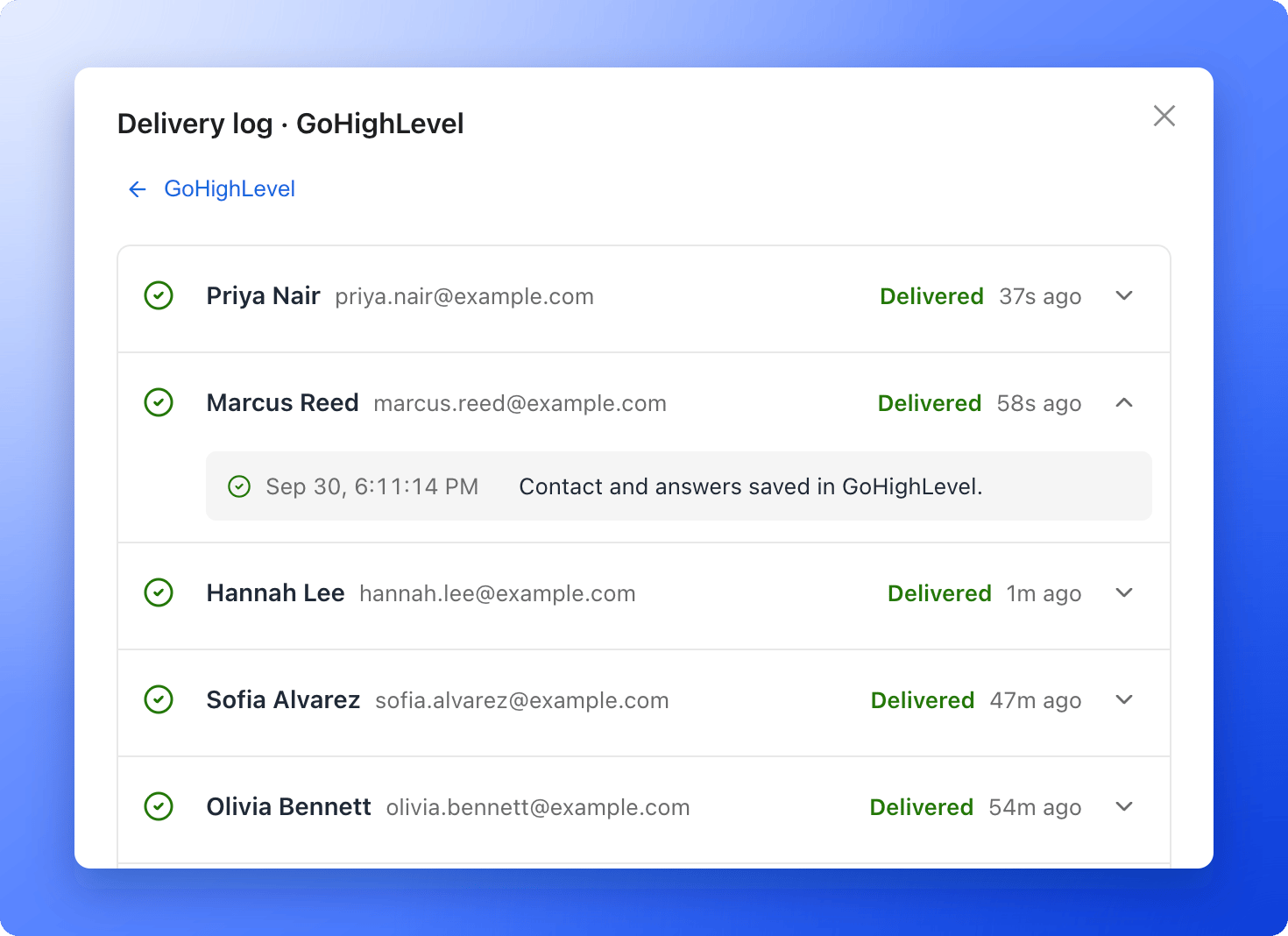
* In the GoHighLevel settings, click **"View delivery log"**. Each lead shows **Delivered**, **Retrying** or **Failed**, and you can open a lead to see every attempt.
* If HighLevel cannot be reached, AskFunnel tries again automatically, up to 7 attempts over about 21 hours. After that, the lead shows **Failed** and you can send it again with **"Retry"**.
* If something needs your attention, the card shows **Needs attention**, and the organization owner gets an email.
## Tracking where your leads come from
There is nothing to set up. UTM parameters are tags on your link (source, medium, campaign, term and content) that show where a visit came from. When someone lands on your funnel, AskFunnel captures them and the referrer (the page they came from) automatically.
* They always appear in the answers note.
* You can also match them to contact fields, for example **UTM source** to HighLevel's **Source** field.
## Start a HighLevel workflow for new leads
1. In HighLevel, go to **Automation**, then **Workflows**, and click **"Create Workflow"**. Choose **"Start from Scratch"**.
2. Add the **Contact Tag** trigger and set the filter to **Tag Added** with the tag you chose in AskFunnel, for example real-estate-funnel.
3. Add your follow-up steps, such as a text message, an email or a task for your team, and publish the workflow.
Because AskFunnel adds tags last, the contact already has every answer when the workflow starts, so you can use them in your messages and conditions.
## How do I know it is working?
* The GoHighLevel card shows **Connected** and the name of your sub-account.
* In the GoHighLevel settings, click **"View delivery log"**. Each lead shows **Delivered**, **Retrying** or **Failed**, and you can open a lead to see every attempt.
* If HighLevel cannot be reached, AskFunnel tries again automatically, up to 7 attempts over about 21 hours. After that, the lead shows **Failed** and you can send it again with **"Retry"**.
* If something needs your attention, the card shows **Needs attention**, and the organization owner gets an email.
 ## Troubleshooting
If you test with the same email or phone more than once, HighLevel updates the existing contact instead of creating a new one. Search HighLevel for that email, or test with a fresh email address.
Open the lead in the delivery log to see the reason, fix it, then click **"Retry"**, or **"Retry failed"** to send all failed leads again. Common reasons:
* None of the fields you send has a usable email or phone, for example the field that holds it is not matched, or HighLevel rejects its format. The lead is still saved in AskFunnel. Match the email or phone field, then click **"Retry"**.
* A HighLevel field you matched was deleted or renamed. Click the refresh icon next to **Fields** and match it again.
* HighLevel access was removed. See the next question.
Open the GoHighLevel settings and click **"Reconnect"**. New leads are sent again right away. Leads that failed while access was broken are listed in the delivery log; click **"Retry failed"** to send them.
You will see a page that says AskFunnel is installed. To finish, connect from your funnel as described in [Setup](#setup).
## Manage the integration
* **Pause it for one funnel:** turn off the switch on the GoHighLevel card. Leads that arrive while it is paused are not sent later.
* **Remove it from one funnel:** open the GoHighLevel settings and click **"Remove from funnel"**.
* **Disconnect a HighLevel account:** in the GoHighLevel settings, click **"Manage accounts"**, then **"Remove"** next to the account.
When you remove an account, every funnel that uses it stops sending leads to HighLevel, and AskFunnel uninstalls its app from that sub-account. If you connect the same account again later, those funnels start sending again, except any you paused yourself. Contacts already in HighLevel stay there.
## What to do next
Every new lead becomes a row in your spreadsheet.
Connect Zapier, Make, n8n or your own server.
Send a welcome email the moment someone submits.
Connect Meta Pixel to see which ads bring leads.
Need help? Email [support@askfunnel.com](mailto:support@askfunnel.com).
## Troubleshooting
If you test with the same email or phone more than once, HighLevel updates the existing contact instead of creating a new one. Search HighLevel for that email, or test with a fresh email address.
Open the lead in the delivery log to see the reason, fix it, then click **"Retry"**, or **"Retry failed"** to send all failed leads again. Common reasons:
* None of the fields you send has a usable email or phone, for example the field that holds it is not matched, or HighLevel rejects its format. The lead is still saved in AskFunnel. Match the email or phone field, then click **"Retry"**.
* A HighLevel field you matched was deleted or renamed. Click the refresh icon next to **Fields** and match it again.
* HighLevel access was removed. See the next question.
Open the GoHighLevel settings and click **"Reconnect"**. New leads are sent again right away. Leads that failed while access was broken are listed in the delivery log; click **"Retry failed"** to send them.
You will see a page that says AskFunnel is installed. To finish, connect from your funnel as described in [Setup](#setup).
## Manage the integration
* **Pause it for one funnel:** turn off the switch on the GoHighLevel card. Leads that arrive while it is paused are not sent later.
* **Remove it from one funnel:** open the GoHighLevel settings and click **"Remove from funnel"**.
* **Disconnect a HighLevel account:** in the GoHighLevel settings, click **"Manage accounts"**, then **"Remove"** next to the account.
When you remove an account, every funnel that uses it stops sending leads to HighLevel, and AskFunnel uninstalls its app from that sub-account. If you connect the same account again later, those funnels start sending again, except any you paused yourself. Contacts already in HighLevel stay there.
## What to do next
Every new lead becomes a row in your spreadsheet.
Connect Zapier, Make, n8n or your own server.
Send a welcome email the moment someone submits.
Connect Meta Pixel to see which ads bring leads.
Need help? Email [support@askfunnel.com](mailto:support@askfunnel.com).