> ## Documentation Index
> Fetch the complete documentation index at: https://help.askfunnel.com/llms.txt
> Use this file to discover all available pages before exploring further.
# Let visitors book a call with Calendly or Cal.com
> Open a Calendly or Cal.com booking popup after a visitor submits your form, and see each booking on the lead.
Available on: **all plans** (Starter, Growth, Scale and Enterprise). Connecting your calendar account for live booking updates needs **the Growth plan and above**.
Turn a new lead into a booked call. After someone submits your form, a booking popup from Calendly or Cal.com opens, and the lead is marked as booked when they pick a time. On the Growth plan and above, you can also connect your calendar account, so AskFunnel adds the booking's link and time to the lead.
With calendar booking, you can:
* **Book calls inside your funnel.** The booking popup opens right after the form is submitted, so the lead is saved even if the visitor does not book.
* **See who booked.** Your leads table gets an **Appointment** column with a status dot: **Booked**, **Rescheduled** or **Cancelled**.
* **Open and track the booking from the lead.** With your calendar connected, the **Appointment** column shows the date and time, and clicking it opens the booking page on Calendly or Cal.com, where you can reschedule or cancel. AskFunnel also updates the lead when a visitor reschedules or cancels.
**Before you start**, you need:
* A booking link from Calendly or Cal.com, for example the link of one event type. Create it in your calendar tool first.
* A form that asks for an email or a phone number. A booking is attached to a lead, and AskFunnel only saves a lead when one of them is given. See [Set up your lead capture form](/funnels/lead-capture-forms).
## Important to note
If a visitor closes the popup without booking, they stay on the form page and their lead is still saved. After a visitor books, the funnel continues to the next step you set for the form.
## Setup
1. Open your funnel in the builder and go to the page with your lead form.
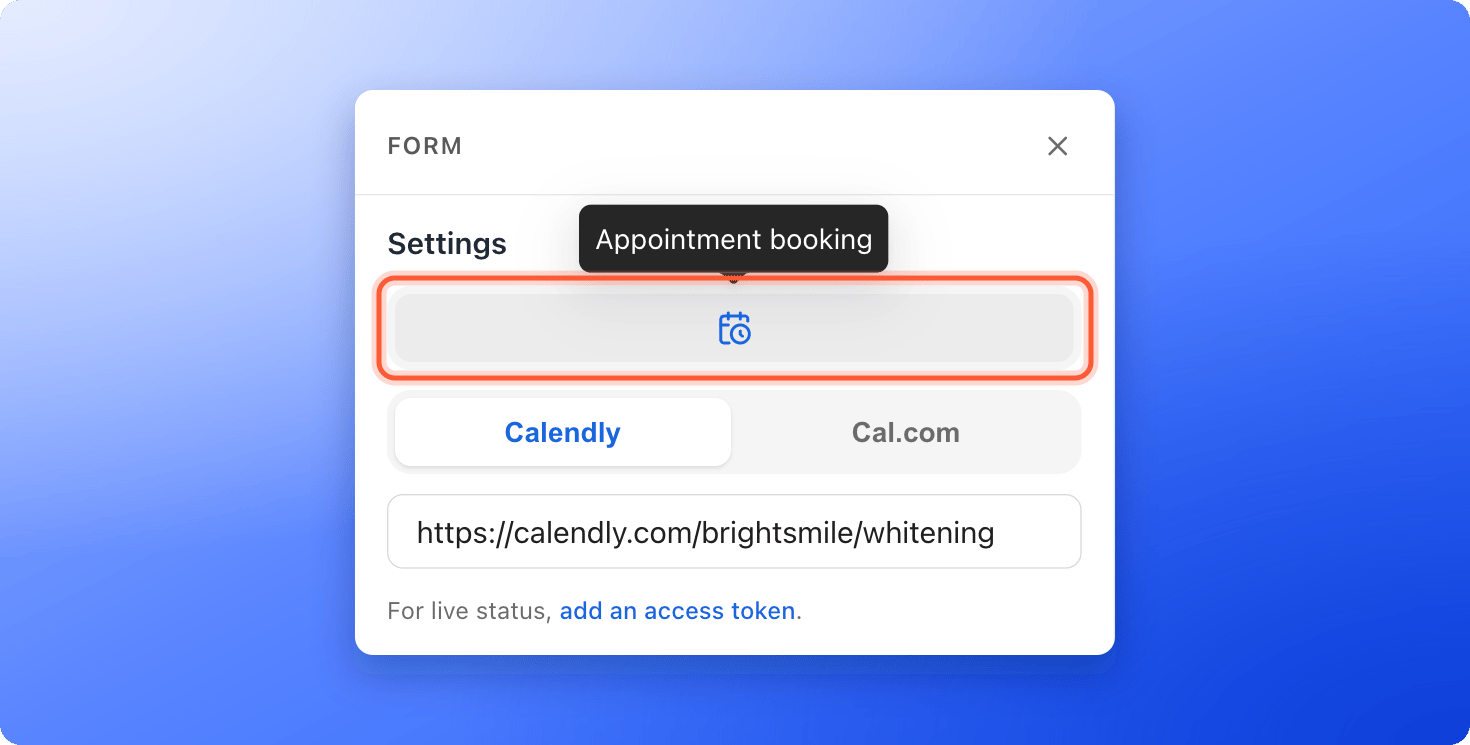
2. Click the form. Its settings panel opens.
3. Under **Settings**, click the calendar icon to turn on **Appointment booking**. Hover over the icon to see its name.
4. Choose **Calendly** or **Cal.com**.
5. Paste your event link, for example calendly.com/summit-realty/home-tour or cal.com/summit-realty/home-tour.
6. Click **"Publish Funnel"** at the top right to make it live.
 1. Open your published funnel and fill in the form. Click the submit button.
2. The booking popup opens. Pick a time to book.
3. In your leads table, find the lead. The **Appointment** column shows **Booked**.
A test booking is a real booking in Calendly or Cal.com. Cancel it there when you are done.
This step needs the Growth plan or above and a Workspace Admin or Global Admin role. You connect a calendar once per workspace, and then every funnel in the workspace can use it. Calendly also needs a paid Calendly plan for live updates, because they rely on Calendly webhooks (automatic messages from Calendly to AskFunnel).
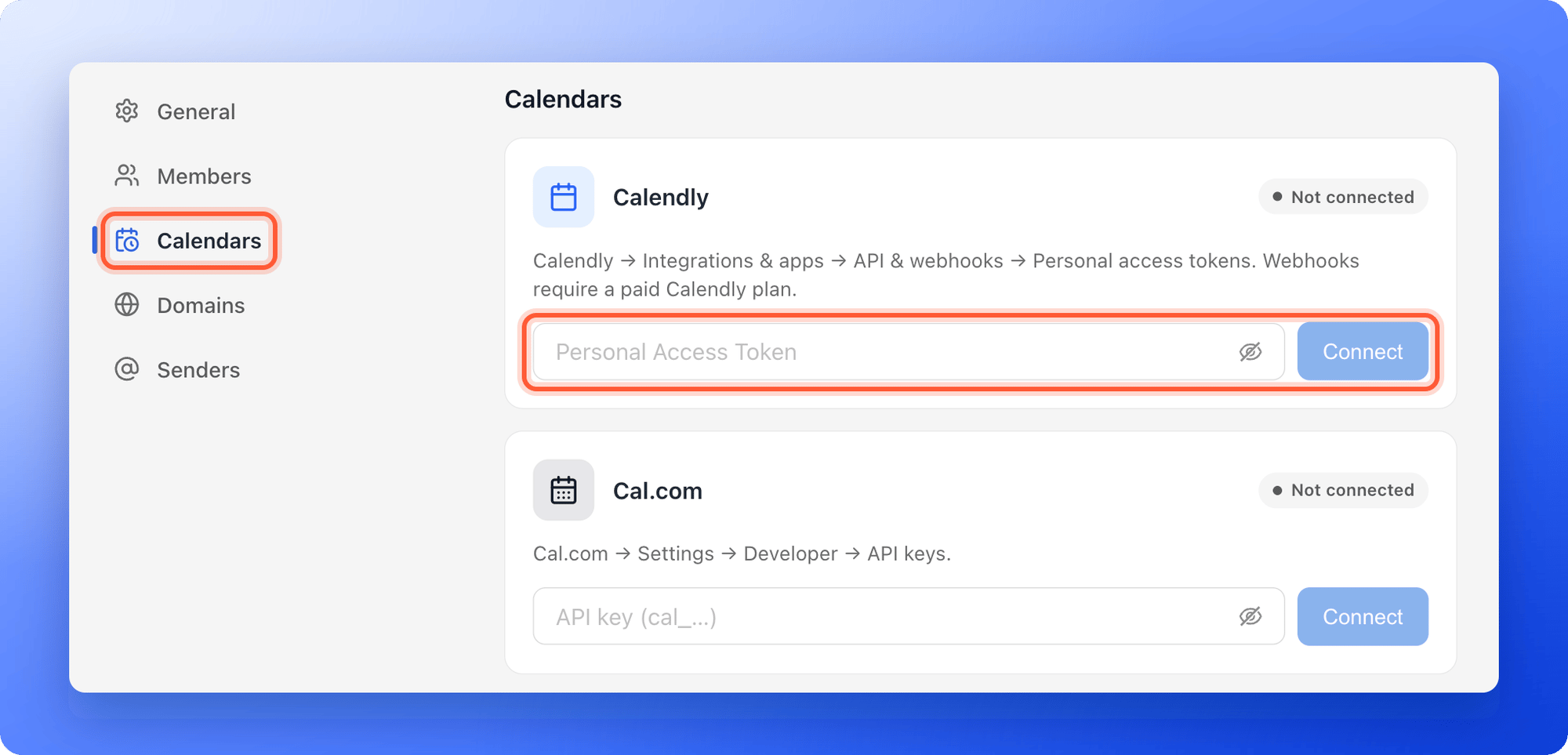
1. On the **Workspaces** page, open the menu of your workspace and click **"Workspace settings"**.
2. On the left side menu, click **"Calendars"**.
3. Choose your calendar tool:
* **Calendly:** paste your **Personal Access Token** and click **"Connect"**. In Calendly, go to **Integrations & apps**, then **API & webhooks**, then **Personal access tokens**, and create one.
* **Cal.com:** paste your **API key**, which starts with cal\_, and click **"Connect"**. In Cal.com, go to **Settings**, then **Developer**, then **API keys**, and create one.
4. AskFunnel shows **Calendly connected.** or **Cal.com connected.**, and the card shows **Connected**.
1. Open your published funnel and fill in the form. Click the submit button.
2. The booking popup opens. Pick a time to book.
3. In your leads table, find the lead. The **Appointment** column shows **Booked**.
A test booking is a real booking in Calendly or Cal.com. Cancel it there when you are done.
This step needs the Growth plan or above and a Workspace Admin or Global Admin role. You connect a calendar once per workspace, and then every funnel in the workspace can use it. Calendly also needs a paid Calendly plan for live updates, because they rely on Calendly webhooks (automatic messages from Calendly to AskFunnel).
1. On the **Workspaces** page, open the menu of your workspace and click **"Workspace settings"**.
2. On the left side menu, click **"Calendars"**.
3. Choose your calendar tool:
* **Calendly:** paste your **Personal Access Token** and click **"Connect"**. In Calendly, go to **Integrations & apps**, then **API & webhooks**, then **Personal access tokens**, and create one.
* **Cal.com:** paste your **API key**, which starts with cal\_, and click **"Connect"**. In Cal.com, go to **Settings**, then **Developer**, then **API keys**, and create one.
4. AskFunnel shows **Calendly connected.** or **Cal.com connected.**, and the card shows **Connected**.
 You can also connect from the form's settings. Under the booking link, click **add an access token** (Calendly) or **add an API key** (Cal.com). Your token or key is checked with Calendly or Cal.com, stored encrypted and never shown again. AskFunnel uses it to set up a booking webhook on your account, so new bookings, reschedules and cancellations reach your leads.
## How do I know it is working?
* In **Workspace settings**, then **Calendars**, the card of your calendar tool shows **Connected**.
* After a test booking, the lead's **Appointment** column shows a green dot for **Booked**. With your calendar connected, it also shows the date and time.
* When you reschedule the booking in Calendly or Cal.com, the dot turns amber for **Rescheduled**. When you cancel, it turns red for **Cancelled**.
## Troubleshooting
Check these, in order:
* **Appointment booking** is on, and a booking link is pasted. If the link is empty or cannot be used, the funnel moves on without the popup.
* You clicked **"Publish Funnel"** after changing the form.
* You are testing on the published funnel, and the popup opens after you submit the form, not when the page loads.
* Your browser or ad blocker is not blocking Calendly or Cal.com.
* The link is the link of a real event type. Open it in a new tab to check.
Calendly or Cal.com did not accept it. Create a new token in **Integrations & apps**, **API & webhooks** for Calendly, or **Settings**, **Developer**, **API keys** for Cal.com, then paste it and click **"Connect"** again.
Connecting your calendar account needs the Growth plan or above. Click **"Upgrade to Growth"** or see [Upgrade your plan](/billing/upgrade). Booking popups keep working on every plan.
The booking's date and link need the Growth plan or above. With Calendly, they also need your calendar account to be connected. Updates for reschedules and cancellations need your account to be connected with either tool, and a paid plan if you use Calendly. Connect your account as described in [Setup](#setup), then try a new booking.
Open the lead in your leads table and check the **Appointment** column. A visitor who only opened the popup and closed it has no booking. Their lead is saved without an appointment.
## Manage the integration
* **Change the booking link:** open the form's settings in the builder, edit the link and click **"Publish Funnel"**.
* **Switch between Calendly and Cal.com:** choose the other one in the form's settings, paste its link and click **"Publish Funnel"**.
* **Stop showing the popup:** turn off **Appointment booking** in the form's settings and click **"Publish Funnel"**.
* **Disconnect your calendar account:** in **Workspace settings**, then **Calendars**, click **"Disconnect"** on its card and confirm.
When you disconnect, new bookings stop adding meeting links to leads. You can reconnect any time. The booking popup in your funnels keeps working.
## What to do next
Every new lead becomes a contact in HighLevel.
See each lead and its Appointment status.
Confirm the call with a welcome email.
Need help? Email [support@askfunnel.com](mailto:support@askfunnel.com).
You can also connect from the form's settings. Under the booking link, click **add an access token** (Calendly) or **add an API key** (Cal.com). Your token or key is checked with Calendly or Cal.com, stored encrypted and never shown again. AskFunnel uses it to set up a booking webhook on your account, so new bookings, reschedules and cancellations reach your leads.
## How do I know it is working?
* In **Workspace settings**, then **Calendars**, the card of your calendar tool shows **Connected**.
* After a test booking, the lead's **Appointment** column shows a green dot for **Booked**. With your calendar connected, it also shows the date and time.
* When you reschedule the booking in Calendly or Cal.com, the dot turns amber for **Rescheduled**. When you cancel, it turns red for **Cancelled**.
## Troubleshooting
Check these, in order:
* **Appointment booking** is on, and a booking link is pasted. If the link is empty or cannot be used, the funnel moves on without the popup.
* You clicked **"Publish Funnel"** after changing the form.
* You are testing on the published funnel, and the popup opens after you submit the form, not when the page loads.
* Your browser or ad blocker is not blocking Calendly or Cal.com.
* The link is the link of a real event type. Open it in a new tab to check.
Calendly or Cal.com did not accept it. Create a new token in **Integrations & apps**, **API & webhooks** for Calendly, or **Settings**, **Developer**, **API keys** for Cal.com, then paste it and click **"Connect"** again.
Connecting your calendar account needs the Growth plan or above. Click **"Upgrade to Growth"** or see [Upgrade your plan](/billing/upgrade). Booking popups keep working on every plan.
The booking's date and link need the Growth plan or above. With Calendly, they also need your calendar account to be connected. Updates for reschedules and cancellations need your account to be connected with either tool, and a paid plan if you use Calendly. Connect your account as described in [Setup](#setup), then try a new booking.
Open the lead in your leads table and check the **Appointment** column. A visitor who only opened the popup and closed it has no booking. Their lead is saved without an appointment.
## Manage the integration
* **Change the booking link:** open the form's settings in the builder, edit the link and click **"Publish Funnel"**.
* **Switch between Calendly and Cal.com:** choose the other one in the form's settings, paste its link and click **"Publish Funnel"**.
* **Stop showing the popup:** turn off **Appointment booking** in the form's settings and click **"Publish Funnel"**.
* **Disconnect your calendar account:** in **Workspace settings**, then **Calendars**, click **"Disconnect"** on its card and confirm.
When you disconnect, new bookings stop adding meeting links to leads. You can reconnect any time. The booking popup in your funnels keeps working.
## What to do next
Every new lead becomes a contact in HighLevel.
See each lead and its Appointment status.
Confirm the call with a welcome email.
Need help? Email [support@askfunnel.com](mailto:support@askfunnel.com).